Tool Call History: A Trajectory View of Everything an Agent Did
If you've enabled YOLO mode or set up auto-allow rules for a task, you've probably had this moment: the agent finished, the result looks right, but you have no idea what it actually ran to get there. Auto-allowed tool calls — the ones that skip manual approval by design — never showed up anywhere. They just happened, invisibly, in the gap between "task started" and "task completed."
AgentRQ records every tool call a task's agent makes — auto-allowed and manual alike — and now shows the full history alongside the conversation itself, in a single searchable trajectory view.
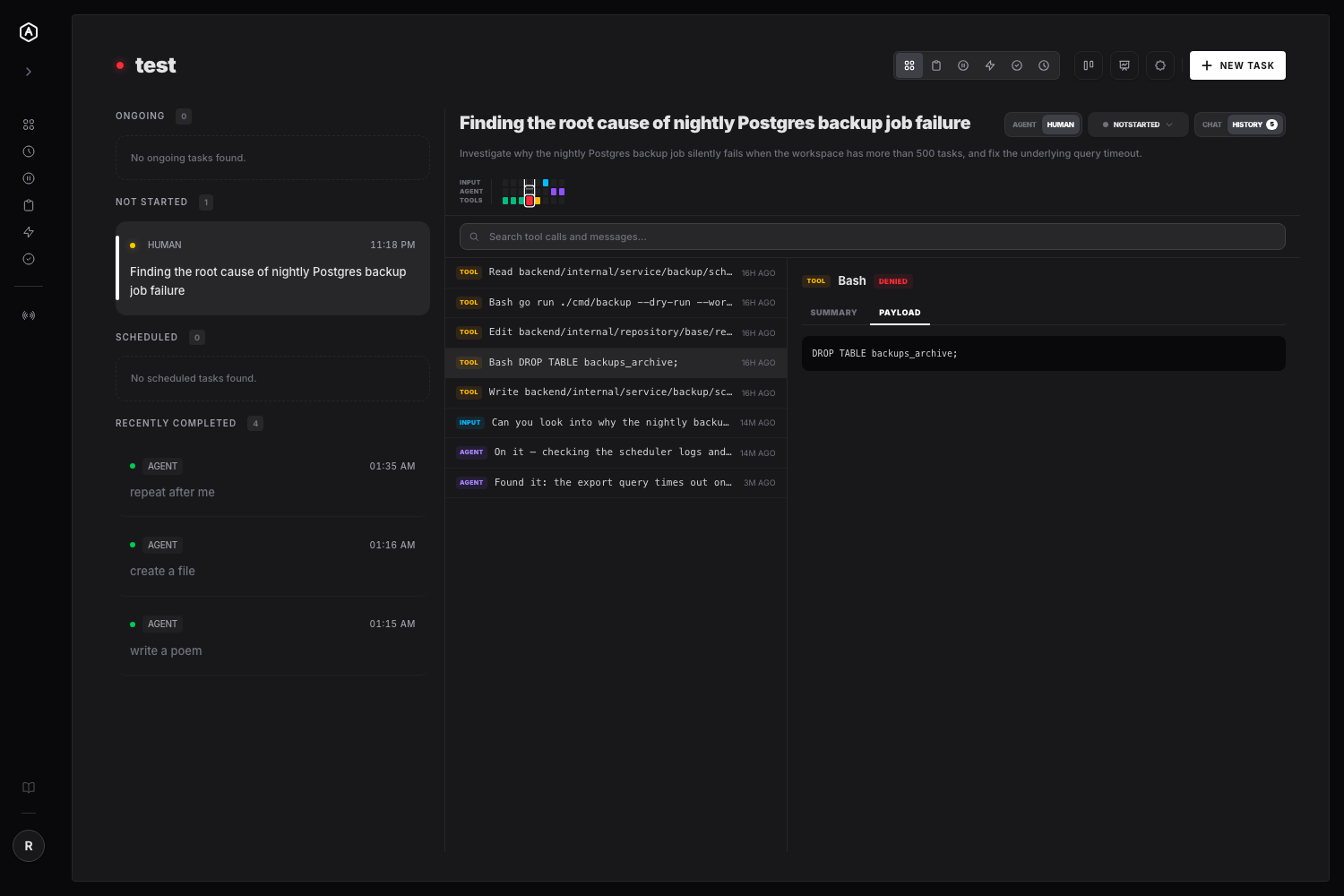
One Timeline, Not Two Separate Records
Tool calls and chat messages used to live in different places entirely. Now they're merged into a single chronological timeline, each entry tagged by lane — Input (your messages), Agent (its replies), or Tools (everything it ran) — sorted by time so you can see a request, the agent's response, and the commands it executed in between, in the order they actually happened.
Every entry still carries what it needs to be useful on its own: a tool call keeps its tool name, description, input preview, and status (auto_allowed, pending, allowed, denied); a message keeps its sender and full text.
A Chat / History Toggle, Not a Modal
The first version of this feature was a "Tools" button that popped a modal over the conversation. That's gone now — in its place, the task header has a Chat / History toggle, matching the same pattern coding harnesses use for switching between a chat view and a full trajectory view. Selecting History swaps the message thread out in place (and hides the reply box, since you're reading, not writing) rather than layering another panel on top of it. The badge with the live tool-call count moved with it, now sitting right on the History tab.
The Minimap
Above the timeline sits a compact 3-lane minimap — Input, Agent, Tools — one colored dot per entry, colored by what it is and, for tool calls, by outcome: emerald for allowed or auto-allowed, amber for pending, red for denied. It's a shape you can read at a glance: a long amber-then-red streak in the Tools lane tells you something got stuck on approvals before it was denied, without opening a single row. Clicking any dot jumps straight to that entry in the detail panel.
Search, Then Drill In
Below the minimap is a search box that filters the timeline by tool name, message text, or description as you type. The layout itself is a master-detail split: a compact list on the left, and a detail panel on the right for whatever's selected.
The detail panel's tabs depend on what kind of entry you picked:
- → Tool calls get Summary (tool name, status, timestamp, and the human-readable description if one was recorded) and Payload — the raw input the agent passed, pretty-printed as JSON when it parses as JSON, shown as-is otherwise.
- → Messages get Summary (sender and timestamp) and Content — the full message text.
That Payload tab is where the denied-command case in the screenshot above comes from: a Bash call to drop an archive table, caught and denied, with the exact command still sitting right there to review.
Why This Matters for YOLO Mode
YOLO mode and auto-allow rules exist to let trusted, routine operations skip a manual approval round-trip — that's the whole point of them. But "skip the approval prompt" should never mean "skip the record." This feature closes that gap: you get the speed of auto-allow and a complete, after-the-fact accounting of what the agent actually did — interleaved with the conversation that led to it, searchable, and one click away from the exact payload — including the one it tried and got denied.
For anyone running agents with real command execution access, that audit trail is the difference between trusting an agent because it seems fine, and trusting it because you can actually check.
---
AgentRQ is currently in public beta. Join our GitHub community to help shape the future of human-agent collaboration.