Find It, Answer It, Move On
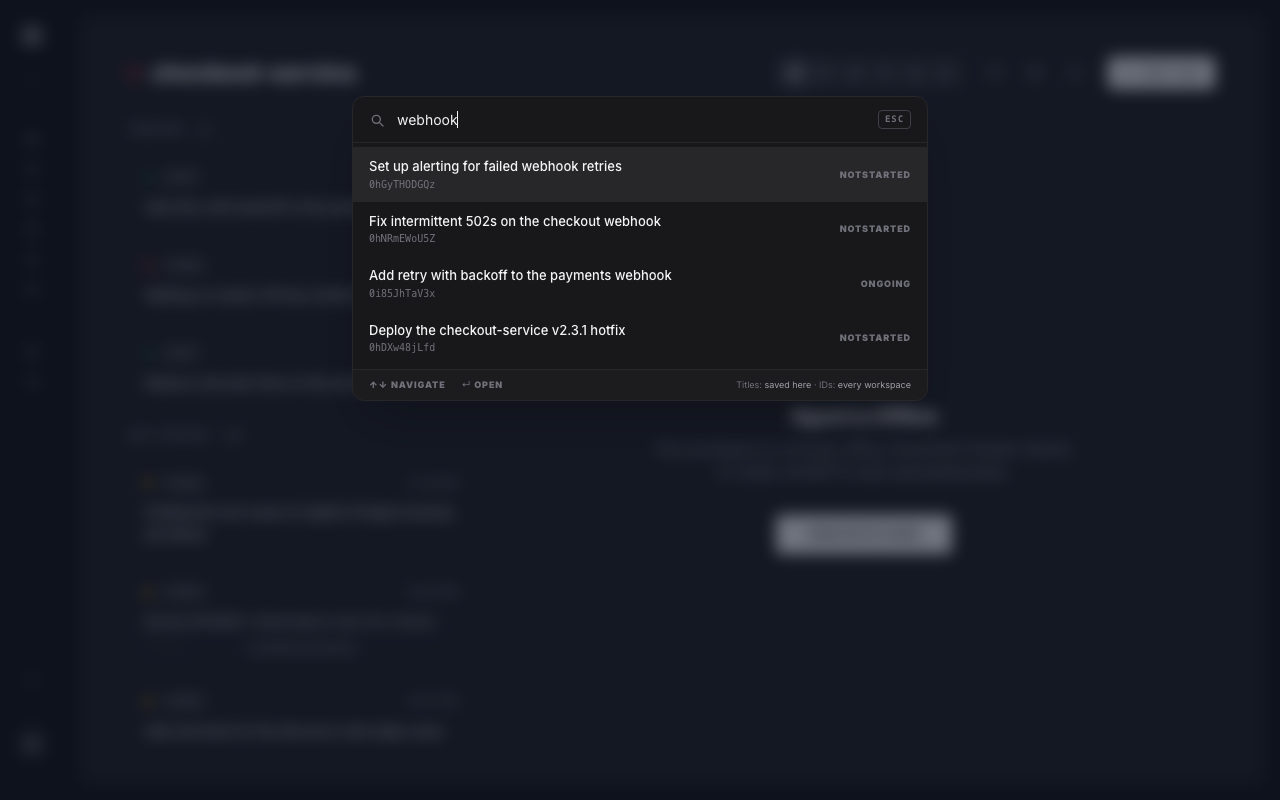
Press ⌘K, type a word, and the finder narrows the tasks saved on your device without asking the server. Single letters do the rest.
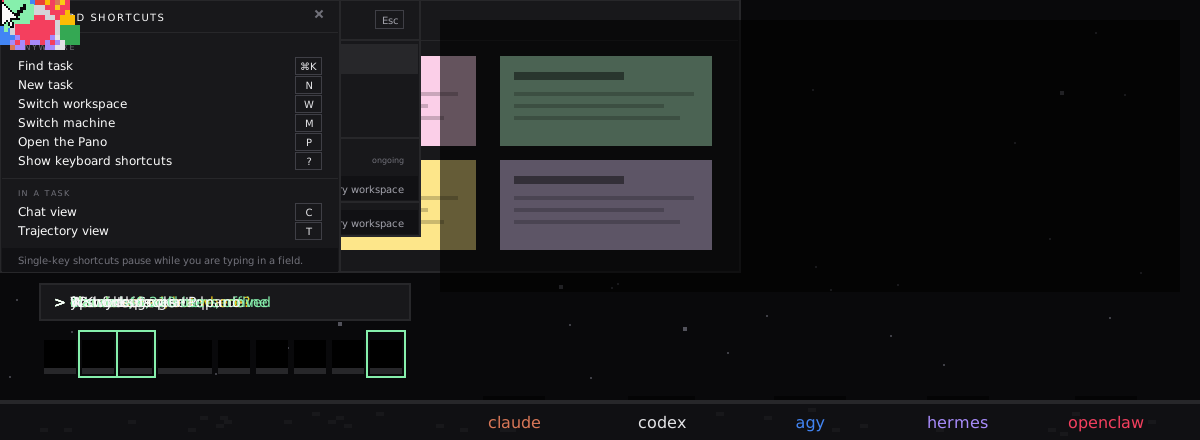
⌘K opens a task finder that searches the titles and descriptions of every task saved on your device. N files a new one. W jumps to another workspace, M to one of your machines. ? shows you the whole list. That is the entire scheme — there is nothing to configure and no chord to memorise twice.
Live capture from the AgentRQ app — ⌘K, seven characters typed, the list narrowing on every keystroke, Enter to open, then T and back to chat switching views inside the task.
Press ⌘K, type a word, and the finder narrows the tasks saved on your device without asking the server. Single letters do the rest.
Seven bindings, one table. That is the entire web app — and it is the same table the app renders its help sheet from.
| Key | Does | Scope |
|---|---|---|
| ⌘K / Ctrl+K | Find task by ID | Anywhere |
| N | New task | Anywhere |
| W | Switch workspace — search by name and jump | Anywhere |
| M | Switch machine — search by name and open one | Anywhere |
| ? | Show keyboard shortcuts | Anywhere |
| C | Chat view — the message thread | In a task |
| T | Trajectory view — reasoning and tool calls | In a task |
The modifier follows the keyboard: the app renders ⌘K on a Mac and Ctrl+K everywhere else. On the desktop build that answer comes from the shell itself, which knows the platform for certain; in the browser it comes from the navigator, the only thing there that can answer “does this keyboard have a Command key.”
Not a style choice. The obvious chords are already spoken for by the browser and the operating system, and an event that never reaches the page cannot run a handler.
Claimed by every browser's own menu. Adding Shift does not help — that is New Incognito Window.
Handled by the macOS window server before any application — browser or desktop app — is offered the event at all.
Standard in the macOS Window menu. A handler bound here would document a key that quietly does nothing — so the machine switcher is the bare M.
About the least recoverable thing a shortcut on this letter could do. Which is why switching workspace is the bare W — and why ⌘W still closes the tab.
⌘K is the one modifier combination browsers leave to the page, which is why Linear, GitHub, Jira and Gmail all landed on the same answer. Everything else is a bare letter, and a bare letter collides with nothing at all.
There was briefly a Cmd/Ctrl+Shift alternate for
each action. It was removed: in a browser most of those chords never arrive either, and the ones
that did were redundant with a bare letter that the help sheet was already advertising. One
binding to explain, one thing that can break.
N opens the task form from the board — but typing
“not started” into a reply box has to stay text. So single-key shortcuts pause inside
INPUT,
TEXTAREA and
SELECT elements, inside anything
contenteditable, and inside any region the page has
explicitly opted out.
⌘K is the deliberate exception: it stays live while you type, because the finder is how you leave a screen you are writing on.
A single-key shortcut fires only when no Command, Control or Alt key is held. Hold one and the keystroke belongs to the browser or the system, so it is left alone: ⌘M still minimises the window and ⌘C still copies.
And a view can take over a key from the shell. Registrations are a stack, newest first, so a task's C and T sit on top of the global handlers for exactly as long as that task is open.
The finder tries the cheapest, widest search first and only reaches for the network when the others have come up empty.
Titles and descriptions of every task cached locally, with no request at all. Each word is a seek into a term index rather than a scan, so cost tracks the number of matching terms, not the number of tasks — and it works offline.
When a device has no local cache, the box filters the 50 most recent tasks the API returns. Ranking is exact ID, then ID prefix, then title substring — eight results.
Task IDs are always exactly 11 characters, so an ordinary word can never trigger this. Only when the other searches return nothing, and only on Enter, does the app ask every workspace you own — in parallel.
Typing bill
finds billing, without the index storing every prefix of every word.
Terms intersect rather than accumulate, so a second word always cuts the result list down instead of widening it.
The tokeniser splits on letters and numbers in any script, so “café” and non-Latin titles survive intact.
The two searches do not reach the same distance, so the panel says which one answered. The footer
reads Titles: saved here when the local index did
the work, or Titles: 50 recent — however many it actually loaded — when only the
fallback could — and the placeholder changes to match.
A box that hid the difference would mislead whoever searches a title, finds nothing, and concludes the task is gone. The empty state is just as blunt about it: “A task you have never opened here was never saved — paste its ID to search every workspace.”
The local index only covers tasks cached on that device, and caching is per-workspace and can be switched off. It is a real search, not a promise to search everything.
W anywhere in the app opens a palette of your workspaces. Type part of a name, press Enter, and you are there. It is deliberately the same overlay as ⌘K — same rows, same ↑↓↵Esc — because it answers the same shape of question, and a second idiom for “search a list and go somewhere” would be a second thing to learn.
The workspace list is already loaded — the sidebar beside you renders from it. So the switcher has no loading state to show and works offline for exactly the same reason the sidebar does.
The exact name first, so blog stays reachable
next to blog-drafts. Then a prefix. Then a fragment anywhere in the name —
api finds payments-api, which is most of
how these get named. Then a whole workspace ID, for one pasted out of a URL or an MCP config.
The sidebar lists archived workspaces, so dropping them here would make the switcher disagree with the navigation next to it. They sort below the active ones and say Archived on the row — but type the whole name and that one still wins.
Every row carries the same live agent dot as the sidebar — green when that workspace's agent is connected, grey when it is not. Which agents are up is most of why you switch workspace in the first place, so it belongs on the row you are choosing from rather than on the screen you land on.
The workspace you are already in is marked Current rather than dropped from the list: a switcher that silently omits where you are makes you wonder whether it is listing everything. Ten rows fit without scrolling, so for most accounts the whole list is on screen before you have typed anything.
M anywhere in the app opens the same box over your machines. Type part of a name, press Enter, and you land on that machine's page — the launcher, its sessions and its resource readings.
Unlike workspaces, machines are not already loaded beside you, so the list is fetched each time the box opens. That also means the online dots are current, not whatever they were when the page loaded.
Exact name, then prefix, then a fragment anywhere — then the hostname, for a machine that was renamed but is still known by the name its terminal prompt prints. An unnamed machine is found by its hostname, as its row shows it.
You open a machine to launch or watch an agent, and only an online one can do that, so it sorts first among equally good matches. Offline machines stay listed, so the switcher agrees with the machines page.
Each row shows how many agents that machine is running, marks a disabled machine Off and the one you are on Current.
People paste task IDs into commit messages and chat threads, so it is worth saying plainly: every
lookup on this path is answered with all three columns in the
WHERE clause.
There is no lookup by task ID alone anywhere in this path. An ID you were not meant to have resolves to nothing, in every workspace.
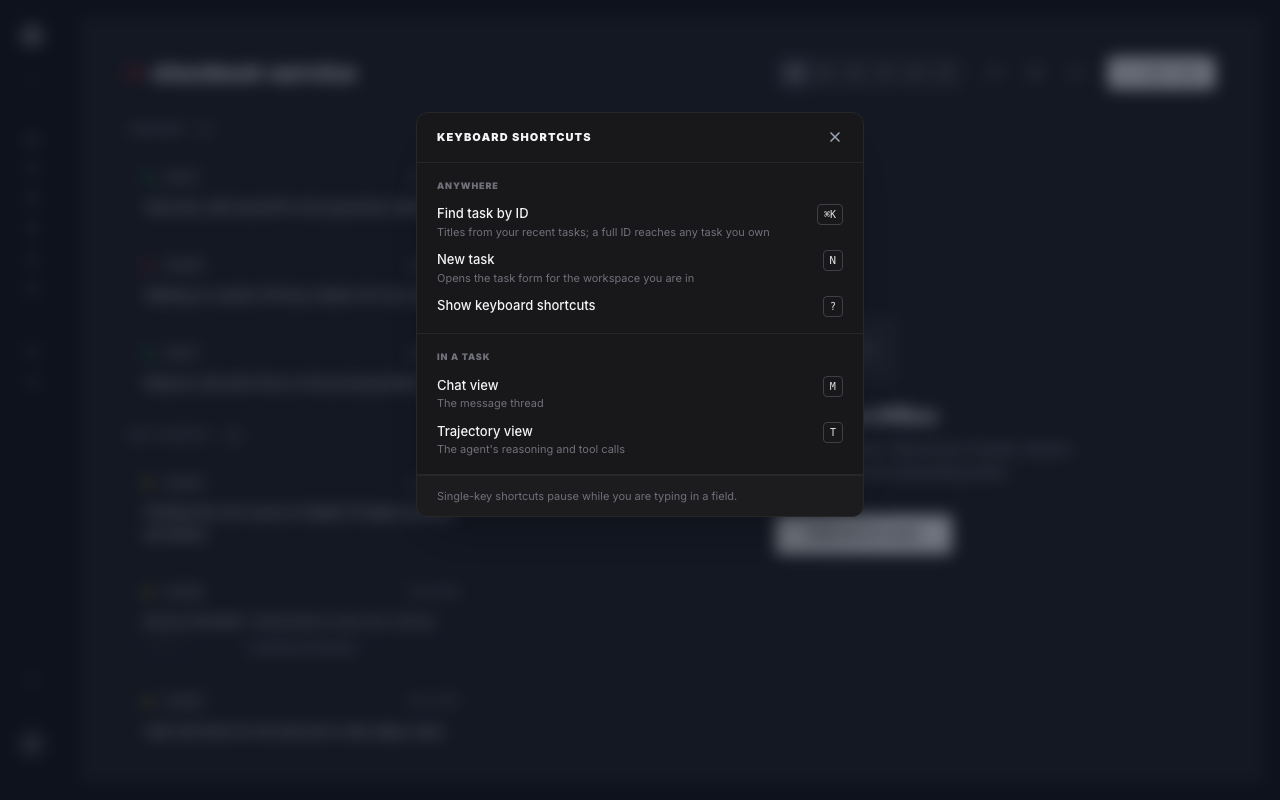
The finder, the workspace and machine switchers and this sheet are keyboard-only. In the web app there is no button, no menu item and no icon that opens any of them, so ? is the discovery path — that is worth knowing before you go looking for a click target that is not there. (C and T are the exception: each is shown in the tooltip on its own view toggle.)
The sheet is generated from the same table that implements the bindings, grouped into Anywhere and In a task. The documentation cannot drift from the behaviour, because there is only one of them.
Inside a task, C is the chat thread and T is the trajectory — the agent's reasoning and tool calls. They exist only while a task is open, so pressing them on the board does nothing, which is correct.
C for chat. It used to be M for messages, until the machine switcher needed the letter. C does not fight copying: a bare letter never fires with a modifier held, so ⌘C still copies.
The desktop app adds ⌘⇧N / Ctrl+Shift+N for a new task, wired both to the application menu and to a global shortcut in the main process — so it fires even when the window is not focused. The menu is also the one clickable route to the task form. Neither exists in the browser.
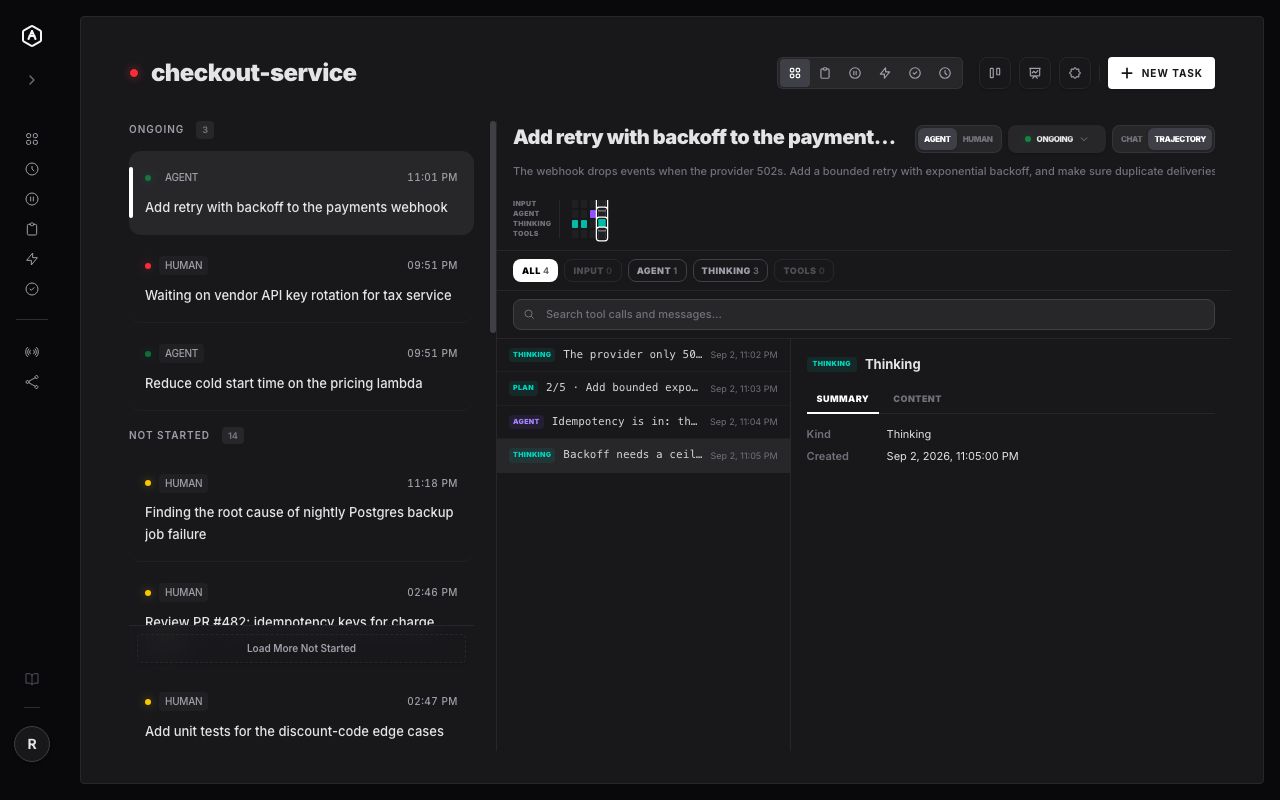
Open it with nothing typed and it shows your most recent tasks rather than a blank panel — the resting state of the box is still useful.
The W workspace switcher and the M machine switcher answer to the same four keys, with ↵ reading Switch on the workspace one. Learn the box once and you have learned all three.