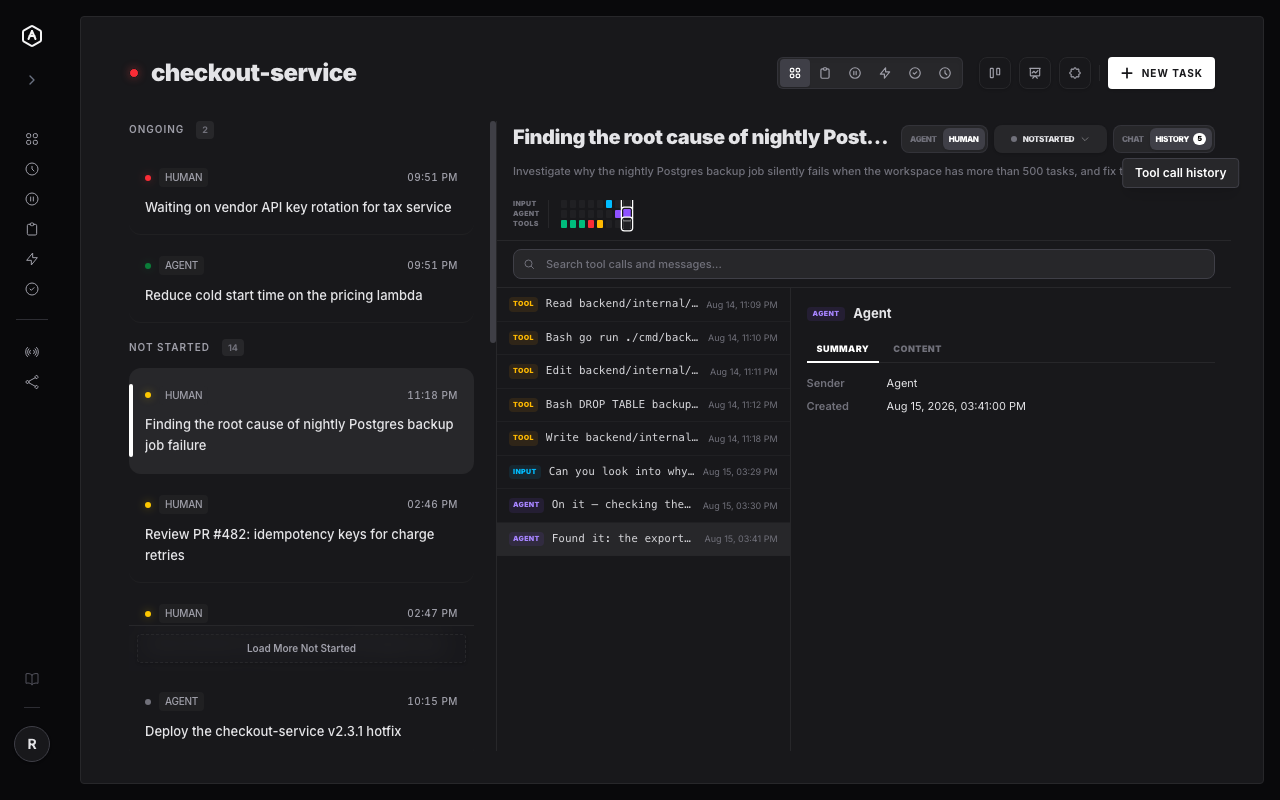
The task detail view's History tab lays out a lane-grouped timeline of every tool call and message in a run — Input, Agent, and Tools. Search it, click into any entry, and see exactly what ran, what it returned, and whether it was allowed or denied.
Live capture from the AgentRQ app — opening the History tab, then inspecting an auto-allowed and a denied tool call.
One tab, every action the agent took, in order.
Every task detail view has CHAT and HISTORY tabs. History switches from the conversation thread to a minimap of Input, Agent, and Tools lanes — with a live count badge of how many tool calls the run made.
Search tool calls and messages by keyword, or scan the color-coded minimap dots to jump straight to a specific moment in a long-running task.
Click a tool call to see its tool name, status (auto-allowed, allowed, or denied), a human-readable summary, and the full input/payload that was sent — a complete audit trail for every risky action.
The lane strip at the top groups every event into Input, Agent, and Tools rows, so you can see the shape of a run at a glance before diving in — a burst of tool calls, a long silence, a human reply in the middle.
Below it, the search box filters the full list of tool calls and messages by keyword, and the list itself is ordered chronologically — reads, bash commands, edits, writes, and the messages that surrounded them, exactly as they happened.