Connect Stakpak to WebMCP
Connect Stakpak to WebMCP: let it call websites' WebMCP tools in your own signed-in Chrome through the AgentRQ Chrome extension and ACP Gateway.
Stakpak can call the tools websites offer through WebMCP (search a docs site, file a ticket, read a dashboard) in your own signed-in Chrome, without running in a browser itself. It takes two pieces: the AgentRQ Chrome extension, which shares a site's tools with an AgentRQ workspace, and the open-source ACP Gateway, which runs Stakpak and hands it that workspace's tools. This guide sets up both, step by step.
What Is WebMCP?
WebMCP is a proposed web standard that lets a website offer tools to AI agents. Instead of an agent reading the screen and clicking buttons, the page registers named tools with the browser through document.modelContext. Each tool has a description, a JSON Schema for its input, and a hint saying whether it only reads. An agent calls a tool like searchProducts or createIssue directly and gets structured data back. Our WebMCP explainer goes deeper.
There is a catch: a WebMCP tool lives in a browser tab, so on its own only an agent running inside that browser can call it. A terminal agent like Stakpak cannot.
How Stakpak Reaches a Site's Tools
AgentRQ closes that gap. A call goes from Stakpak to your AgentRQ workspace, from the workspace to your Chrome, runs in the site's tab, and the result comes back the same way:
Stakpak  (started by the ACP Gateway)
   |  callSiteTool, over MCP
   v
Your AgentRQ workspace
   |
   v
The AgentRQ extension in your Chrome
   |
   v
The site's tab, where the tool runs as you
   |
   v
The result goes back up the same path to Stakpak-
1.
The AgentRQ Chrome extension notices sites that register WebMCP tools, and you share one with a workspace.
-
2.
The ACP Gateway starts Stakpak over the Agent Client Protocol and passes every session it opens your workspace's MCP server, the one in
.mcp.json. -
3.
Through that server Stakpak gets three tools:
listSiteTools(the shared sites and their tools),getSiteToolDefinition(one tool's input schema) andcallSiteTool(run it). -
4.
AgentRQ forwards each call to your Chrome, the extension runs it in the site's tab, and the answer goes back to Stakpak.
The call runs as you, with your session on that site. Stakpak never sees your password or cookies, and anything the site does not mark read-only waits for your approval in the task first.
What Is Stakpak?
Stakpak is an infrastructure and DevOps agent framework listed as ACP-compatible, so it can run behind AgentRQ's gateway with no custom integration code.
Stakpak publishes an ACP server to the ACP registry as stakpak, so AgentRQ's gateway can fetch and run it by name — there is nothing to install by hand.
What You Need
- → Google Chrome with WebMCP support, left open while Stakpak works
- → An AgentRQ account with a workspace
- → Node.js 24 or newer, to run
npx @agentrq/acp-gateway - → Nothing to install for Stakpak itself: the gateway fetches it from the ACP registry as
stakpakon first run
Step 1: Install the AgentRQ Chrome Extension
-
1.
Open AgentRQ on the Chrome Web Store and click Add to Chrome.
-
2.
Pin it to the toolbar: open Chrome's extensions menu (the puzzle piece) and pin AgentRQ.
-
3.
Click the AgentRQ icon, or press Alt+Shift+A, and sign in. Sign-in opens in a tab, because Google and GitHub will not show their sign-in inside the popup. Once you are signed in there, the popup is too.
Self-hosting AgentRQ? Right-click the icon, choose Options, and set your server's address first.
Step 2: Turn On WebMCP Detection
Detection is off until you ask for it. Open the popup and click Turn on on the strip that reads "Let AgentRQ notice websites that offer tools to agents", or tick Notice websites that offer tools to agents in Options.
Chrome then asks for access to every site. The extension uses it only to see whether a page registers WebMCP tools, and only in the top frame. Nothing is sent to AgentRQ until you share a site.
Step 3: Share a Site With Your Workspace
-
1.
Open a site that offers WebMCP tools. The AgentRQ icon shows a green count of its tools. agentrq.com is one: it offers
searchPages,lookupPageandnavigate. -
2.
Open the popup. The strip reads "agentrq.com offers 3 WebMCP tools · Share with", next to a workspace picker.
-
3.
Pick the workspace Stakpak will work in, and click Share.
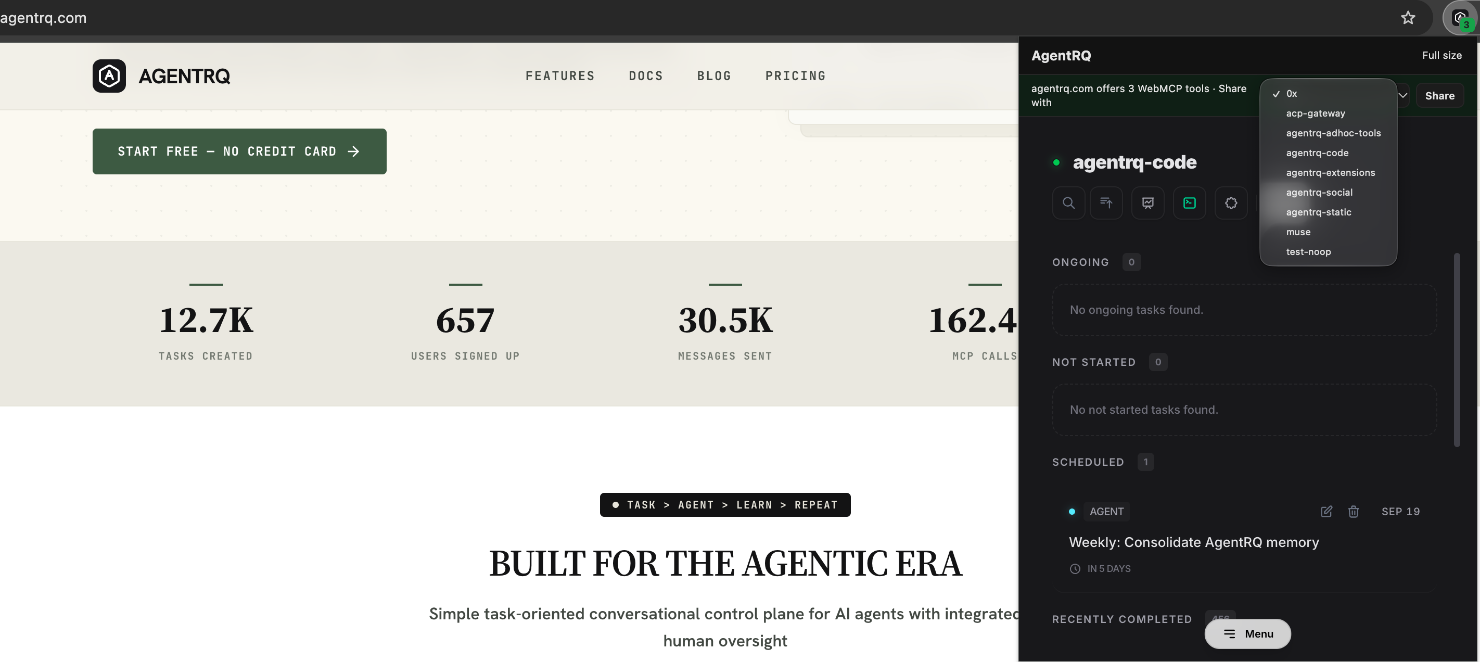
Every agent connected to that workspace can now list and call the site's tools. Stop sharing in the popup, or Stop under Shared websites in Options, takes the site back at any time.
Step 4: Point the Gateway at Your Workspace
Save a .mcp.json in your project root, the folder Stakpak will work in:
{
  "mcpServers": {
    "agentrq": {
      "type": "http",
      "url": "https://WORKSPACE_ID.mcp.agentrq.com/mcp?token=TOKEN"
    }
  }
}
Replace WORKSPACE_ID and TOKEN with your workspace's values; the ACP Gateway guide shows where to find them. The gateway reads this file to know which workspace to take tasks from, and passes the same server to Stakpak. That is how Stakpak gets the site tools: there is nothing to configure on Stakpak's side.
Step 5: Log In to Stakpak
From the project root, log in once. The first run also downloads Stakpak:
npx @agentrq/acp-gateway@latest --login --agent stakpakIf Stakpak offers more than one login method, you are asked to pick one. Stakpak keeps its own credentials; the gateway stores none. You can skip this step: if Stakpak refuses the first session because it needs a login, the gateway logs in and retries by itself.
Step 6: Start Stakpak Behind the ACP Gateway
From the same project root:
npx @agentrq/acp-gateway@latest --agent stakpakLeave it running. It connects to your workspace, picks up tasks as you assign them, and opens an ACP session for Stakpak with the workspace's MCP server attached. Add --verbose before the agent options to watch each MCP connection and tool call.
Step 7: Ask Stakpak to Use the Site
Create a task in the workspace and assign it to the agent. Name the site and say what you want, for example:
Use the WebMCP tools on agentrq.com to find the docs page about workspace memory and summarise it.Stakpak works through it with the workspace's site tools:
-
1.
listSiteToolsshows agentrq.com, whether your Chrome is online, and the site's tools. -
2.
getSiteToolDefinitionwith the sitehttps://agentrq.comand the toolsearchPagesreturns what the tool takes. -
3.
callSiteToolwith the task's ID, the site, the tool and its arguments runs it in your Chrome and returns the result.
Every call shows up in the task's tool call history, so you can see exactly what Stakpak asked the site for.
Approving Tool Calls
Read-only tools, like a search, run straight away. A tool the site does not mark read-only stops and asks you in the task Stakpak is working on, with the tool's name and the exact arguments. You choose Allow once, Always allow that tool on this site, or Deny. "Always allow" is remembered per site and per tool. A denied call comes back to Stakpak as "denied by the human", so it can change course instead of waiting.
Troubleshooting
- → The icon shows no count on a site. Detection is off, or the site registers no WebMCP tools in its top frame. The extension only sees tools a page registers with Chrome's own
document.modelContext; it never adds any, so your Chrome must support WebMCP too. - → Stakpak sees no site tools at all. Check that you shared the site with the same workspace your
.mcp.jsonpoints at. Then start the gateway with--verboseand look for "Not passing MCP server": it means Stakpak told the gateway it cannot use HTTP MCP servers, so it never received the workspace's tools. - → "is not shared with this workspace". The site was shared with a different workspace. The error lists the sites this workspace does have.
- → "the human's Chrome with AgentRQ is not connected". Chrome is closed, or signed out of AgentRQ. Open it and sign in. A closed tab of the site is reopened in the background when the next call needs it.
- → "did not answer within 60 seconds". The site's tab is busy or the tool hung. Each call gets 60 seconds, and a result can be at most 256 KiB.
- → "arguments do not match the schema". Stakpak guessed the input. Ask it to call
getSiteToolDefinitionfirst.
FAQ
Can Stakpak use WebMCP tools?
Yes. With the AgentRQ Chrome extension sharing a site and the ACP Gateway running Stakpak, Stakpak calls that site's WebMCP tools through your AgentRQ workspace, in your own Chrome.
Does Stakpak have to run in a browser?
No. Stakpak runs wherever the gateway runs: your laptop, a build box or a server. Only the Chrome that shared the site has to be open.
Does Stakpak see my passwords or cookies?
No. Each call runs in your signed-in tab of the site, and Stakpak only gets the tool's result.
Can Stakpak change something on a site without asking me?
Only with a tool the site marks read-only, or one you chose "Always allow" for. Every other call waits for your approval in the task.