What to Do When Your .mcp.json Is Compromised
If a .mcp.json file with your AgentRQ workspace in it was committed to a public repository, pasted into a chat, shared in a screenshot or copied off a machine you no longer trust, treat the workspace token inside it as leaked. Go to the workspace's Settings, open Danger Zone, and click Reset ID. The screenshots below show every click. That gives the workspace a new ID and revokes every token issued for the old one, while keeping all your tasks and history. If you would rather throw the workspace away entirely, Purge Workspace revokes the token too, but deletes everything in it.
This page is one of our security guidelines. It was checked against the AgentRQ source on November 14, 2026.
Why a Leaked .mcp.json Matters
The .mcp.json that the workspace's Setup tab gives you holds its MCP URL, and that URL ends in ?token=.... The token is how the workspace MCP server knows a caller is your agent. Whoever has it can do what your agent can do in that workspace: read and reply to tasks, create new ones, read and change the workspace's memory and skills, write Pano docs, and ask to run the site tools you shared with it.
The token is bound to the workspace ID and nothing else. It does not expire on its own, and there is no separate token to rotate. Changing the ID is what revokes it.
Step by Step: Open the Danger Zone
Open the workspace in AgentRQ. Each screenshot below marks the one button to click next, numbered in order.
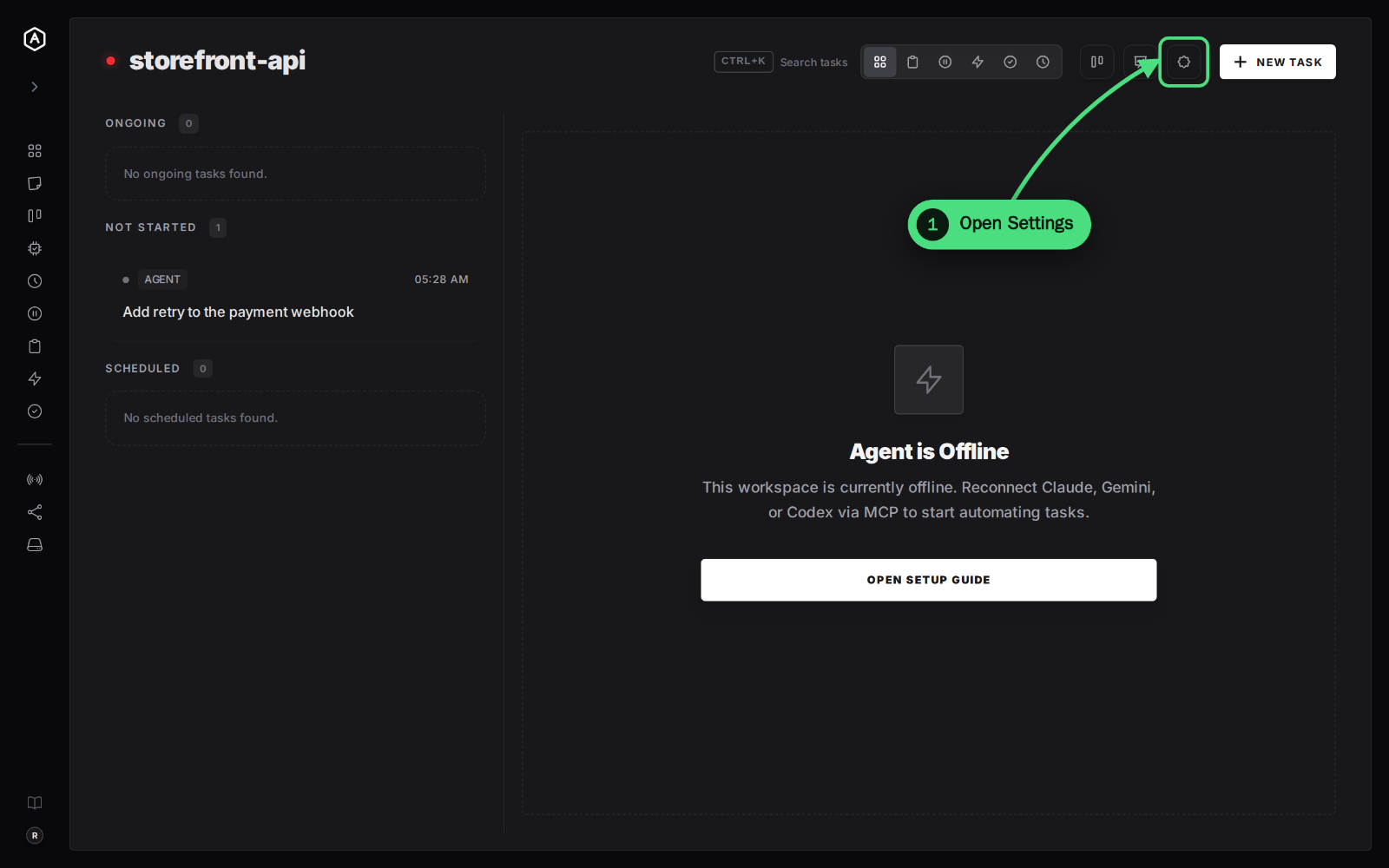
1. Click the Settings gear at the top right of the workspace, next to New Task.
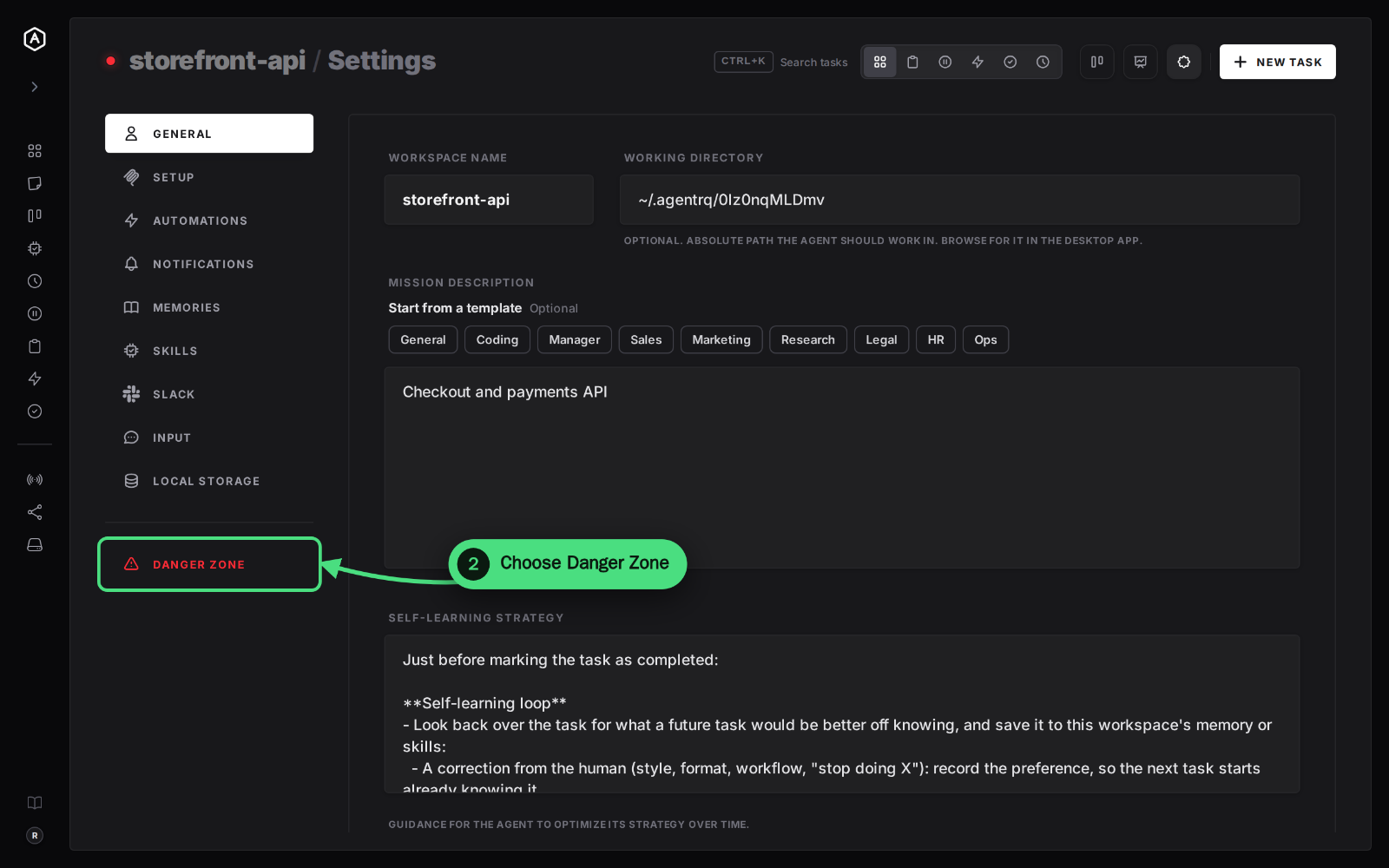
2. Choose the Danger Zone tab, the red tab at the bottom of the settings menu.
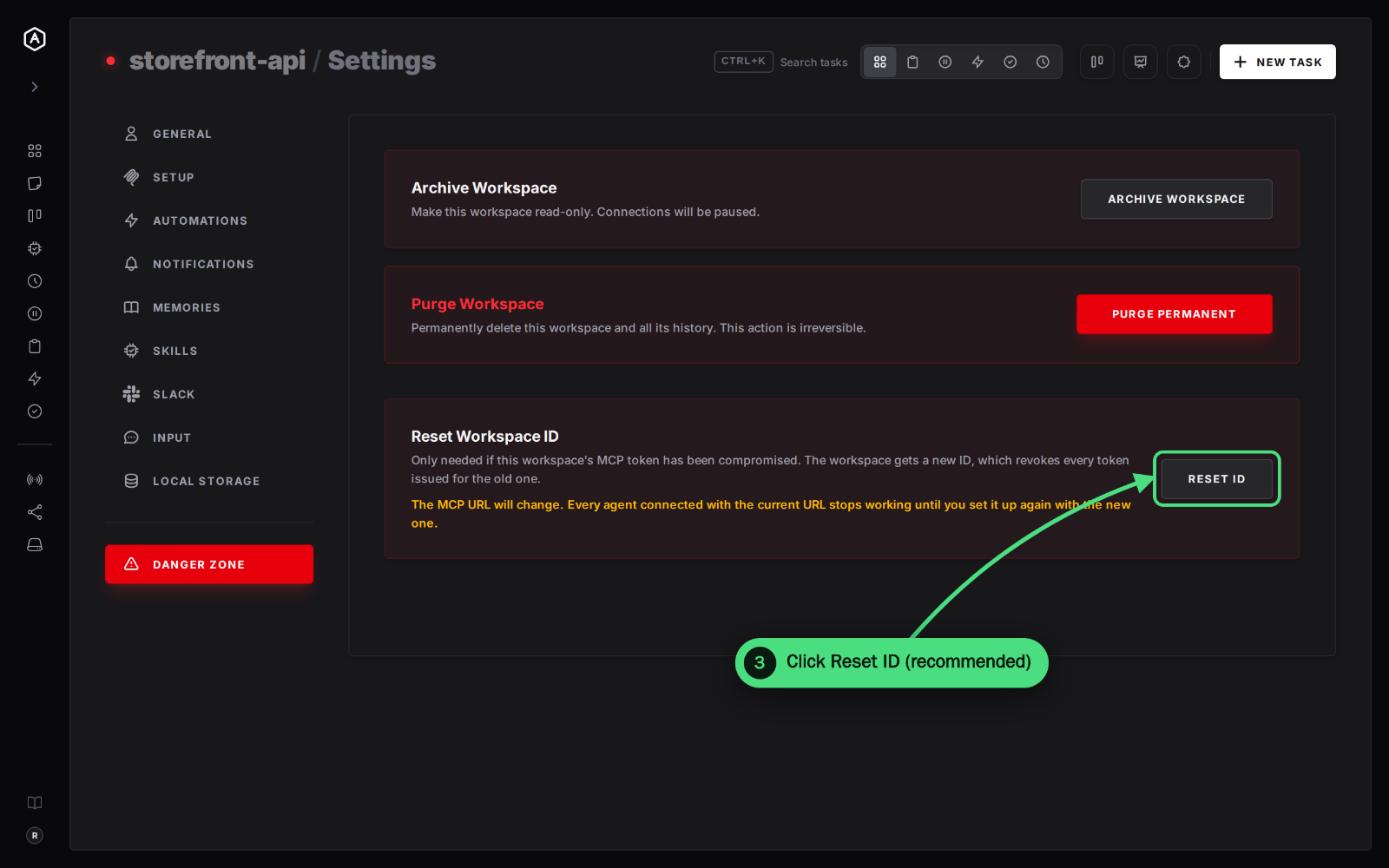
The Danger Zone shows two ways out. Pick one.
Option 1 (Recommended): Reset the Workspace ID
3. Click Reset ID on the Reset Workspace ID card.
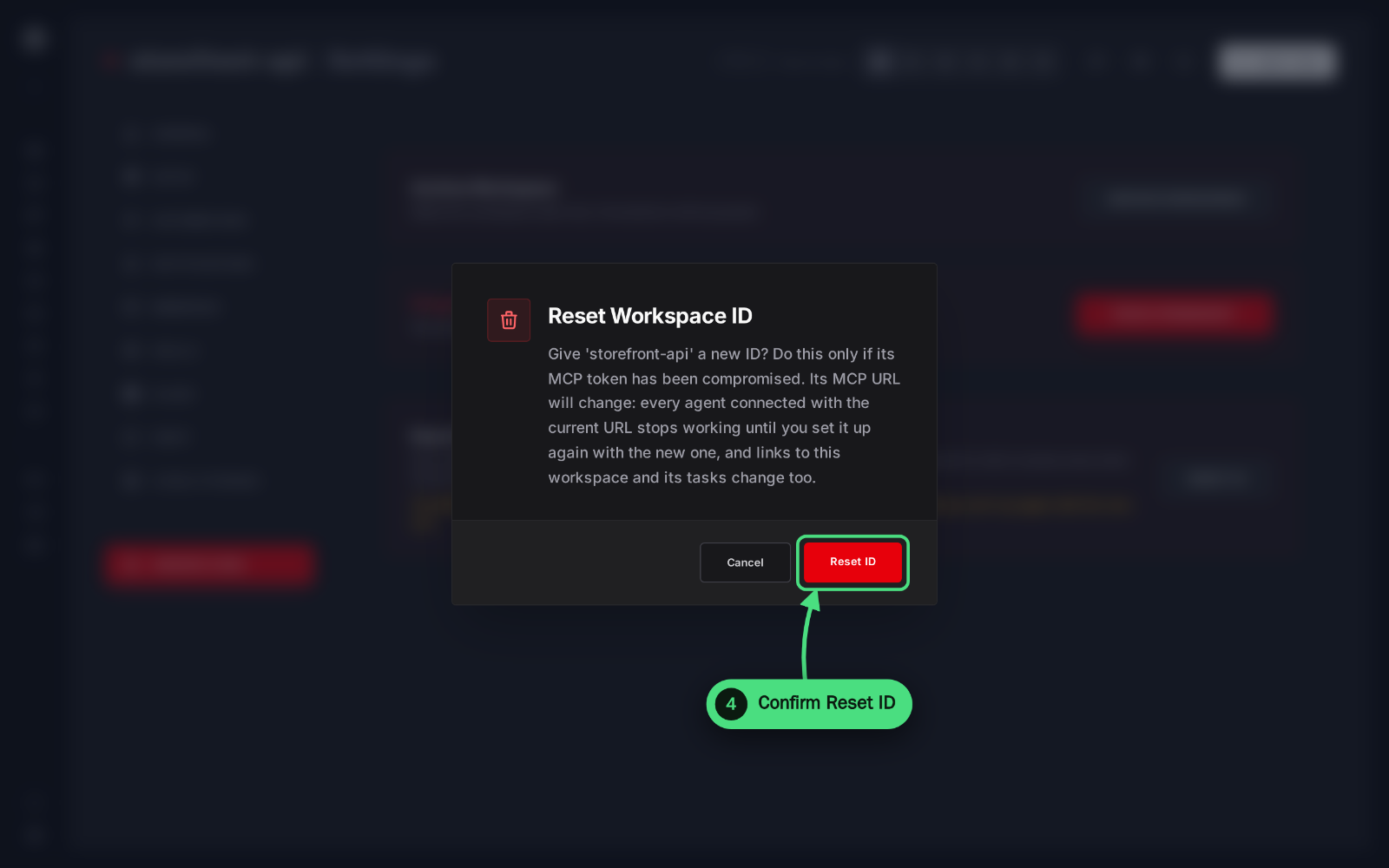
4. Click Reset ID again in the dialog to confirm.
What happens:
- → The workspace gets a new ID, and every token issued for the old ID stops working at once. Any agent, script or person using the leaked
.mcp.jsonis cut off. - → Everything in the workspace is kept: tasks with their whole threads, attachments, memory, skills and settings all move to the new ID in a single step. If anything fails along the way, nothing changes and the old ID stays as it was.
- → The workspace's MCP URL changes, so your own agents are cut off too, until you set them up again.
- → Links to the workspace and its tasks change, because they contain the ID. Old bookmarks and shared links stop working.
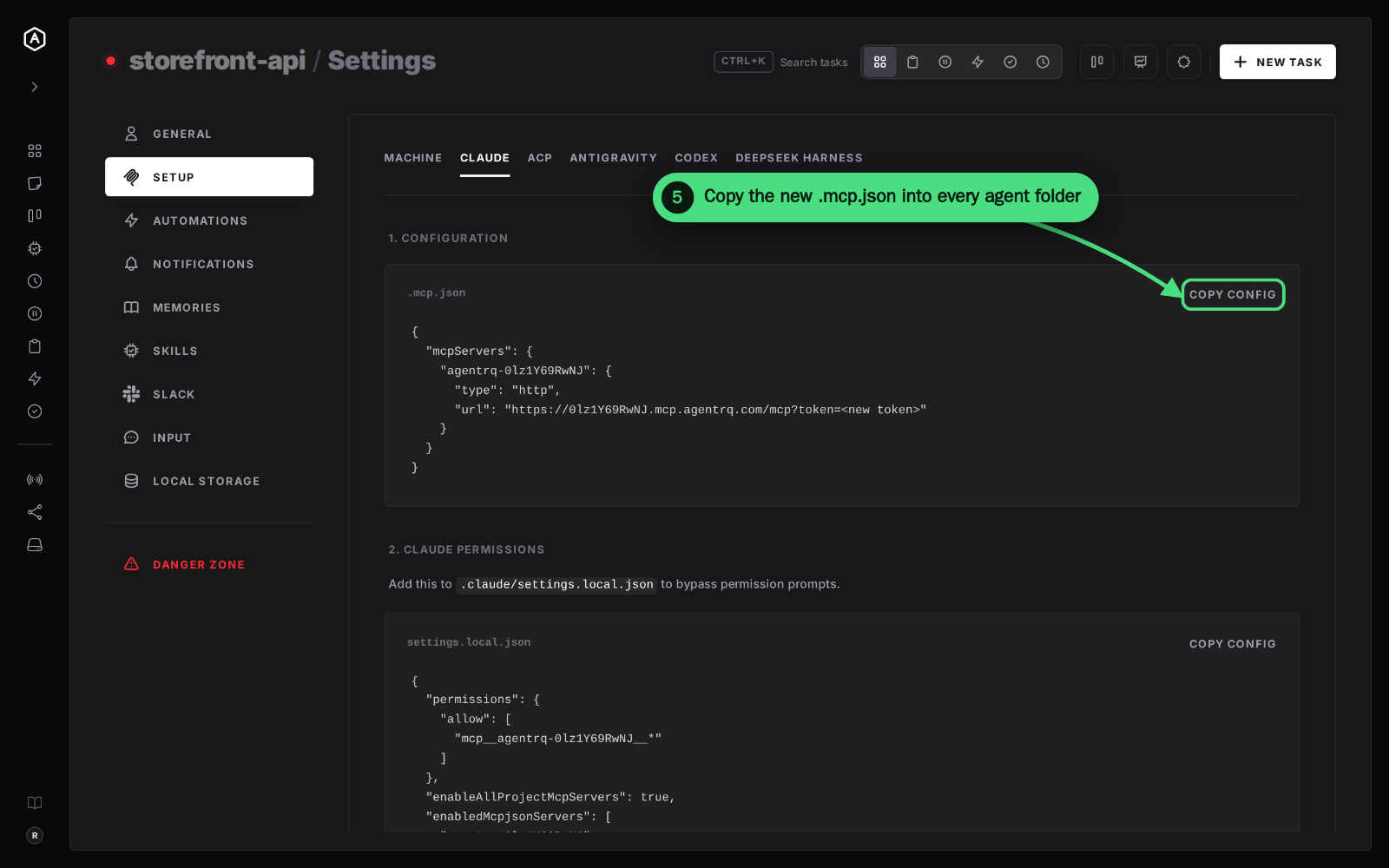
5. Copy the new .mcp.json. After the reset, AgentRQ takes you straight to the new ID's Setup tab. Pick your agent's tab, such as Claude, and click Copy Config. Replace the old .mcp.json with it in every directory where an agent runs for this workspace, then restart those agents.
Option 2: Purge the Workspace
After steps 1 and 2 above:
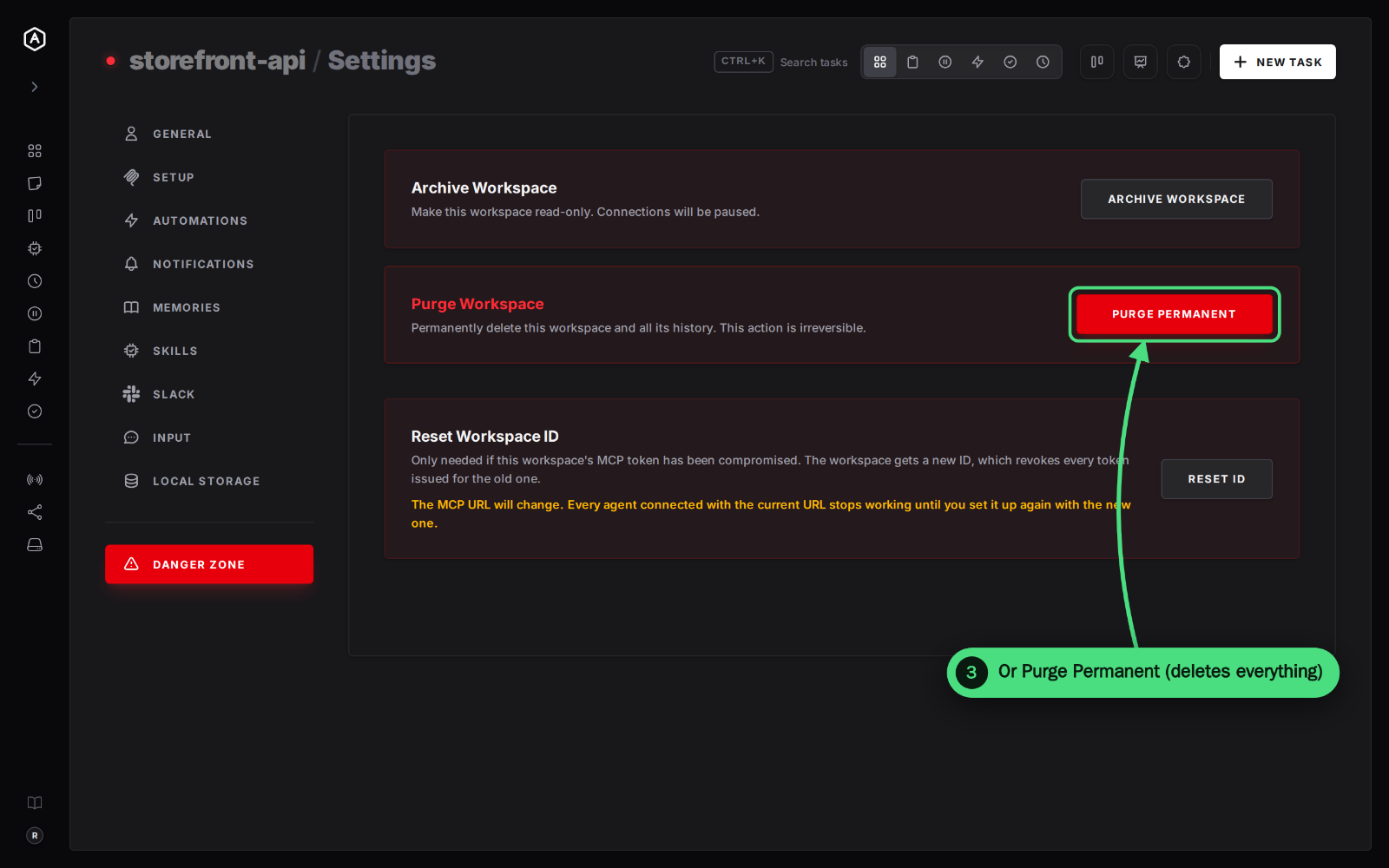
3. Click Purge Permanent on the Purge Workspace card.
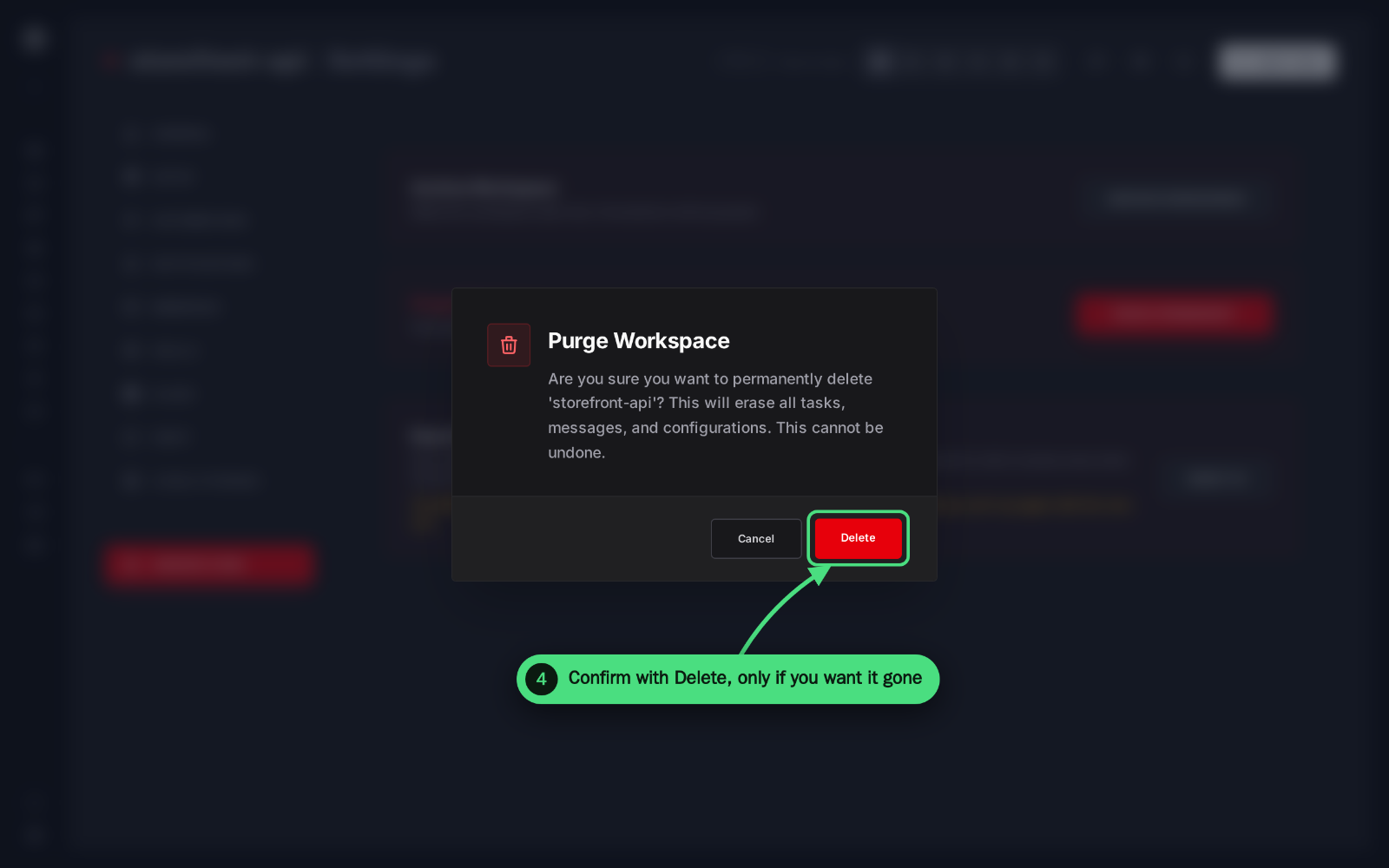
4. Click Delete in the dialog, only if you are sure you want the workspace gone.
What happens:
- → The workspace is deleted, so its ID and every token issued for it stop working, exactly like a reset.
- → Everything in it is deleted too: tasks, messages, attachments, memory, skills and configuration. This cannot be undone.
- → A workspace with forks cannot be purged until each fork is merged back into it.
Choose this only if you no longer need anything in the workspace, or you want to start over from a clean one. Otherwise, reset the ID.
Reset ID vs Purge at a Glance
| Reset Workspace ID | Purge Workspace | |
|---|---|---|
| Revokes the leaked token | Yes, immediately | Yes, immediately |
| Keeps tasks, memory and skills | Yes | No, all deleted |
| MCP URL | Changes, set agents up again | Gone |
| Task and workspace links | Change | Gone |
| Can be undone | The old ID cannot come back | No |
| When to use it | Almost always | You want the workspace gone |
After the Reset: Clean Up the Leak
Revoking the token stops further access. These steps close the rest of the gap:
- Remove the old file everywhere. Replace
.mcp.jsonon every machine and in every directory that had it. The old one no longer works, but there is no reason to keep it around. - Scrub it from git. If the file was committed, deleting it in a new commit leaves it in the history. Treat the history as public for good, which is why revoking comes first, and add
.mcp.jsonto.gitignoreso it is not committed again. - Look at what changed. Skim the workspace's recent tasks and replies, its memory and its skills for anything you or your agents did not write. A skill or memory entry is read by every agent that works in the workspace, so an injected instruction there matters more than a stray task.
- Check the other workspaces from the same file. One
.mcp.jsoncan list several MCP servers. Reset each AgentRQ workspace that appears in the leaked file, not just the first one.
How to Keep .mcp.json From Leaking Again
- → Keep
.mcp.jsonout of version control. Add it to.gitignorein every repository where an agent runs. - → Keep the token itself out of the file. Claude Code expands environment variables in
.mcp.json, so the URL can end in?token=${AGENTRQ_TOKEN_MY_PROJECT}with the value set in your shell profile. Our token security guide shows how. - → Do not paste the file, or the MCP URL, into chats, issues or screenshots. The token is the part after
?token=. - → Run agents from a machine set up with
agentrqdwhere you can. The workspace Setup tab starts an agent on a connected machine in one click, with no config file to copy around. - → Give each project its own workspace, so one leaked file exposes one workspace's tasks and not all of them.
FAQ
Does archiving the workspace revoke the token?
No. Archiving makes the workspace read-only and pauses connections, but keeps the same ID, so unarchiving it brings the leaked token back to life. Reset the ID or purge the workspace instead.
Do I lose my tasks when I reset the workspace ID?
No. Tasks, their threads, attachments, memory, skills and settings all move to the new ID. Only the ID, the MCP URL and the links change.
Can I go back to the old workspace ID?
No. The old ID is retired, which is the point: a token issued for it can never work again.
My agents stopped working after the reset. What now?
That is expected. Open the workspace's Setup tab, copy the new .mcp.json into the agent's directory in place of the old one, and restart the agent.