How to Create a Team and Add a New Member
To add someone to an AgentRQ team, open the team's settings, go to Invitations, type their email and click Send. AgentRQ emails them an invitation and also gives you a link to share yourself. They open it while signed in with that email and click Accept. This guide starts from no team at all, so it covers creating the team too. The example team is Acme Platform: Maya Chen creates it, and later invites Ana Ruiz.
This page is one of our team guidelines. It was checked against AgentRQ on November 15, 2026, and every screenshot comes from a real run.
Before You Start
- → An AgentRQ account. Your new teammate needs one too, signed in with the email you invite. They can create it when they open the link.
- → Nothing else. Joining a team shares nothing by itself: each member picks which of their workspaces to share afterwards.
Step by Step: Create the Team
Skip to step 4 if you already have a team.
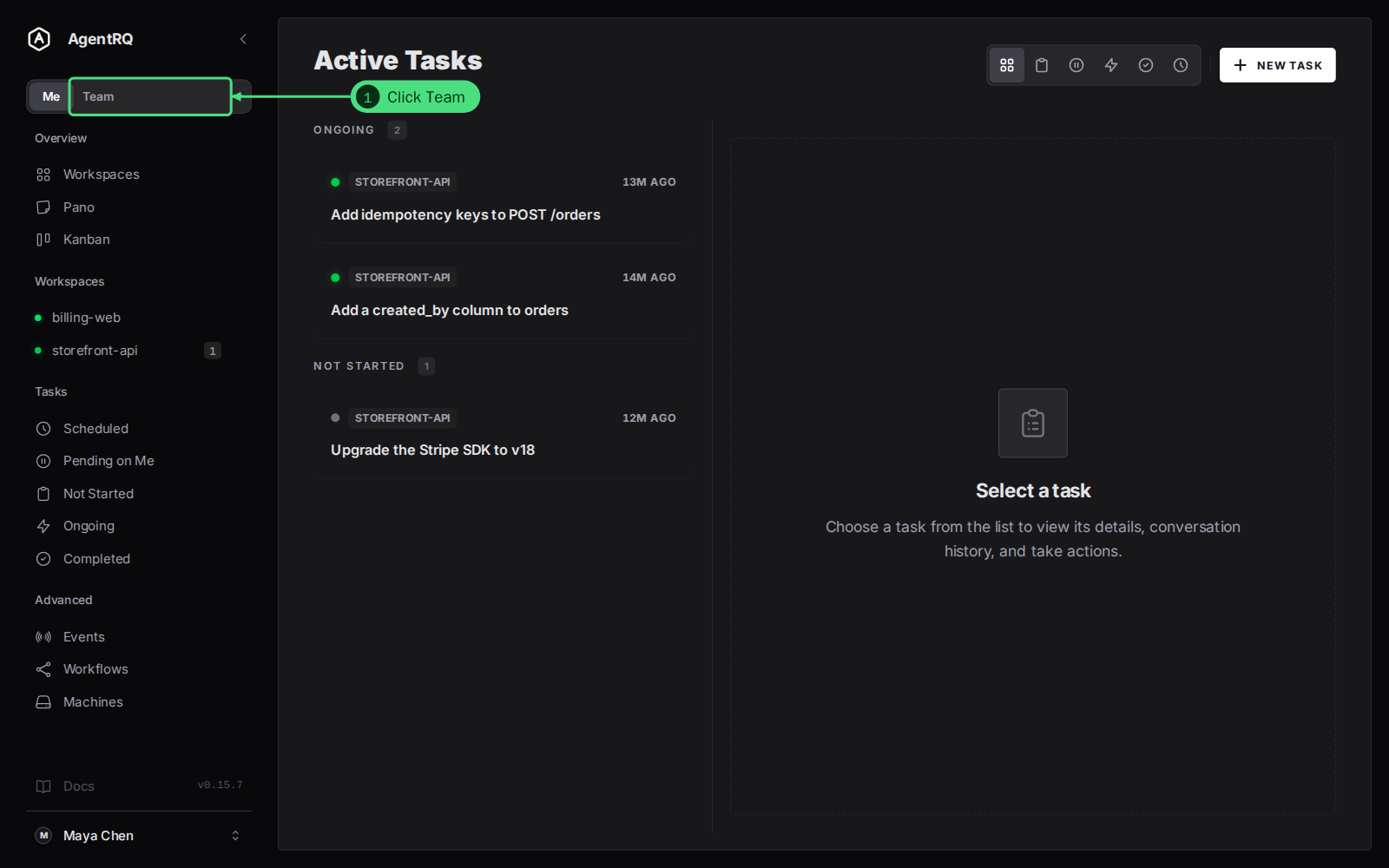
1. Click Team in the Me | Team switch at the top of the sidebar. With no team yet, it opens the page that creates one.
2. Name the team and 3. click Create. Names can be up to 128 characters. You can rename the team later by clicking its name.
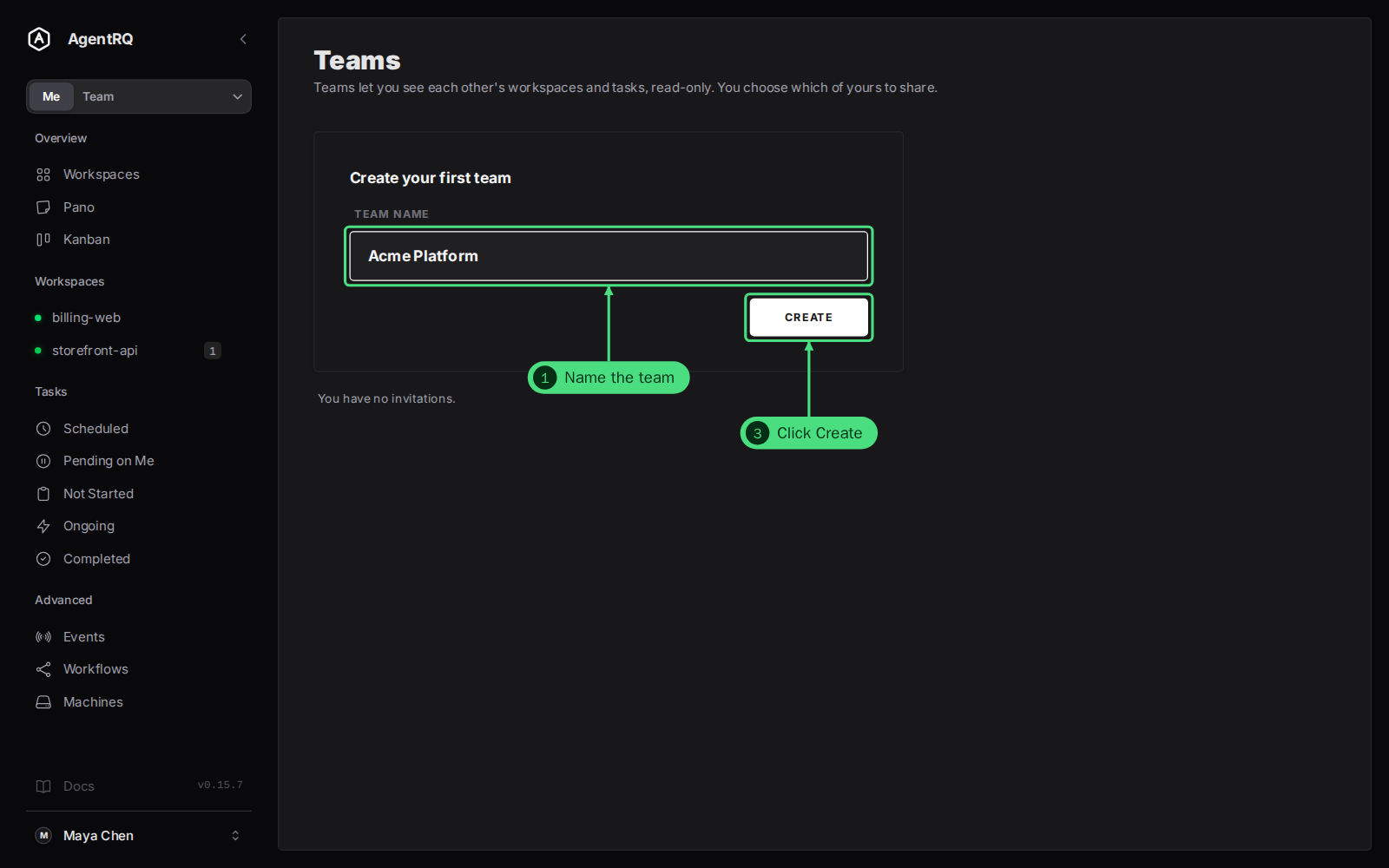
AgentRQ creates the team with you as its only member and opens its settings on the Invitations tab. The sidebar switch now says Team: Acme Platform, and a bar at the bottom of the page shows which team you are viewing.
Step by Step: Invite the New Member
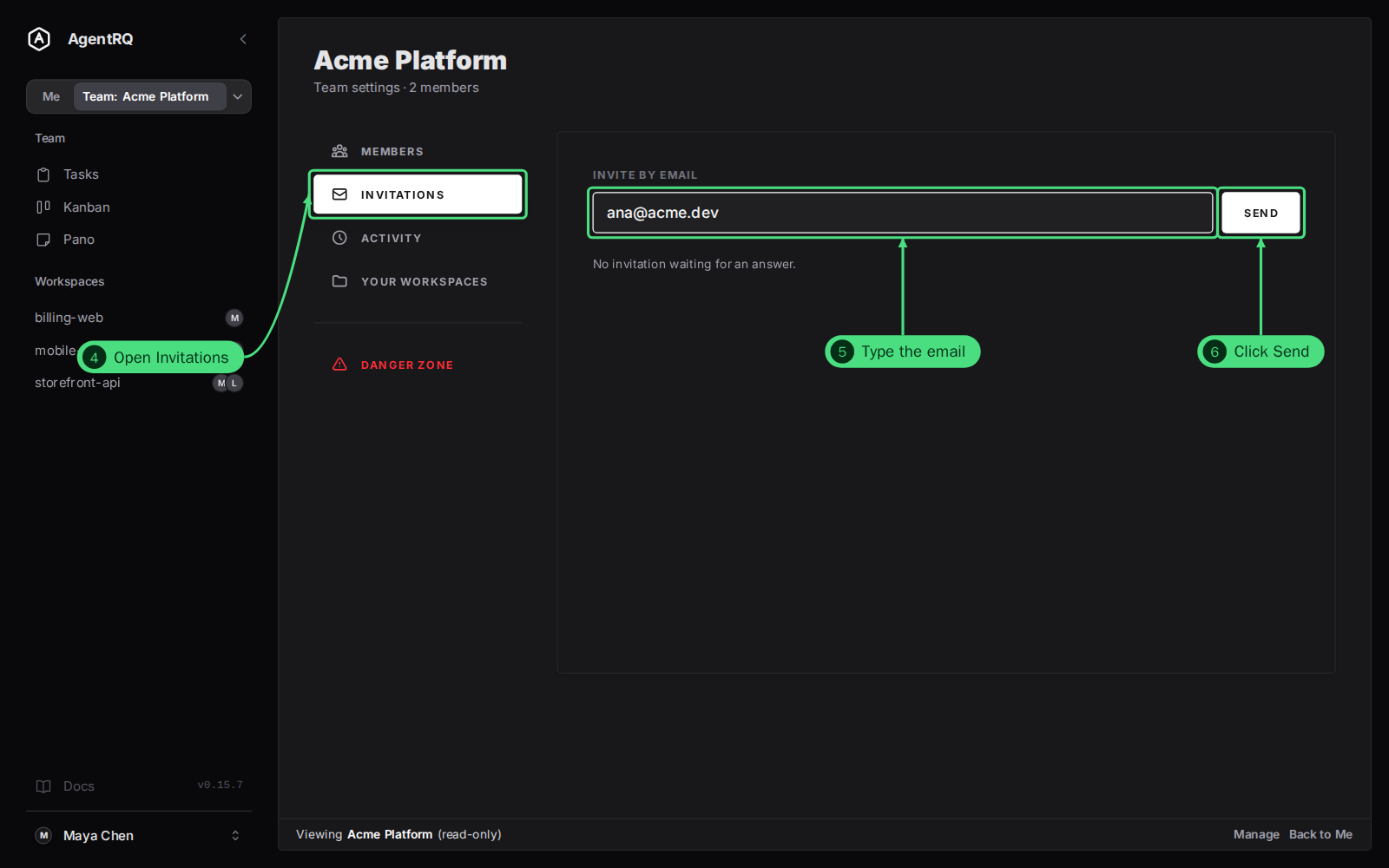
4. Open Invitations in the team's settings. To get here later, click the arrow next to the team switch and choose Manage team, or click Manage in the bar at the bottom of the page.
5. Type your teammate's email and 6. click Send.
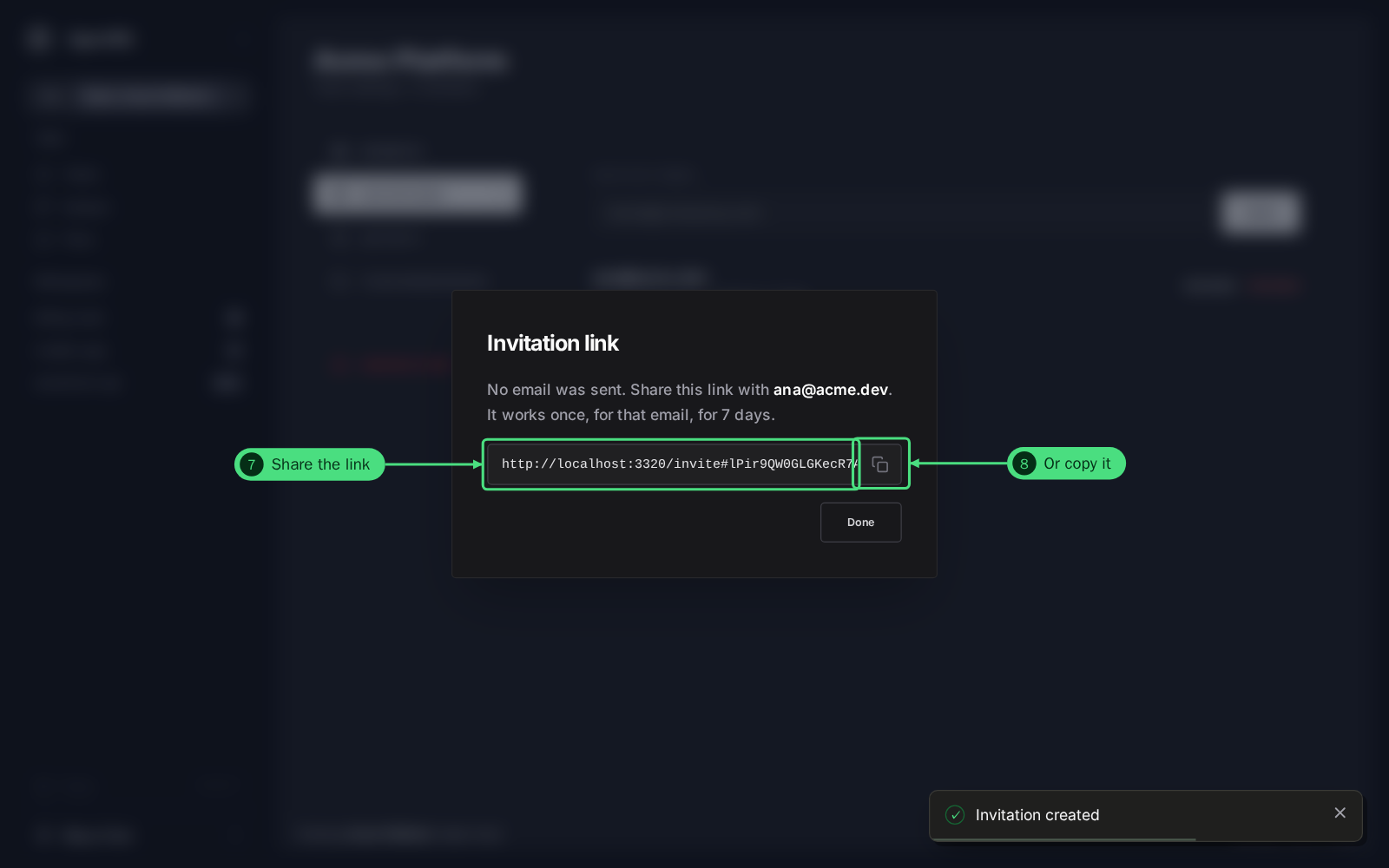
7. Share the invitation link, or 8. copy it with the button beside it. AgentRQ emails the invitation when the server can send mail, and shows the same link either way. It is shown only this once, works once, only for that email address, and expires after 7 days.
The invitation waits on the Invitations tab until it is answered. Resend gives a new link and voids the old one; Revoke cancels it.
Step by Step: Accept the Invitation
9. Your teammate opens the link and clicks Accept. If they are signed out, the page asks them to sign in first and brings them back. They can also accept from Invitations in the arrow menu next to the team switch, where a red badge counts the invitations waiting for them.
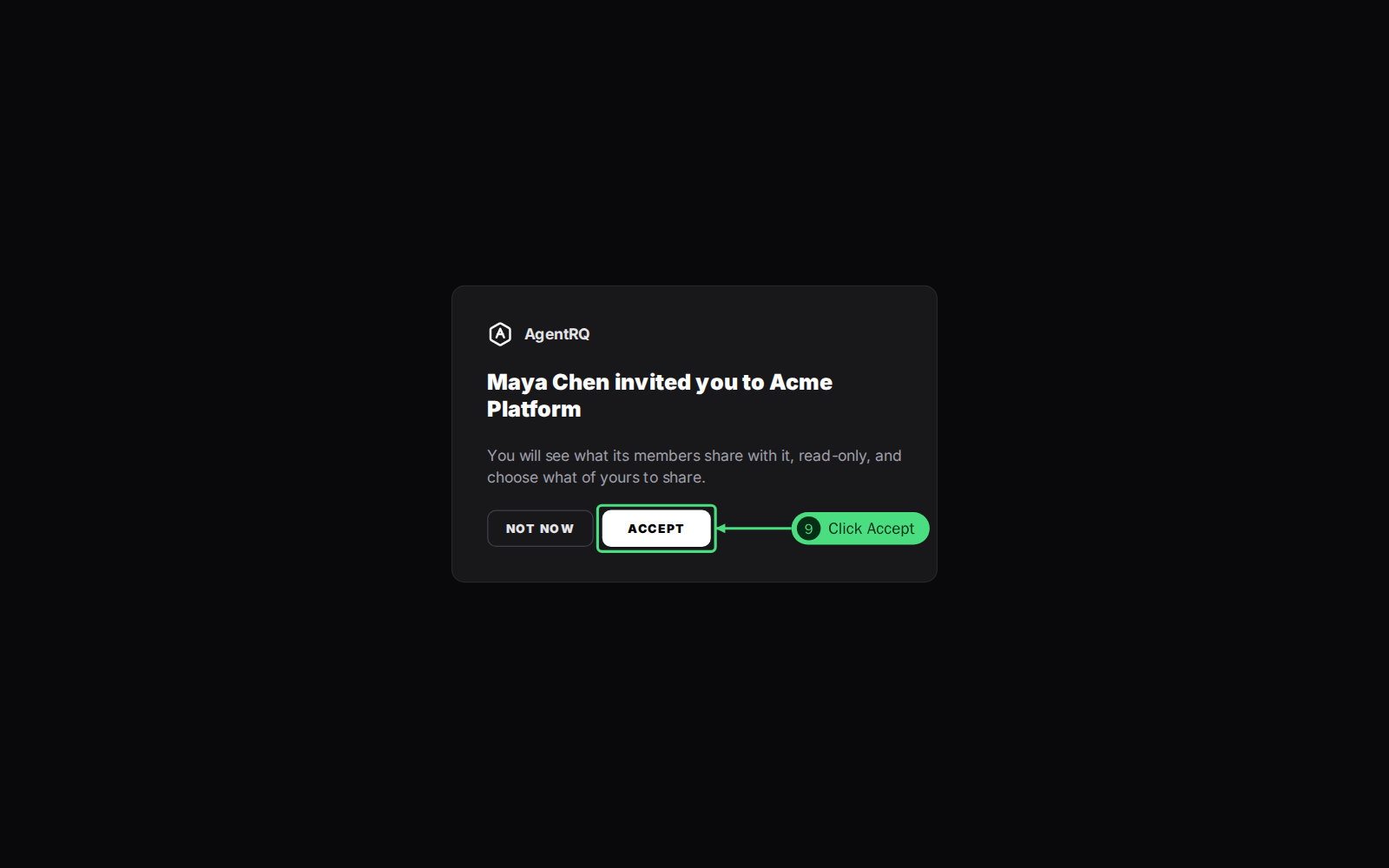
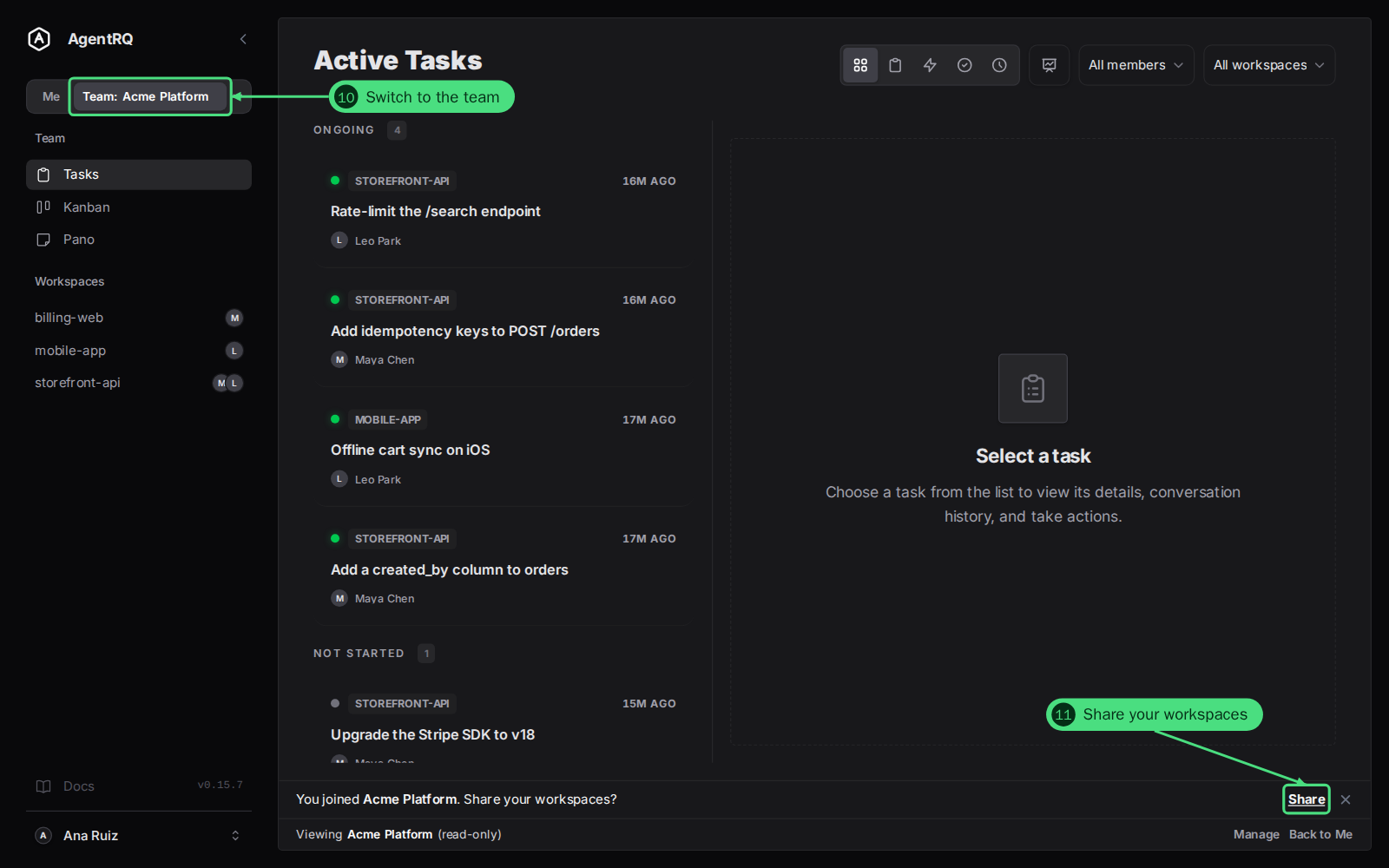
10. They land in the team. The task list shows what the team already shares, and the bar at the bottom offers 11. Share, which opens the tab where they choose which of their own workspaces to share.
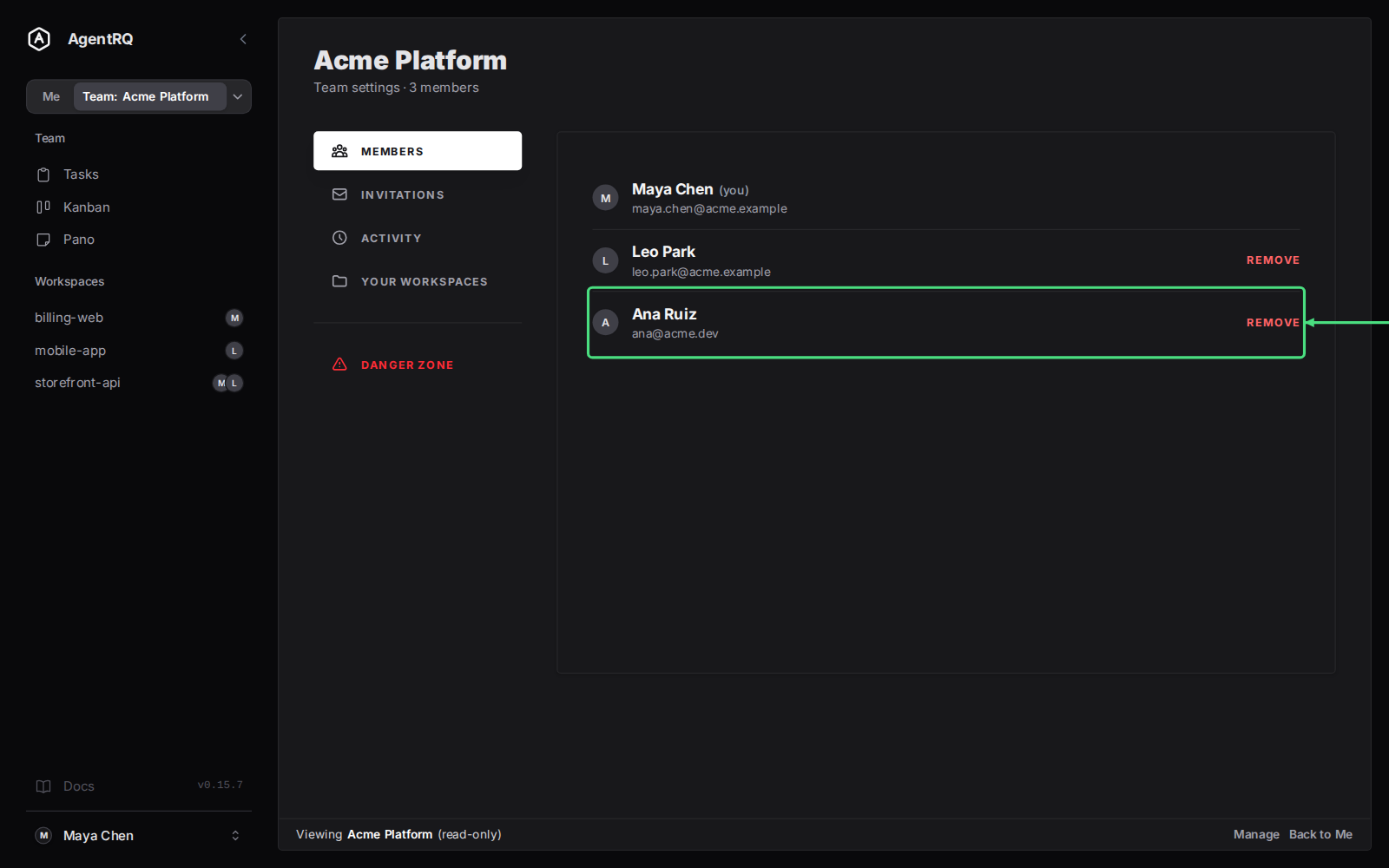
12. Check the Members tab. The new teammate is listed with everyone else. Every member can remove any other member here, and nobody has more rights than anyone else.
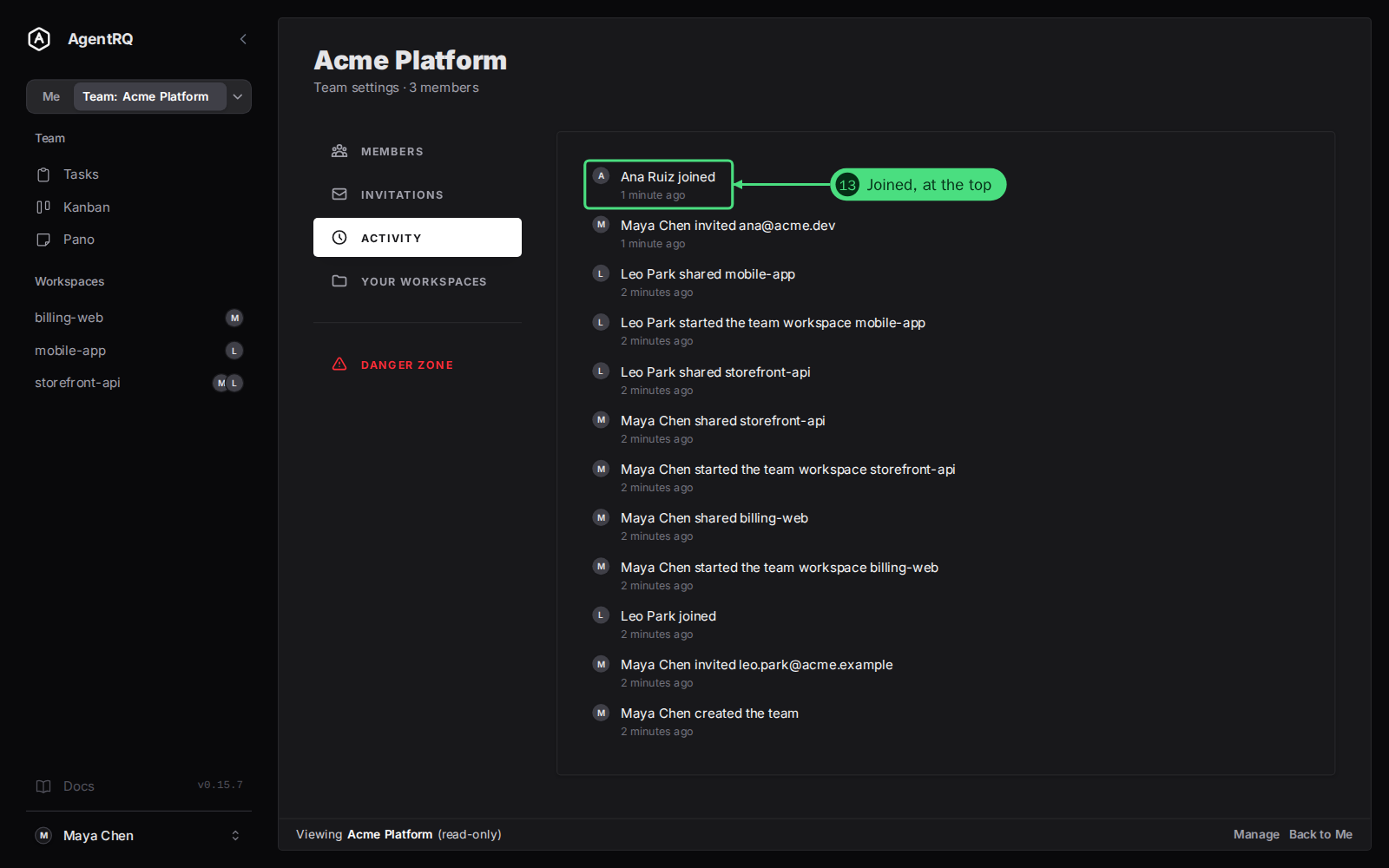
13. See it in the Activity tab. Every invitation, join, share, rename and removal is logged with who did it, newest first.
Limits on Invitations
- → One open invitation per email per team. To send a new link, use Resend.
- → By default, a team sends at most 10 invitations a day, and an account at most 20 a day across all its teams. Revoked and declined invitations count too.
- → The link works only for the email it was sent to. If your teammate signs in with another address, the page tells them the invitation is for another account.
- → An invitation stops working if the person who sent it leaves the team.
Removing a Member or Leaving
- → Remove a member: Members tab, Remove on their row. Their shared workspaces leave the team with them.
- → Leave: Danger Zone, Leave team. Your shares to the team are removed. If you are the last member, leaving deletes the team.
- → Delete the team: Danger Zone, Delete team, then type the team's name. Everyone is sent back to their own workspaces. This cannot be undone.
Next Steps
- → See what your teammates' agents are working on: share a workspace and follow the team's tasks.
- → Share agent memory across a team: let each agent read what the others learned.
- → Use your team's skills: edit the skills a team workspace owns, opt in per workspace and give your own to the team.
FAQ
Can a teammate change my tasks or reply to my agent?
No. Teammates see shared workspaces read-only. They cannot reply, approve a tool call, change a status or edit a task. What they can do with your work is read it, clone a task into a workspace of their own, and use and edit the skills of the team workspace. Each share's Tasks and Memory switches, in the workspace's Settings → Sharing, decide which of these the team gets.
Who can invite people to a team?
Any member. Teams have no roles: every member can invite, revoke, remove members, rename the team and delete it.
Does joining a team share my workspaces?
No. You choose which workspaces to share, one by one, after you join. The banner you see right after joining links straight to that choice.
Can I be in more than one team?
Yes. The arrow next to the team switch lists your teams with their member counts, and you switch between them there. Each workspace can be shared with any of the teams you are in.