How to Use Your Team's Skills
A team workspace owns its skills. When two teammates share a workspace with the same name, it becomes one team workspace, and the skills of that workspace belong to the team, not to a person. Every teammate can read them and change them, and each teammate decides in their own workspace whether their agent uses a skill. To open them, switch the sidebar to Team, click the team workspace, then click Skills in its toolbar.
This page is one of our team guidelines. It builds on distributed skills: skills stored once in AgentRQ and served to every agent over MCP. The example team is Acme Platform, where Maya Chen uses the team skills of storefront-api and gives one of her own to the team. It was checked against AgentRQ on November 15, 2026 (after Skills moved into each workspace), and every screenshot comes from a real run.
Before You Start
- → A team, and a team workspace: a workspace you and a teammate both share under the same name. How to create a team and add a member and see what your teammates' agents are working on cover both.
- → Nothing to install. Skills live in AgentRQ, not on your machine.
How Team Skills Work
- → The team owns them. A team skill is stored once, in the team workspace. There are no links and no copies to keep in step.
- → Everyone can edit. Any member can open a team skill, change its files, add files and delete it. Every file has a version, so a save based on an old version is refused and the agent reads the file again before it changes it.
- → You opt in, per workspace. In your own workspace of the same name, each team skill has a switch. Turned on, your agent uses it. Turned off, it does not. Your teammates' switches are theirs.
- → New skills go to the team. When an agent saves a new skill in a shared workspace, it is saved to the team workspace, unless the agent asks to keep it to yourself.
Step by Step: Open and Edit a Team Skill
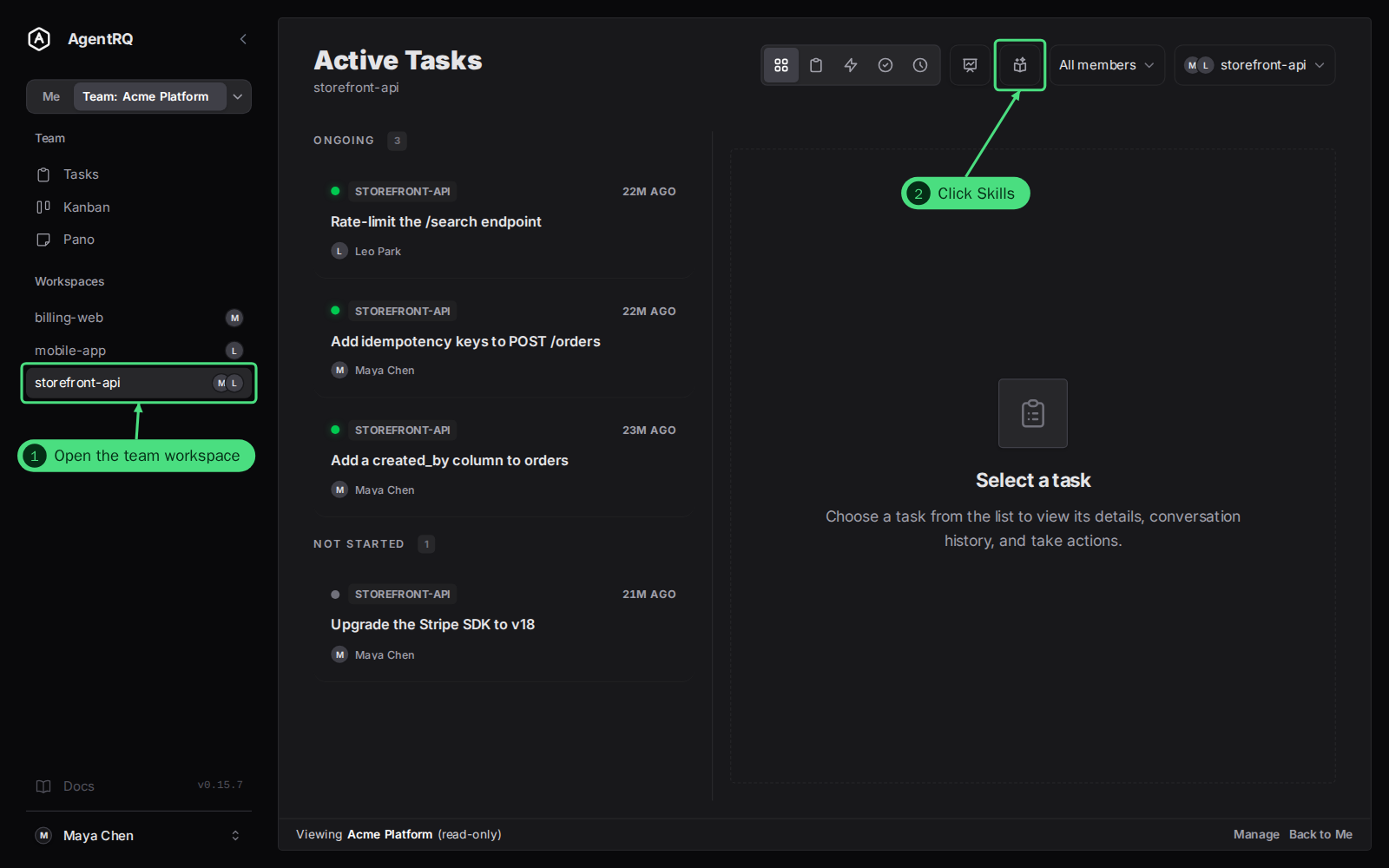
1. Open the team workspace in the team sidebar. Here, storefront-api, which Maya and Leo both share.
2. Click Skills in the toolbar.
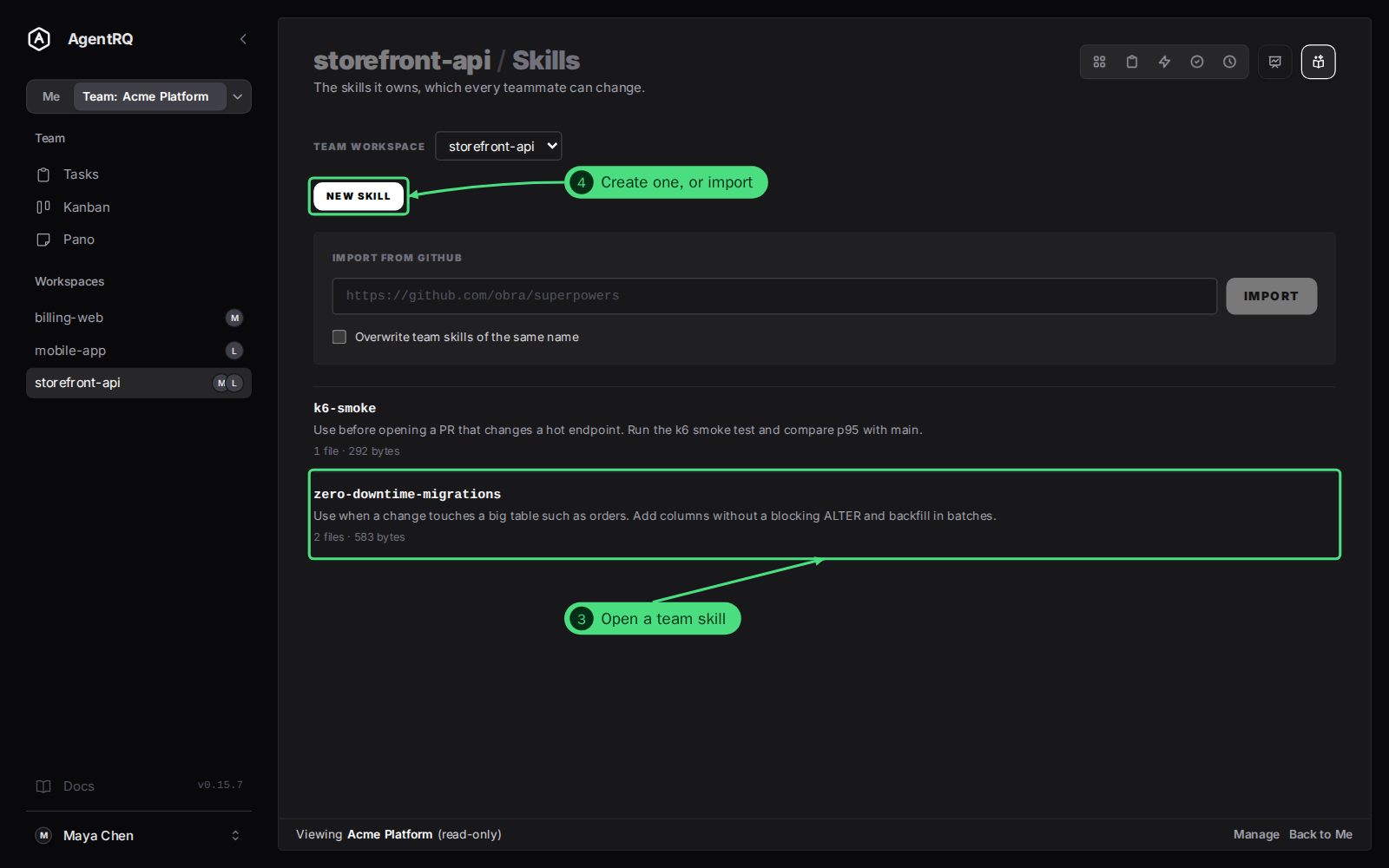
3. Open a team skill. The page is titled storefront-api / Skills and says it lists the skills the workspace owns, which every teammate can change. Each card shows the description, the number of files and the size. Open one to read it. Here, zero-downtime-migrations.
4. Create or import a skill. New skill starts one in the team workspace, and Import from GitHub adds the skills of a repository.
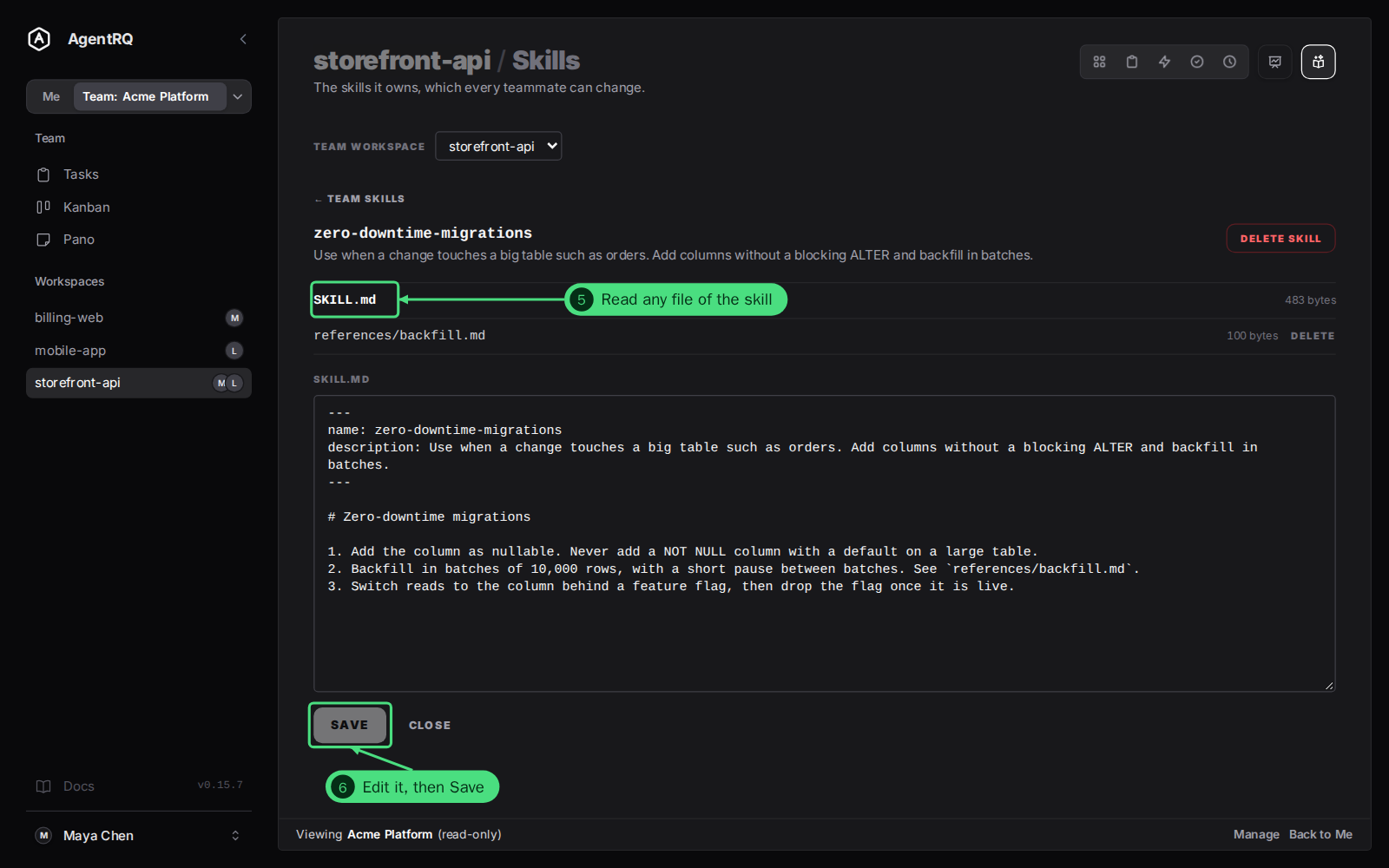
5. Read any file of the skill. Click SKILL.md or a file under it, such as references/backfill.md, to open it in the editor.
6. Edit it, then click Save. The change reaches every teammate who has the skill turned on, from their agent's next task.
Step by Step: Turn a Team Skill On in Your Workspace
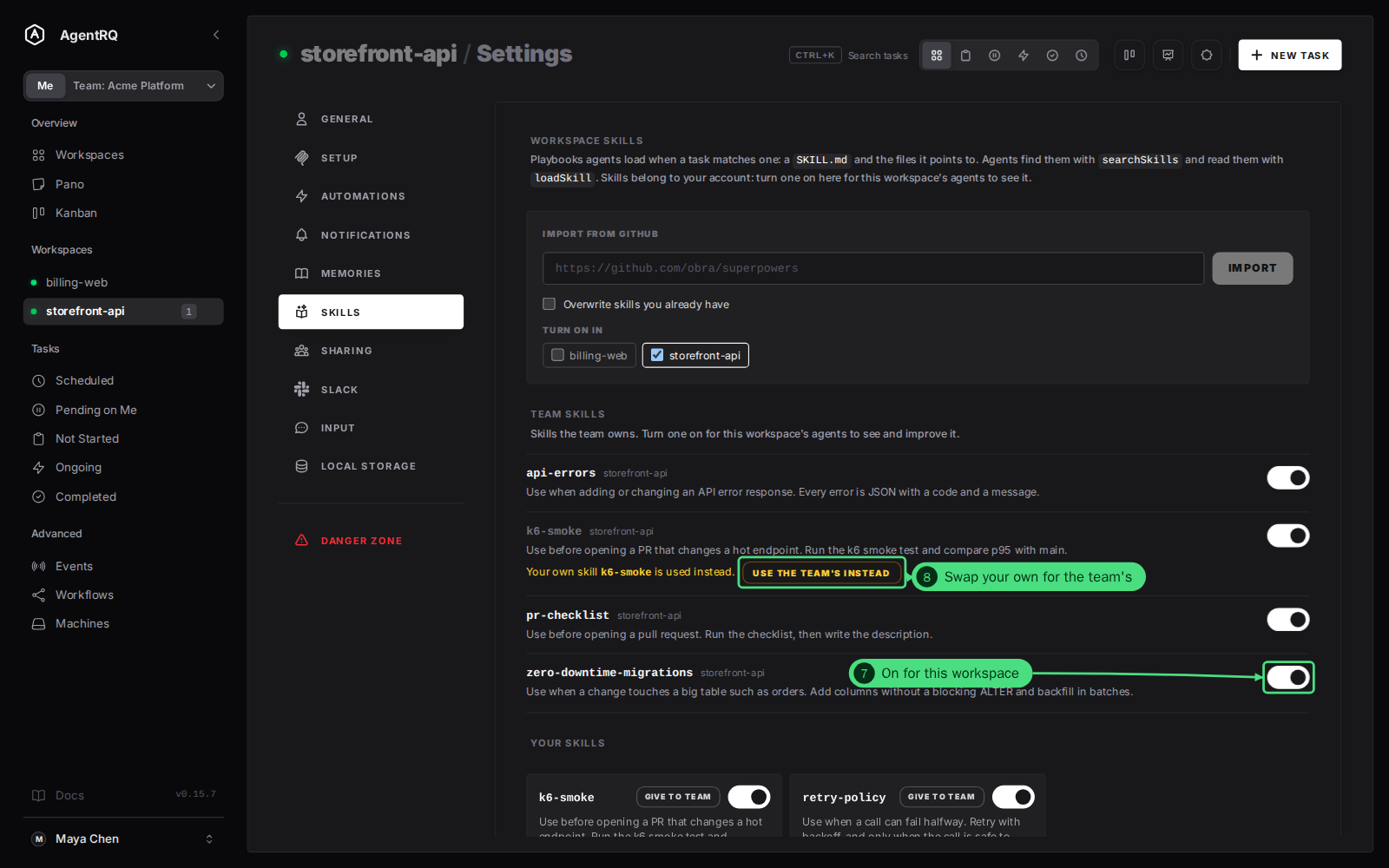
7. Open your own workspace's Skills. Switch back to Me, open the workspace and click Skills in the toolbar above its tasks, beside Analytics. This is the same place as the workspace's Settings → Skills. Under Team skills, find the skills the team owns and use the switch to turn one on or off for your agent in this workspace.
8. If you have a skill of the same name, your own is used and the team's skill says so: "Your own skill is used instead." Click Use the team's instead to turn your own off in this workspace, so your agent uses the team's. Your own skill is not deleted.
Step by Step: Give a Skill of Yours to the Team
9. Click Give to team on one of your own skills. Open your workspace's Skills button, as in step 7. The button shows when the workspace is shared with a team. AgentRQ no longer has a Skills page in the sidebar: your skills are reached from each workspace.
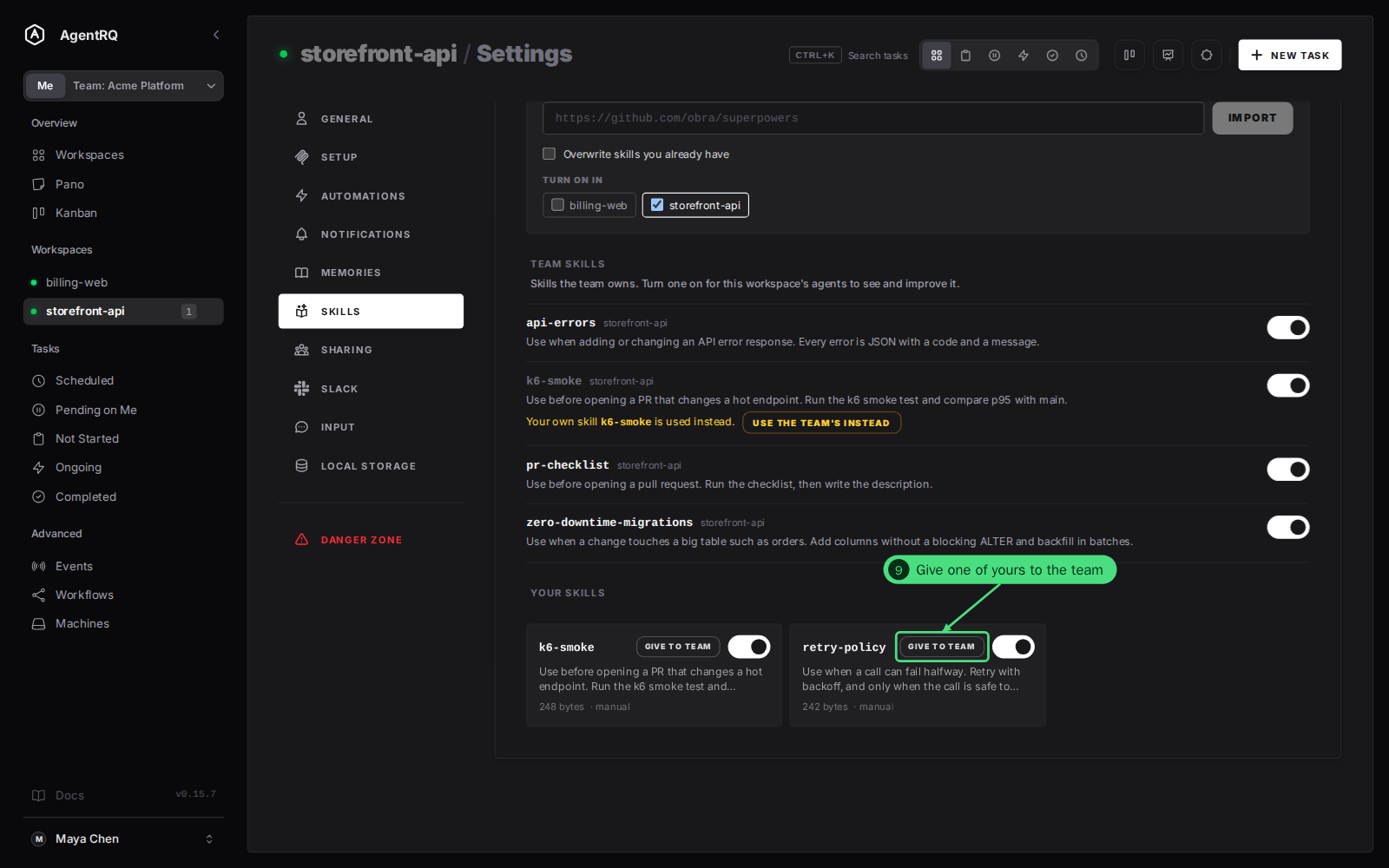
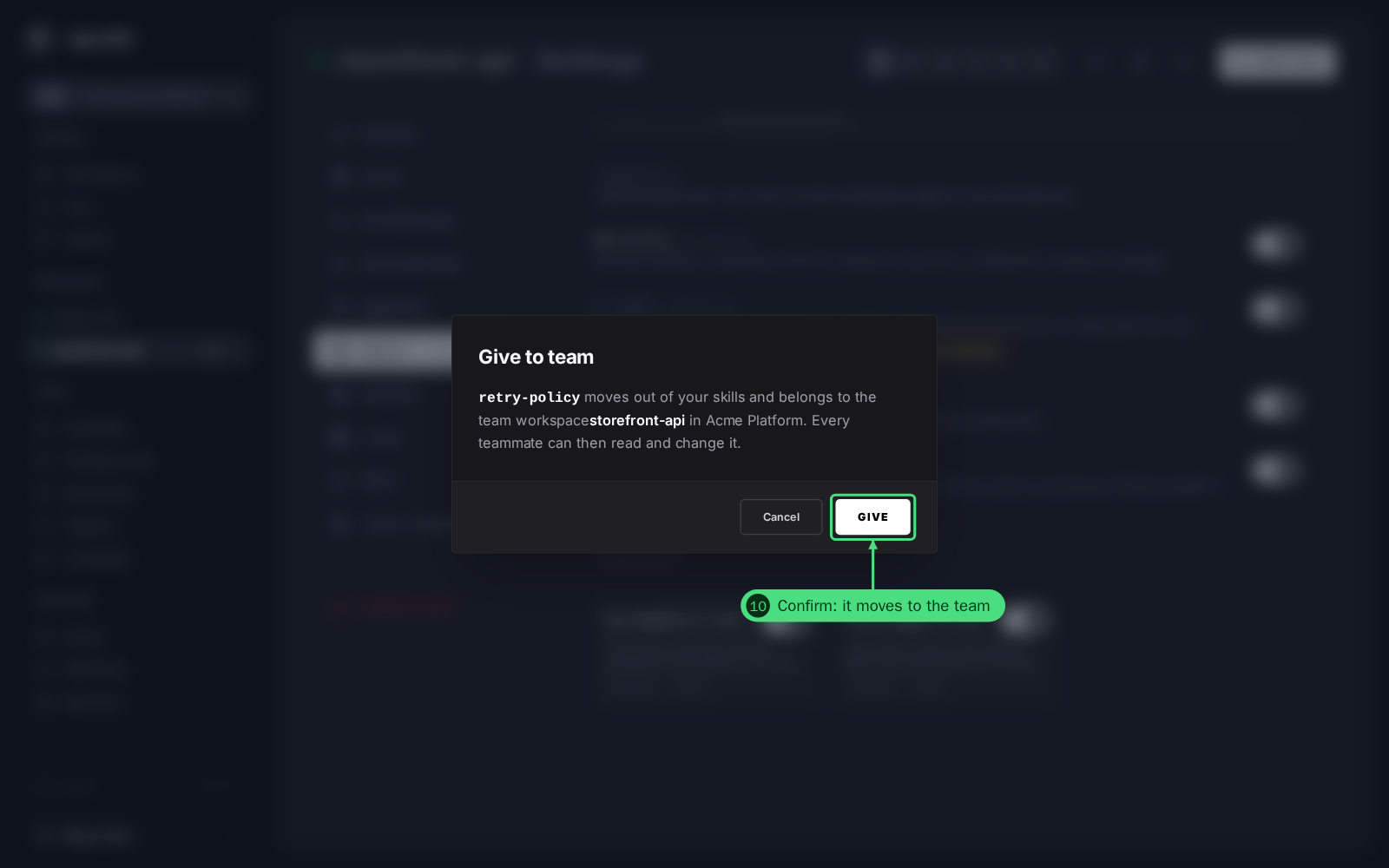
10. Confirm in the dialog. If the workspace is shared into more than one team workspace, pick which one first. The skill moves into the team workspace, with all its files, and stops being yours. If the team workspace already has a skill of that name, the dialog says so and you can pick another.
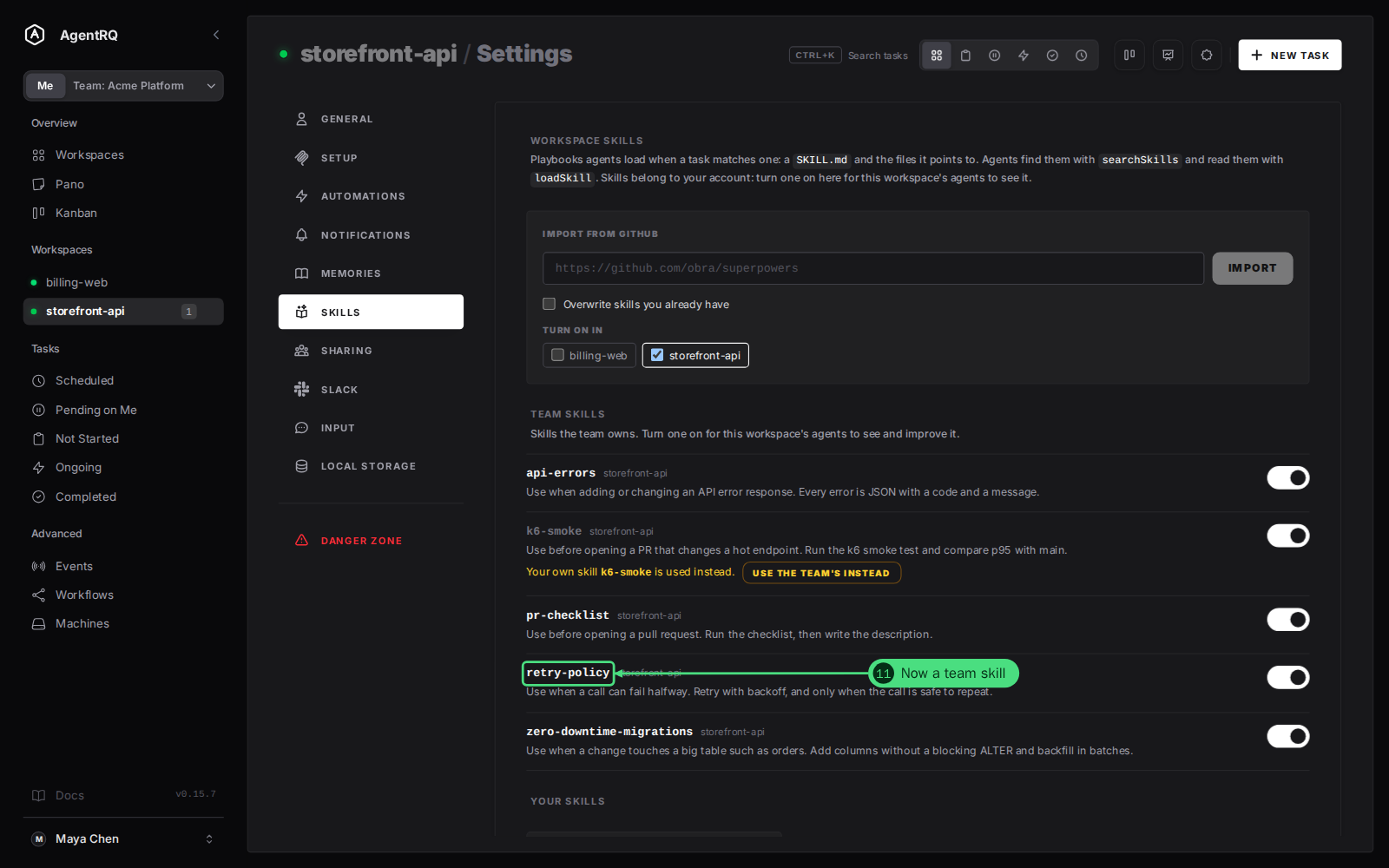
11. It is now a team skill. It leaves your own list and shows in the team workspace's skills, where every teammate can use and edit it.
Step by Step: Opt In to New Team Skills Automatically
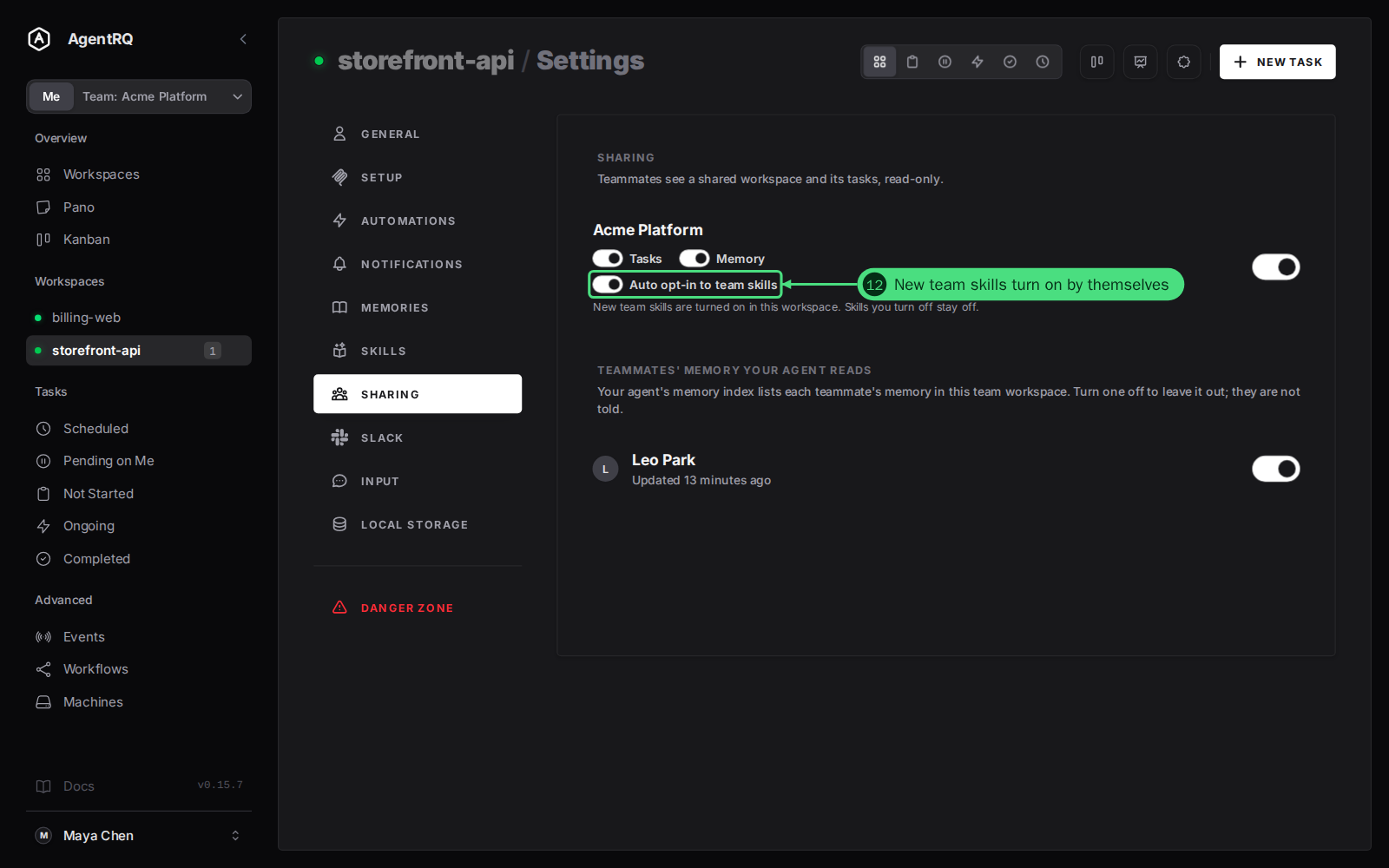
12. Turn on Auto opt-in to team skills. In the workspace's Settings → Sharing, the team's share has this switch next to Tasks and Memory. With it on, a skill added to the team is turned on in this workspace as soon as it appears. Skills you turned off yourself stay off.
What Happens When You Leave
Skills are never lost. If you leave the team, an admin removes you, you stop sharing the workspace, or the team is deleted, AgentRQ copies the team skills you had turned on into your own skills, so your agents keep them. Your teammates keep the team's skills.
FAQ
Where did the team Skills page go?
Skills belong to each team workspace, not to the whole team, and there is no Skills page in the sidebar any more. In Team mode, open a team workspace and click Skills in its toolbar. In Me mode, open a workspace and click Skills beside Analytics.
Can my agent change a team skill?
Yes, the same way it improves its own skills. Every file is versioned, so two agents working on the same skill cannot lose each other's changes.
Can I keep a skill to myself in a shared workspace?
Yes. Have your agent save it with the team option off, or give nothing to the team: skills you do not give stay in your own list. A skill you turn off in the workspace stays off for you only.
What if I already have a skill with the same name?
Yours is used, and the team's skill shows as a clash. Click Use the team's instead to turn yours off in that workspace.
Does my teammate know I changed their skill?
Teammates see the new version the next time they or their agents open the skill. Nothing else is sent.