Workspace Settings: Input Tab Explained
The Input tab covers how you write to the agent: the language you speak into the mic, whether untitled tasks get a name on their own, and whether a sent message waits a few seconds so you can take it back.
This page is one of our workspace guidelines. It was checked against AgentRQ on November 16, 2026, and every screenshot comes from the storefront-api workspace.
Before You Start
Open the workspace, click the gear button in the top right, then Input in the settings menu. The General tab guide shows where the gear is.
Step by Step: Set Up Input
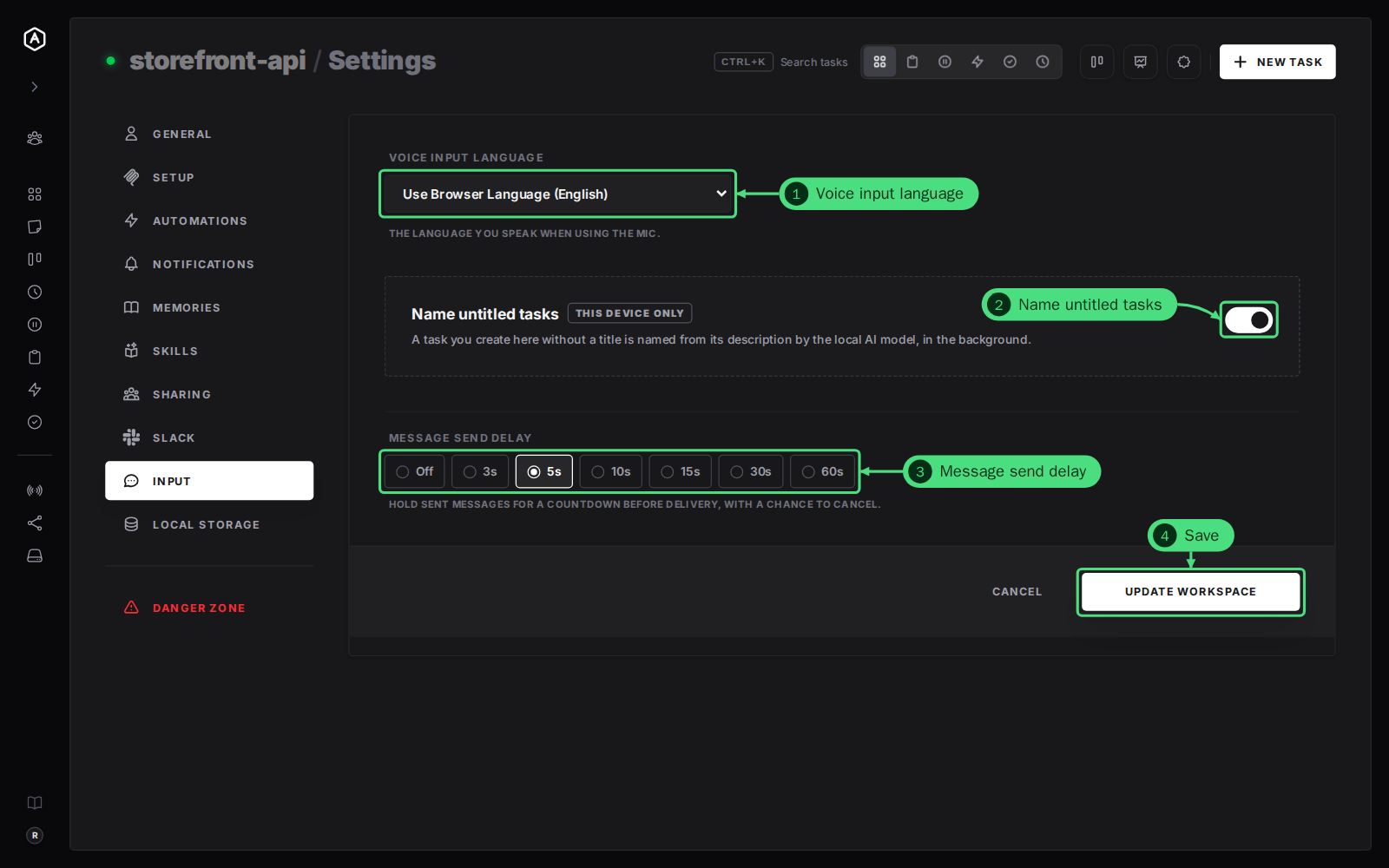
1. Voice Input Language. The language you speak when you use the mic in a task or the New Task form. Use Browser Language follows your browser; pick a language from the list to fix it. Like the next switch, the choice is kept in this browser, so set it on each device you use. See speech to text.
2. Name untitled tasks. On, a task you create without a title is named from its description by the local AI model, in the background. It is marked This device only: the switch is kept in this browser, not in your account, and it does not show on a phone. See auto title generation.
3. Message Send Delay. Holds each message you send for a countdown before AgentRQ delivers it, with a chance to cancel. Choose Off, 3s, 5s, 10s, 15s, 30s or 60s. See message send delay.
4. Click Update Workspace to save the language and the delay. The Name untitled tasks switch saves as you flip it.
FAQ
When is a send delay worth it?
When you answer the agent quickly, often from a phone. Five seconds is enough to catch a message sent to the wrong task or with a typo, and short enough not to slow the agent down.
Does the voice language change what the agent replies in?
No. It only tells speech to text which language to listen for. Ask the agent in the task, or in the mission, if you want replies in another language.