Workspace Settings: General Tab Explained
The General tab holds what makes a workspace itself: its name, the folder its agent works in, its mission, and the note that tells the agent how to learn over time. It is the first tab you see when you open a workspace's settings.
This page is one of our workspace guidelines. It was checked against AgentRQ on November 16, 2026, and every screenshot comes from the storefront-api workspace.
Step by Step: Open Workspace Settings
1. Open the workspace from the sidebar.
2. Click the gear button, Workspace Settings, in the top right corner, next to New Task. Settings open on the General tab, with every other tab listed on the left.
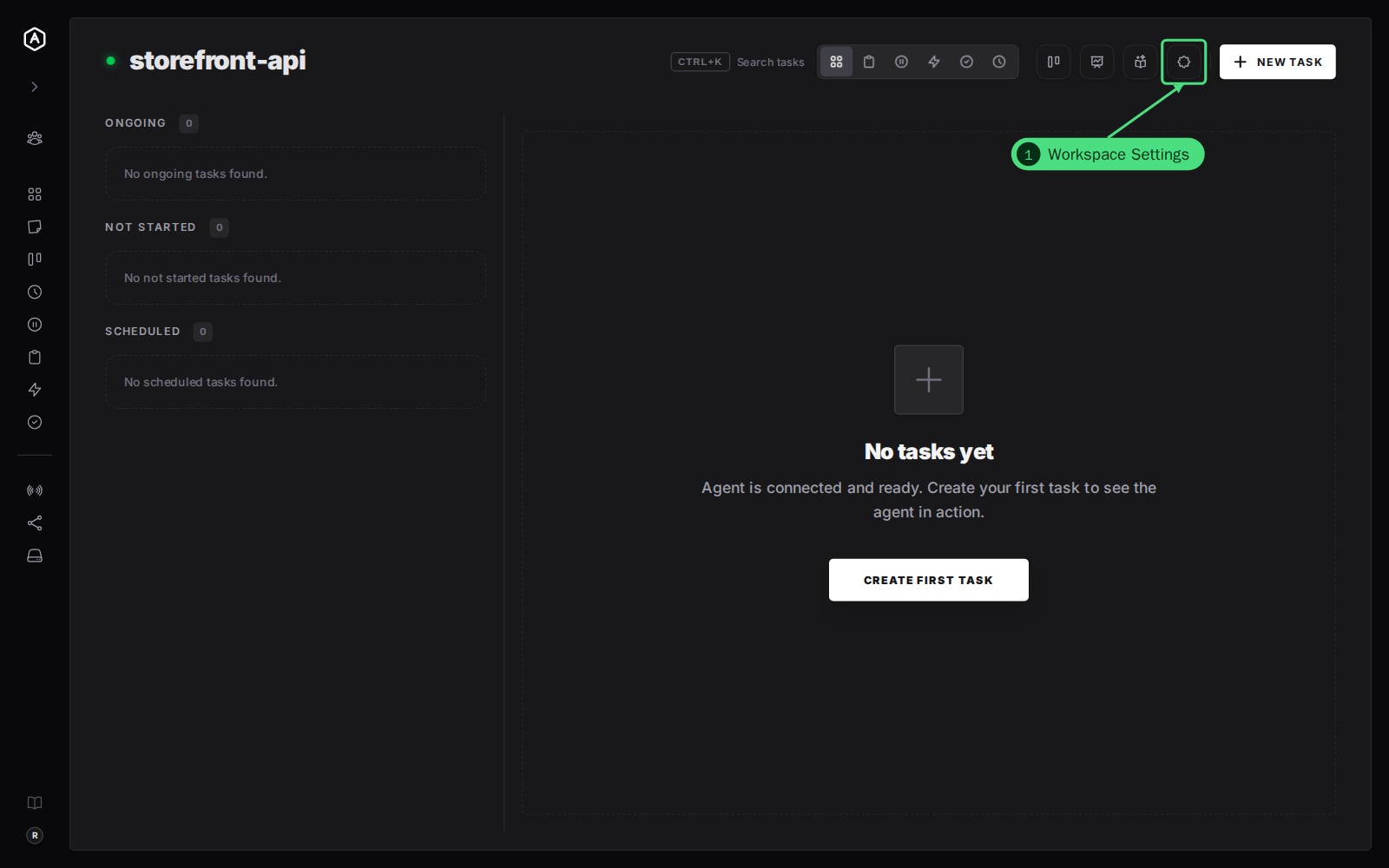
You can also link straight to a tab: /workspaces/<workspace id>/settings?tab=general. The other tab names are setup, automations, notifications, memories, skills, sharing, slack, input, storage and danger.
Step by Step: Name, Folder and Mission
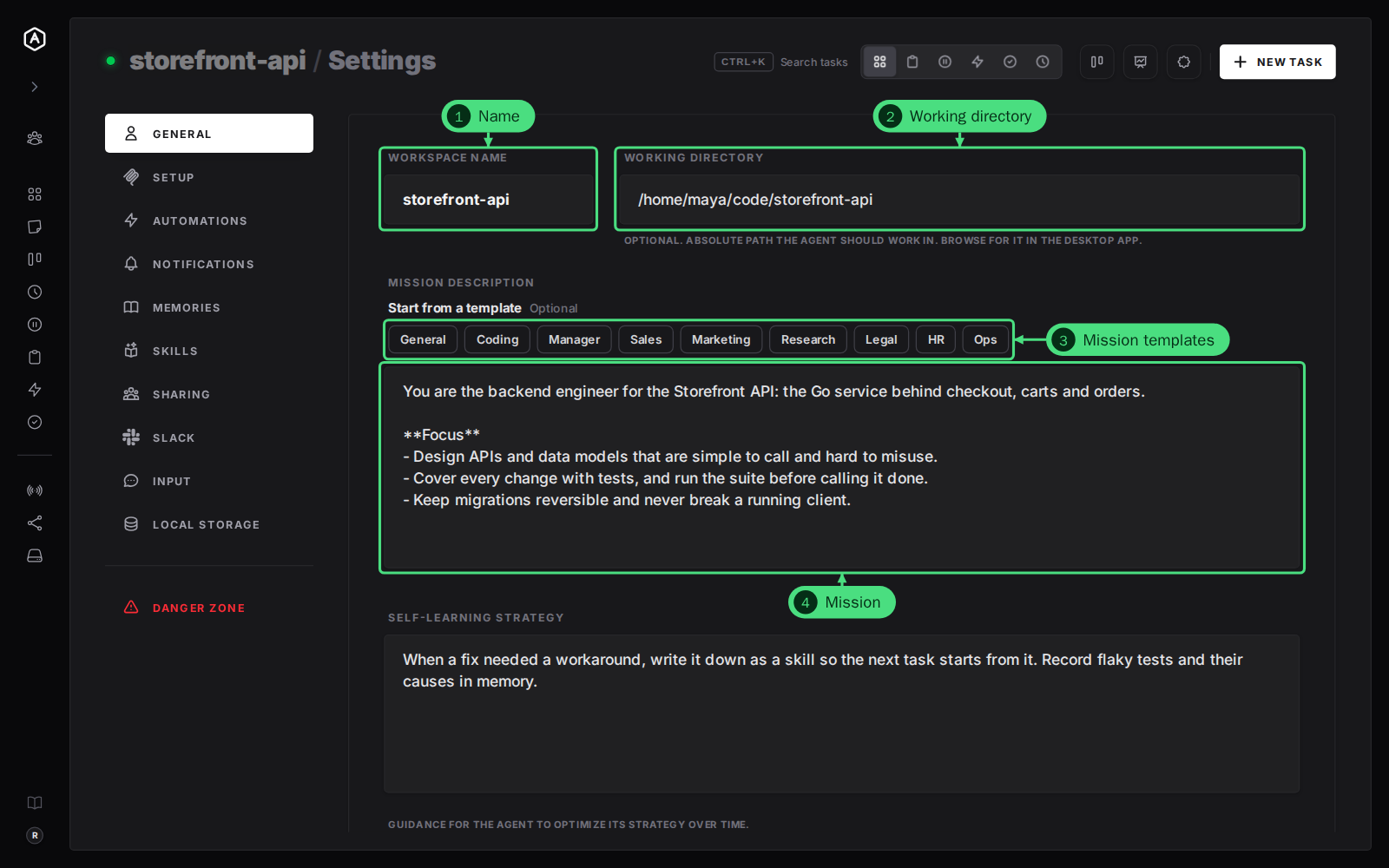
1. Workspace Name. The name shows in the sidebar, on task cards and in the agent's tools. AgentRQ keeps names in kebab-case: when you leave the field, Storefront API becomes storefront-api.
2. Working Directory. The absolute path the agent should work in, such as /home/maya/code/storefront-api. It is optional. When you start the agent from a machine, it runs in this folder. In the desktop app, Browse opens a folder picker.
3. Mission templates. Under Start from a template, pick a category (General, Coding, Manager, Sales, Marketing, Research, Legal, HR or Ops) and then a speciality, such as Coding → Backend. The template fills in the mission below. Nothing about the category is saved, so the text stays yours to edit.
4. Mission Description. What this workspace's agent is for and how it should work. The agent reads it through its AgentRQ workspace tool when it starts a task, so write it the way you would brief a new teammate: the project, the focus, and the rules it must keep.
Step by Step: Self-Learning Strategy, Then Save
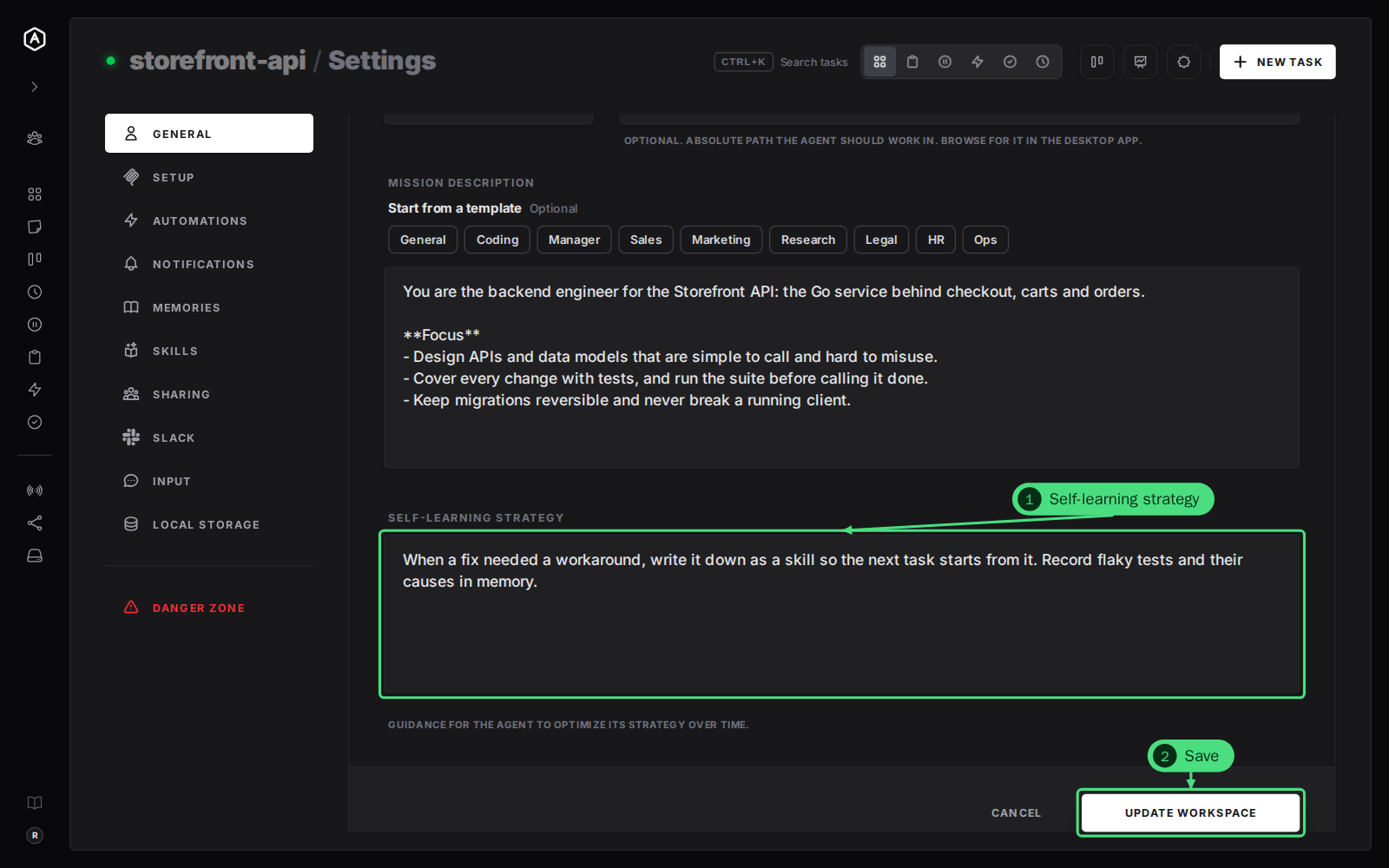
5. Self-Learning Strategy. A note on how the agent should get better over time. AgentRQ hands it to the agent with every task. A good one names where lessons go: "When a fix needed a workaround, write it down as a skill. Record flaky tests and their causes in memory." See workspace memory and distributed skills.
6. Click Update Workspace at the bottom of the tab to save. Cancel goes back without saving.
Good to Know
- → Only four tabs need Update Workspace: General, Input, Automations and Notifications. Switches on the other tabs save as you flip them.
- → A fork keeps its own name, mission and folder. Its other settings, its memory and its skills come from the workspace it was forked from, and a banner at the top of each tab links there. A fork's folder is made by the machine on its first launch, so the field is read-only.
- → An archived workspace has no gear button. Restore it first: the Danger Zone guide shows how.
FAQ
When does the agent see a new mission?
The next time it reads its workspace, which agents do at the start of a task. The self-learning note goes out with every task, so a change reaches the next task the agent is handed.
Can an agent change these settings?
The supervisor workspace can create workspaces and update their name, mission, notification settings and self-learning note through its AgentRQ tools, so you can ask it to.