Workspace Settings: Local Storage Tab Explained
The Local Storage tab decides whether this browser keeps a copy of the workspace's tasks. With the copy, task lists appear at once and you can search task titles and descriptions without a connection. It is the one tab whose setting stays on this device: it does not follow your account to your other browsers.
This page is one of our workspace guidelines. It was checked against AgentRQ on November 16, 2026, and every screenshot comes from the storefront-api workspace.
Before You Start
Open the workspace, click the gear button in the top right, then Local Storage in the settings menu. The General tab guide shows where the gear is.
Step by Step: Manage the Copy
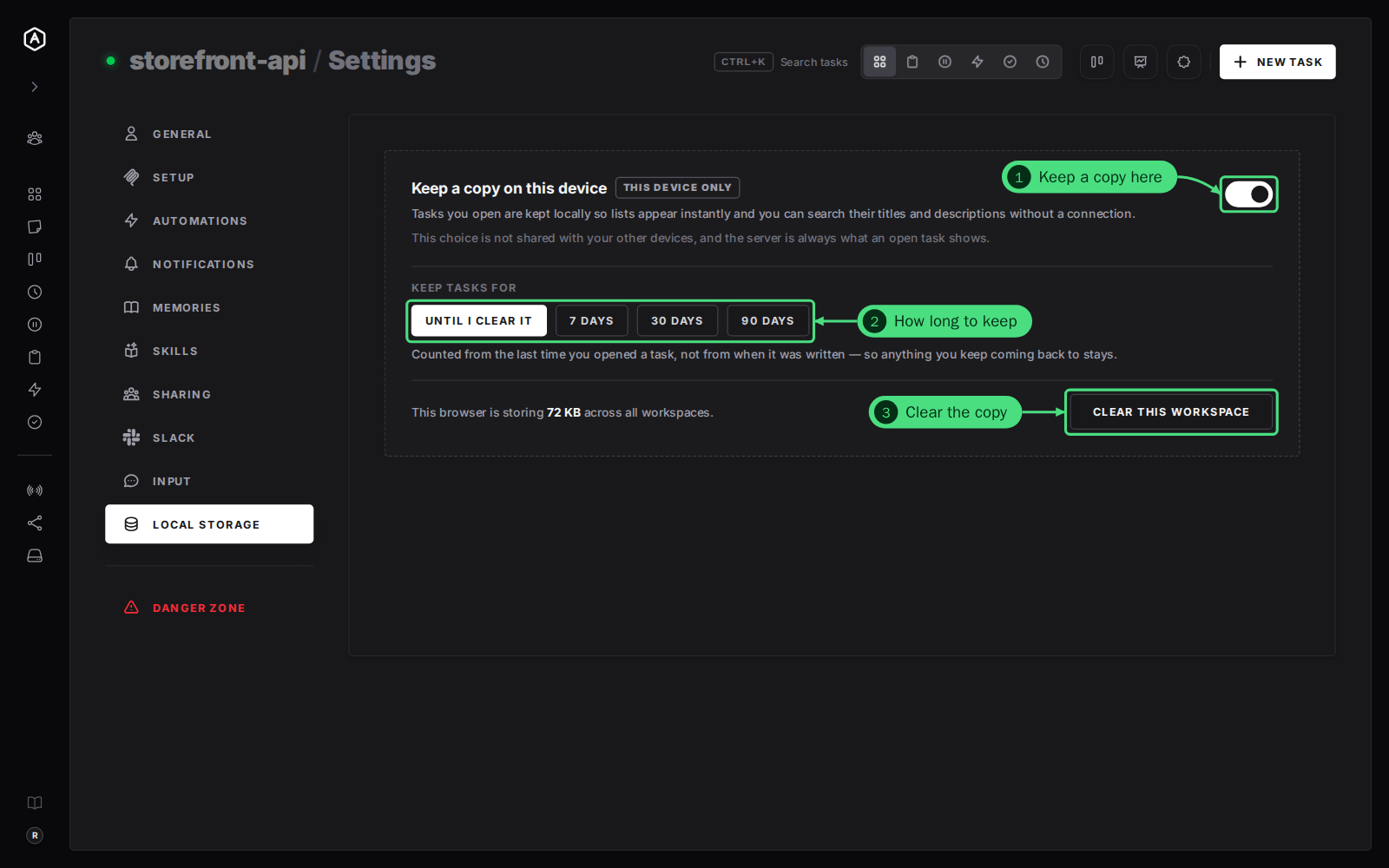
1. Keep a copy on this device. On by default. Tasks you open are kept in this browser. An open task always shows what the server has, so the copy never shows you stale messages.
2. Keep tasks for. Until I clear it, 7 days, 30 days or 90 days. The time counts from the last time you opened a task, not from when it was written, so tasks you keep coming back to stay.
3. Clear this workspace deletes this workspace's copy from the browser. The line next to it says how much the browser is storing across all your workspaces.
Everything on this tab saves as you click it; there is no Update Workspace button.
FAQ
Should I turn it off on a shared computer?
Yes. The copy holds task titles, descriptions and messages. Turn it off and click Clear this workspace on any computer other people use.
Does clearing the copy delete my tasks?
No. It only removes this browser's copy. The tasks stay in AgentRQ, and the next time you open one it is kept again, unless the switch is off.