Workspace Colors and Blinking Dots Explained
Every workspace in the AgentRQ sidebar has a small dot beside its name, and every task has one too. The color tells you what state it is in: yellow is waiting on you, green is working or done, red is stuck, grey has not started and cyan is scheduled. The motion tells you whether it is happening right now: a dot that pulses (fades in and out) or ripples (sends out a ring) is live, and a steady dot is a state that is holding still. A soft glow around a dot marks the states that are live or need you.
This page is one of our workspace guidelines. It was checked against the AgentRQ source and the latest build on November 15, 2026. The screenshots come from a real run with six workspaces, each one in a different state. The dots in the legend below are drawn with the same colors and animations the app uses, so they move the way the app's do.
All Colors at a Glance
Blinking or Steady: How to Read the Motion
AgentRQ uses two kinds of motion, and only for things that are happening now.
- → Pulse. The whole dot slowly fades out and back in, about every two seconds. It means a task is running. Green pulses while the agent works on it. Red pulses when a task is still marked ongoing but the agent that runs it has gone offline, so nothing is actually moving.
- → Ripple. A ring grows out of a solid dot and fades, about once a second, like a heartbeat. It means the agent is connected and listening. You see it beside a workspace's name at the top of its page, on each workspace card on the Workspaces page, and on the current step of a task's timeline.
- → Steady. A dot that does not move is a state that will stay as it is until someone acts: an approval waiting for you, a blocked task, a finished one, a queued one.
The glow works the same way across the app. Live states and states that need you (waiting on you, ongoing, blocked, scheduled) have a soft halo. Finished states (completed, rejected) and idle ones (not started) are plain. That is how you tell a green ongoing task from a green completed one when the pulse is between beats.
The Sidebar Dot: One Dot per Workspace
The dot beside a workspace's name in the sidebar sums up the whole workspace. A workspace can have many tasks in different states, so the dot shows the most urgent one, in this order:
| Order | What the workspace has | Dot | Tooltip |
|---|---|---|---|
| 1 | A task waiting for your approval | Yellow, steady, glowing | Waiting on you |
| 2 | A blocked task | Red, steady, glowing | Blocked |
| 3 | An ongoing task, agent online | Green, pulsing | Task ongoing |
| 3 | An ongoing task, agent offline | Red, pulsing | Task ongoing |
| 4 | No live tasks, agent online | Green, steady, glowing | Agent Online |
| 5 | No live tasks, agent offline | Grey | Agent Offline |
So a workspace with one task running and another waiting for your approval shows yellow, not green: the approval needs you, and the running task does not. Hover over any dot to see its tooltip.
Forks get their own dot in the sidebar, under their parent, worked out the same way from the fork's own tasks and agent.
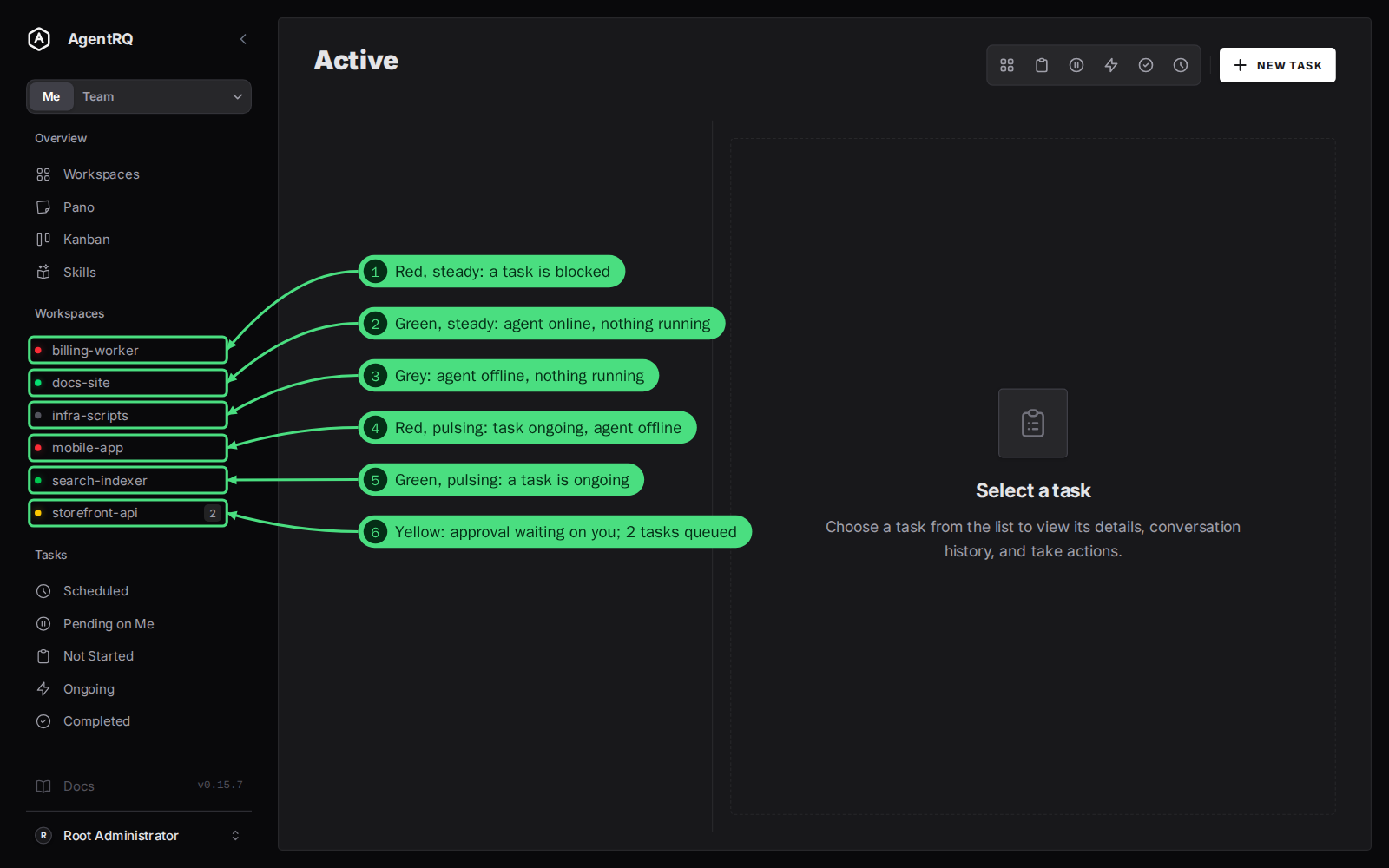
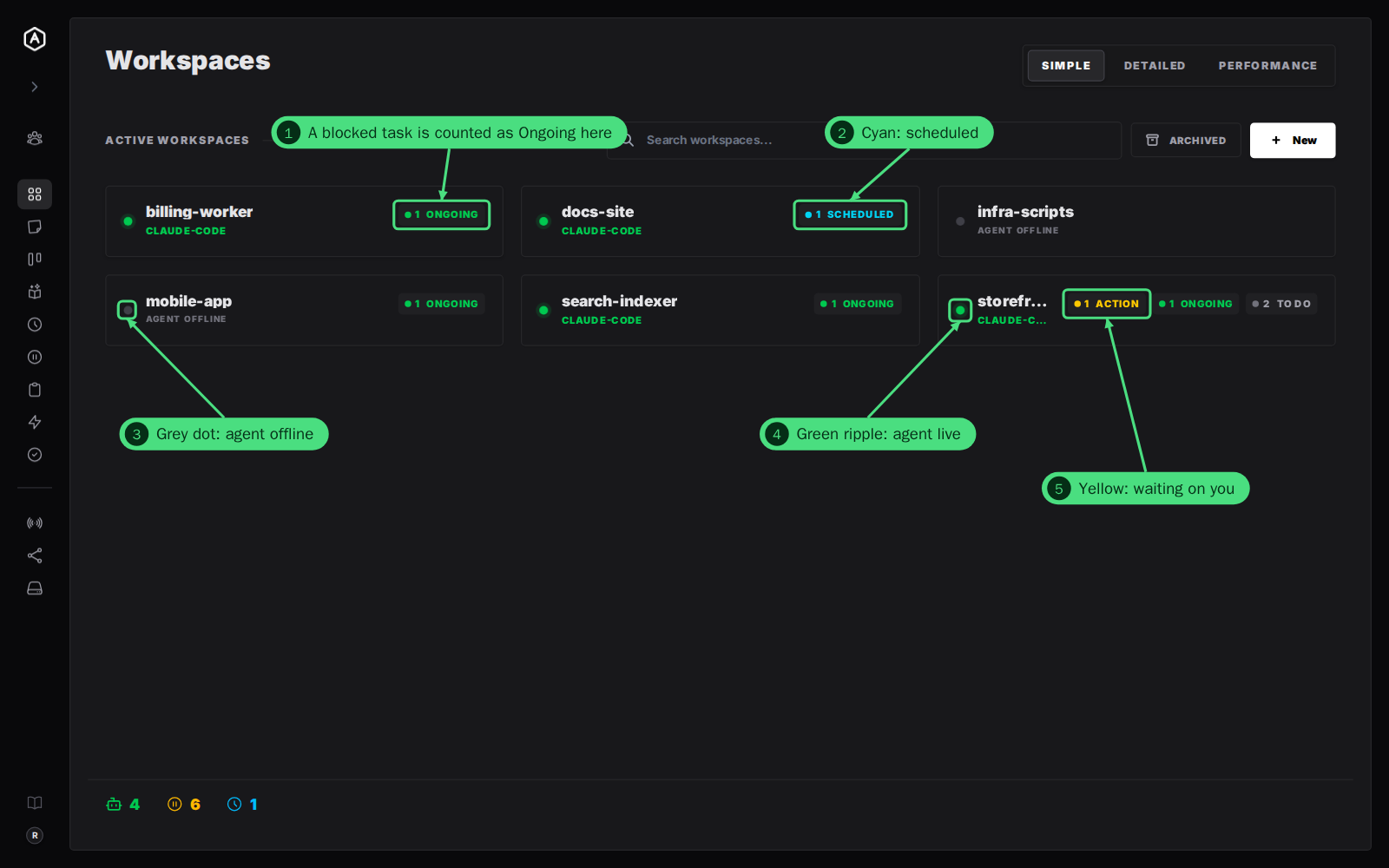
Here are all six cases side by side: 1. billing-worker has a blocked task, 2. docs-site's agent is online with nothing running, 3. infra-scripts' agent is offline with nothing running, 4. mobile-app has a task running but its agent went offline, 5. search-indexer's agent is working on a task, and 6. storefront-api is waiting for your approval and has two more tasks queued.
The Number Beside a Workspace
A small grey number at the right of a sidebar row counts the tasks queued for that workspace's agent: tasks assigned to the agent that it has not started yet. Hover over it to read, for example, "3 queued for the agent". Tasks assigned to you are not counted there, and the number disappears when the queue is empty.
Agent Online or Offline
Whether the workspace's agent is connected shows up in four places, each drawn a little differently:
| Where | Agent online | Agent offline |
|---|---|---|
| Sidebar, when nothing is running | Green, steady, glowing | Grey |
| Top of the workspace's page, beside its name | Green with a ripple | Red, steady, glowing |
| Workspace card on the Workspaces page | Green with a ripple, "Agent Live" | Grey, "Agent Offline" |
| Kanban card, when viewing every workspace | Green, steady, glowing | Grey |
When you open a task whose agent is offline, a red notice above the reply box pulses with "Agent Offline. Messages cannot be delivered." Your reply would have nowhere to go, so the box stays disabled until the agent comes back, unless the task is assigned to you.
The task's own dot does not change when the agent drops: it is still marked ongoing, so it stays green in the task list. The red dot beside the workspace's name, and the red pulse in the sidebar, are what tell you nothing is moving.
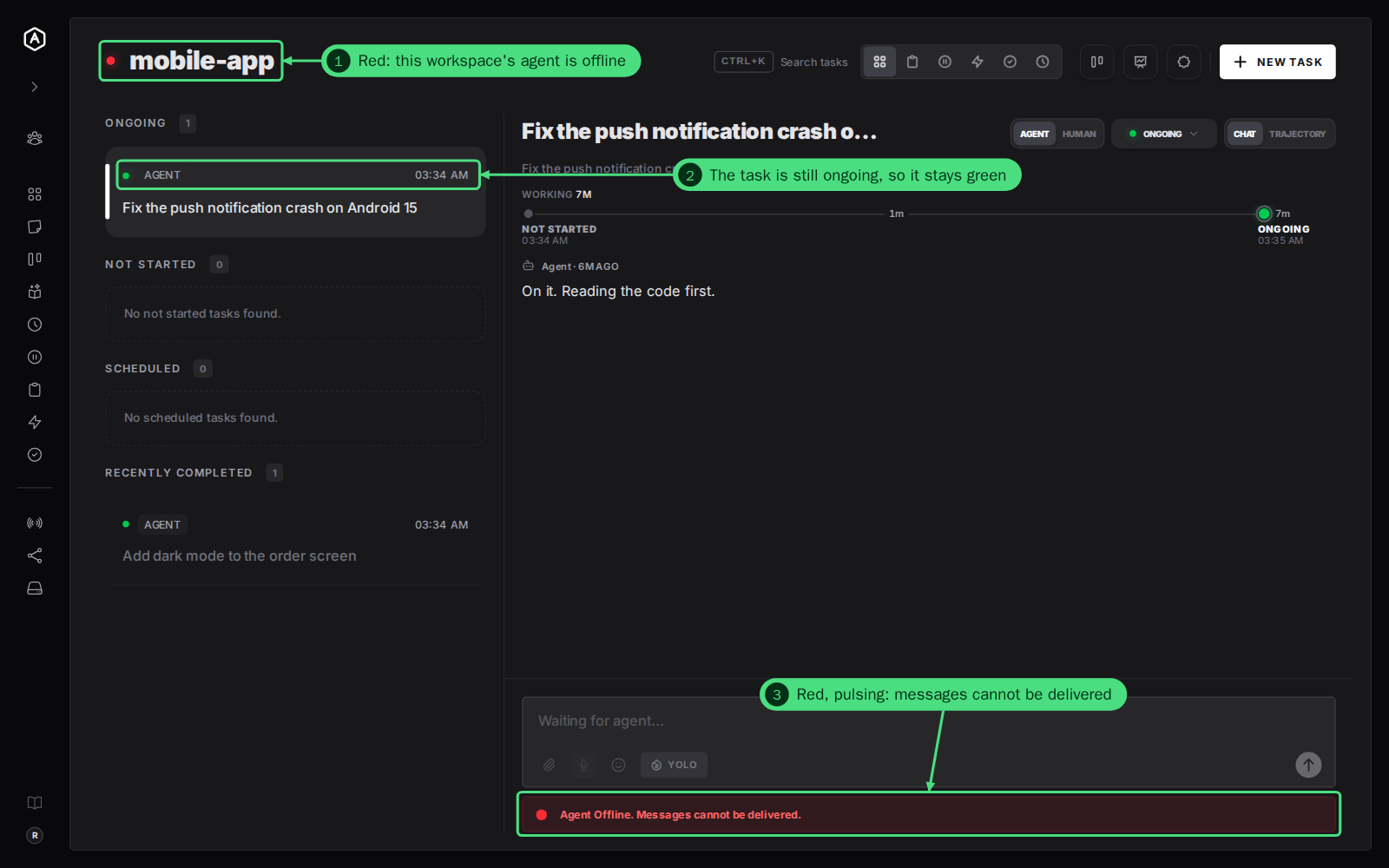
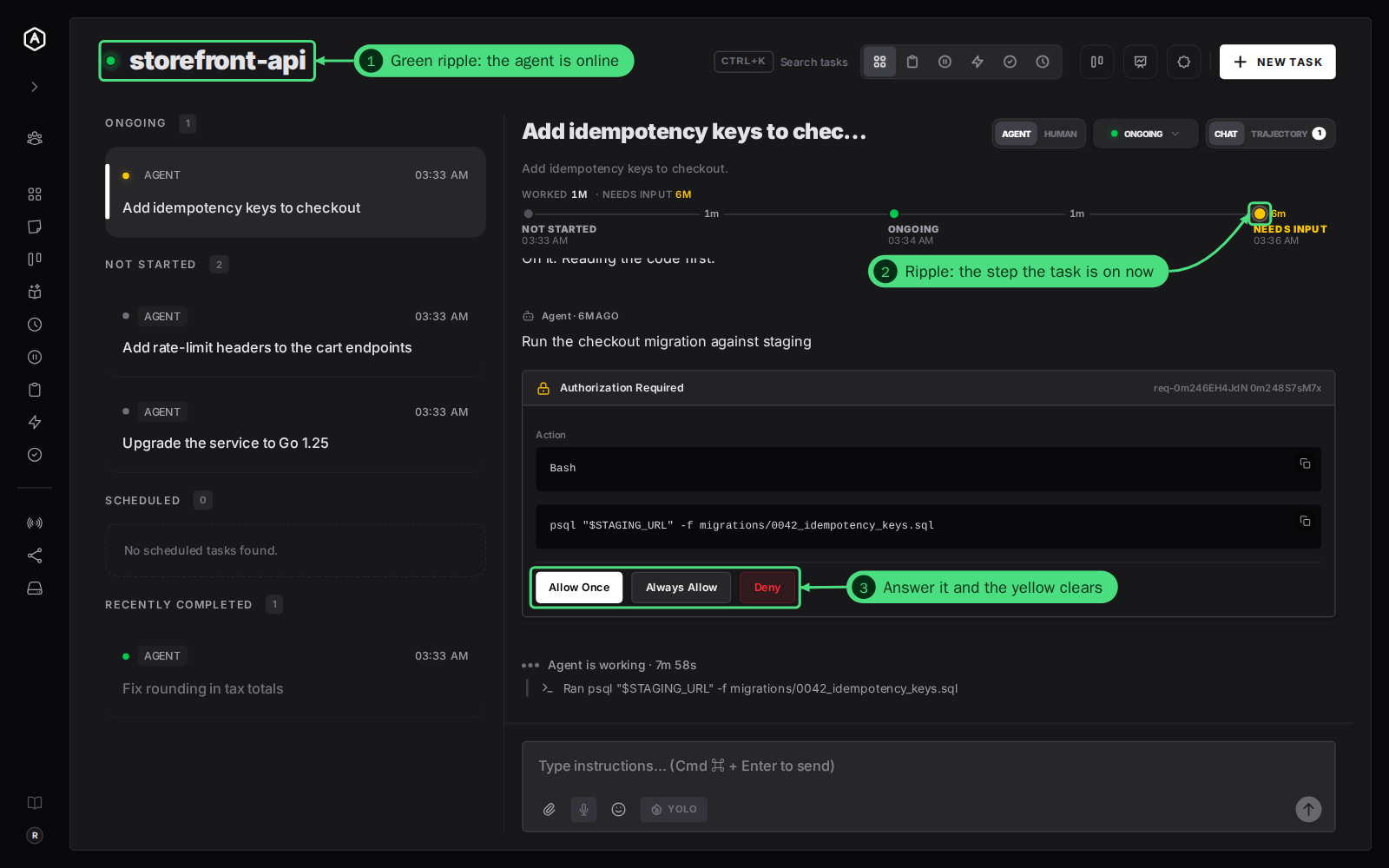
When the agent is connected, the dot beside the workspace's name ripples green. Open a task that is waiting on you and the request is right there. Allow or deny it and the yellow clears. The step the task is on now, at the end of its timeline, ripples in that step's color.
Task Dots and Card Colors
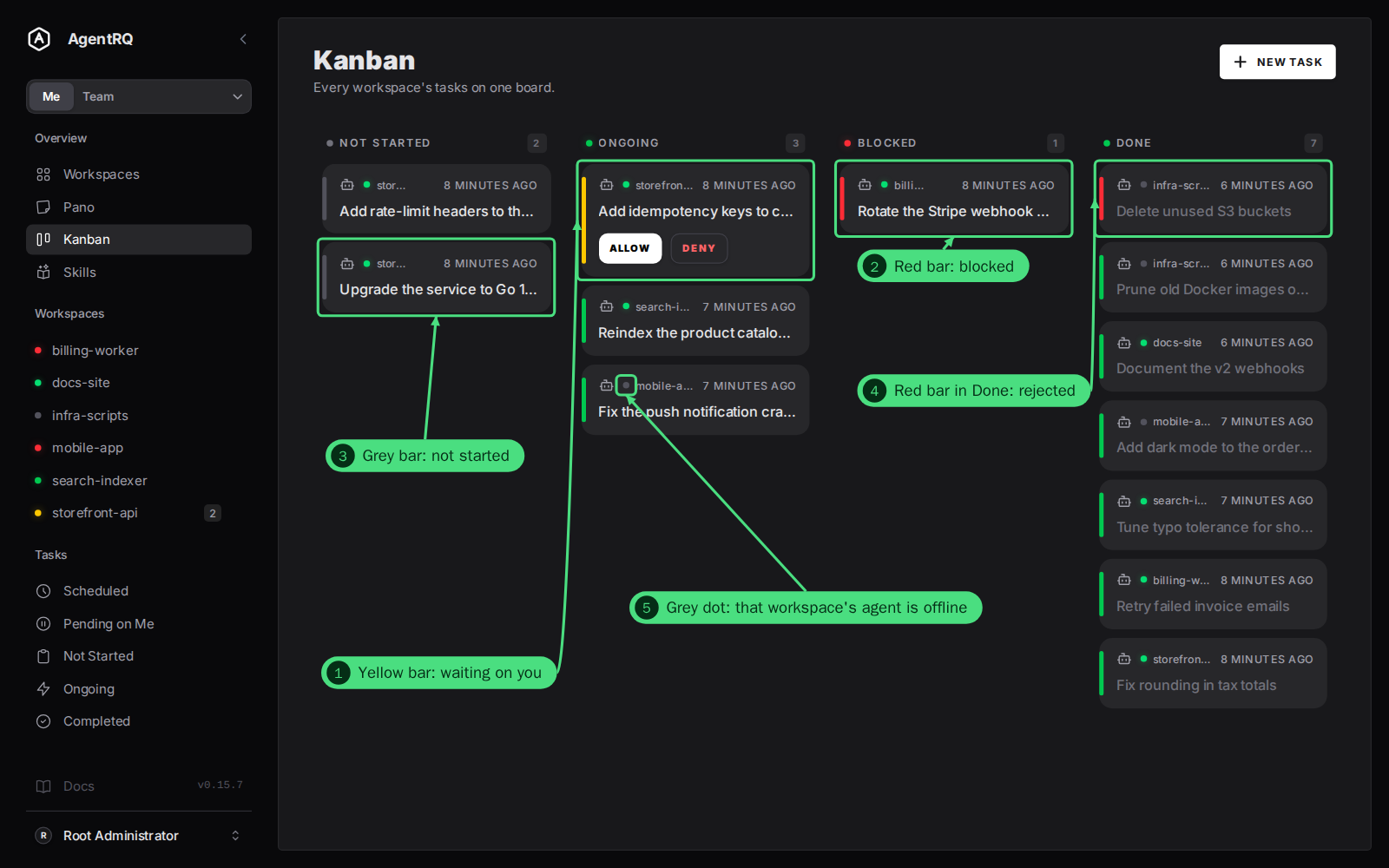
Each task has its own dot in the task lists, the Active feed, the task's own page and the scheduled-runs list. The Kanban board paints the same color as a bar down each card's left edge.
| Task state | Dot | Kanban bar |
|---|---|---|
| Waiting on you | Yellow, steady, glowing | Yellow |
| Ongoing | Green, pulsing, glowing | Green |
| Blocked | Red, steady, glowing | Red |
| Not started | Grey | Light grey |
| Scheduled | Cyan, steady, glowing | Cyan |
| Completed | Green, steady | Green |
| Rejected | Red, steady | Red |
A task counts as waiting on you when its newest message is a permission request you have not answered yet, or when it is a not-started task assigned to you rather than to the agent. The Kanban bar never pulses or glows: a moving strip the height of a card would pull your eye off its text. On the board, a finished card is told apart by its greyed title and the column it sits in.
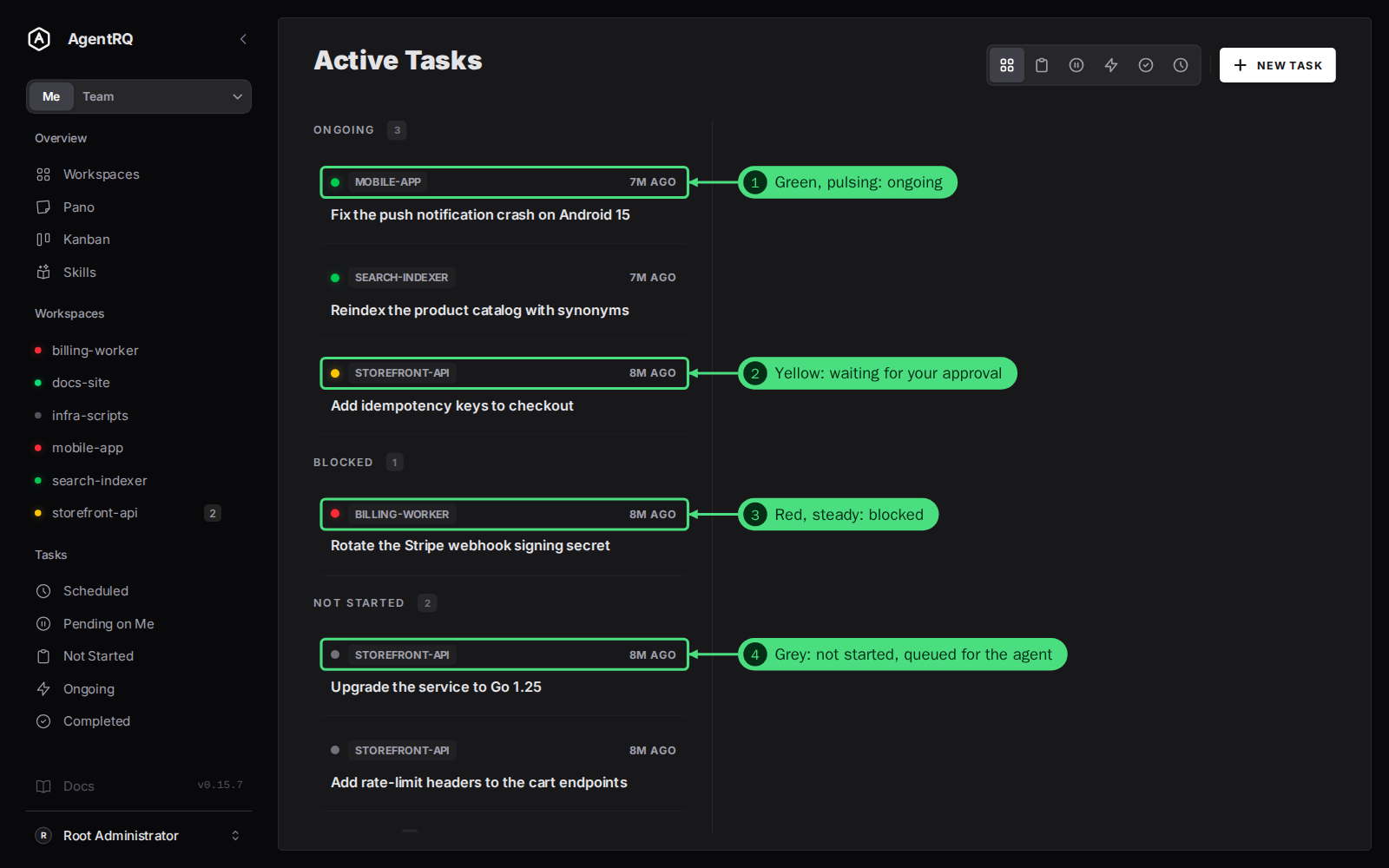
On the board, a card waiting for your approval also carries Allow and Deny buttons. When the board shows every workspace, each card names its workspace with a small dot for that workspace's agent: green if it is online, grey if it is not.
The Workspaces page lists counts on each workspace card with plain colored dots, without glow or motion so a row of them stays calm: Action (yellow), Ongoing (green), To do (grey) and Scheduled (cyan). There is no separate count for blocked tasks there: a blocked task is counted under Ongoing, so open the workspace, or check its sidebar dot, to see whether one is stuck.
What to Do for Each Color
- → Yellow. Open the workspace and the task with the yellow dot, then approve or deny the request, or pick up the task if it is assigned to you. The agent waits until you do.
- → Red, steady. Open the blocked task and read the agent's last message. It says what it needs: a decision, a credential, a file. Reply, and the agent carries on.
- → Red, pulsing. The agent went offline with a task still running. Start it again on its machine, or from AgentRQ if it runs on an enrolled machine; the connect agents guidelines show how. Once it reconnects, the dot turns green again.
- → Green, pulsing. Nothing to do. Open the task to follow the agent's replies, or check its timeline.
- → Grey. Nothing is running and no agent is connected. Connect one when you want work to start; queued tasks wait for it.
- → Cyan. A scheduled task will start a new run at its next time. Nothing to do.
FAQ
Why is a workspace yellow when its agent is also working?
The sidebar dot shows the most urgent state. A task waiting for your approval always comes before a running one, because the running task does not need you and the waiting one does.
What is the difference between a pulsing and a rippling green dot?
A pulsing green dot is a task that is running. A green dot with a ripple is the agent's heartbeat: it shows the agent is connected, whether or not it is working on anything.
Why does a workspace pulse red instead of green?
It has a task marked ongoing, but the agent that runs it is not connected, so the work has stopped. Start the agent again and the dot goes back to green.
Why is a workspace's agent red on its page but grey in the sidebar?
Both mean the agent is offline. On the workspace's own page the offline state is red so it stands out where you would send work; in the sidebar it is grey so a list of idle workspaces stays quiet.
Do the colors change without reloading the page?
Yes. Task changes and agent connections update the dots live, in the sidebar, the lists, the board and any task you have open.
Is a completed task green like an ongoing one?
Yes, both are green. An ongoing task's dot pulses and glows; a completed task's dot is steady and plain, and its title is greyed out.