
How to Enable YOLO Mode in Code Assistant
Code Assistant is in YOLO mode out of the box. Its default permission tier, bypass-all, runs every tool call without asking. To leave YOLO mode, pick another tier: /permissions write-tools in the terminal interface, the Permissions dropdown in the GUI, or a session mode over ACP.
This page is one of our YOLO mode guides, and part of our guide to YOLO mode in every coding agent. Everything below was checked against the Code Assistant source and docs (stippi/code-assistant, version 0.2.18) on October 30, 2026.
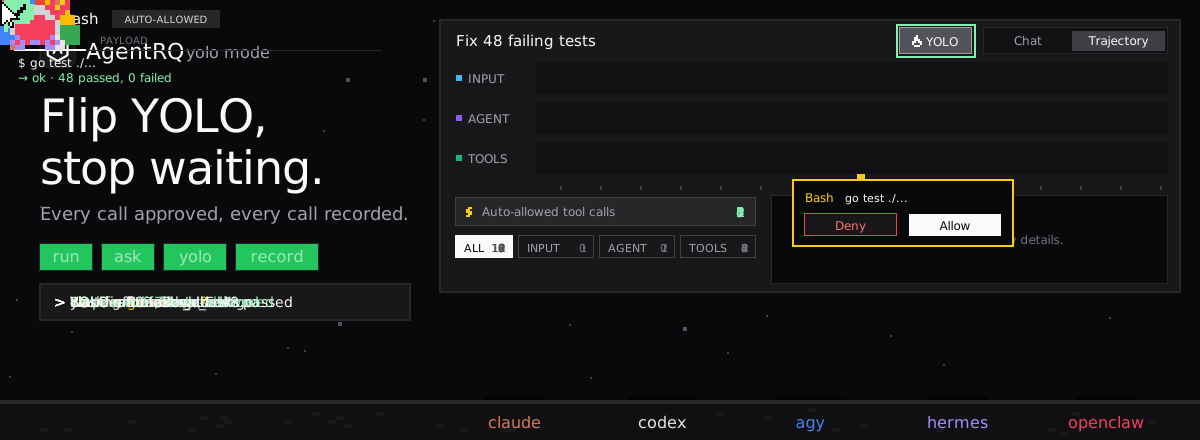
Code Assistant's Permission Tiers
Code Assistant decides when to ask with a permission tier, stored per session:
| Tier | When it asks |
|---|---|
bypass-all (default) |
Never |
outward-tools |
Before tools whose effects leave the machine, such as sending a message or calling a remote service |
write-tools |
Before anything not marked read-only: file edits, commands, and untagged MCP tools |
auto |
A reviewing model checks each call that may change something, and you are asked only about calls it holds back |
all-tools |
Before every tool call |
bypass-all is YOLO mode. The answers at a prompt are Allow once, Always allow (for this tool, for the rest of the session) and Deny. A denial goes back to the model as an error that tells it not to retry.
How to Switch Tiers
| Where | How |
|---|---|
| GUI | the Permissions dropdown under the input |
Terminal (--tui) |
/permissions bypass-all, write-tools, all-tools and so on |
| ACP | session modes, switched with session/set_mode |
In the terminal interface, /permissions on its own shows the current tier. A pending prompt can also be answered with /allow, /always or /deny.
The Halfway Options
write-tools is the usual middle ground: reads run freely and anything that changes state asks. auto asks even less. Configure its reviewer in <config_dir>/auto-mode.json (Settings > General > Auto mode), where you can name the reviewing model and add your own rules in plain English:
If the reviewer fails or takes longer than 60 seconds, the call is treated as held back and you are asked.
Code Assistant's Sandbox
The tier and the sandbox are separate. The tier decides whether a call runs without asking; the sandbox limits what a command can touch once it runs. Set it with --sandbox-mode:
The modes are danger-full-access (the default), read-only and workspace-write. Add --sandbox-network to allow outbound network inside workspace-write. When a command needs to run outside the sandbox, Code Assistant asks separately, whatever the tier, except under auto when the reviewer already allowed the call.
How to Enable YOLO Mode in Code Assistant Through AgentRQ
Code Assistant's tier covers one session at a time. AgentRQ lets you make the decision per task, and answer from somewhere other than the terminal.
Approve From the AgentRQ Task Instead of the Terminal
Connect Code Assistant to an AgentRQ workspace through the ACP Gateway (Code Assistant setup guide), wrapping its ACP command:
Over ACP, Code Assistant advertises its tiers as session modes: Bypass Permissions (bypass-all), Ask Before Outward Actions, Ask Before Writes, Auto Mode and Ask For All Tools. A new session starts in Bypass Permissions, which never asks, so AgentRQ moves it to a mode that does. Each permission request then shows up in the AgentRQ task on the web, on your phone or in Slack, together with the command or edit it is asking about. Answer Allow Once, Always Allow or Deny from wherever you are, and Code Assistant carries on. If nobody answers within 30 minutes, the gateway cancels the turn instead of guessing. Change the limit with --permission-timeout.
One detail for ACP: when the client offers to run commands in its own terminal, Code Assistant hands them over and its own sandbox setting is not applied to them.
Turn On YOLO for One Task
Flip the YOLO toggle on a task, or when you create it, to put just that task in YOLO mode. Every permission request in it is approved automatically and Code Assistant never waits, while every other task in the workspace still asks. Scheduled tasks, event triggers and workflow steps have the same switch, so an unattended job can run in YOLO while your interactive work stays supervised.
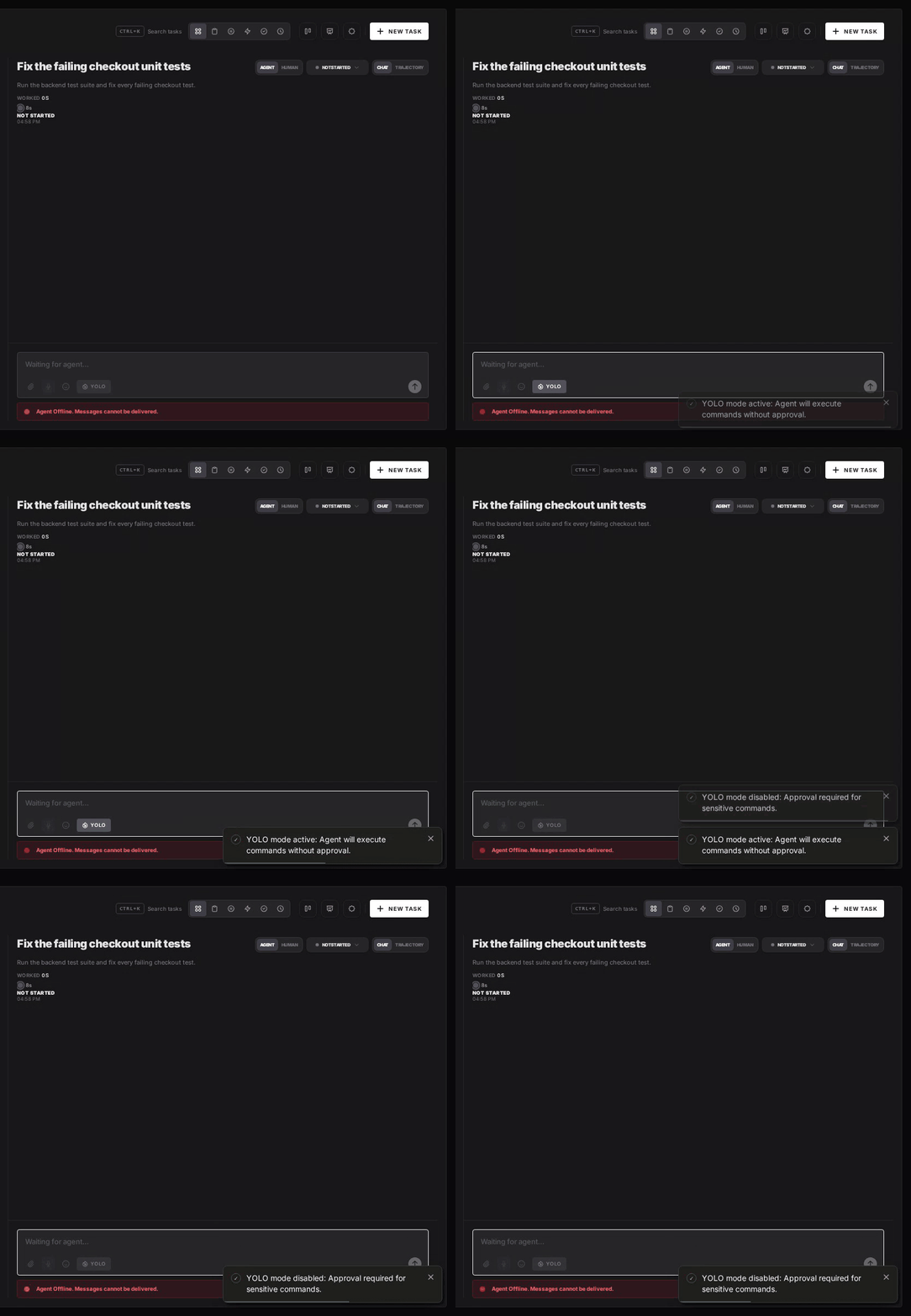
Turn YOLO On or Off in Workspace Settings
To make YOLO the default for a whole workspace, open the workspace, go to Settings, choose the Automations tab and flip YOLO Mode (Execute All). Click Update Workspace to save. Switch it off the same way. The switch is off by default, and every permission request in the workspace is approved automatically while it is on.
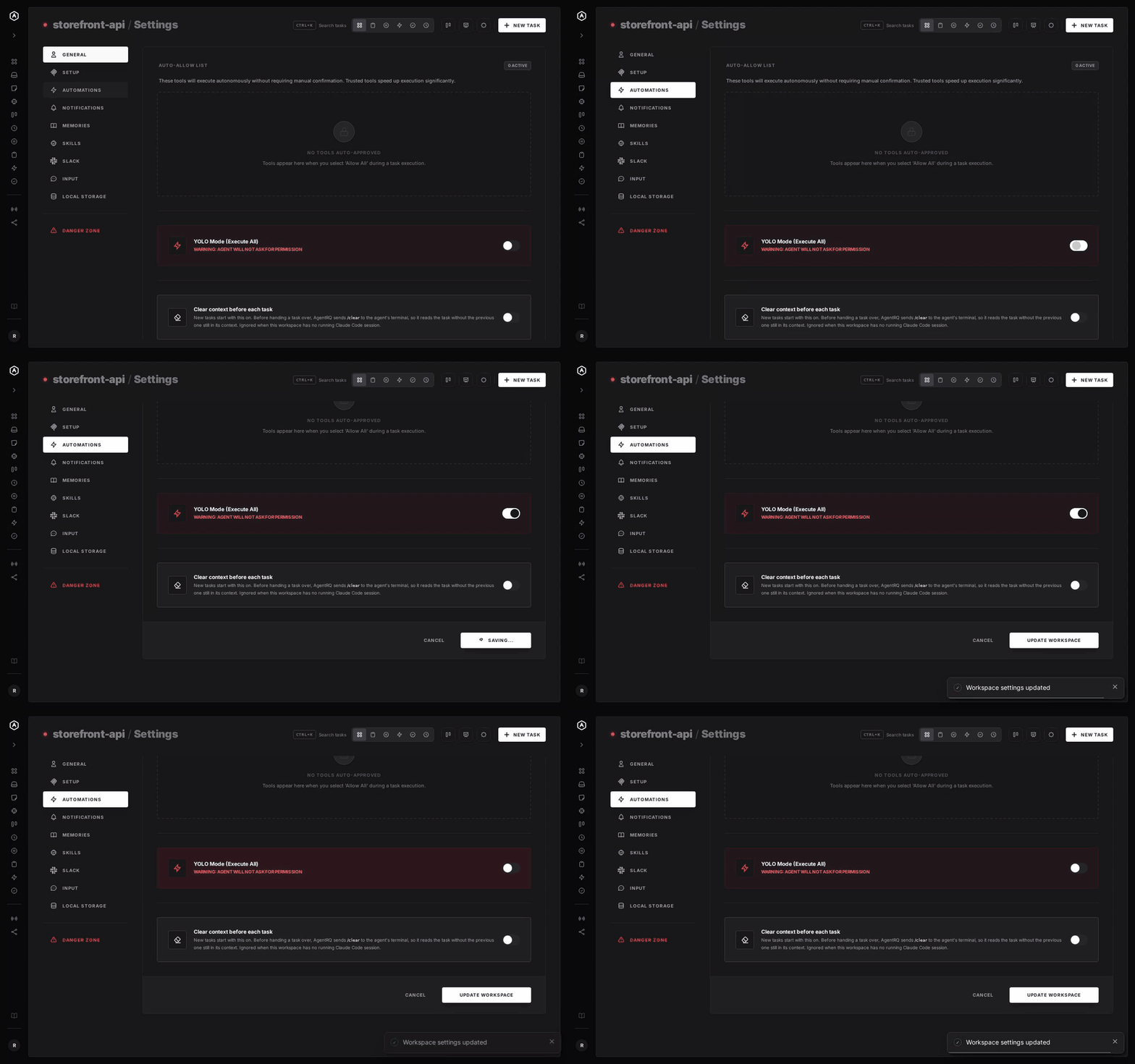
A Safe YOLO Setup for Code Assistant
- → Don't stay on the default.
bypass-allnever asks. Usewrite-toolsorall-toolsfor anything you want to review. - → Allow the boring tools, not everything. Always Allow adds the tool to the workspace's auto-approved list, so the routine calls stop asking and the risky ones still do. Prune that list in workspace settings now and then.
- → Leave the workspace-wide switch off. Turn YOLO on per task instead, so it never outlives the job you trusted.
- → Use the sandbox.
--sandbox-mode workspace-writekeeps commands inside the project when Code Assistant runs them itself. - → Commit first. Start every YOLO task from a clean git tree, so any change is one
git resetaway. - → Read the record. The tool call history lists every call the task made, including the ones that were auto-approved.
FAQ
How do I enable YOLO mode in Code Assistant? You don't have to. Its default permission tier, bypass-all, already runs every tool call without asking.
How do I make Code Assistant ask before running tools? Pick another tier: /permissions write-tools in the terminal interface, the Permissions dropdown in the GUI, or a session mode over ACP.
What is Code Assistant's auto mode? A tier where a reviewing model checks each call that may change something and asks you only about the calls it holds back.
Does Code Assistant have a sandbox? Yes, for commands. Set --sandbox-mode to read-only or workspace-write. The default, danger-full-access, does not restrict anything.
How do I approve Code Assistant commands remotely? Run code-assistant acp behind AgentRQ's ACP Gateway. Its permission requests show up in the task on the web, your phone or Slack.
For every other agent, see what YOLO mode is and how to turn it on in every coding agent.