
How to Enable YOLO Mode in Kiro IDE and Kiro CLI
Kiro calls its YOLO mode trust all tools. In Kiro CLI, start a chat with kiro-cli chat --trust-all-tools, or type /tools trust-all in a running one. The Kiro IDE has no single switch: Autopilot stops it pausing after edits, and your permission rules decide which shell commands still ask.
This page is one of our YOLO mode guides, and part of our guide to YOLO mode in every coding agent. Everything below was checked against Kiro's documentation at kiro.dev (IDE 1.x, CLI 3.x) on October 7, 2026.
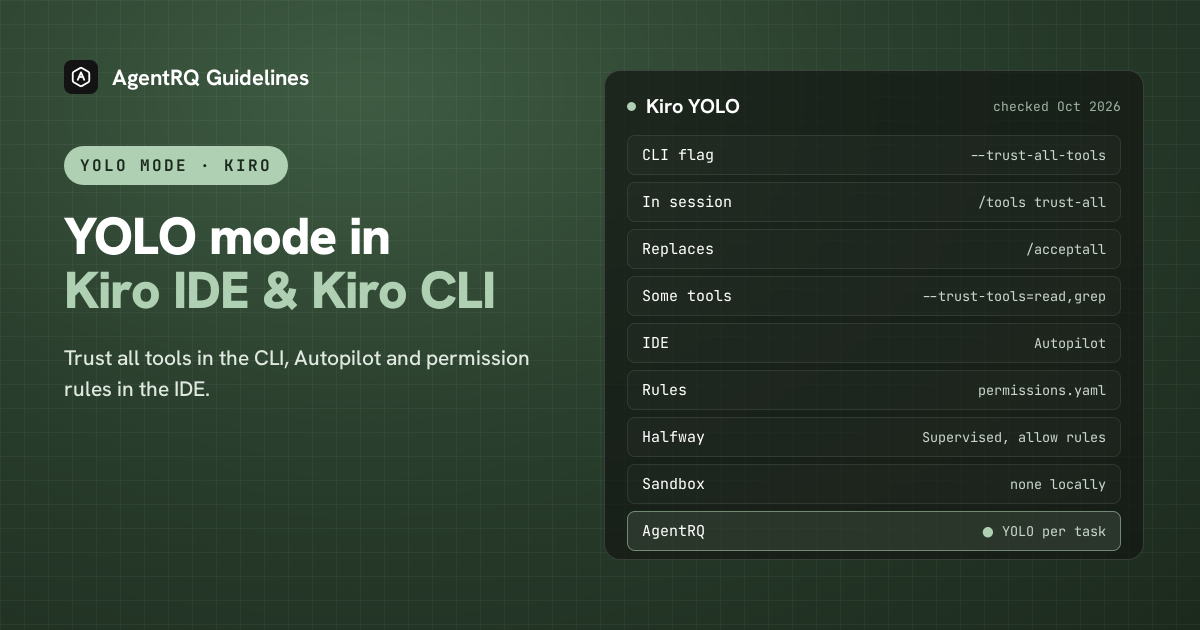
What YOLO Mode Turns Off in Kiro
Trusting all tools turns off Kiro's approval prompts. The IDE and the CLI both run on your own machine with no local sandbox, so there is nothing else to turn off. Kiro's web version is different: it runs in an isolated cloud sandbox instead of asking you about each action.
Some prompts stay even then. Kiro always asks before writing to .git, .vscode, .kiroignore and its own agent and hook folders, and its docs say these rules cannot be changed by configuration. A hook that blocks an action still blocks it.
How to Enable YOLO Mode in Kiro CLI
| Where | Full YOLO | Halfway |
|---|---|---|
| Command line | kiro-cli chat --trust-all-tools |
kiro-cli chat --trust-tools=read,grep |
| In a session | /tools trust-all |
/tools trust <tool> |
| Undo | /tools reset |
/tools untrust <tool> |
| Rules | permissions.yaml |
The Kiro CLI Trust-All Flag
Kiro's reference describes it as "Allow the model to use any tool without confirmation". It also approves hook confirmation requests. For unattended runs, combine it with headless mode:
To trust some tools rather than all, list them: --trust-tools=read,grep.
Trust All Tools Inside a Session
/tools trust-all does the same in a running chat. It replaces the old /acceptall command, which Kiro now lists as deprecated. /tools trust <tool> and /tools untrust <tool> change one tool at a time, and /tools reset goes back to the defaults.
How to Enable YOLO Mode in the Kiro IDE
The IDE has two layers, and you need both for something close to YOLO.
- → Autopilot. Switch the chat from Supervised to Autopilot, or set Settings > Agent > Agent Autonomy (
kiroAgent.agentAutonomy). In Supervised mode the agent stops for your review after every turn that edits files. In Autopilot it carries on. - → Permission rules. Autopilot only goes ahead with operations your rules allow. Shell commands, for example, still ask unless a rule allows them.
Permission Rules in permissions.yaml
Kiro 1.x keeps its rules in ~/.kiro/settings/permissions.yaml for your user, with a separate file per workspace. Each rule names a capability, a match pattern and an effect of allow, ask or deny. A deny beats an ask, and an ask beats an allow. Kiro also ships presets: edit-workspace and dev-shell are the halfway options, and allow-all allows everything except network access from the sandbox.
If you are coming from Kiro 0.x, the old trustedCommands setting is gone. Kiro's migration guide says to turn each trusted command prefix into a shell allow rule, such as one matching git *.
How to Enable YOLO Mode in Kiro CLI Through AgentRQ
Kiro CLI's own YOLO switch covers a whole session. AgentRQ lets you make the decision per task, and answer from somewhere other than the terminal.
Approve From the AgentRQ Task Instead of the Terminal
Connect Kiro CLI to an AgentRQ workspace through the ACP Gateway (Kiro CLI setup guide). Kiro starts its ACP server with kiro-cli acp:
Then start it without --trust-all-tools. Leave shell commands and writes untrusted in your Kiro permissions too, so Kiro keeps asking about them. Each permission request now shows up in the AgentRQ task on the web, on your phone or in Slack, together with the command or edit it is asking about. Answer Allow Once, Always Allow or Deny from wherever you are, and Kiro CLI carries on. If nobody answers within 30 minutes, the gateway cancels the turn instead of guessing. Change the limit with --permission-timeout.
Turn On YOLO for One Task
Flip the YOLO toggle on a task, or when you create it, to put just that task in YOLO mode. Every permission request in it is approved automatically and Kiro CLI never waits, while every other task in the workspace still asks. Scheduled tasks, event triggers and workflow steps have the same switch, so an unattended job can run in YOLO while your interactive work stays supervised.
A Safe YOLO Setup for Kiro CLI
- → Allow the boring tools, not everything. Always Allow adds the tool to the workspace's auto-approved list, so the routine calls stop asking and the risky ones still do. Prune that list in workspace settings now and then.
- → Leave the workspace-wide switch off. Workspace settings also has YOLO Mode (Execute All). Turn YOLO on per task instead, so it never outlives the job you trusted.
- → Bring your own sandbox. Kiro's IDE and CLI run on your machine with no local sandbox, so run YOLO tasks in a container or a throwaway clone.
- → Commit first. Start every YOLO task from a clean git tree, so any change is one
git resetaway. - → Read the record. The tool call history lists every call the task made, including the ones that were auto-approved.
FAQ
What is Kiro YOLO mode? Running Kiro with every tool trusted, so it never asks before acting: kiro-cli chat --trust-all-tools in the CLI, or Autopilot with allow rules in the IDE.
How do I enable YOLO mode in Kiro CLI? Start with kiro-cli chat --trust-all-tools, or type /tools trust-all in a running chat.
What replaced /acceptall in Kiro? /tools trust-all. Kiro lists /acceptall as deprecated.
Is Kiro Autopilot the same as YOLO mode? Not quite. Autopilot stops the agent pausing for review after edits, but shell commands still follow your permission rules.
Does Kiro have a sandbox? Not locally. The IDE and CLI run on your machine. Only Kiro's web version runs in a cloud sandbox.
How do I approve Kiro CLI commands remotely? Connect Kiro CLI to AgentRQ through the ACP Gateway with kiro-cli acp. Its permission requests show up in the task on the web, your phone or Slack.
For every other agent, see what YOLO mode is and how to turn it on in every coding agent.