
How to Enable YOLO Mode in stdio Bus
stdio Bus has no YOLO mode to turn on, because it is not a coding agent. It is a small C daemon that routes JSON-RPC messages between clients and worker processes. Approvals belong to the agent behind it, and one of its workers, the ACP registry launcher, already approves everything.
This page is one of our YOLO mode guides, and part of our guide to YOLO mode in every coding agent. Everything below was checked against the stdio Bus kernel (stdiobus/stdiobus, release 2.0.3) and its workers (stdiobus/workers-registry 1.5.6) on October 30, 2026.
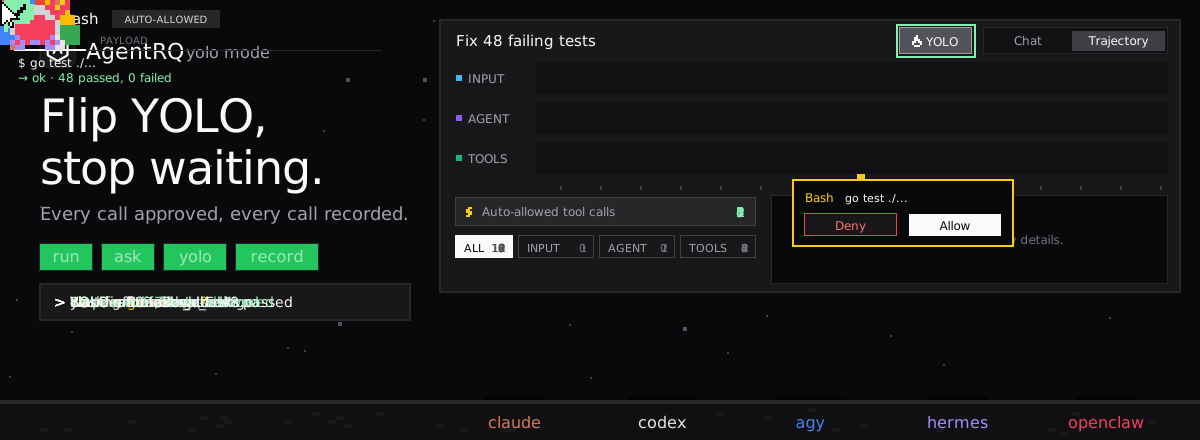
Does stdio Bus Have a YOLO Mode?
No, and it does not need one. The stdio Bus kernel supervises worker processes and forwards NDJSON-framed JSON-RPC messages between them and their clients. It parses only routing fields and leaves everything else unchanged, so it never decides whether a tool may run. The agent logic lives in the workers.
The acp-registry Worker Approves Everything
The worker that routes to ACP Registry agents, such as Claude, Goose, Cline or GitHub Copilot, is started with:
It runs headless, so it does not pass an agent's permission requests on to a human. Its source answers each one itself: it picks the agent's allow always option if there is one, then allow once, then the first option offered. Any agent you run through acp-registry is effectively in YOLO mode, whatever its own settings say, and the "allow always" answer tells the agent to remember it.
To keep an agent's approvals, start the agent without acp-registry in front of it.
How to Enable YOLO Mode in stdio Bus Through AgentRQ
What AgentRQ can do here depends on whether permission requests get through stdio Bus. Through acp-registry they do not, so be clear about what you get.
Approve From the AgentRQ Task Instead of the Terminal
Connect stdio Bus to an AgentRQ workspace through the ACP Gateway (stdio Bus setup guide):
Replace the placeholder with the ACP launch command of the stdio Bus setup you run. If that setup answers permission requests itself, as acp-registry does, none of them reach AgentRQ. AgentRQ still gives you the task, remote replies and the tool call history of what the agent did, but nothing waits for you.
If you want to approve tool calls from AgentRQ, connect the agent itself through the ACP Gateway, for example with npx @agentrq/acp-gateway@latest --agent <id> for an agent in the ACP registry. Each of its permission requests then shows up in the AgentRQ task on the web, on your phone or in Slack. Answer Allow Once, Always Allow or Deny from wherever you are. If nobody answers within 30 minutes, the gateway cancels the turn instead of guessing. Change the limit with --permission-timeout.
Turn On YOLO for One Task
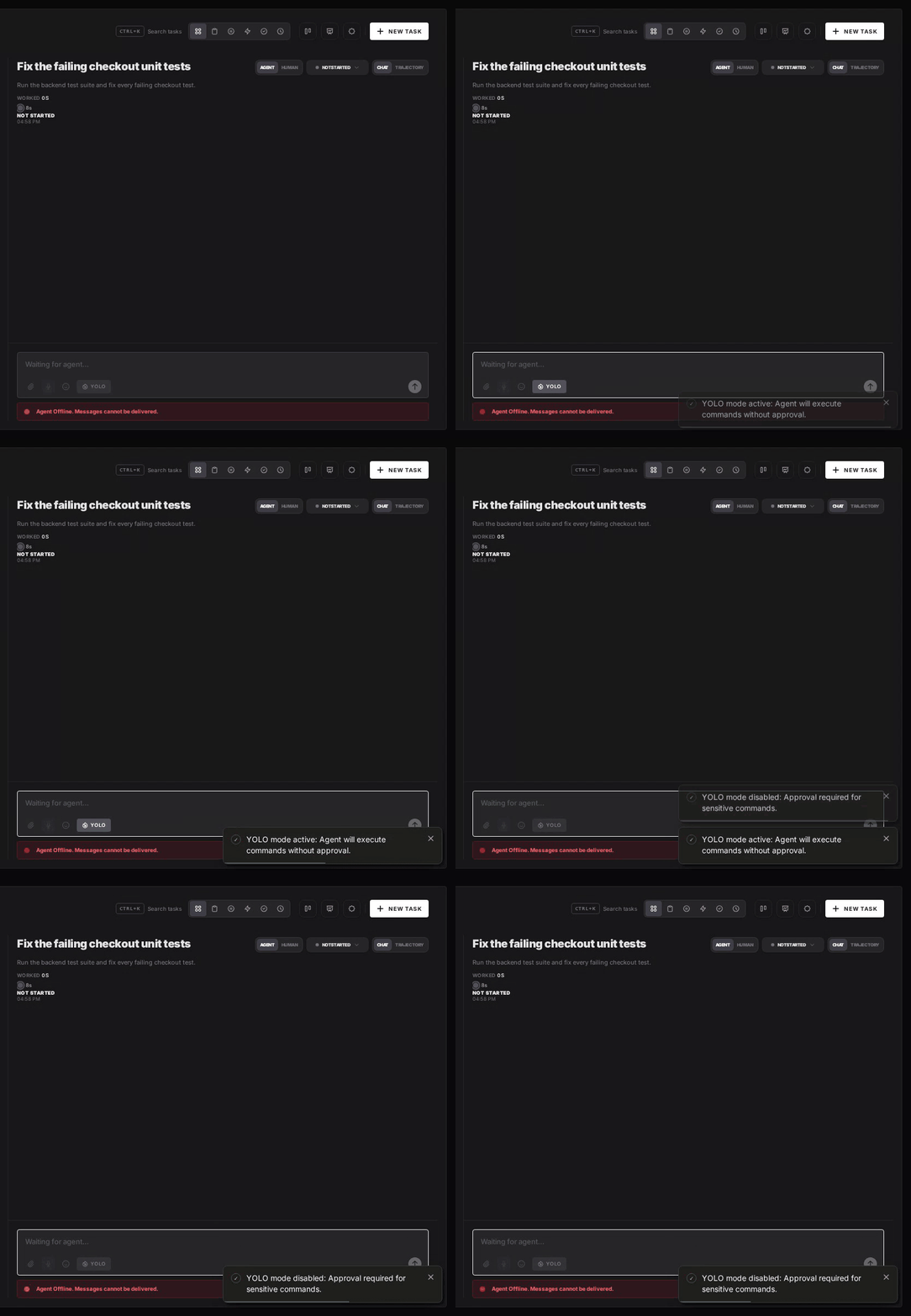
Flip the YOLO toggle on a task, or when you create it, to put just that task in YOLO mode. Every permission request in it is approved automatically and the agent never waits, while every other task in the workspace still asks. Scheduled tasks, event triggers and workflow steps have the same switch, so an unattended job can run in YOLO while your interactive work stays supervised.
Behind acp-registry the toggle changes nothing, because the requests are already approved before they could reach AgentRQ.
Turn YOLO On or Off in Workspace Settings
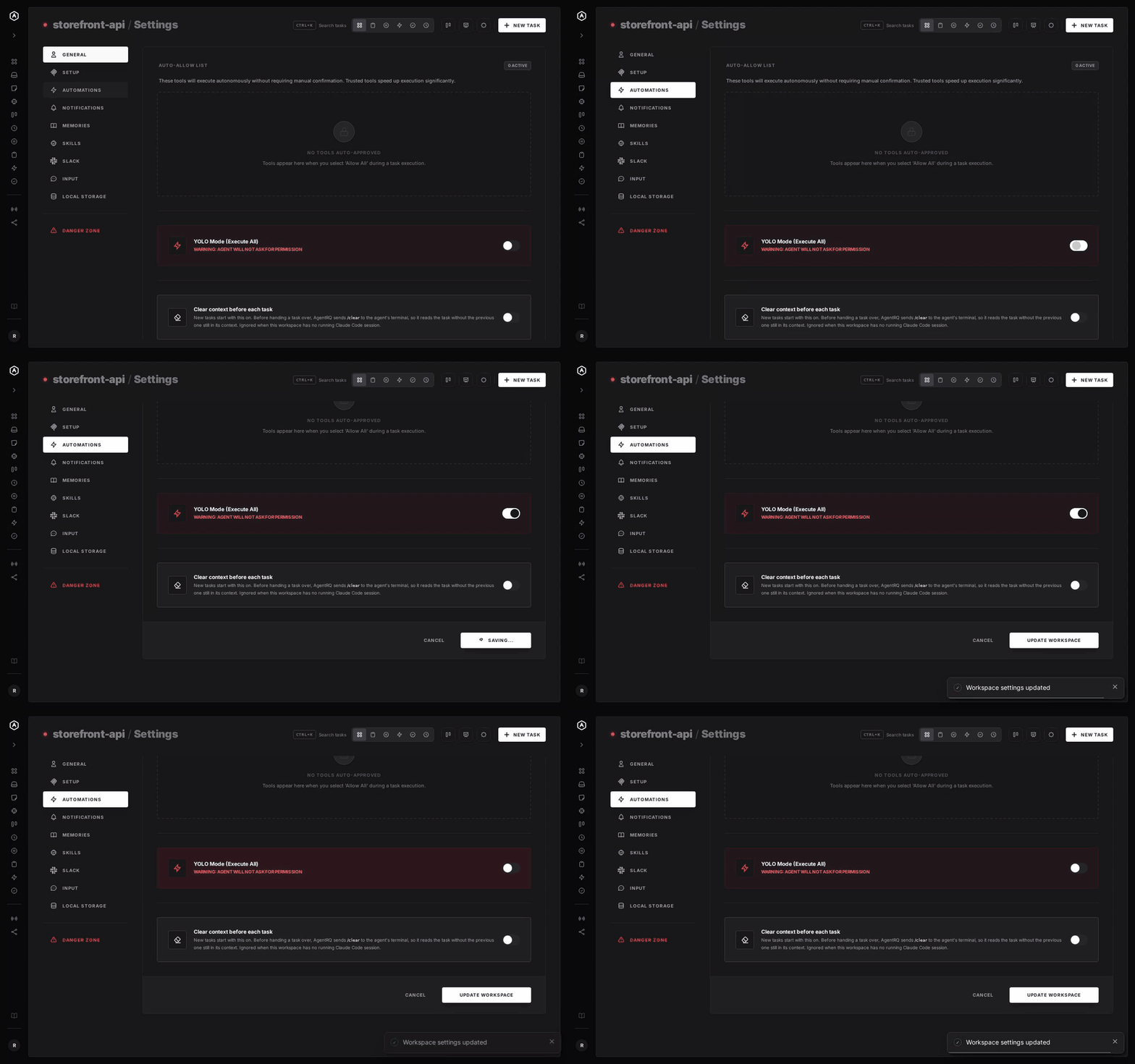
To make YOLO the default for a whole workspace, open the workspace, go to Settings, choose the Automations tab and flip YOLO Mode (Execute All). Click Update Workspace to save. Switch it off the same way. The switch is off by default, and every permission request in the workspace is approved automatically while it is on.
A Safe YOLO Setup for stdio Bus
- → Do not put acp-registry in front of an agent you want to supervise. It approves every request, and prefers "allow always".
- → Connect the agent directly when approvals matter. Then AgentRQ sees each request, and YOLO becomes a per-task choice.
- → Leave the workspace-wide switch off. Workspace settings also has YOLO Mode (Execute All). Turn YOLO on per task instead, so it never outlives the job you trusted.
- → Run workers in a container. stdio Bus ships a Docker image, and an auto-approving agent belongs in one.
- → Commit first. Start every YOLO task from a clean git tree, so any change is one
git resetaway. - → Read the record. The tool call history lists every call the task made, including the ones that were auto-approved.
FAQ
Does stdio Bus have a YOLO mode? No. stdio Bus is a message router, not a coding agent. Approvals belong to the agent running behind it.
Does stdio Bus auto-approve tool calls? Its acp-registry worker does. It answers every permission request itself, picking allow always, then allow once, then the first option.
Can AgentRQ approve tool calls that go through stdio Bus? Not through acp-registry, because the requests never leave it. Connect the agent directly through the ACP Gateway instead.
How do I keep an agent's approvals with stdio Bus? Do not route it through acp-registry. Start the agent on its own, so its permission requests reach your client.
What does AgentRQ give an agent behind stdio Bus? The task, remote replies and the tool call history of what the agent did. It cannot approve or deny calls that were already approved.
For every other agent, see what YOLO mode is and how to turn it on in every coding agent.