
Connect Claude Code with Machines
To connect Claude Code to an AgentRQ workspace, enrol the computer that should run it as a machine, then click Start an agent in the workspace, pick Claude Code, choose its model, effort and auto-compact window, and start it. AgentRQ starts Claude Code on that machine and shows its live terminal in the browser, so you can answer its first-run questions and approve its tool calls without opening a terminal yourself. This guide shows every click, with Opus 5.5 at High effort, and ends with a first task done end to end. If you would rather not enrol a machine, the last section runs the same thing from your own terminal.
This page is one of our connect agents guidelines. For Antigravity, Gemini CLI, Codex and other ACP agents, see Connect Agents with the ACP Gateway and Machines. It was checked against AgentRQ and Claude Code 2.1.325 on November 14, 2026, and every screenshot below comes from a real run.
How Claude Code Gets Its Tasks
Claude Code talks to AgentRQ over the workspace's MCP server, and it receives tasks through a channel: a message from that server that lands in the running session as if you had typed it. When you start Claude Code from AgentRQ, the machine's daemon does three things before it runs Claude Code:
- → It writes the workspace's
.mcp.jsoninto the working directory, and in a git checkout adds that file to.gitignore, because it holds the workspace token. - → It writes
.claude/settings.local.json, which allows every tool of the AgentRQ server, so Claude Code does not stop and ask before each task update. Rules you already have in that file are kept. - → It starts Claude Code with the channel turned on, using the model, effort and auto-compact window you picked.
Claude Code still asks before it runs a shell command or edits a file, unless you change that. You answer those prompts in the terminal AgentRQ shows you, or in the task itself.
Before You Start
- → An AgentRQ workspace with a working directory set in its General settings. That folder is where Claude Code runs on the machine. The example workspace is
storefront-api. - → A computer with Claude Code installed and signed in. Run
claudeonce on it if it never has been.
Step by Step: Enrol the Machine
Skip to step 5 if the machine is already enrolled and online.
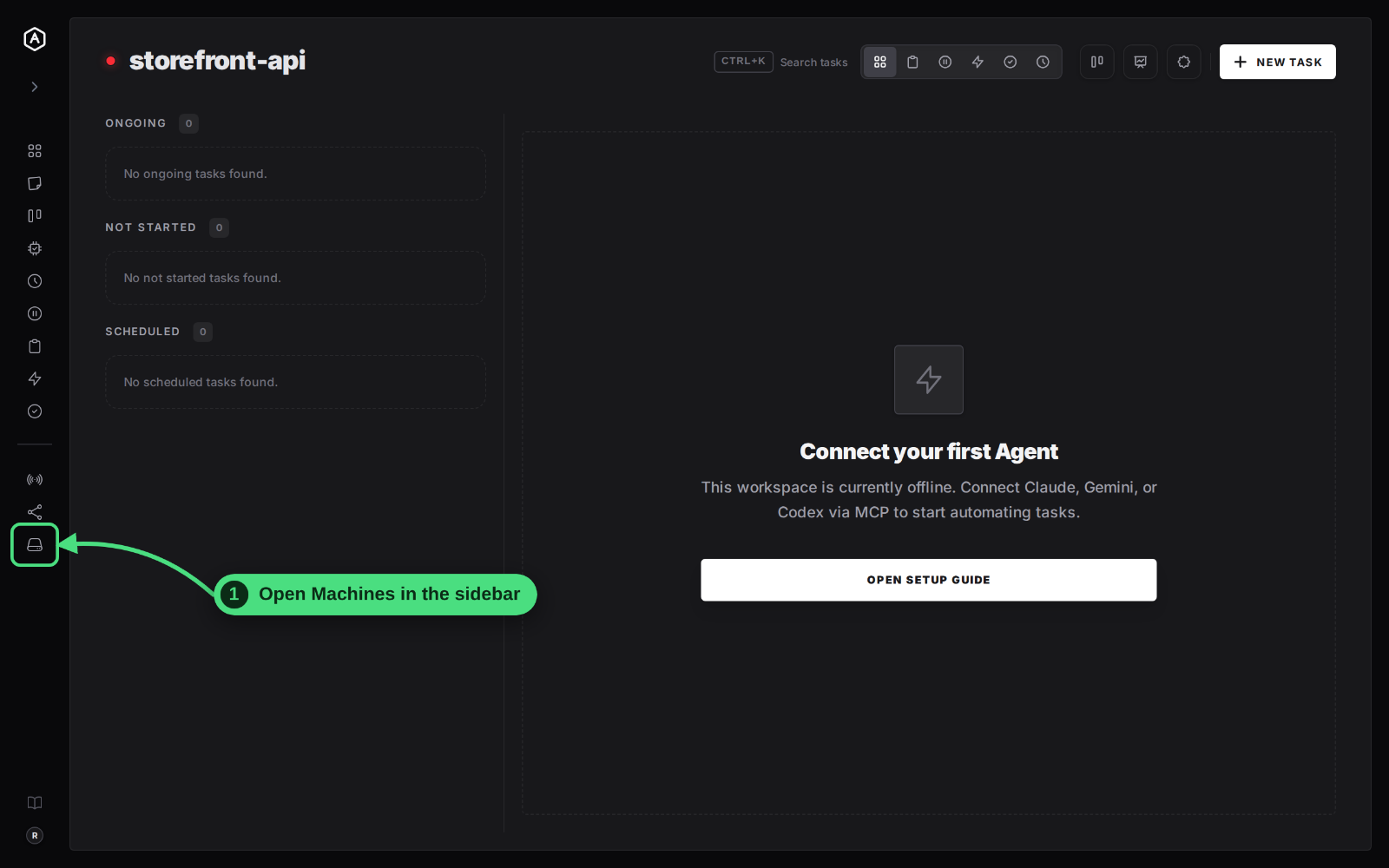
1. Open Machines in the sidebar.
2. Click + Add machine.
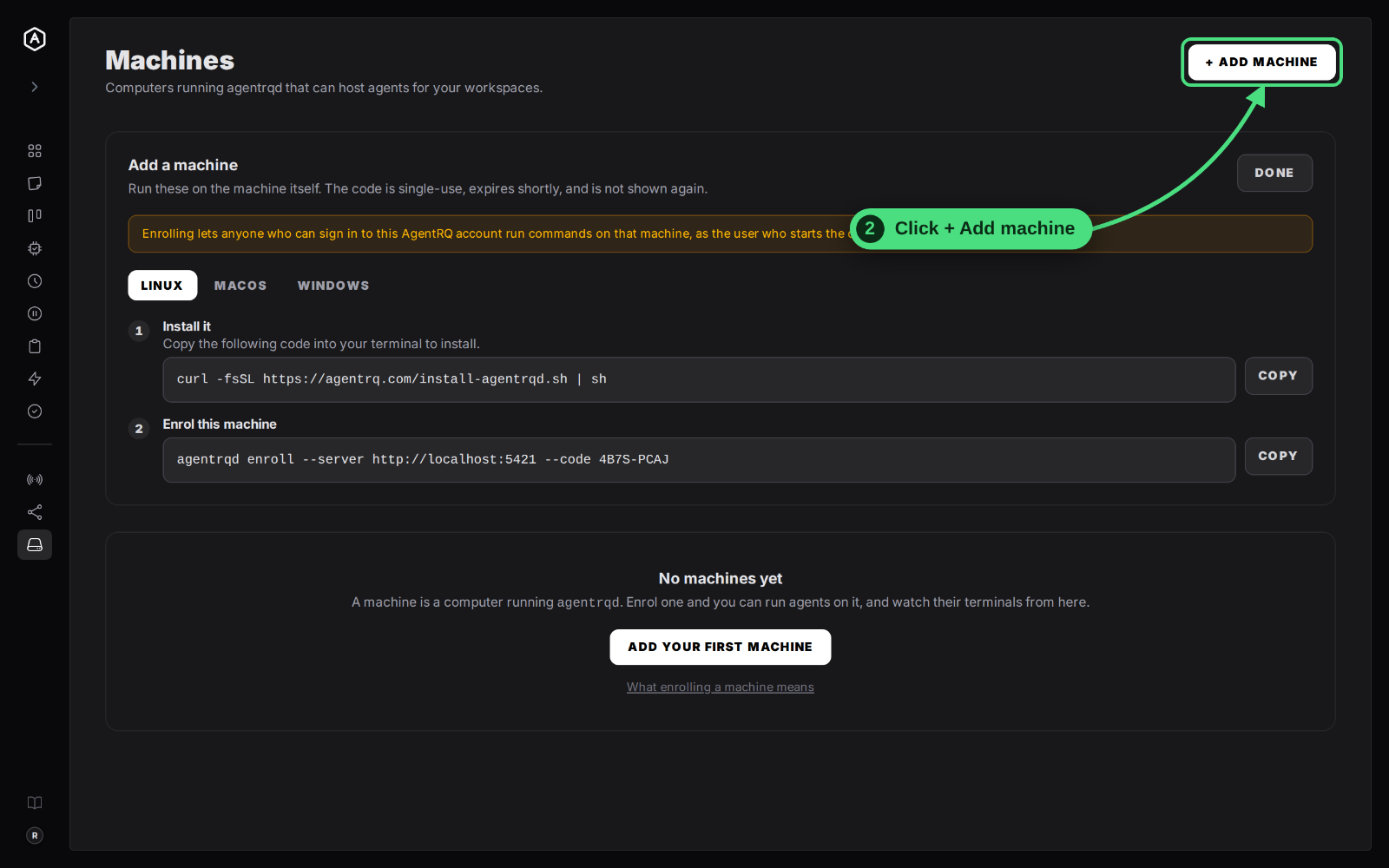
3. Run both commands on the machine that will run Claude Code. The first installs agentrqd, the small AgentRQ daemon. The second enrols it with a one-time code and starts it in the background. Pick the Linux, macOS or Windows tab to match the machine.
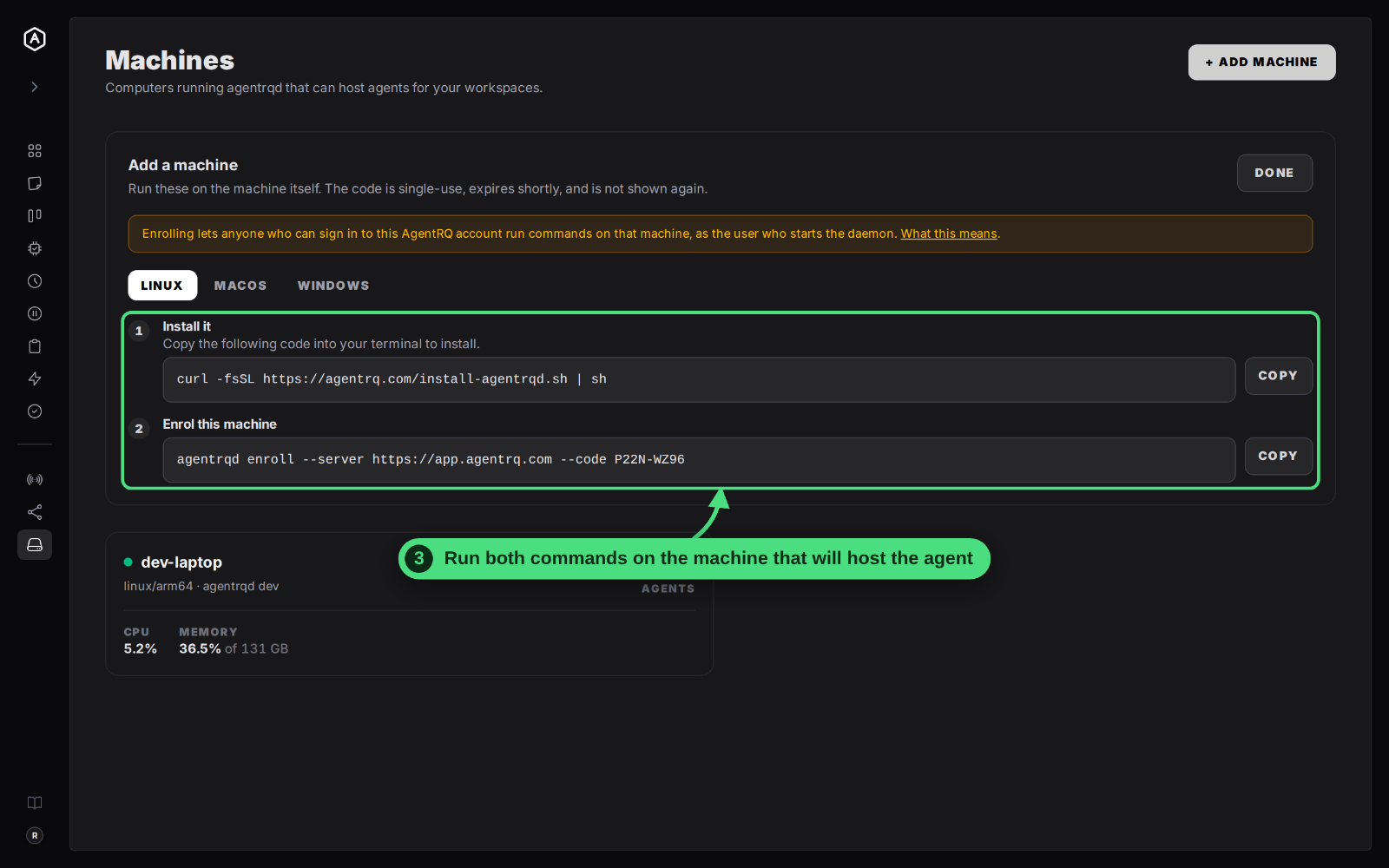
Run it as the user who signed in to Claude Code, never as root: agentrqd refuses to run as root, and Claude Code runs with that user's login and rights. The machines and daemon docs cover what enrolling allows, how to keep agentrqd running as a service, and how to undo it.
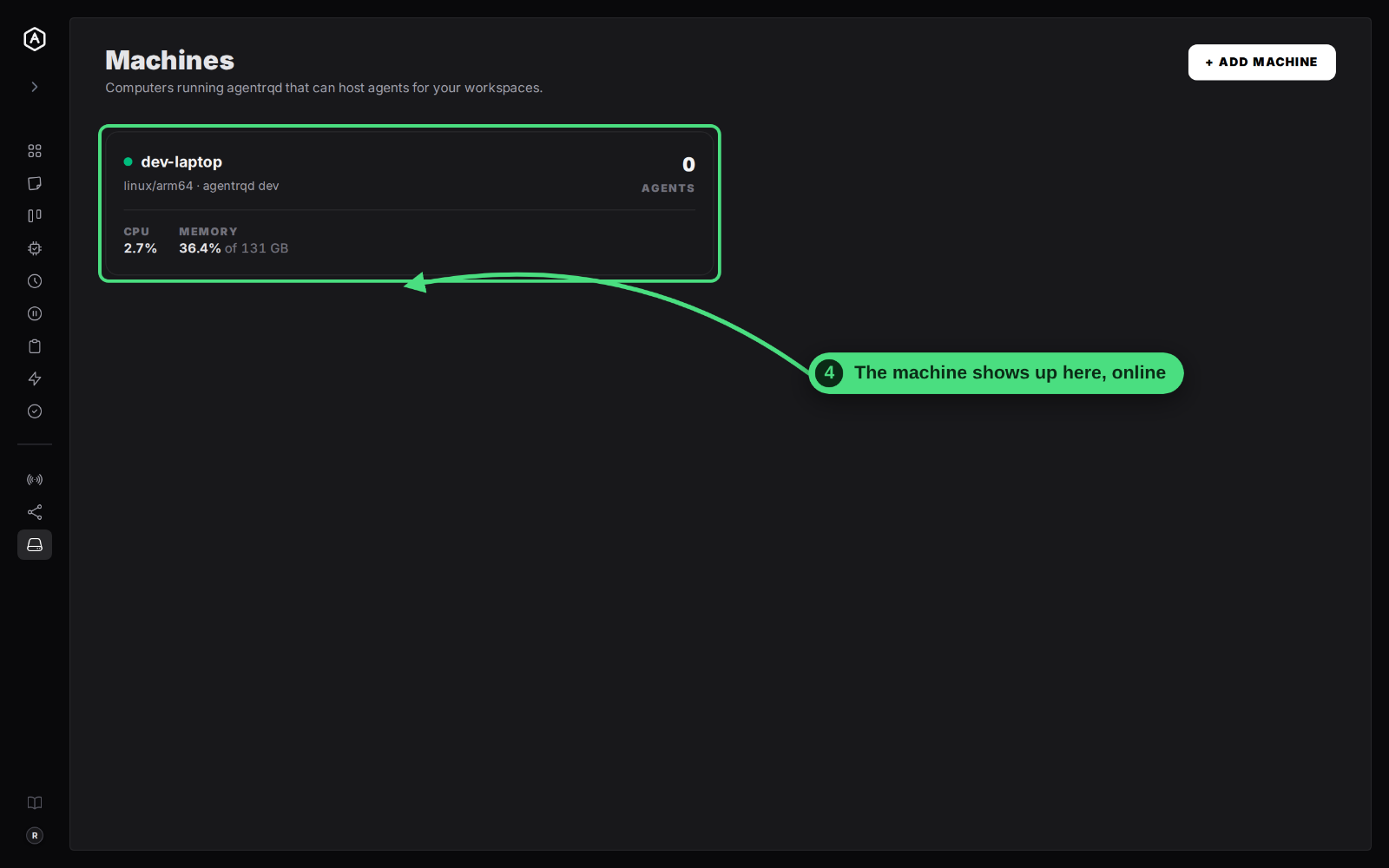
4. Check that the machine is online. It appears on the Machines page with a green dot.
Step by Step: Start Claude Code on Opus 5.5
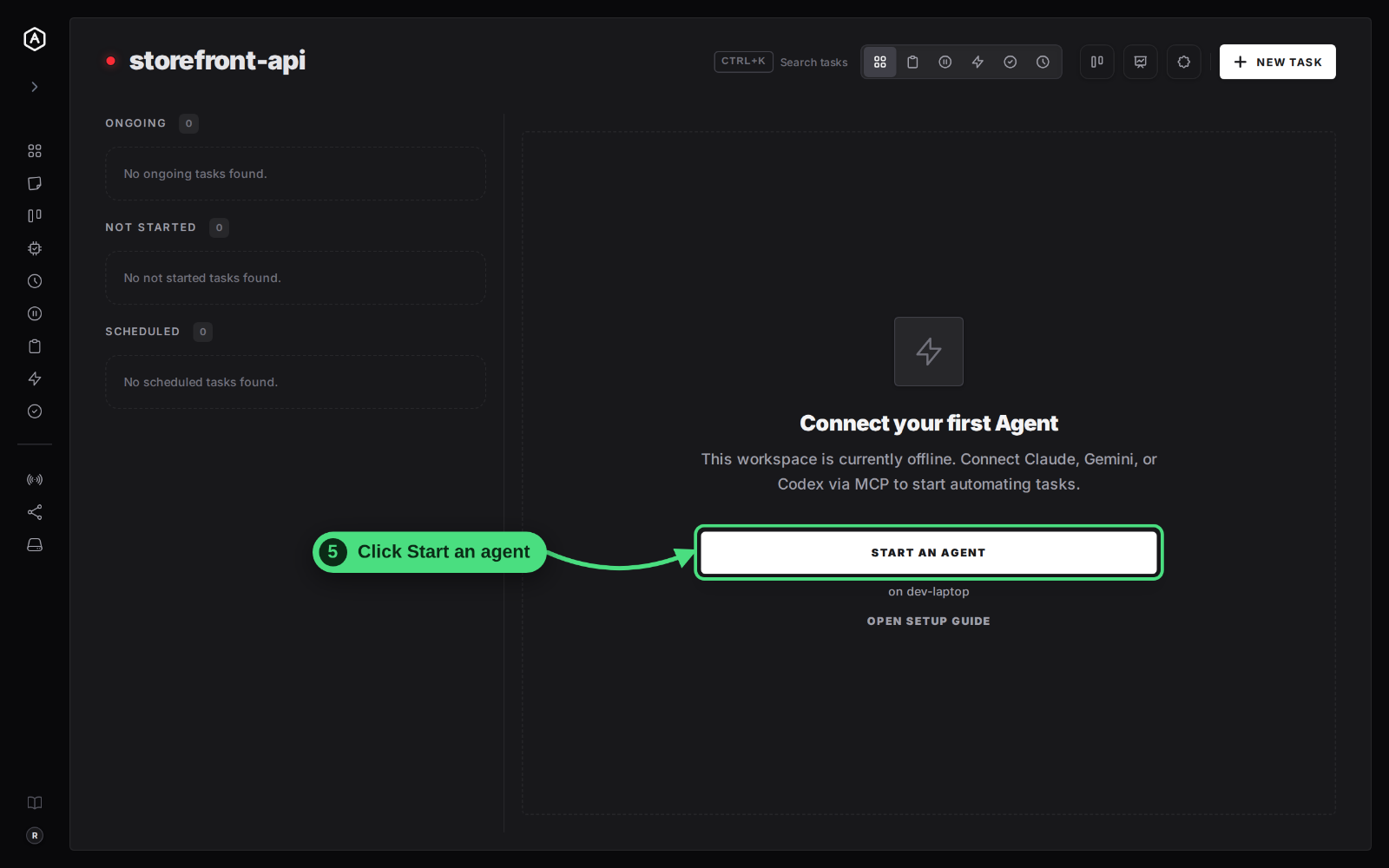
5. Click Start an agent in your workspace. An offline workspace offers it in the middle of the page while a machine is online. The same card sits at the top of Settings → Setup.
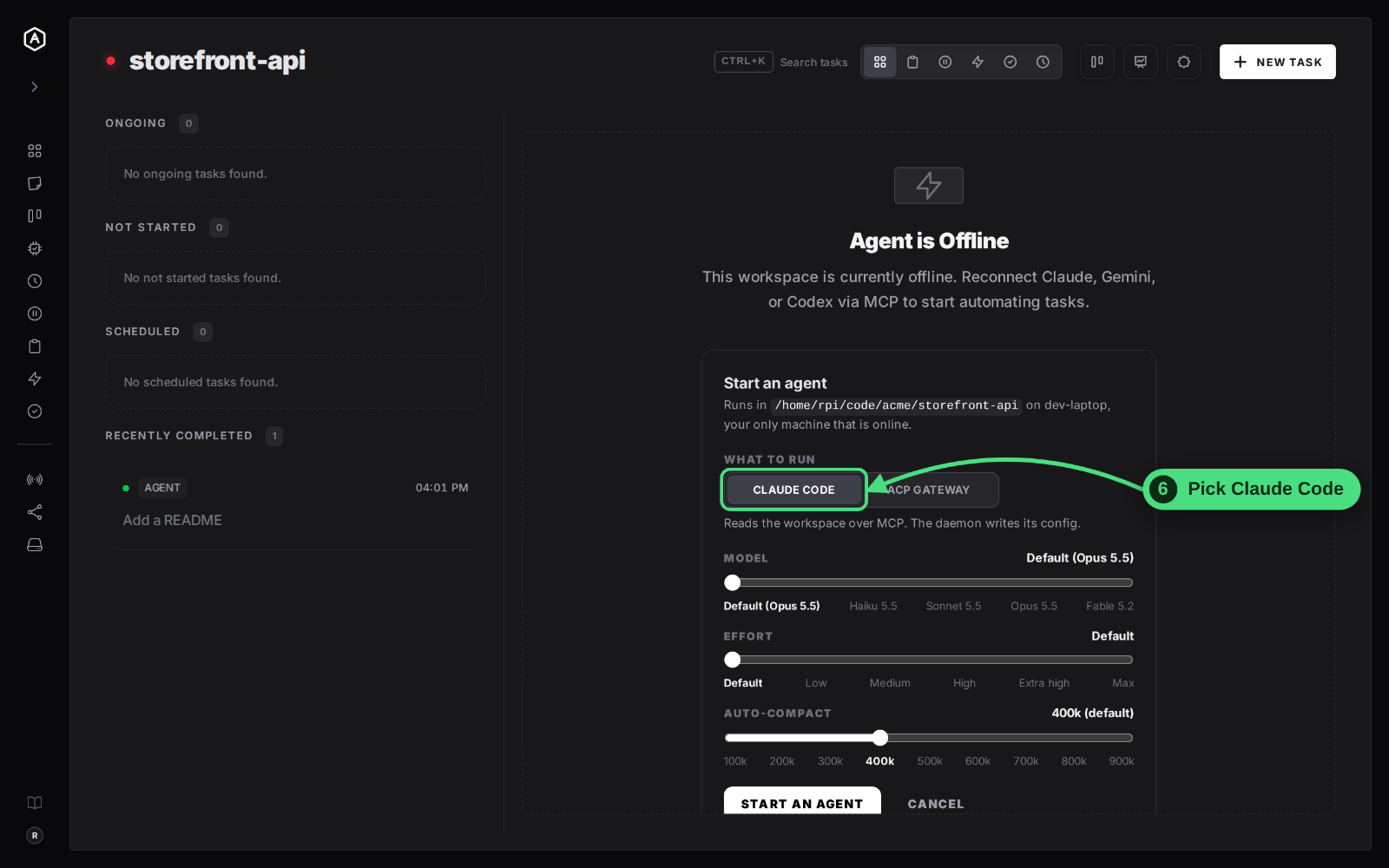
6. Under What to run, pick Claude Code. The card also says which folder and which machine Claude Code will run in.
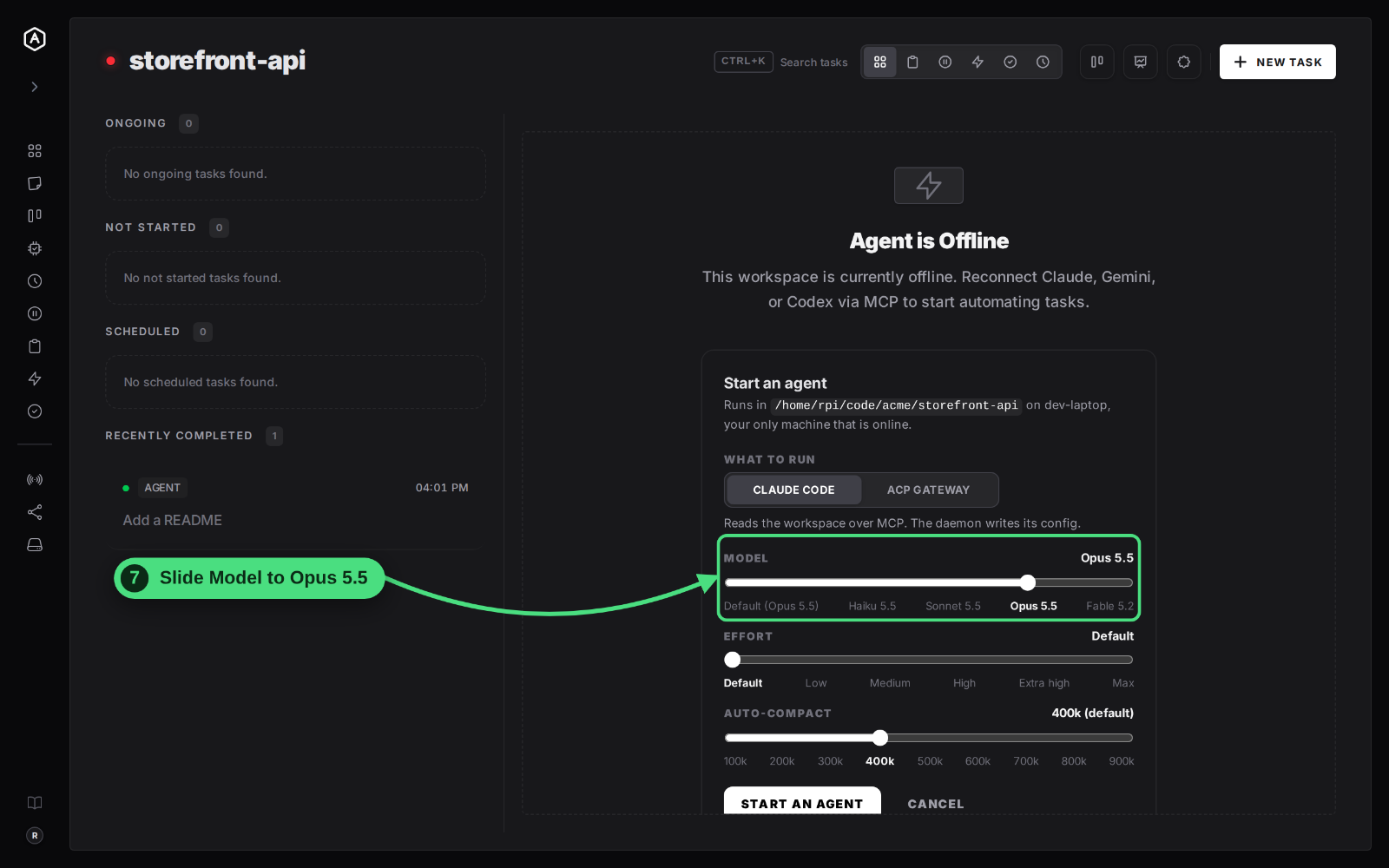
7. Slide Model to Opus 5.5. The steps are the models the machine's own Claude Code reports, here Haiku 5.5, Sonnet 5.5, Opus 5.5 and Fable 5.2. Default leaves the choice to Claude Code, and its label says which model that is.
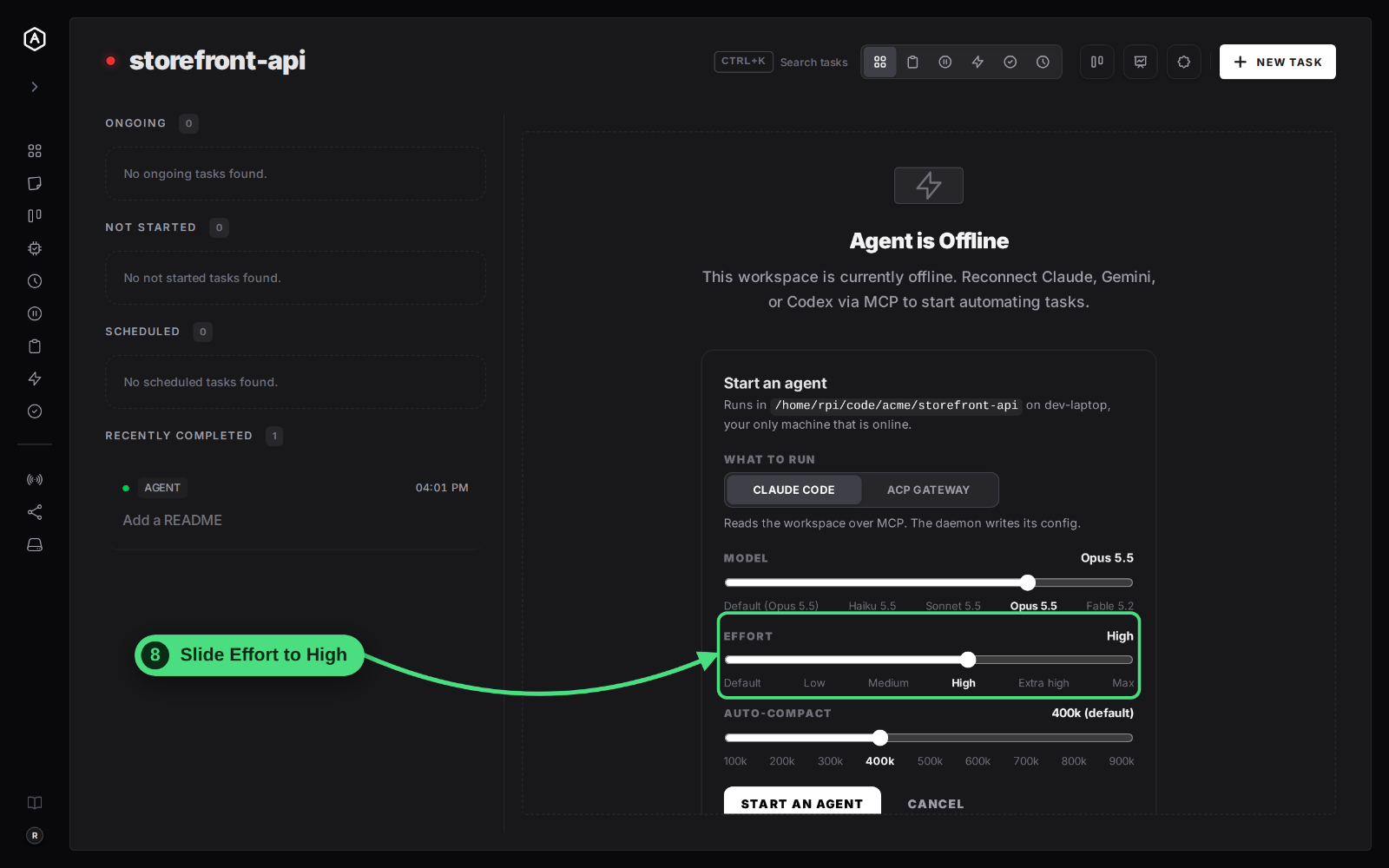
8. Slide Effort to High. The steps are Default, Low, Medium, High, Extra high and Max, the levels claude --effort accepts.
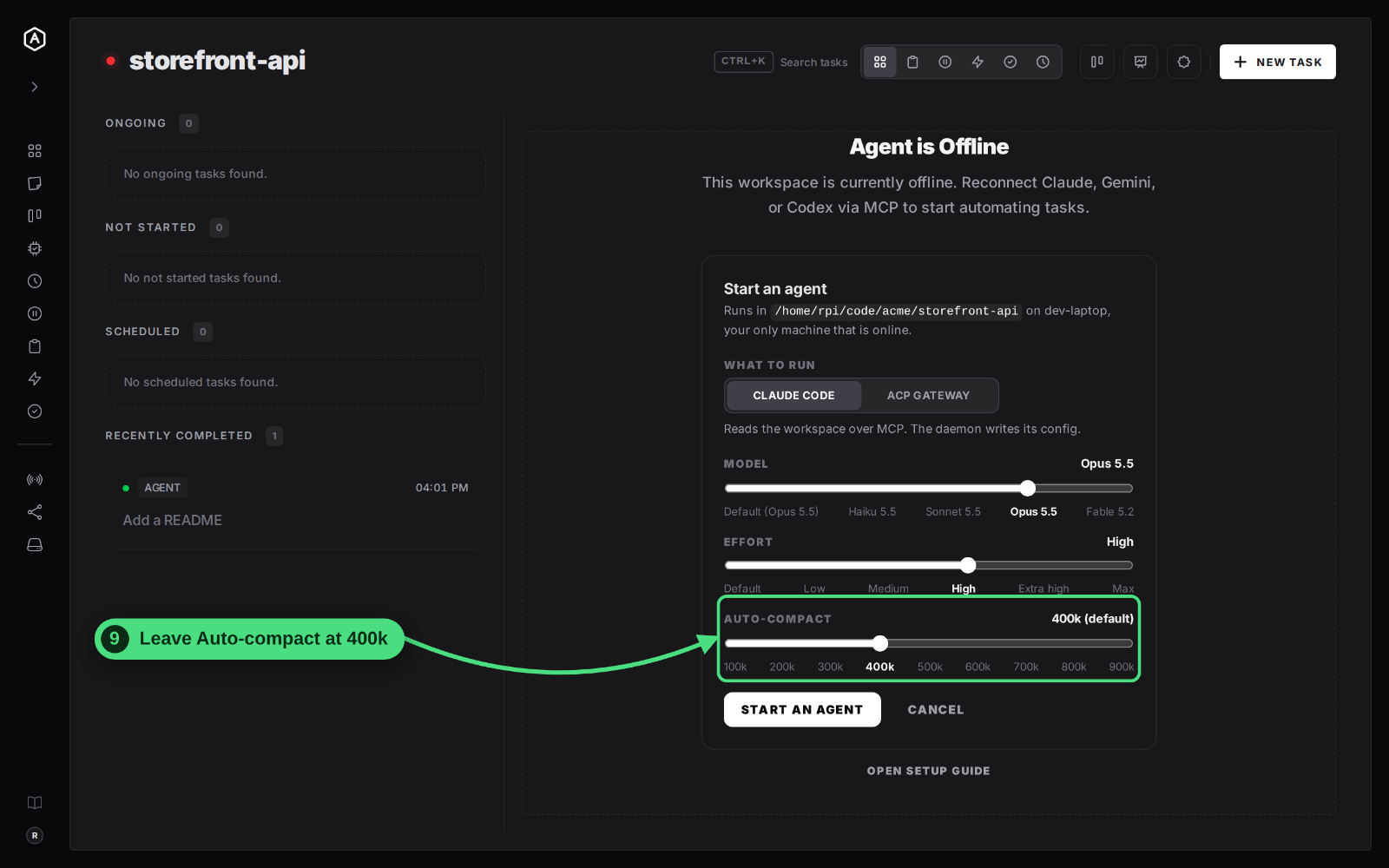
9. Leave Auto-compact at 400k, or move it. It sets how much context Claude Code holds before it summarises the conversation, from 100k to 900k tokens.
10. Click Start an agent.
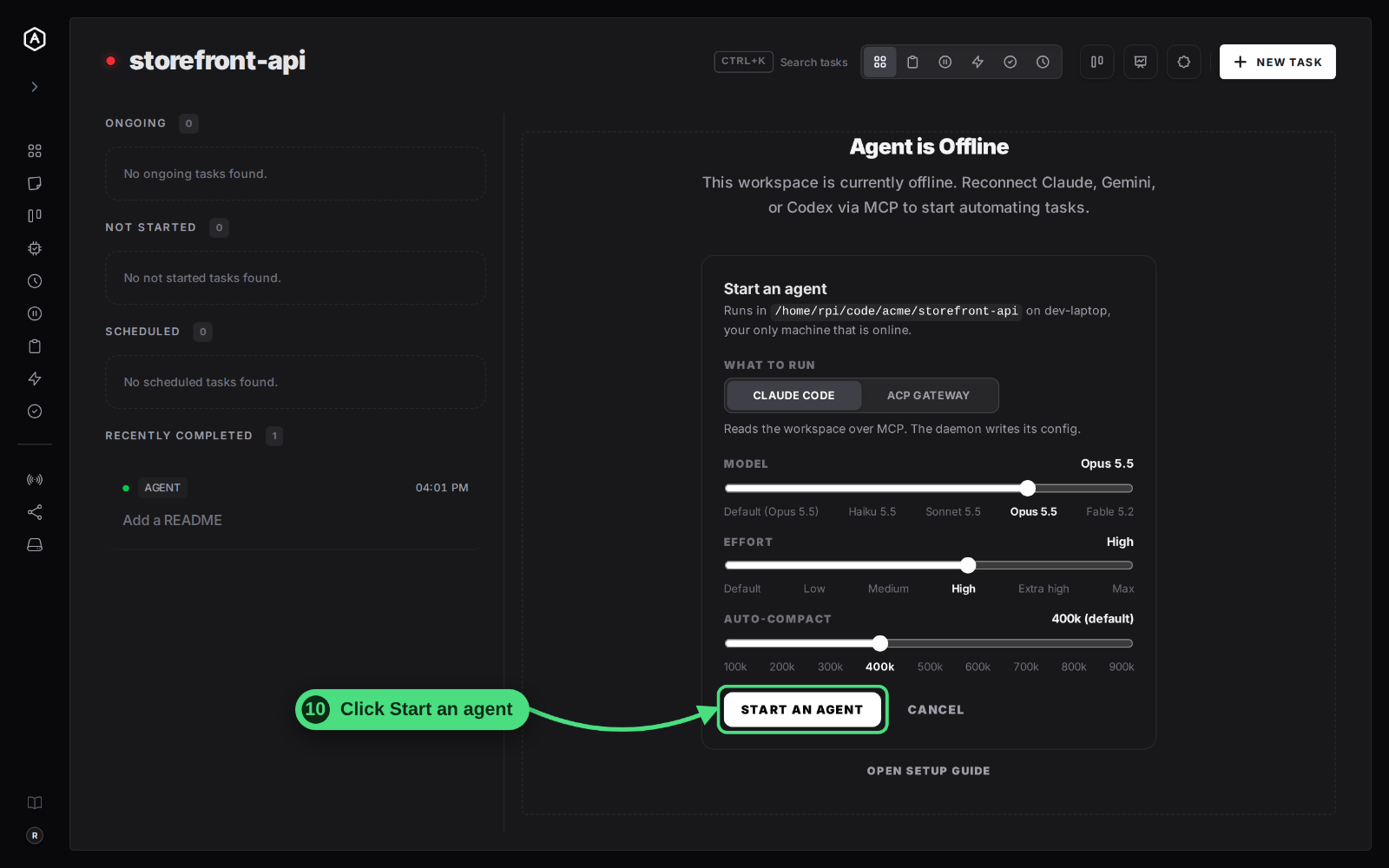
AgentRQ opens Claude Code's live terminal, with a Stop button. On the machine, agentrqd runs:
Answer Claude Code's First Questions in the Terminal
The terminal in AgentRQ is the real one. Click into it and use the arrow keys and Enter, exactly as you would at the machine.
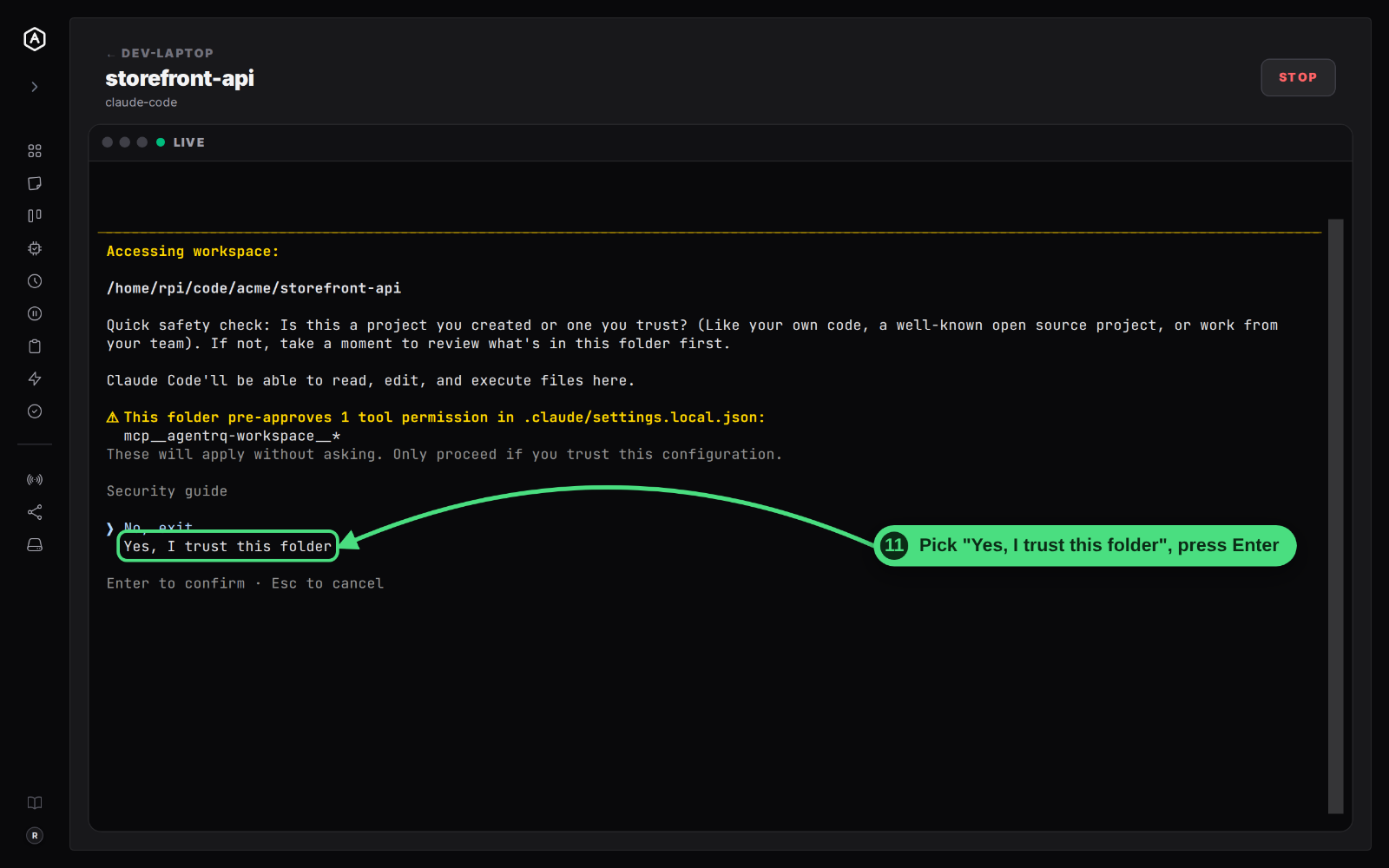
11. Trust the folder. The first time Claude Code runs in a folder, it asks whether you trust it, and lists the tool permission AgentRQ pre-approved in .claude/settings.local.json. Pick Yes, I trust this folder and press Enter. Claude Code remembers the answer for that folder.
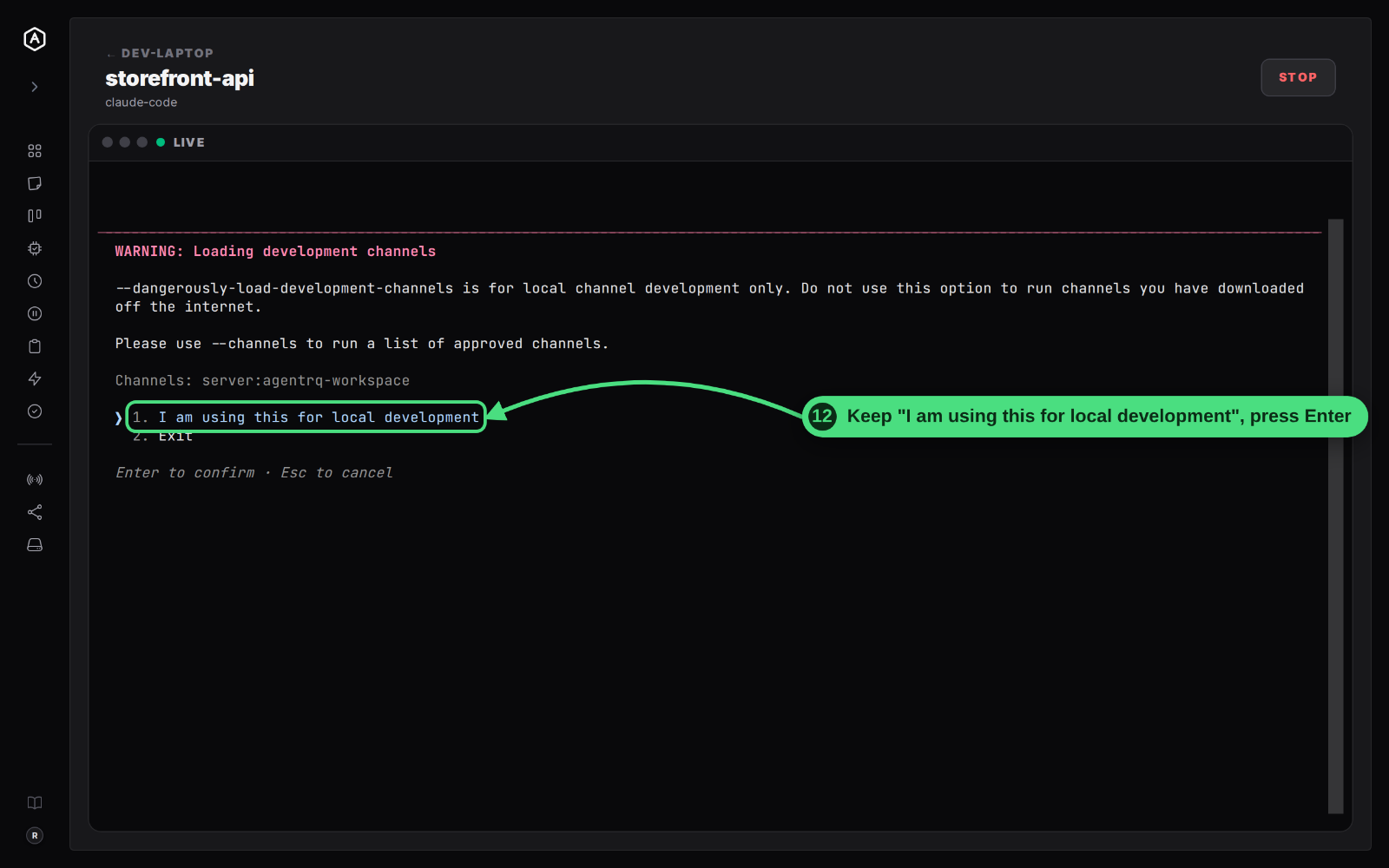
12. Confirm the channel. Claude Code warns that --dangerously-load-development-channels is for development channels. That flag is what lets the AgentRQ server deliver tasks into the session, so keep I am using this for local development and press Enter. Claude Code asks this on every start.
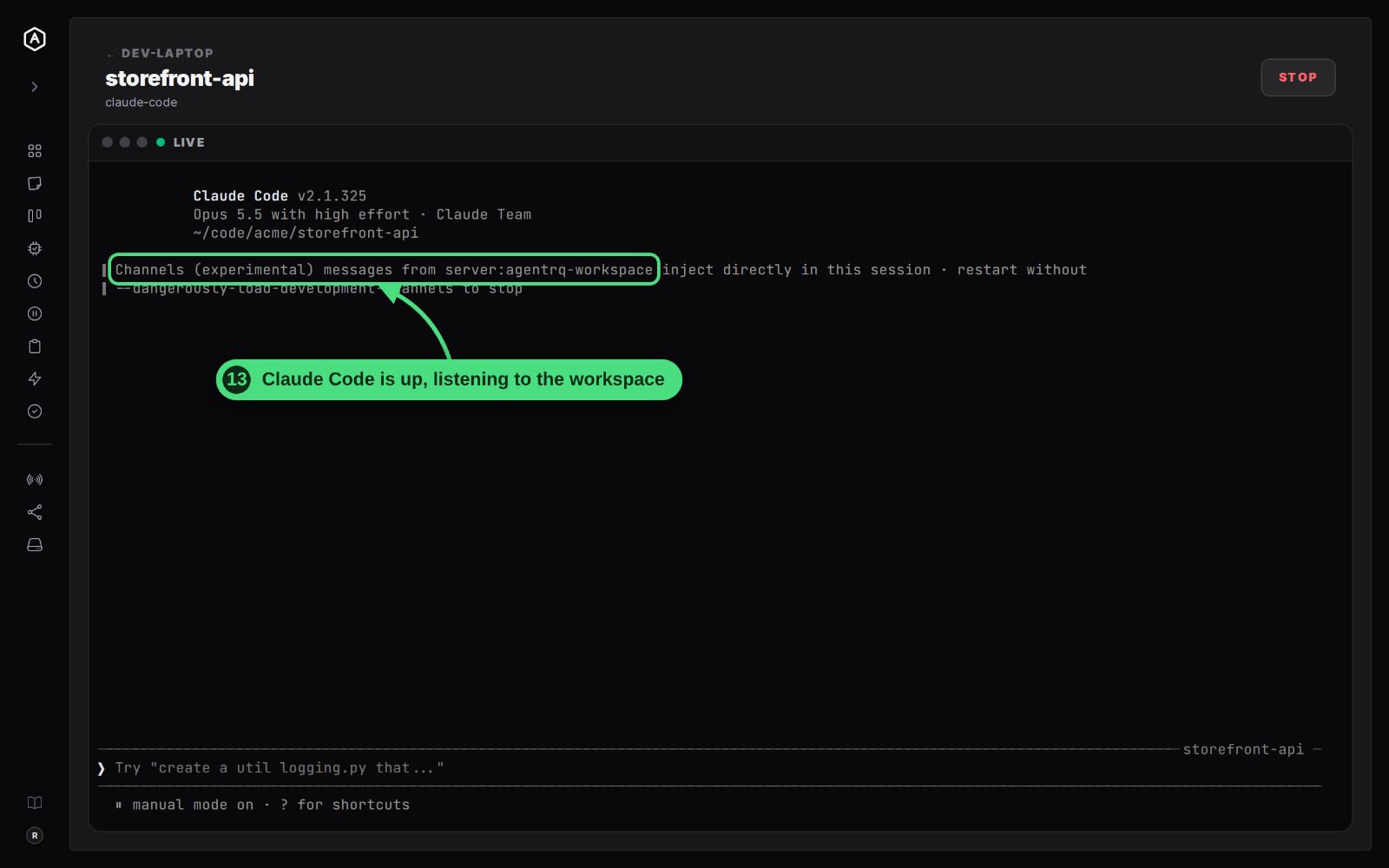
13. Check that Claude Code is listening. Its header shows the model and effort you picked, and a line says channel messages from server:agentrq-workspace go straight into the session.
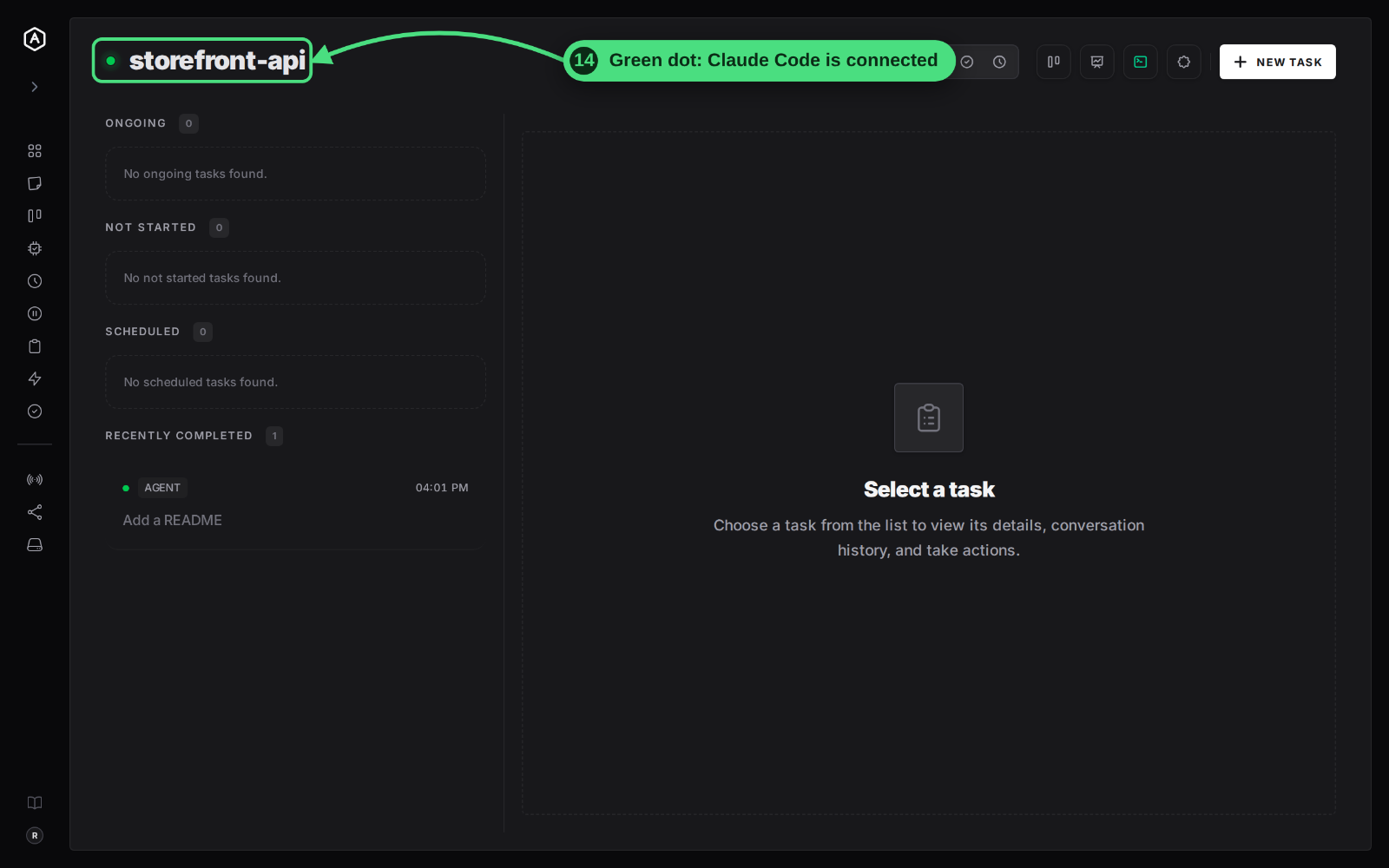
14. Check that the workspace is connected. Back in the workspace, the dot next to its name turns green, and the terminal icon in the toolbar lights up.
Run a First Task
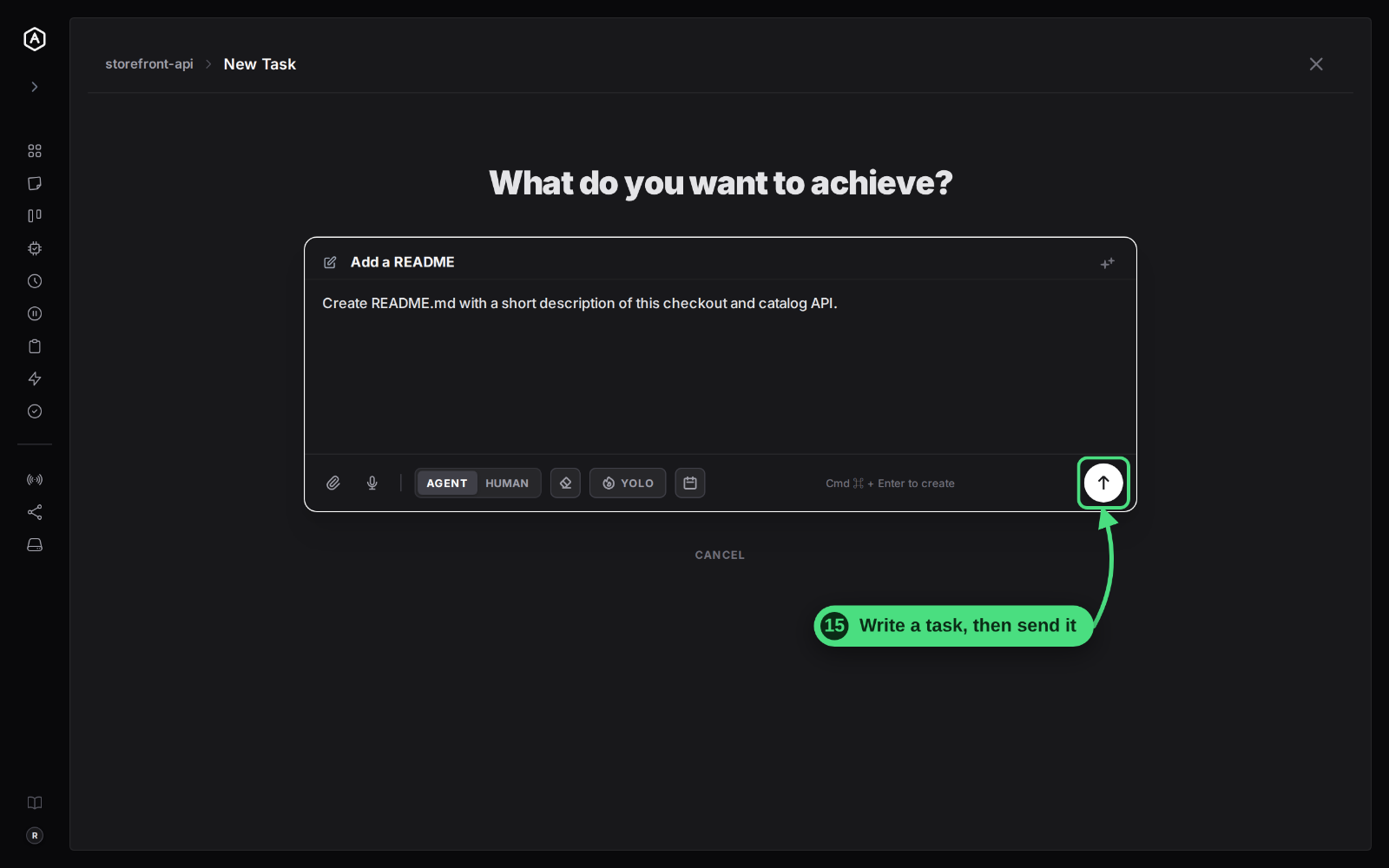
15. Create a task. Click New Task, write what you want, and send it. The example asks for a README.
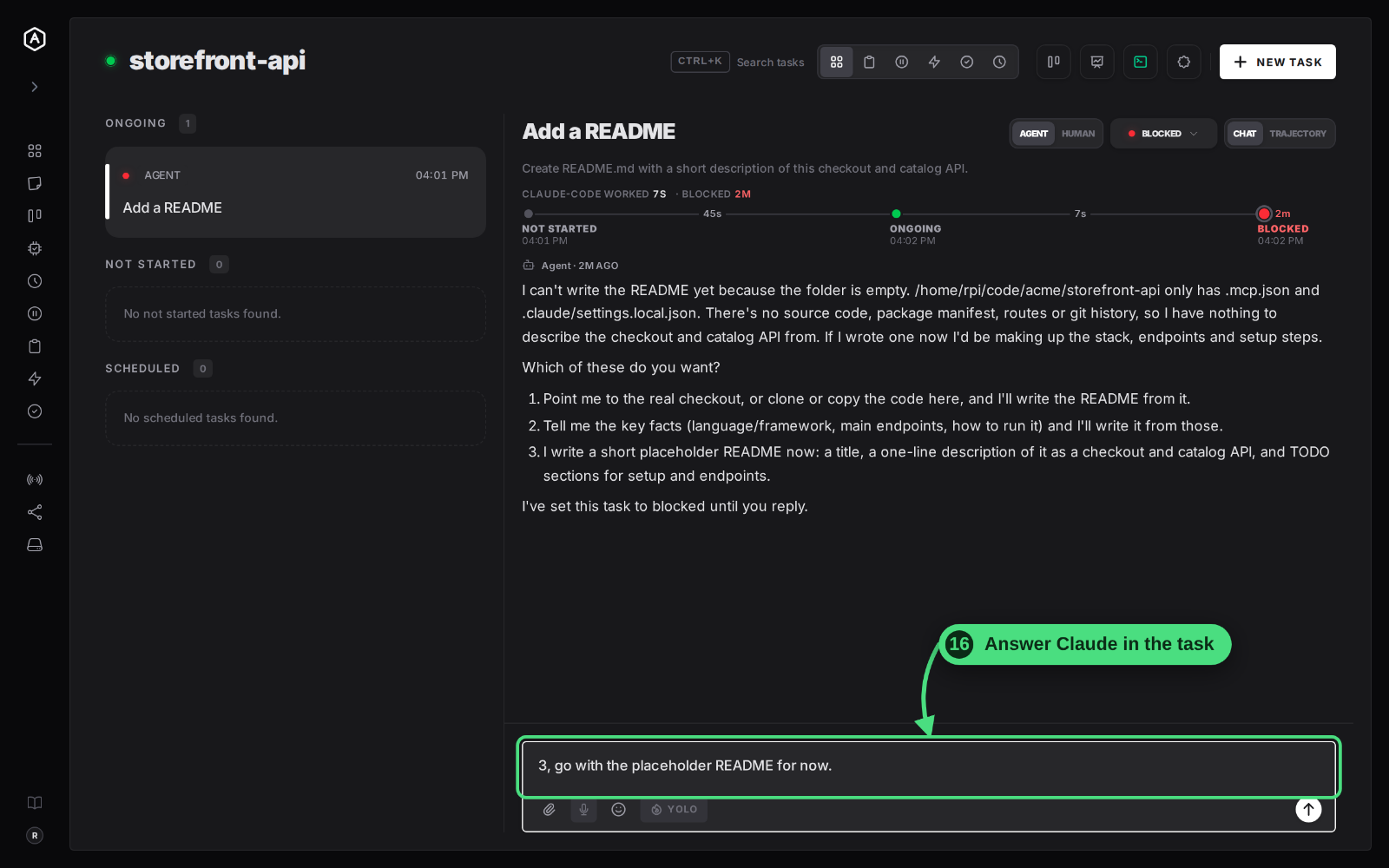
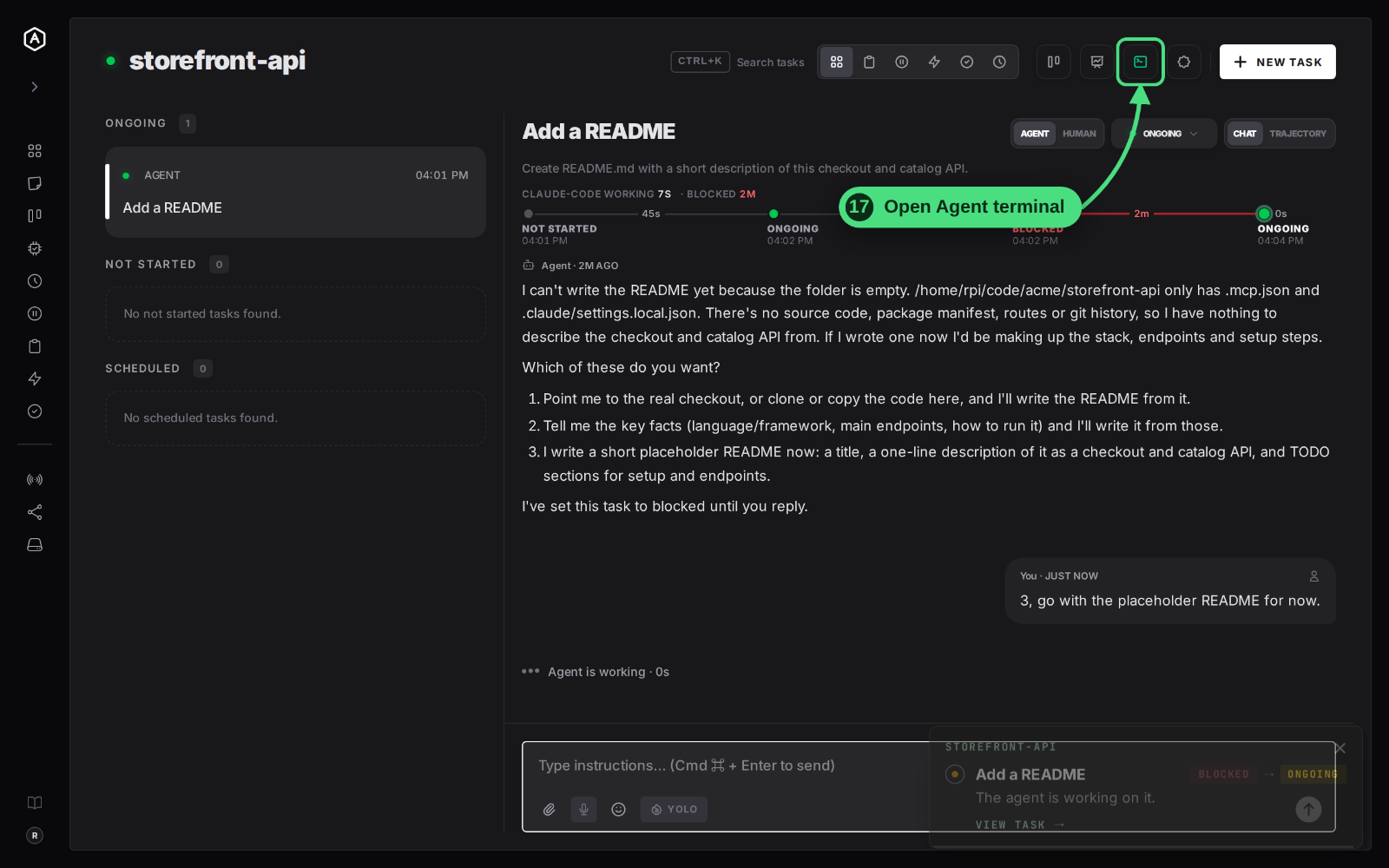
16. Answer Claude Code in the task. The example folder was empty, so instead of inventing a stack, Claude Code asked which way to go and set the task to blocked. Reply in the task, from the web, your phone or Slack.
17. Open the Agent terminal from the toolbar to watch Claude Code work.
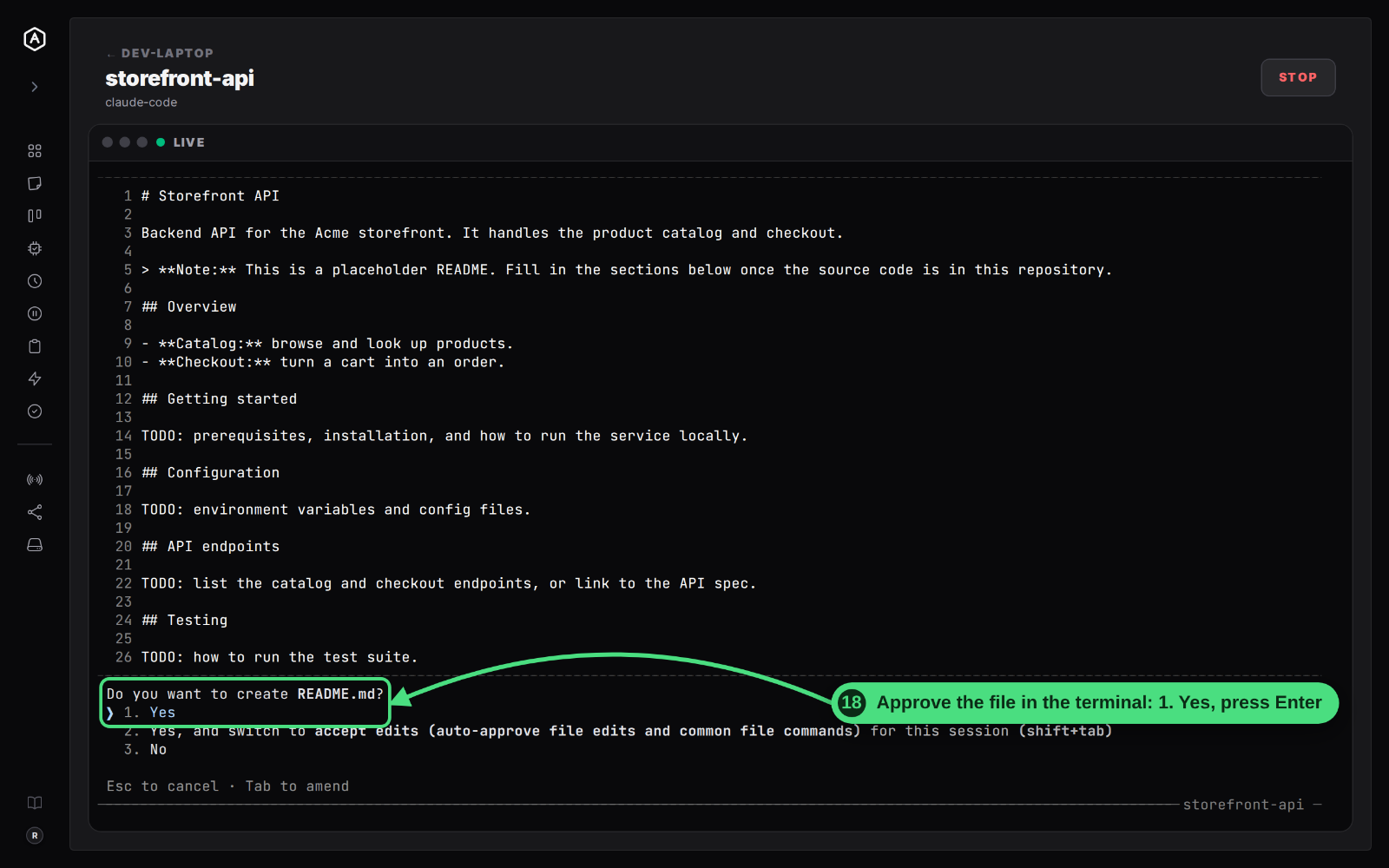
18. Approve the edit in the terminal. Claude Code shows the file it wants to create and asks before writing it. Pick 1. Yes and press Enter. Option 2 approves file edits for the rest of the session. The same request also appears in the task with Allow Once, Always Allow and Deny, so you can answer from either place.
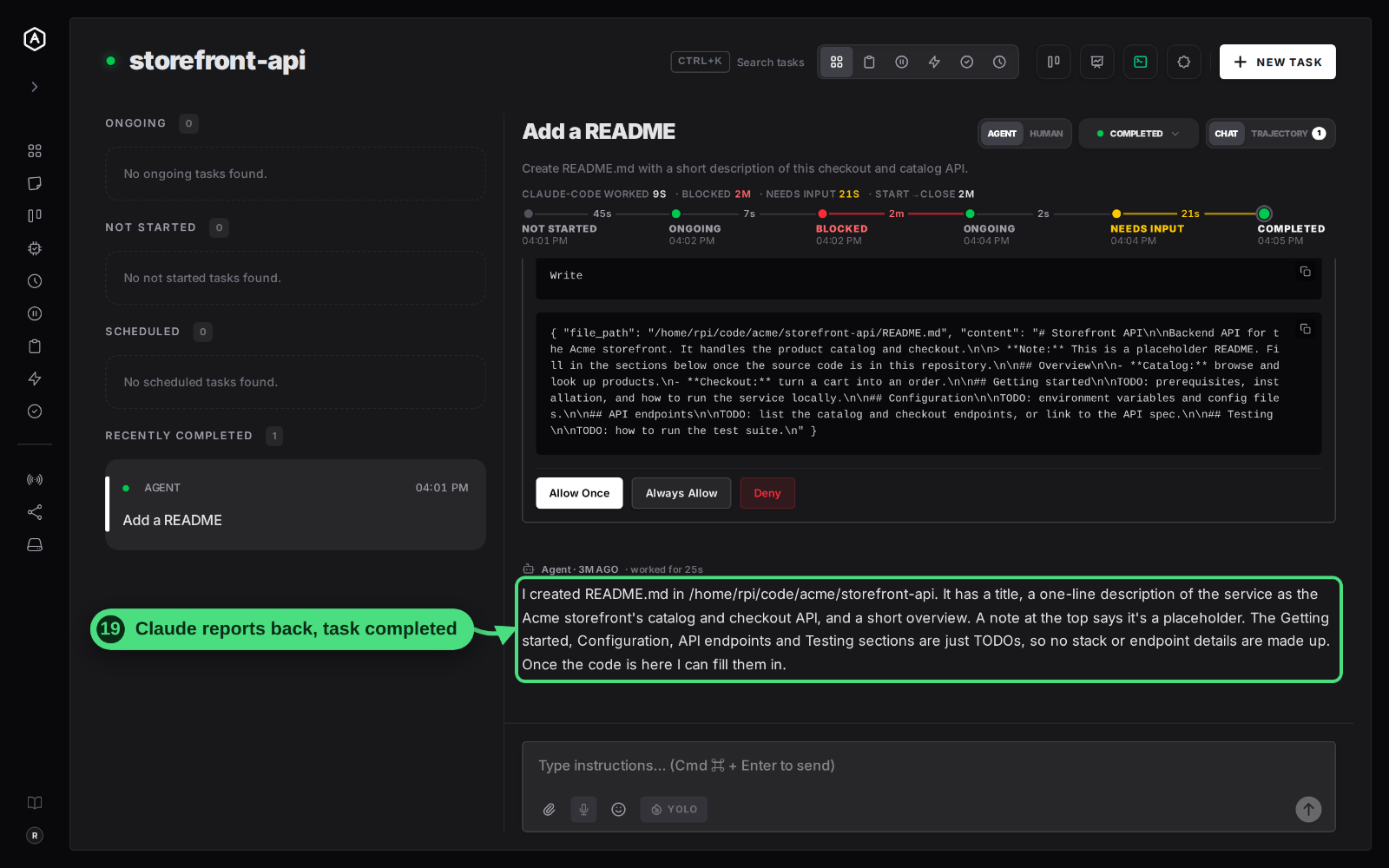
19. Read the result. Claude Code writes the file, reports what it did in the task, and marks the task completed.
Run Claude Code From Your Own Terminal Instead
No daemon, no enrolment: you start Claude Code yourself in the project folder.
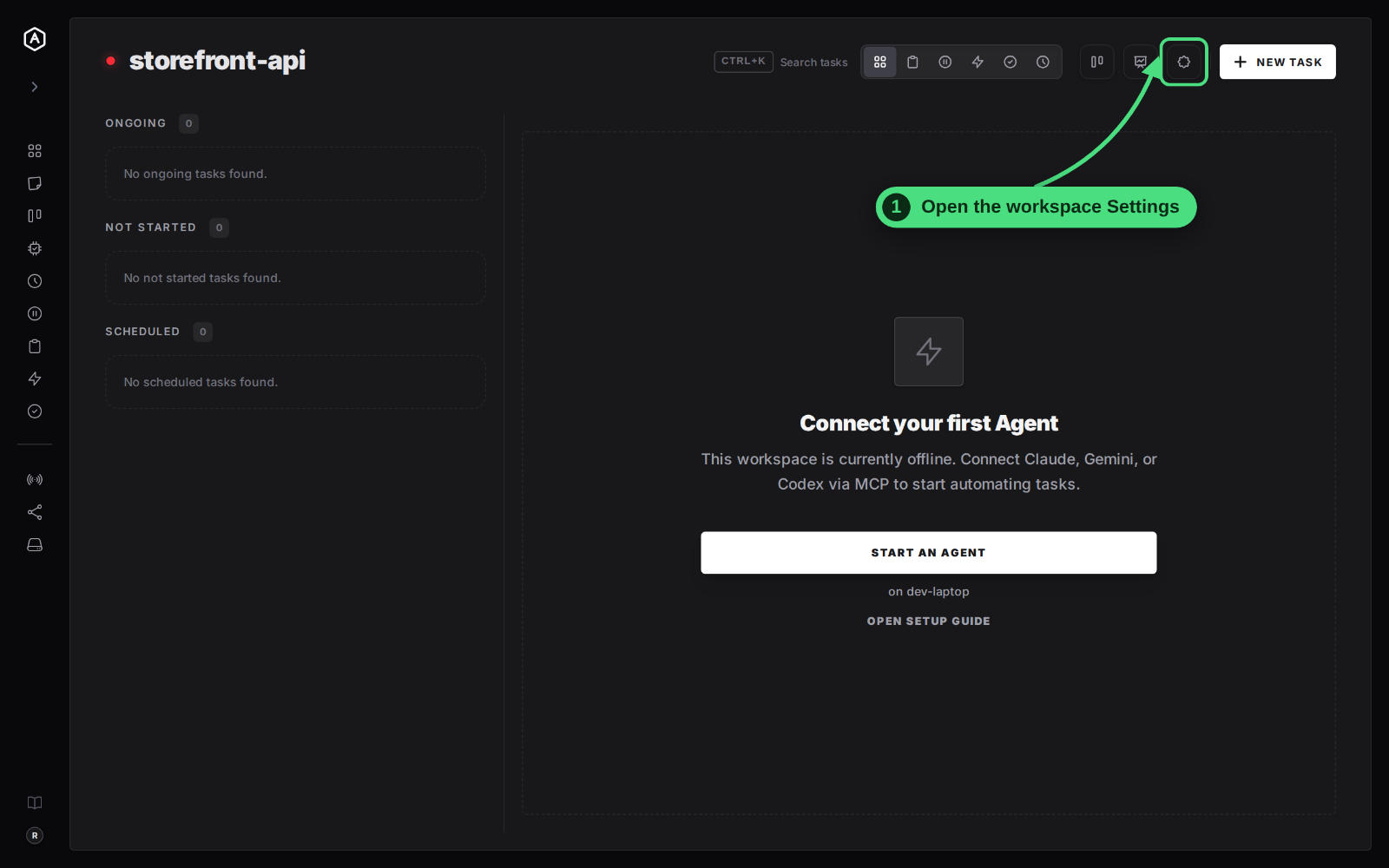
1. Open the workspace Settings with the gear at the top right.
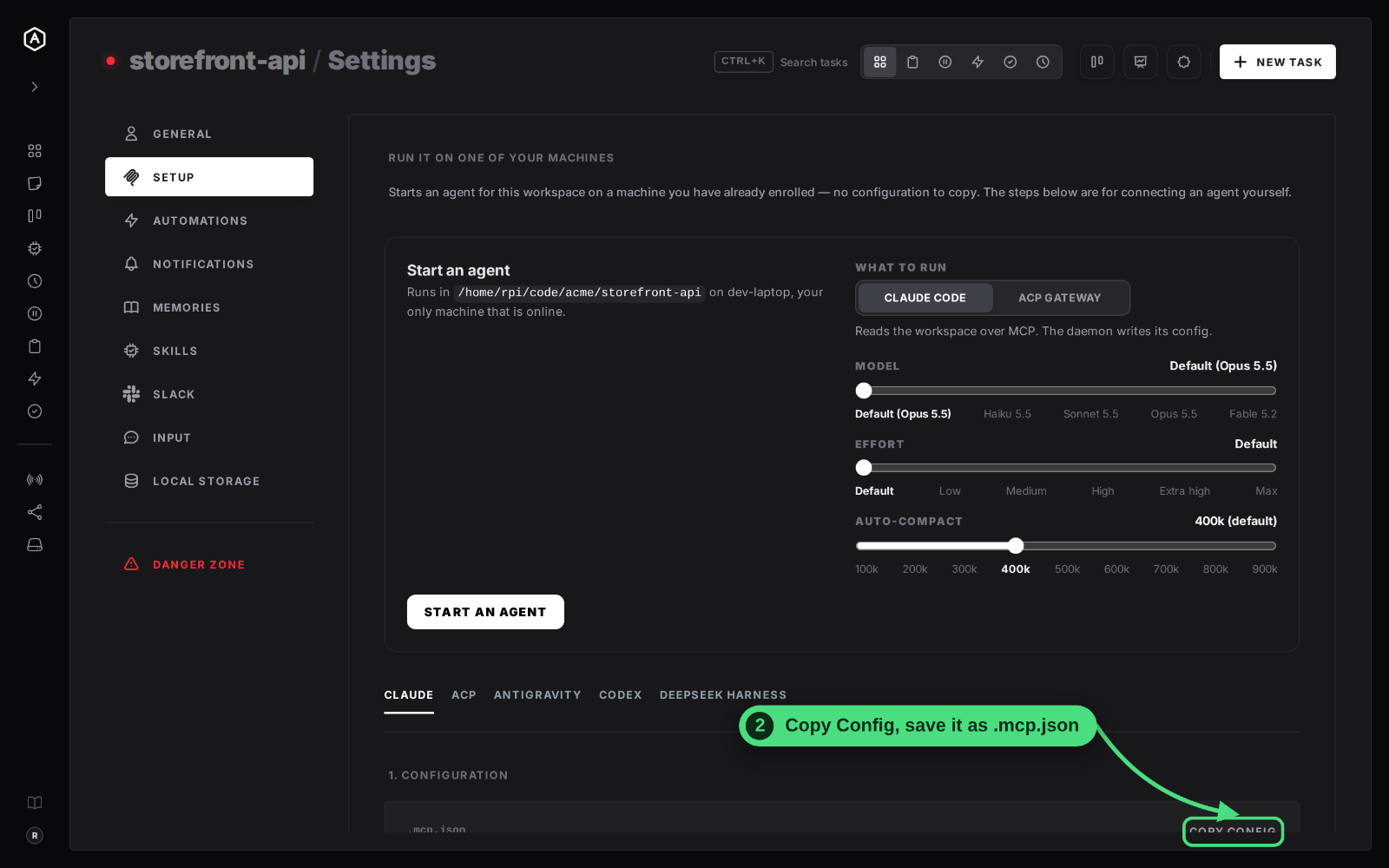
2. Under Setup → Claude, click Copy Config and save it as .mcp.json in your project folder. It holds the workspace's MCP URL and its token, so keep it out of git. If it ever leaks, reset the workspace ID.
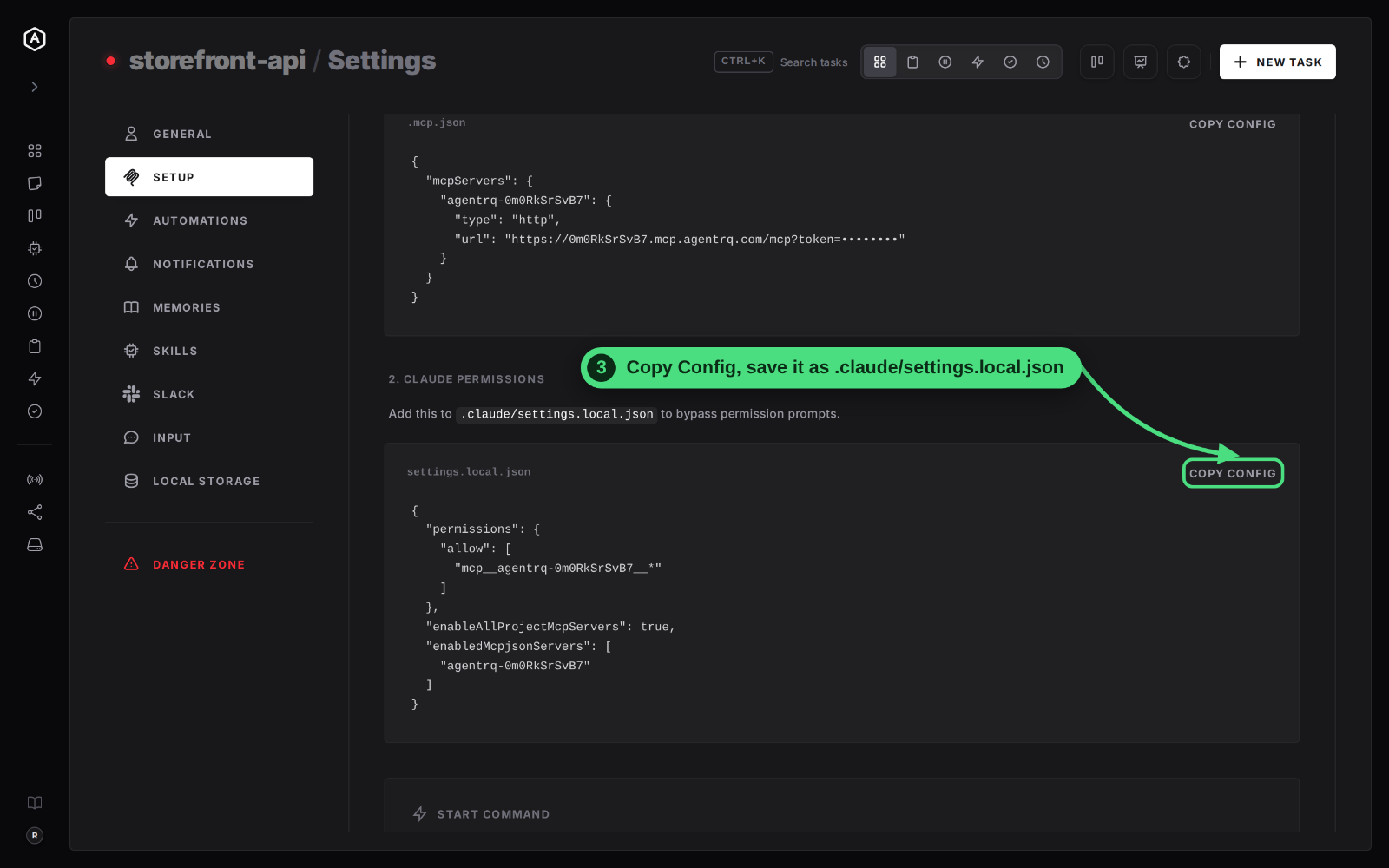
3. Copy the Claude permissions and save them as .claude/settings.local.json in the same folder, so Claude Code calls the workspace's tools without asking each time.
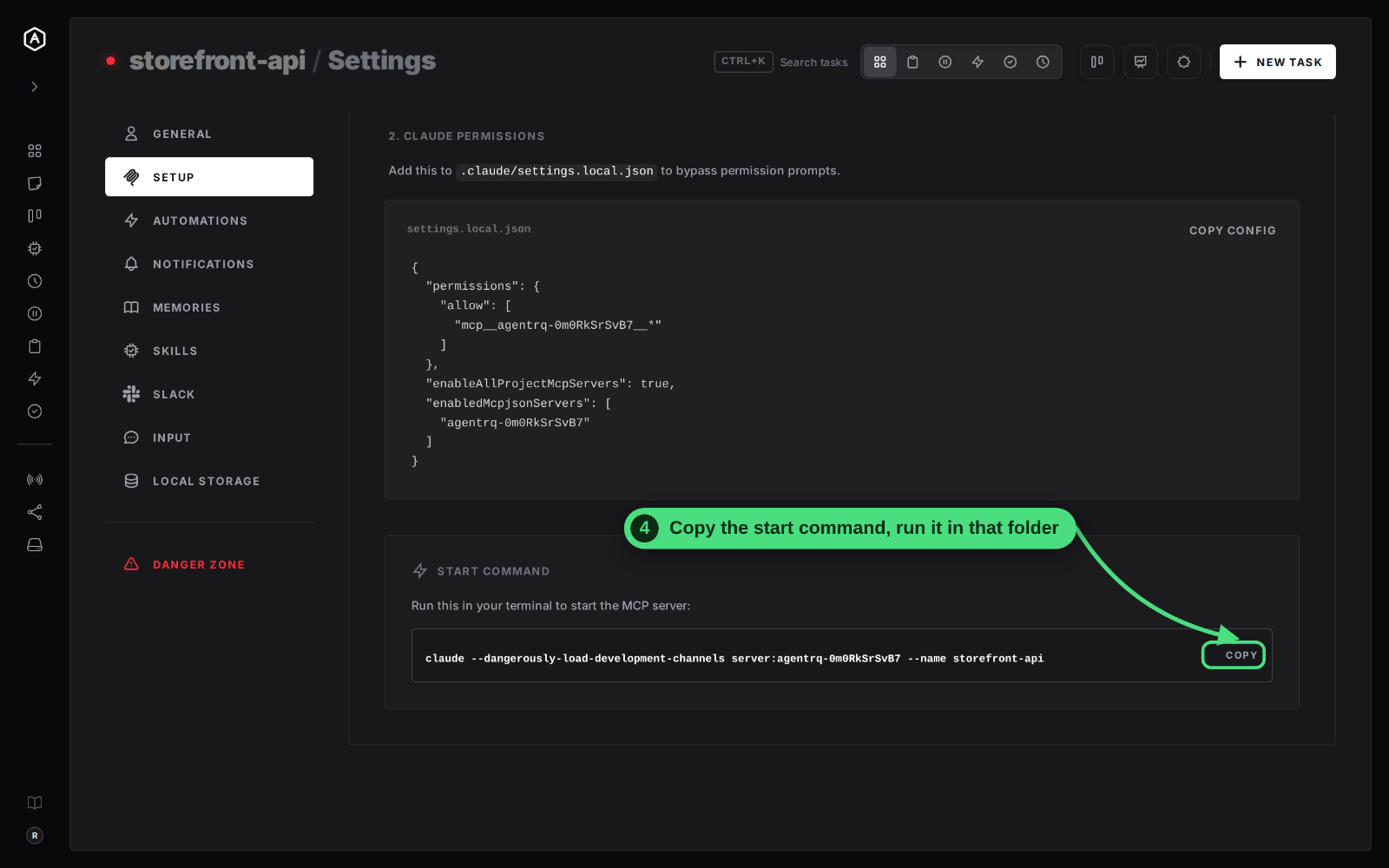
4. Copy the start command and run it in that folder. Add --model and --effort for Opus 5.5 at high effort:
Claude Code asks the same two questions as in steps 11 and 12. Once you answer them, the workspace's dot turns green. Leave the terminal open: the agent runs only as long as it does. The Claude Code setup docs cover the rest of this route: project or global config, the CLAUDE.md instructions that shape how Claude uses AgentRQ, and troubleshooting.
Machine vs Terminal at a Glance
| On an enrolled machine | From your own terminal | |
|---|---|---|
| Install | agentrqd, once |
Nothing beyond Claude Code |
| Config files | Written for you | Copy .mcp.json and settings.local.json |
| Start and stop | From AgentRQ, any browser | In that terminal |
| Answer prompts | Terminal in AgentRQ, or the task | That terminal, or the task |
| Model, effort, auto-compact | Sliders in the Start an agent card | --model, --effort, --autocompact |
| Best for | Claude Code you run every day | A quick try, or a one-off |
FAQ
Why does Claude Code need --dangerously-load-development-channels?
Channels are how a running Claude Code session receives messages from an MCP server, and AgentRQ's server is loaded as a development channel. Without the flag, Claude Code starts and connects but never receives a task. The flag loads only the channel named after it, server:agentrq-workspace.
Do I have to click through the prompts every time?
The folder trust question comes once per folder. The channel confirmation comes on every start, so when you start Claude Code from AgentRQ, open the terminal and press Enter once.
Can Claude Code work without asking me before each command?
Yes. Approve with Always Allow in a task, pick the auto-approve option in the terminal, or set your own rules in .claude/settings.local.json. The YOLO mode guidelines for Claude Code cover each option and its risks.
The workspace went offline but Claude Code is still running. What now?
Claude Code lost its connection to the workspace's MCP server. Click the terminal icon in the workspace toolbar, type /mcp, pick agentrq-workspace and choose Reconnect. Fix a Disconnected AgentRQ MCP in Claude Code shows every click.
Can I stop Claude Code from AgentRQ?
Yes. Click Stop on its terminal page. The workspace goes offline, and Start an agent comes back so you can start it again with other settings.