
How to Enable YOLO Mode in Claude Code
Claude Code's YOLO mode is called bypass permissions. Start it with claude --dangerously-skip-permissions, and Claude Code edits files, runs shell commands and calls tools without asking you first. It does not turn off the Bash sandbox, and before you reach for it at all, Claude Code's newer auto mode is worth a look.
This page is one of our YOLO mode guides, and part of our guide to YOLO mode in every coding agent. Everything below was checked against Anthropic's Claude Code documentation at code.claude.com and claude --help from version 2.1.292 on October 7, 2026.
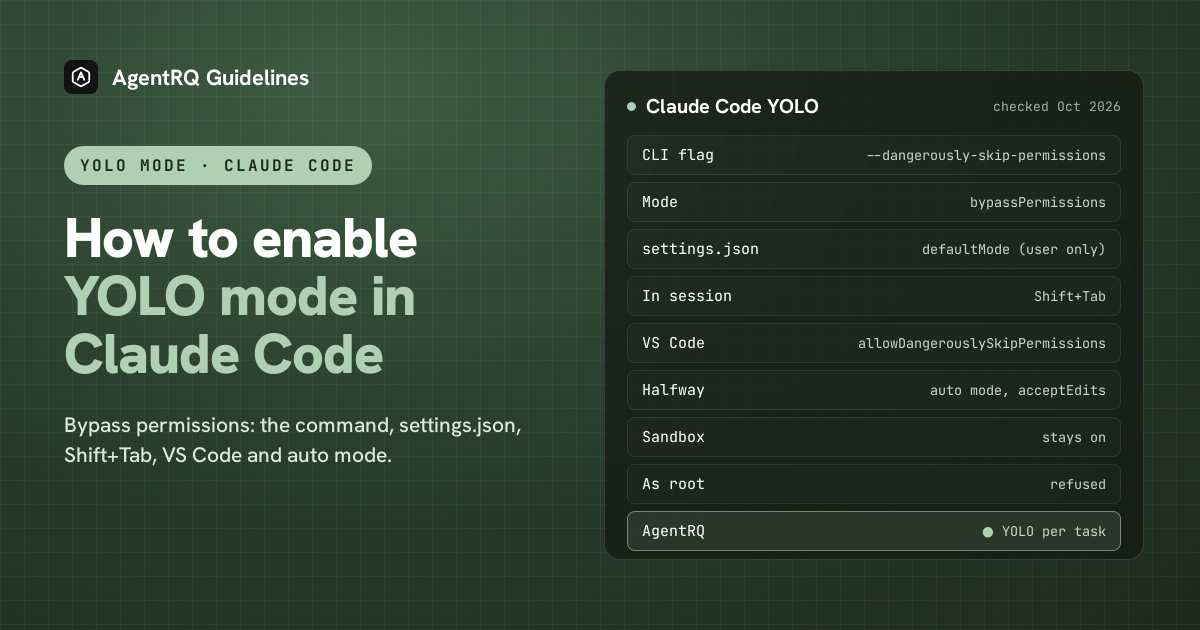
What YOLO Mode Turns Off in Claude Code
Claude Code has two safety layers: permission prompts, and an optional sandbox for Bash commands. Bypass mode turns off the first one only.
- → Turned off: every permission prompt, including writes to protected paths. Allow rules stop mattering, because everything is allowed anyway.
- → Still on:
denyrules and explicitaskrules, the guard againstrmon critical paths, and questions Claude asks you directly. - → The sandbox stays as it was. If you turned the sandbox on with
/sandbox, Bash commands still run inside it. One catch: a command that fails in the sandbox can be retried outside it without a prompt, unless you setallowUnsandboxedCommandstofalse.
How to Enable YOLO Mode in Claude Code Natively
| Where | Full YOLO | Halfway |
|---|---|---|
| Command line | claude --dangerously-skip-permissions |
claude --permission-mode auto or acceptEdits |
| settings.json | "defaultMode": "bypassPermissions" |
"defaultMode": "acceptEdits" |
| In a session | Shift+Tab, if allowed at launch | Shift+Tab |
| VS Code | claudeCode.allowDangerouslySkipPermissions |
mode selector |
| Rules | "allow": ["Bash(npm test)"] |
The Claude Code YOLO Mode Command
It is exactly the same as claude --permission-mode bypassPermissions. The values --permission-mode accepts are manual (the default, written default in config files), acceptEdits, auto, plan, dontAsk and bypassPermissions.
The first time you use it interactively, Claude Code shows a warning you have to accept. It also refuses to start in bypass mode as root or under sudo on Linux and macOS, unless it detects that it is already inside a sandbox.
Make YOLO the Default in settings.json
Add this to your user settings, ~/.claude/settings.json:
It also works in managed settings and in a file passed with --settings. It does not work in a project's own .claude/settings.json or .claude/settings.local.json. There, Claude Code ignores it and starts in the default mode, so a repository you clone cannot switch YOLO on for you. Cloud sessions ignore it from settings files too.
Administrators can block bypass mode for everyone with "disableBypassPermissionsMode": "disable" under permissions in managed settings.
Switch to YOLO Mode Inside a Session
Shift+Tab cycles through the permission modes: auto, default, acceptEdits and plan, then any optional ones. Bypass is only in the cycle if the session was started with permission to use it. To add it to the cycle without starting in it, launch with:
Claude Code YOLO Mode in VS Code
In the Claude Code extension, turn on claudeCode.allowDangerouslySkipPermissions in your user settings. That adds Bypass permissions to the extension's mode selector. claudeCode.initialPermissionMode sets the mode new conversations start in, and accepts default, acceptEdits, plan and bypassPermissions.
The Halfway Options in Claude Code
- → Auto mode. A classifier model reviews each action and only stops you for risky ones. Since version 2.1.283 it is the default starting mode in the terminal and VS Code, on supported models. For most people who want "YOLO, but not stupid", this is it.
- → acceptEdits. File edits go through without asking, and shell commands still ask.
- → Allow rules. Approve specific tools and commands, such as
"Bash(npm test)","Bash(git *)"or"Read", in thepermissions.allowlist or with--allowedTools. - → The sandbox. Run
/sandbox, or set"sandbox": {"enabled": true}, on macOS, Linux or WSL2. Sandboxed Bash commands can then run without prompts, because the sandbox, not you, limits what they can reach.
How to Enable YOLO Mode in Claude Code Through AgentRQ
Claude Code's own YOLO switch covers a whole session. AgentRQ lets you make the decision per task, and answer from somewhere other than the terminal.
Approve From the AgentRQ Task Instead of the Terminal
Connect Claude Code to an AgentRQ workspace by following the Claude Code setup guide. It adds the workspace as an MCP server and a notification channel. You can also run it through the ACP Gateway with --agent claude-acp.
Then start it without --dangerously-skip-permissions. Pick the default or acceptEdits mode, for example claude --permission-mode acceptEdits, rather than auto mode, so the decisions come to you instead of the classifier. Each permission request now shows up in the AgentRQ task on the web, on your phone or in Slack, together with the command or edit it is asking about. Answer Allow Once, Always Allow or Deny from wherever you are, and Claude Code carries on.
Turn On YOLO for One Task
Flip the YOLO toggle on a task, or when you create it, to put just that task in YOLO mode. Every permission request in it is approved automatically and Claude Code never waits, while every other task in the workspace still asks. Scheduled tasks, event triggers and workflow steps have the same switch, so an unattended job can run in YOLO while your interactive work stays supervised.
A Safe YOLO Setup for Claude Code
- → Allow the boring tools, not everything. Always Allow adds the tool to the workspace's auto-approved list, so the routine calls stop asking and the risky ones still do. Prune that list in workspace settings now and then.
- → Leave the workspace-wide switch off. Workspace settings also has YOLO Mode (Execute All). Turn YOLO on per task instead, so it never outlives the job you trusted.
- → Keep the Bash sandbox on. Run
/sandboxonce. Per-task YOLO in AgentRQ removes the questions, while the sandbox still limits what an approved command can touch. - → Commit first. Start every YOLO task from a clean git tree, so any change is one
git resetaway. - → Read the record. The tool call history lists every call the task made, including the ones that were auto-approved.
FAQ
What is Claude YOLO mode? It is Claude Code's bypass permissions mode, which skips every permission prompt for the session. Start it with claude --dangerously-skip-permissions.
What is the Claude YOLO mode command? claude --dangerously-skip-permissions, or the longer claude --permission-mode bypassPermissions.
How do I turn on YOLO mode in Claude Code? Start Claude Code with --dangerously-skip-permissions, or set "defaultMode": "bypassPermissions" in ~/.claude/settings.json.
Does YOLO mode in Claude Code turn off the sandbox? No. Bypass mode skips the prompts. The Bash sandbox is a separate setting, and it keeps working if you turned it on.
Why can't I select bypass permissions with Shift+Tab? It is only in the cycle when the session was started with --dangerously-skip-permissions or --allow-dangerously-skip-permissions, or with bypass set in your user settings.
Why does --dangerously-skip-permissions fail as root? Claude Code refuses to run in bypass mode as root or with sudo, unless it is inside a recognized sandbox.
Is auto mode the same as YOLO mode? No. In auto mode a classifier reviews each action and still stops you for risky ones. Bypass mode never stops.
How do I approve Claude Code permissions from my phone? Connect Claude Code to AgentRQ. Its permission requests show up in the task, where you answer Allow Once, Always Allow or Deny.
For every other agent, see what YOLO mode is and how to turn it on in every coding agent.