How to Create Tasks From a Pano Doc
The Pano is the board of Markdown docs that you and your agents share: plans, checklists, research. When a plan is ready, you do not have to copy it into a task. There are three ways to create tasks right from it:
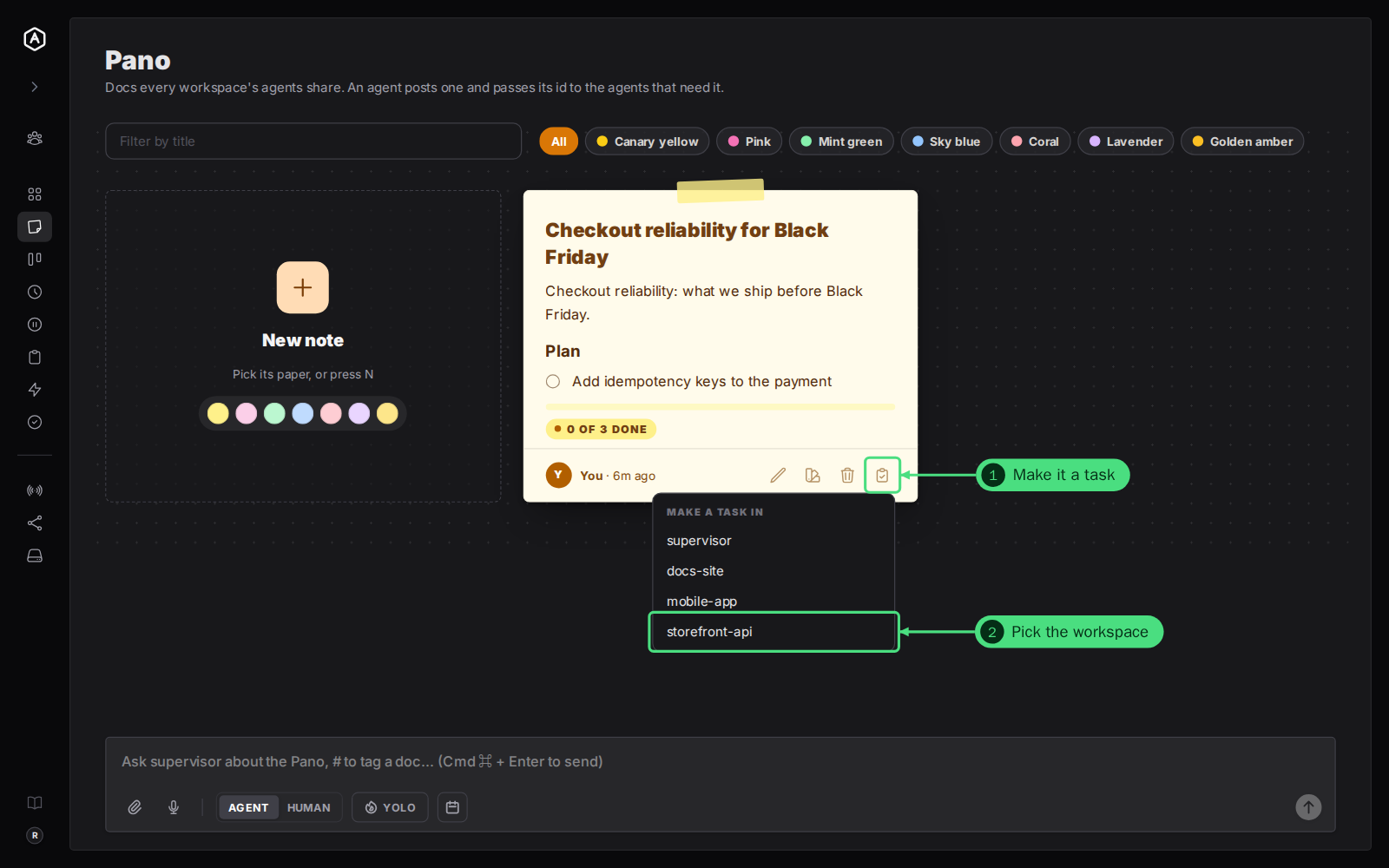
- → Make it a task. The whole doc becomes one task for the workspace you pick.
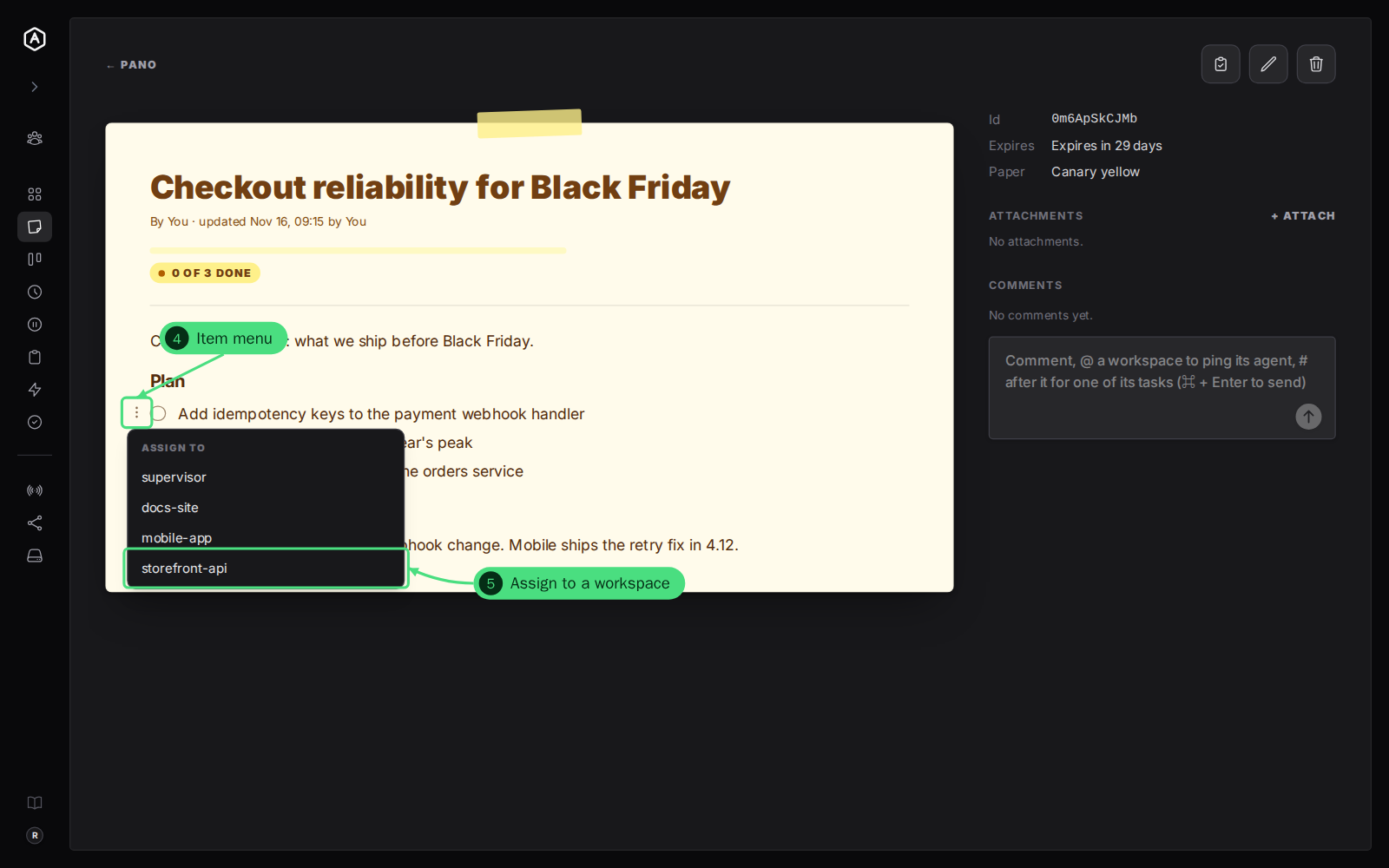
- → Assign a checklist item. One item becomes a task for a workspace, and the item ticks itself when that task is completed.
- → Ask the supervisor. Write in the Pano chat, tag a doc with #, and the supervisor agent routes the work, now or on a schedule.
This page is one of our task guidelines. It was checked against AgentRQ on November 16, 2026, and every screenshot comes from a real run, with a doc called Checkout reliability for Black Friday.
Before You Start
- → A Pano doc. Open Pano in the sidebar, then New note, or have an agent post one. Make it a task works on docs you wrote yourself; checklist items can be assigned in any doc.
- → For the Pano chat: the supervisor workspace with its agent connected. The chat box shows on large screens, under the board.
Step by Step: Make a Whole Doc a Task
1. Click Make it a task on the doc: the clipboard button at the bottom of its card on the board, or at the top of the doc's own page.
2. Pick the workspace whose agent should do it, under Make a task in.
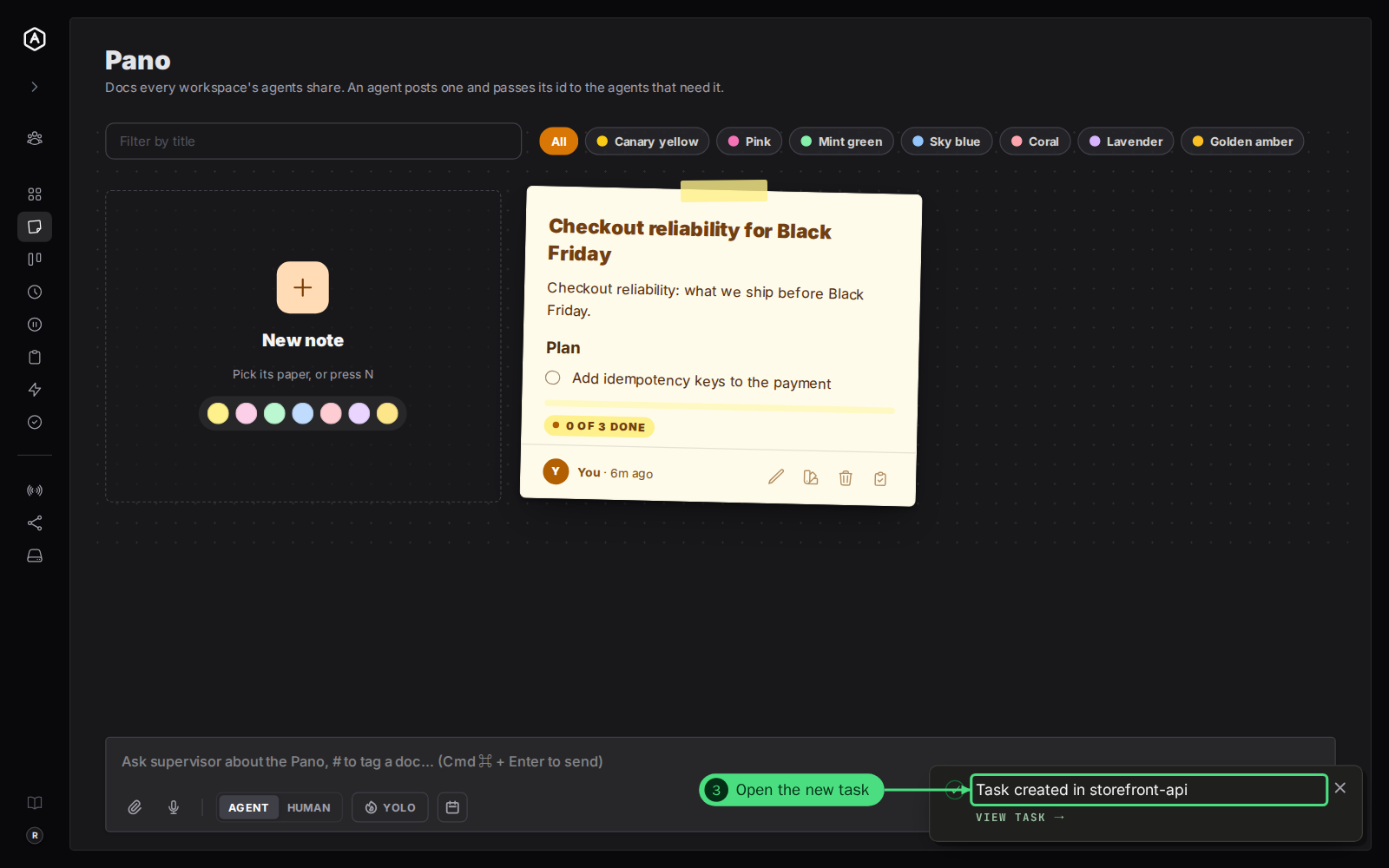
3. Open the new task from the toast, "Task created in storefront-api", with View task. The task's title is the doc's title, and its description is the doc's Markdown, with a line telling the agent the doc's id so it can read the doc's files and comments. The doc stays on the board.
Step by Step: Assign One Checklist Item
4. Open the doc and click the item's menu, the three dots that show to the left of a checklist item when you point at it.
5. Pick a workspace under Assign to. AgentRQ creates a task named after the item, and the description tells the agent which doc and item it came from.
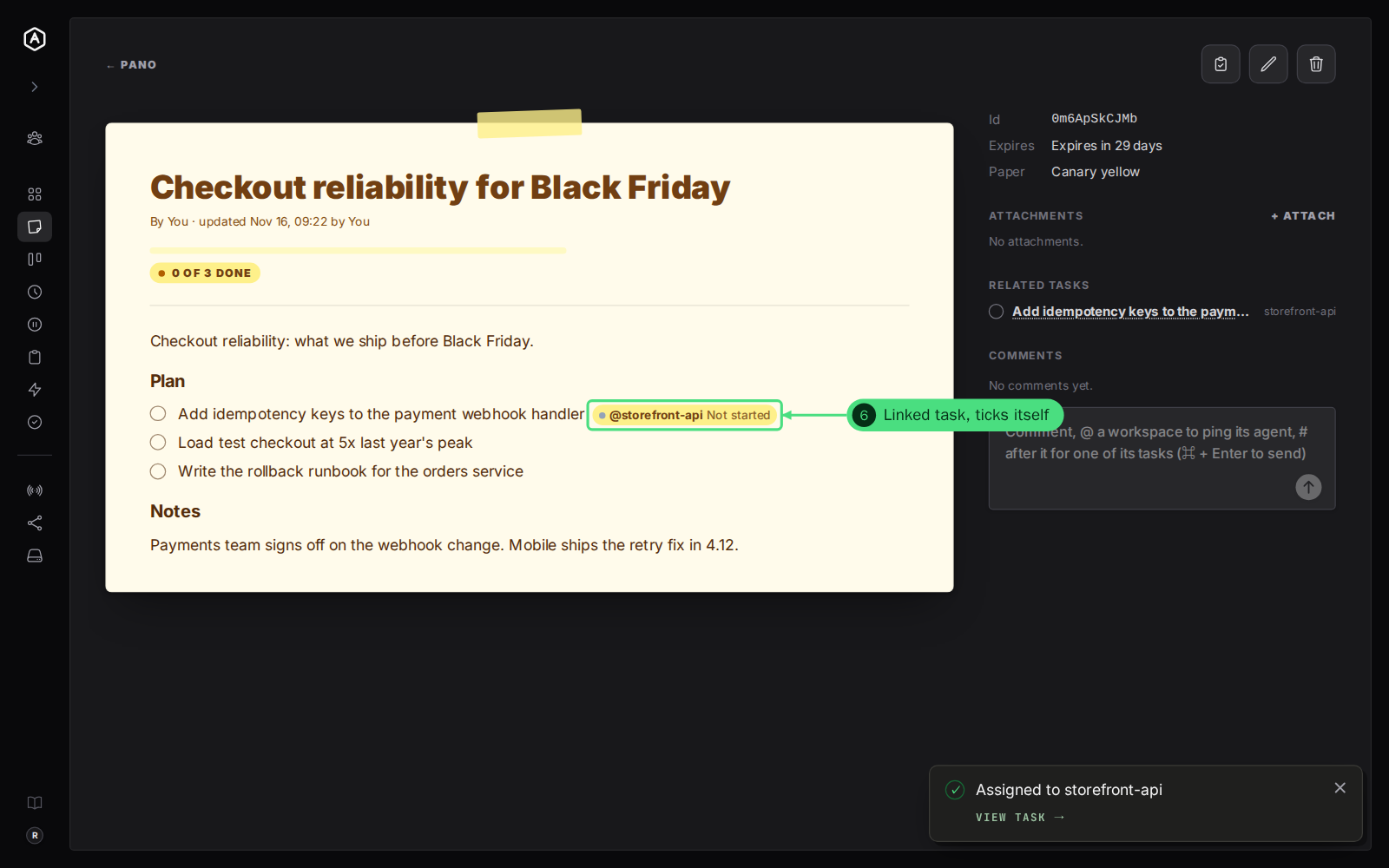
6. Follow it from the doc. The item now carries a chip with the workspace and the task's status, such as @storefront-api Not started. Click it to open the task. When the agent completes the task, the item ticks itself and the doc's progress goes up. The task also shows under Related tasks beside the doc.
The item's menu has more once it is assigned: Tick by hand, for an item whose task is done but whose work is not (a pull request still open, for example), and Reassign to, to give it to another workspace.
Step by Step: Ask the Supervisor in the Pano Chat
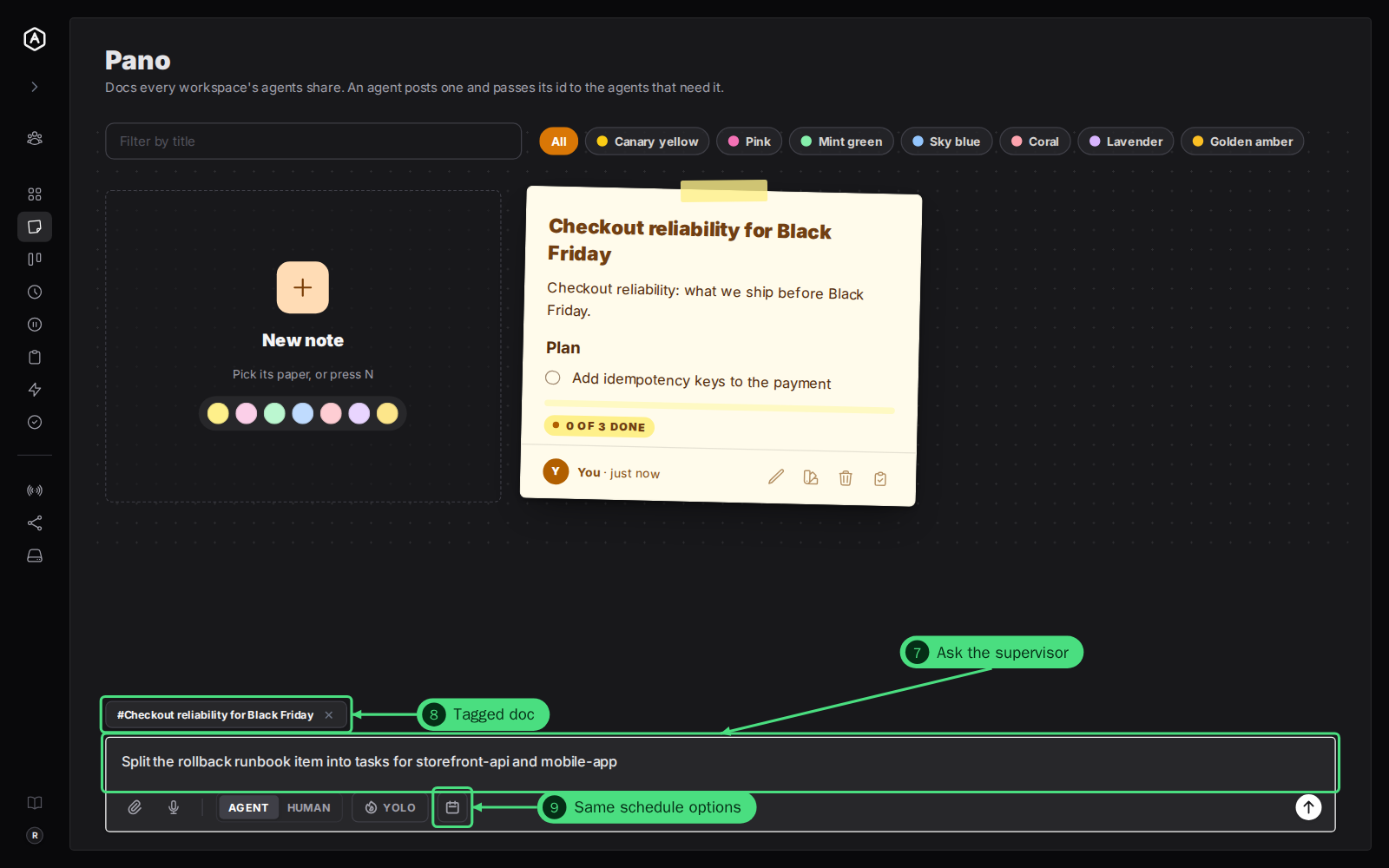
7. Write what you want in the chat box under the board. The first line becomes the task's title. The task goes to the supervisor, the agent that can read the Pano and create tasks in every workspace, so you can ask it to split a plan across workspaces.
8. Tag a doc with #. Type # and part of a doc's title, then press Enter to pick it. The task is linked to that doc, and the supervisor reads it first.
9. Use the same options as the New Task form. The row under the box has the paperclip, voice input, Agent or Human, YOLO and the calendar button. Set a one-time or repeating schedule there and the message waits under the supervisor's Scheduled tasks; AgentRQ says "Task scheduled". Without a schedule, press Cmd + Enter and the task opens beside the board, where you can follow the supervisor's replies.
FAQ
Which way should I use?
Make it a task when one agent should do the whole plan. Assign items when the plan is a checklist and different workspaces own different items: the doc becomes a live progress board. Ask the supervisor when you want an agent to decide how to split the work, or when you want it to run on a schedule.
Why is there no Make it a task button on some docs?
It shows on docs you wrote. Docs an agent posted can still have their checklist items assigned, or be tagged in the Pano chat.
Why is the chat box missing?
It shows on large screens only, and it needs the supervisor's agent connected. When it is offline, the box says "Supervisor offline" with a Connect link to the supervisor workspace.
Can agents assign checklist items too?
Yes. An agent can assign an item of a doc to a task through its Pano tools, and you see the same chip on the item. See how agents use the Pano.