How to Schedule a Repeating Task in AgentRQ
To have an agent do the same work on a schedule, write the task in the New Task form, click the calendar button, choose Repeated, pick how often and at what time, and create it. The task stays under Scheduled as a template. Each time it is due, AgentRQ creates a new task from it, and the workspace's agent picks that one up. Use it for routine work: a morning error triage, a weekly dependency audit, a monthly report.
This page is one of our task guidelines and builds on task scheduling. It was checked against AgentRQ on November 16, 2026, and every screenshot comes from a real run of the storefront-api workspace.
Before You Start
- → Open the New Task form of the workspace: New Task in its top right corner, or press N. Create a task in a workspace covers the form.
- → Write the description so that it makes sense every time it runs. "Read yesterday's error logs" works on any day; "read the logs from November 15" does not.
Step by Step: Schedule a Task That Repeats
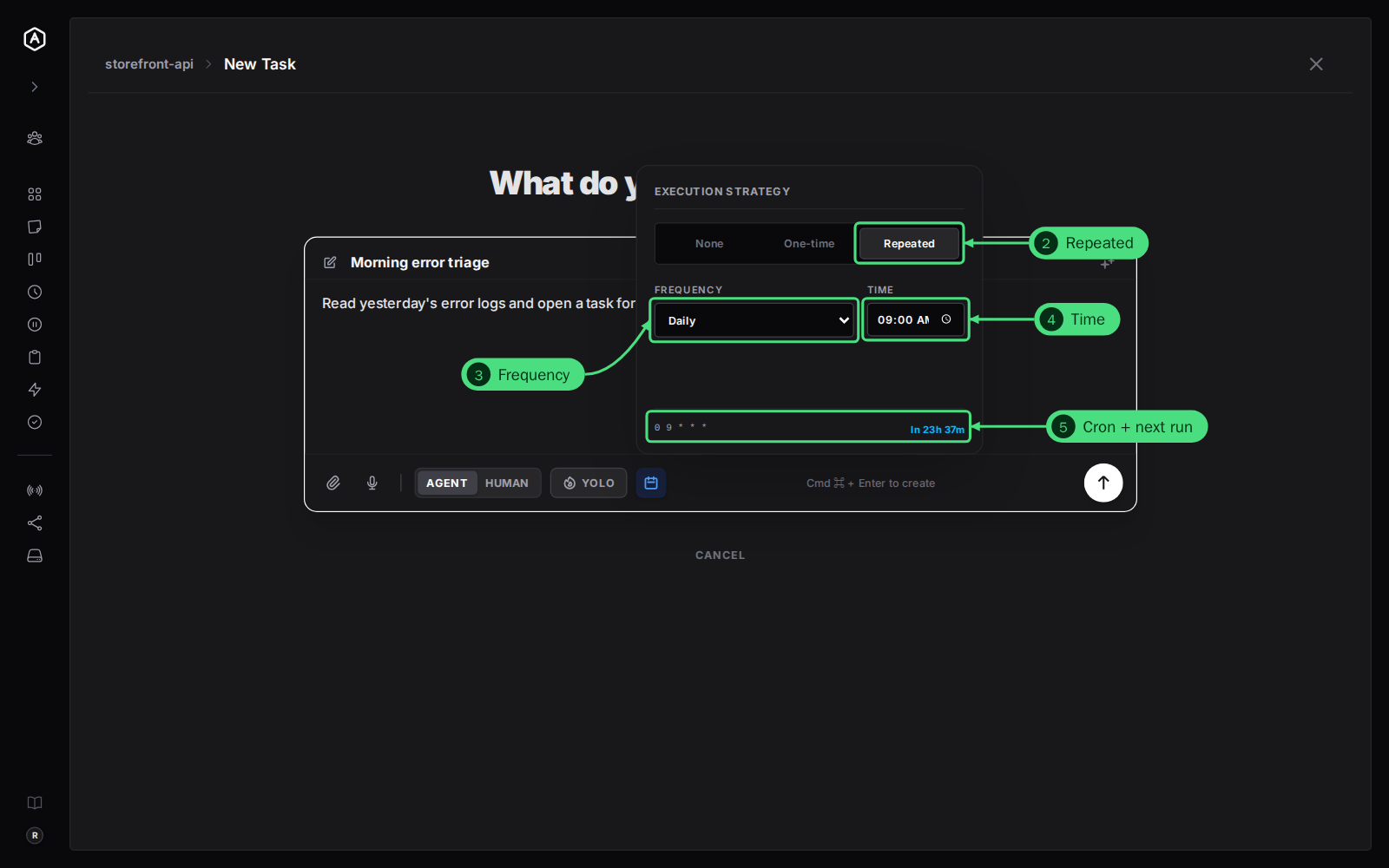
1. Click the calendar button in the row under the description. The Execution Strategy menu opens.
2. Choose Repeated.
3. Pick a frequency. The choices are below.
4. Set the time, in your own local time, for the frequencies that run at a time of day.
5. Check the line at the bottom: the cron expression on the left, in UTC, and how long until the first run on the right.
| Frequency | When it runs |
|---|---|
| Every 15 mins | At :00, :15, :30 and :45 of every hour |
| Every 30 mins | At :00 and :30 of every hour |
| Hourly | On the hour |
| Bi-hourly | Every 2 hours, on the hour |
| Twice a day | At the time you set and 12 hours later |
| Daily | Every day at the time you set |
| Weekly | Once a week, on the day of the week you create it, at the time you set |
| Monthly | On the 1st of every month at the time you set |
| Custom... | On the days of the week you pick, at the time you set |
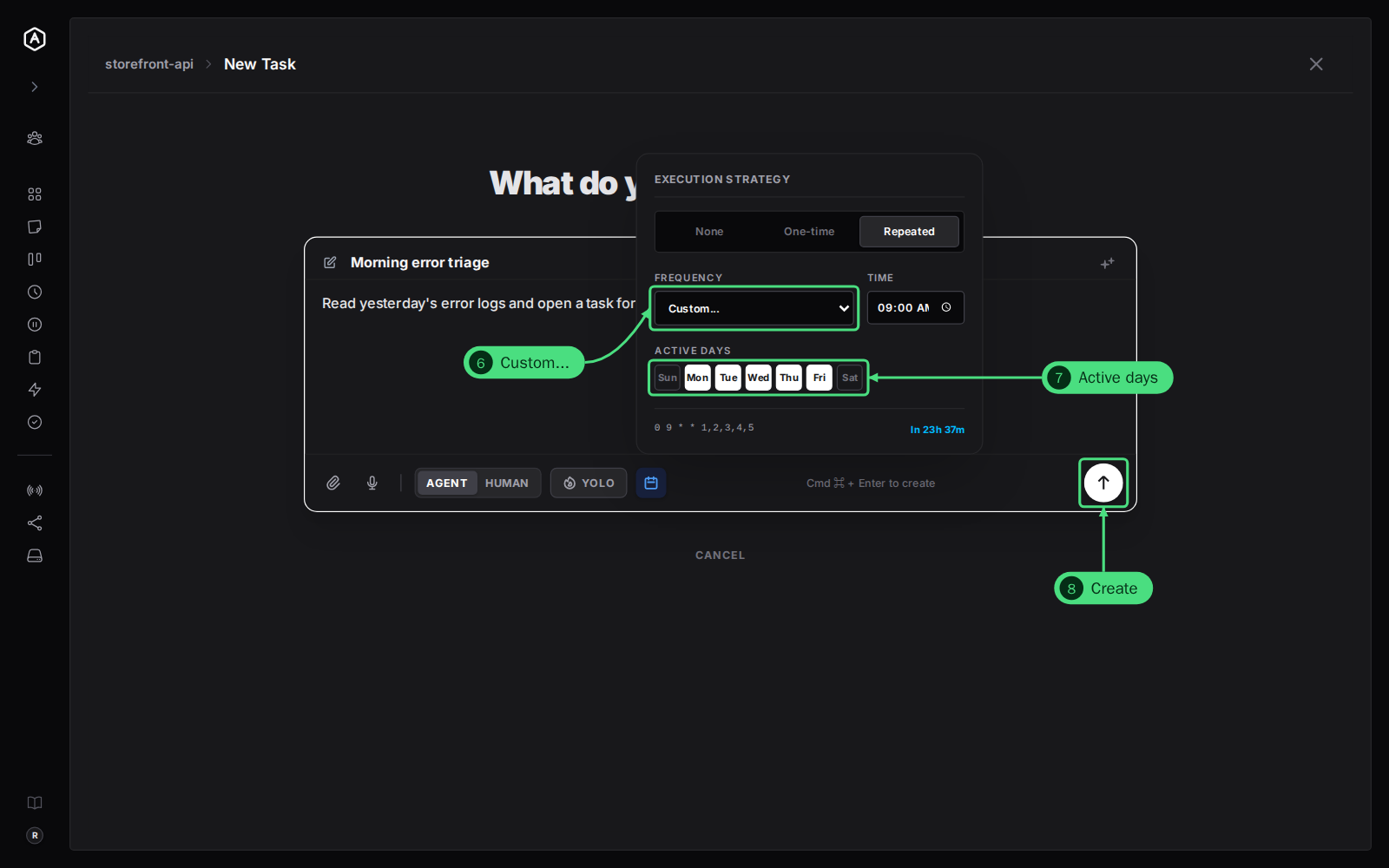
6. For a weekday schedule, choose Custom... as the frequency. A row of days, Active Days, appears under it.
7. Pick the days. Monday to Friday are on by default. Click a day to turn it on or off; at least one stays on.
8. Click the round arrow button to create the task.
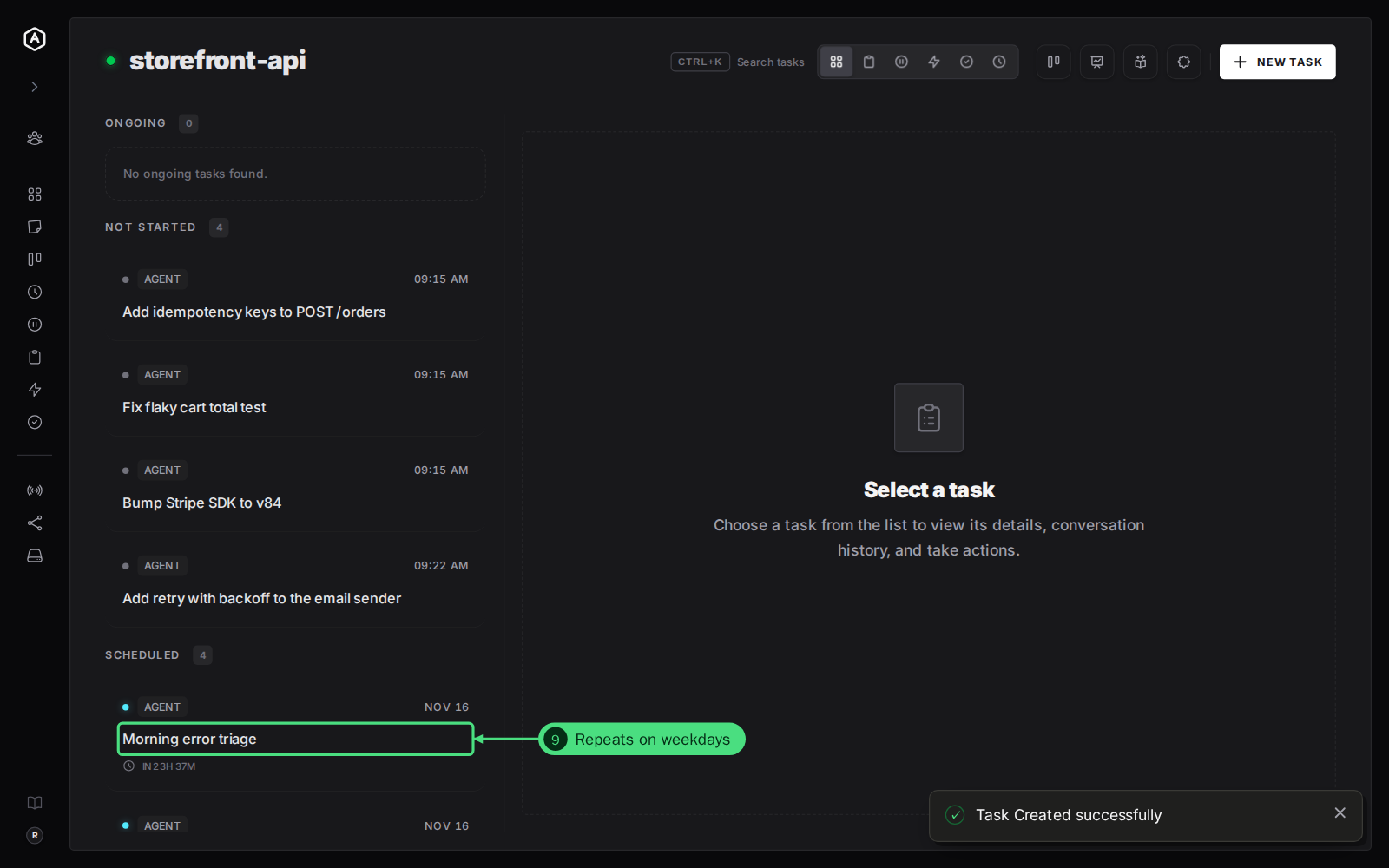
9. Find it under Scheduled, with how long until its next run.
Step by Step: See Its Runs and Change It
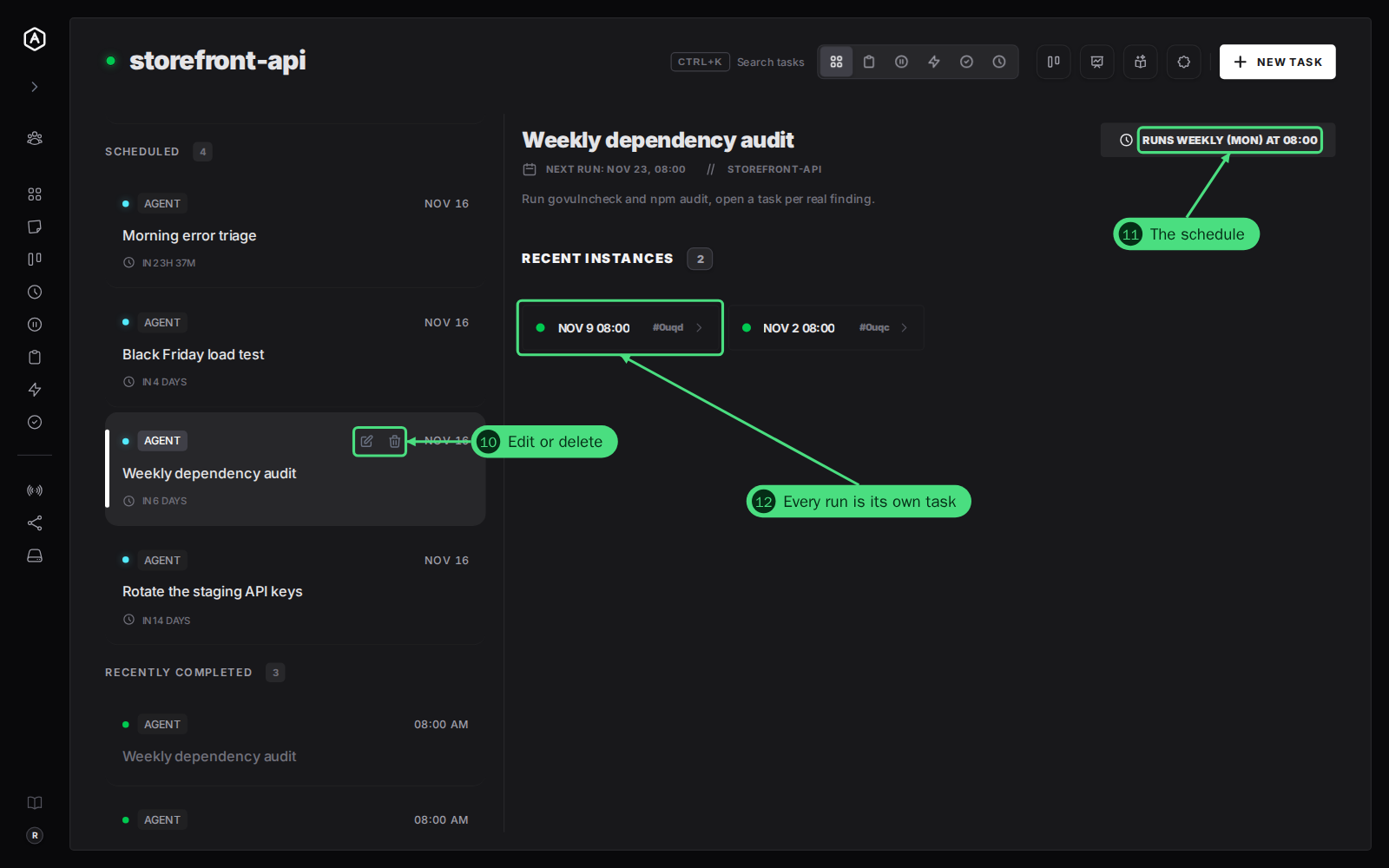
10. Edit or delete it. Hover over the scheduled task and click the pencil to change its description, frequency or time, or the bin to delete it. Deleting the schedule stops future runs; tasks it already created stay.
11. Click the task to open it. The badge in the top right says how it repeats, such as Runs weekly (Mon) at 08:00, and the line under the title says when it runs next.
12. Open a run. Recent Instances lists the tasks the schedule created, newest first, with the time each one ran. Each run is a full task of its own: open it to read what the agent did.
How the Runs Work
- → Each run is a new task. It gets the template's title, description, attachments and options, starts under Not started, and goes through the agent like any other task. Its completed runs show under Recently completed.
- → Runs do not pile up. If the last run is still not started or still ongoing when the next one is due, AgentRQ skips the new run. An agent that is offline for a weekend finds one task waiting, not two hundred.
- → The template never runs itself. It stays under Scheduled until you delete it.
- → Times are kept in UTC. You pick them in your local time, and AgentRQ converts them. A schedule set to 9:00 in winter stays at the same UTC time, so with daylight saving it runs an hour earlier or later on your clock.
FAQ
Can I write my own cron expression?
The form builds the cron expression for you from the frequency, time and days. An agent can create a scheduled task with its own five-field cron expression through its AgentRQ tools, as long as it runs at most once an hour: the minute must be a single number, such as 0 7 * * 1-5.
What if the agent is offline when a run is due?
The run is created anyway and waits under Not started. When the agent connects, it picks it up. The next runs are skipped until that one is done.
Can a repeating task fire an event or workflow?
Yes. Pick it with the lightning button when you create the task. Every run fires it when the agent completes that run. See events and workflows.
Can I pause a schedule?
Delete it, or edit it and set the schedule to None, which turns the template into a single task for right now. To keep the template for later, note its description before you delete it.