How to Schedule a One-Time Task in AgentRQ
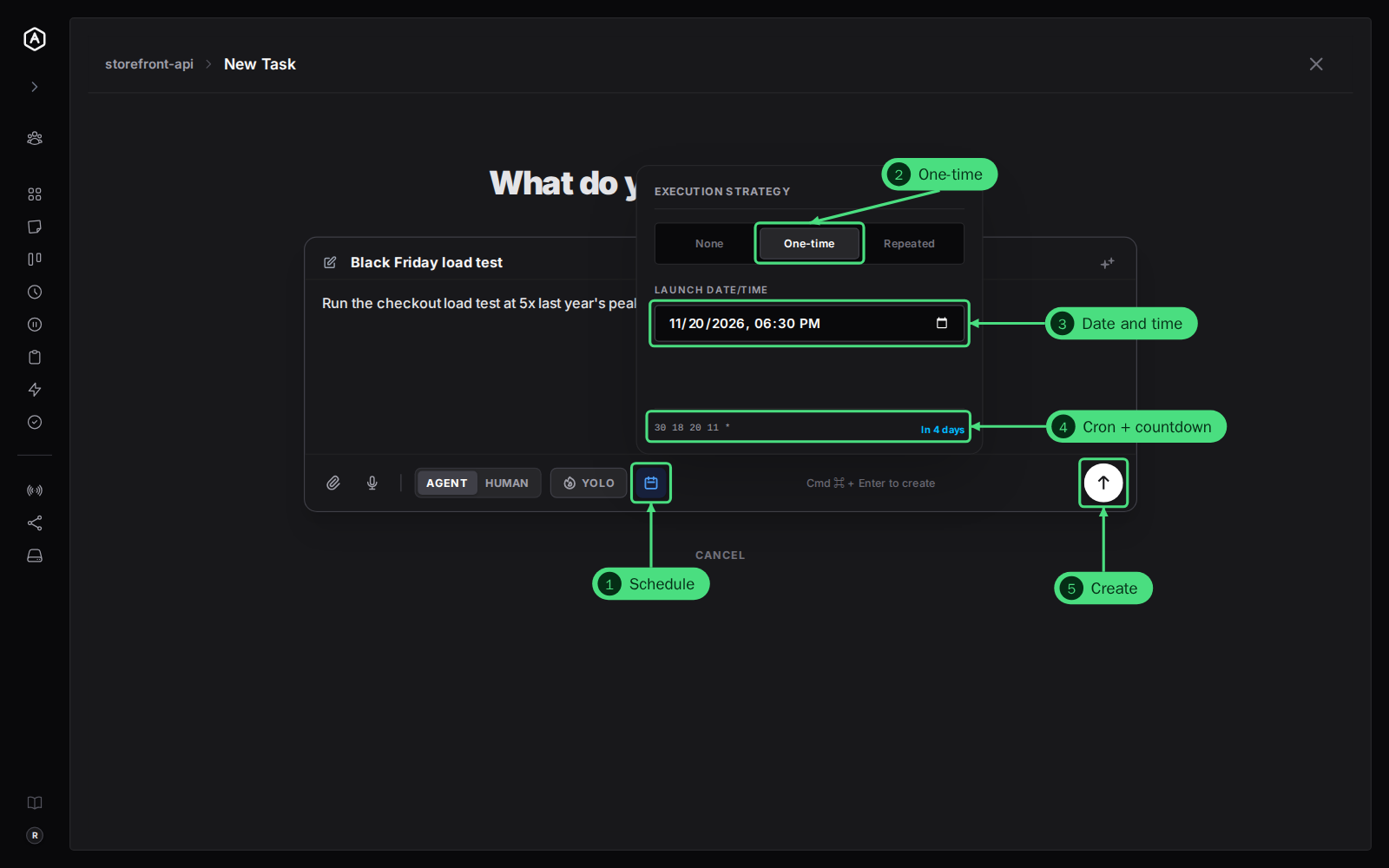
To run a task once at a set time, write it in the New Task form as usual, click the calendar button, choose One-time and pick the date and time. The task waits under Scheduled with a countdown, and at that minute it becomes a normal task that the agent picks up. Use it for work that should not start yet: a load test before a launch, a key rotation on the first of the month, a report after a deadline.
This page is one of our task guidelines and builds on task scheduling. It was checked against AgentRQ on November 16, 2026, and every screenshot comes from a real run of the storefront-api workspace.
Before You Start
- → Open the New Task form of the workspace: New Task in its top right corner, or press N. Create a task in a workspace covers the form.
- → Write the title and description first. The schedule is one more option on the same form.
Step by Step: Schedule a Task Once
1. Click the calendar button in the row under the description. The Execution Strategy menu opens.
2. Choose One-time. None, the default, creates a task for right now. Repeated is for tasks that repeat.
3. Pick the date and time under Launch Date/Time. Use your own local time: AgentRQ converts it for you.
4. Check the line at the bottom. On the left is the schedule as a cron expression, in UTC. On the right is how long until it runs, such as "In 4 days". If it is not what you meant, change the date or time.
5. Click the round arrow button to create the task. The calendar button stays blue while a schedule is set.
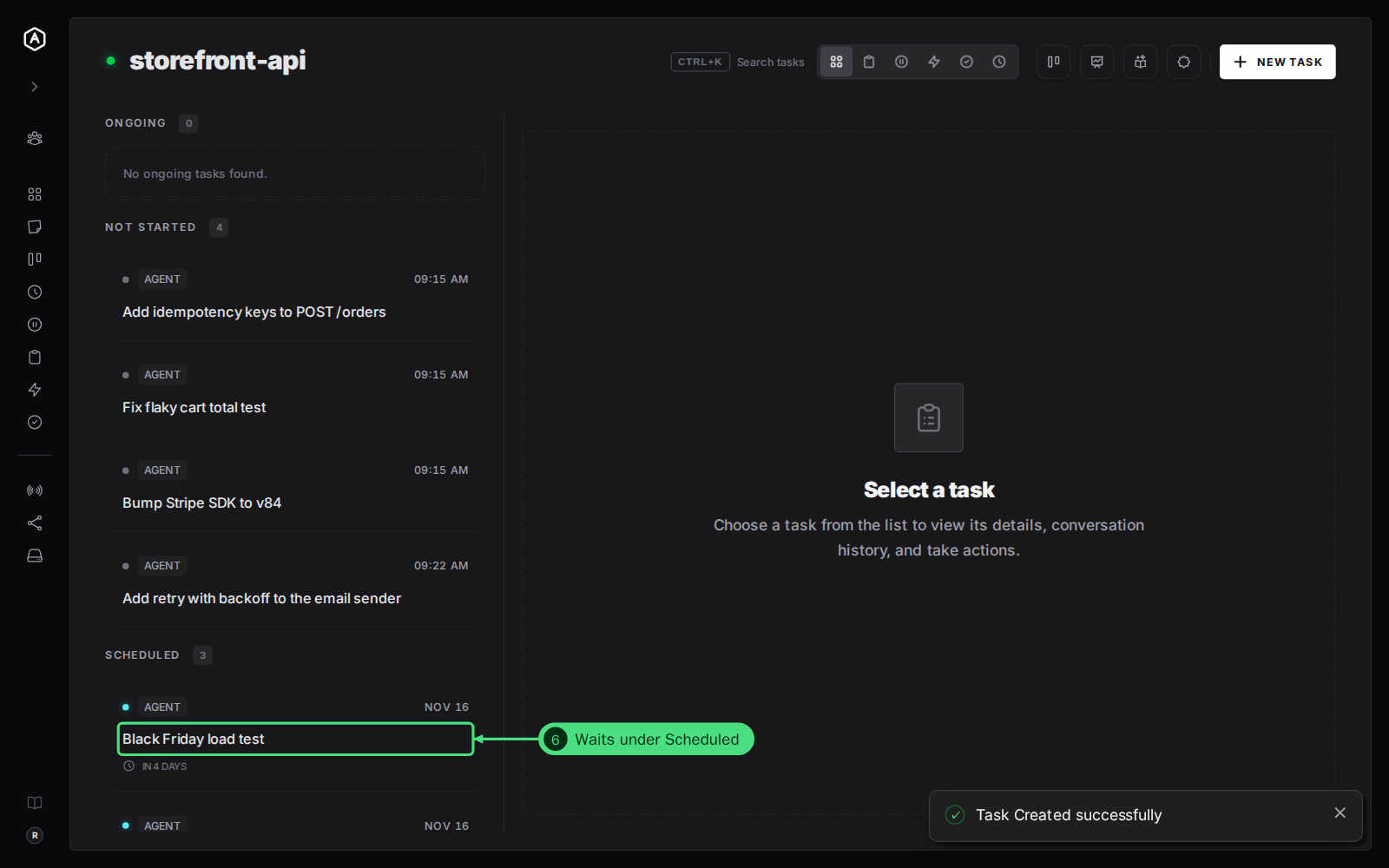
6. Find it under Scheduled. AgentRQ takes you back to the workspace. The task waits under Scheduled, with a cyan dot and how long until it runs. The agent does not see it until then.
What Happens at That Minute
AgentRQ checks the schedules once a minute. At the minute you picked, the scheduled task itself turns into a normal task: it moves from Scheduled to Not started, keeps its title, description, attachments and options, and the workspace's agent picks it up. Nothing is left behind under Scheduled.
If the agent is offline at that minute, the task still starts on time and waits under Not started until the agent connects.
FAQ
Can I change the date after I create it?
Yes, until it runs. Hover over the task under Scheduled and click the pencil, change the date in the same menu, and save. The bin deletes it.
Can I run it now instead of waiting?
Yes. Edit it, set the schedule back to None and save. It moves to Not started at once, and the agent picks it up. It works the other way too: edit a task that has not started yet and give it a schedule to move it under Scheduled.
How far ahead can I schedule it?
Up to a year. A one-time schedule stores the month, day, hour and minute, not the year, so it runs the next time that date and time come round.
Which time zone does it use?
Yours. You pick the time in your browser's local time, and AgentRQ stores it in UTC, which is what the cron line shows. The countdown and the task list show it back in your local time.
Can a scheduled task fire an event when it completes?
Yes. Pick the event or workflow with the lightning button when you create the task. It fires when the agent completes the task, as for any other task. See events.