Workspace Settings: Notifications Tab Explained
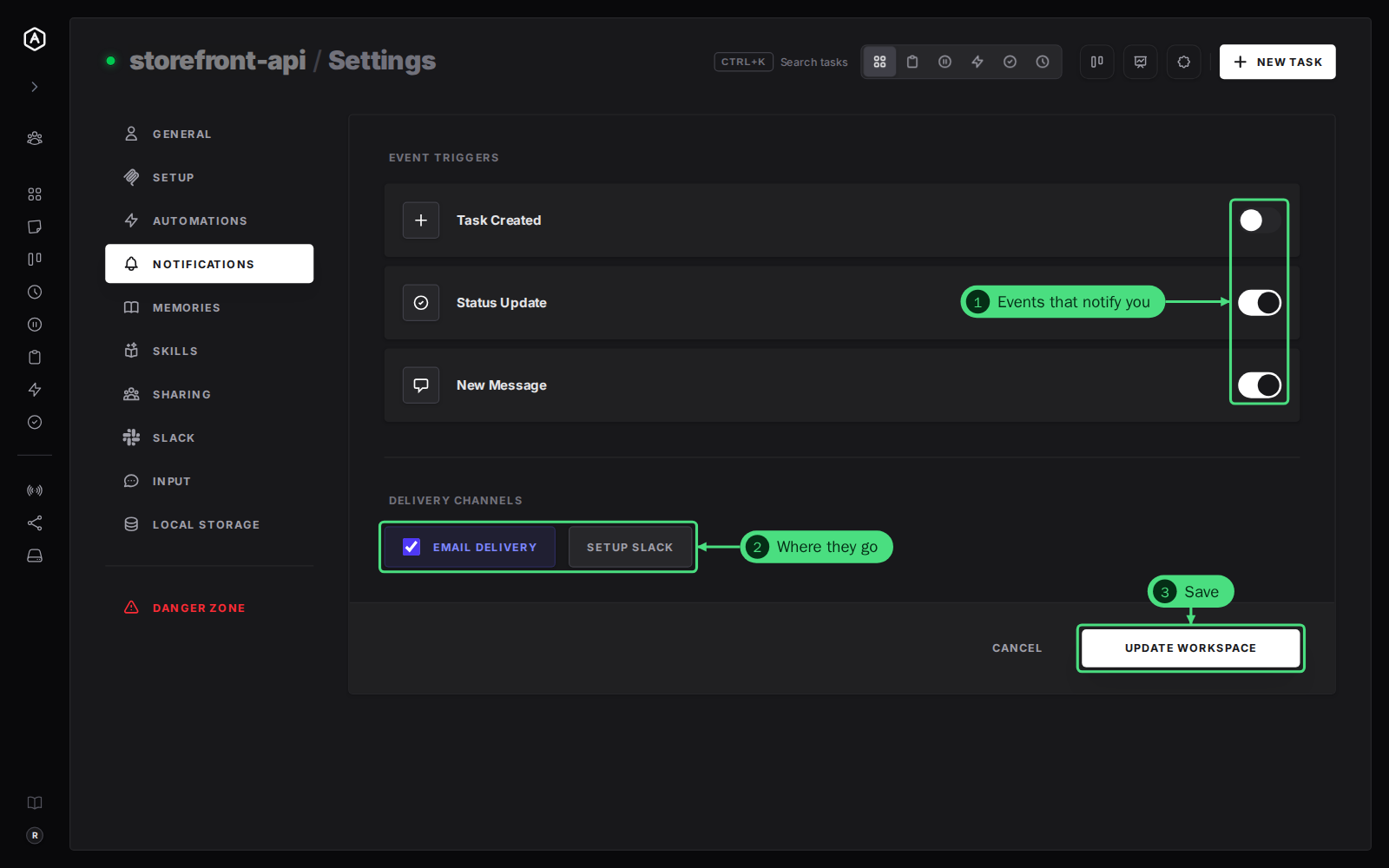
The Notifications tab decides when this workspace tells you something happened, and where. Turn on the events you care about, pick the channels, and you will know when the agent needs you without watching the screen.
This page is one of our workspace guidelines. It was checked against AgentRQ on November 16, 2026, and every screenshot comes from the storefront-api workspace.
Before You Start
Open the workspace, click the gear button in the top right, then Notifications in the settings menu. The General tab guide shows where the gear is.
Step by Step: Pick Events and Channels
1. Turn on the events under Event Triggers:
| Event | You hear about it when |
|---|---|
| Task Created | A task is created in this workspace, by you, a teammate, a schedule or an agent |
| Status Update | A task changes status: it starts, gets blocked, completes or is rejected |
| New Message | A task gets a new message, such as the agent's reply or question |
2. Pick where they go under Delivery Channels:
- → Email Delivery. Tick it to get them by email.
- → Setup Slack opens the Slack tab. Once a channel is linked, the button reads Slack Active.
- → Enable Push turns on browser push notifications for this workspace, where your browser supports them. It reads Push Active when on.
- → Desktop Alerts is the desktop app's switch for native notifications for this workspace.
3. Click Update Workspace to save.
Good to Know
- → Status Update is the one to keep on. It tells you when a task is blocked on you and when it is done. Add New Message if you want every reply.
- → Push and desktop alerts are per device. Turn them on in each browser or desktop app you use. The event switches and email follow your account.
- → A fork follows its parent. Its notification settings are read-only; change them in the workspace it was forked from.
See real-time notifications for how AgentRQ keeps every open window up to date.
FAQ
Why is there no Enable Push button?
Your browser does not support web push for this page, or push is not set up on this AgentRQ server. The desktop app shows Desktop Alerts instead.
Can I get notified only for one task?
Not from this tab: the switches cover every task in the workspace. Open the task to follow it live.