How to Create a Task in an AgentRQ Workspace
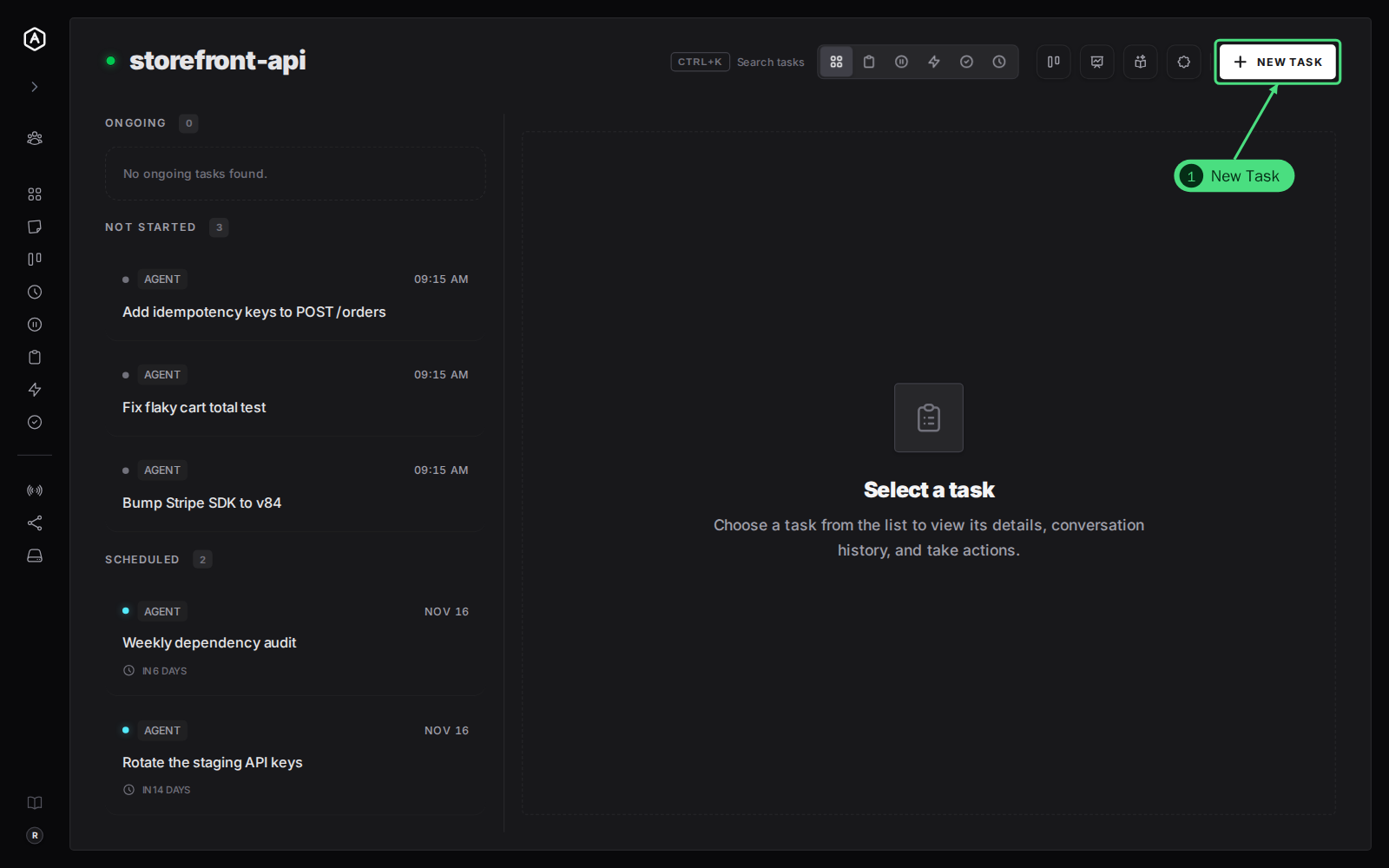
To create a task, open the workspace whose agent should do the work, click New Task, describe what you want done and click the round arrow button. The task appears under Not started, and the workspace's agent picks it up as soon as it is free. You can also press N anywhere in AgentRQ to open the form for the workspace you are in.
This page is one of our task guidelines. It was checked against AgentRQ on November 16, 2026, and every screenshot comes from a real run of the storefront-api workspace.
Before You Start
- → A workspace. Each workspace has one agent, so create the task in the workspace whose agent knows the code. See workspaces.
- → An agent connected to it, if you want the task started right away. A task created while the agent is offline waits under Not started until it connects. See connect Claude Code with machines.
Step by Step: Create a Task
1. Open the workspace and click New Task, in the top right corner. Pressing N does the same.
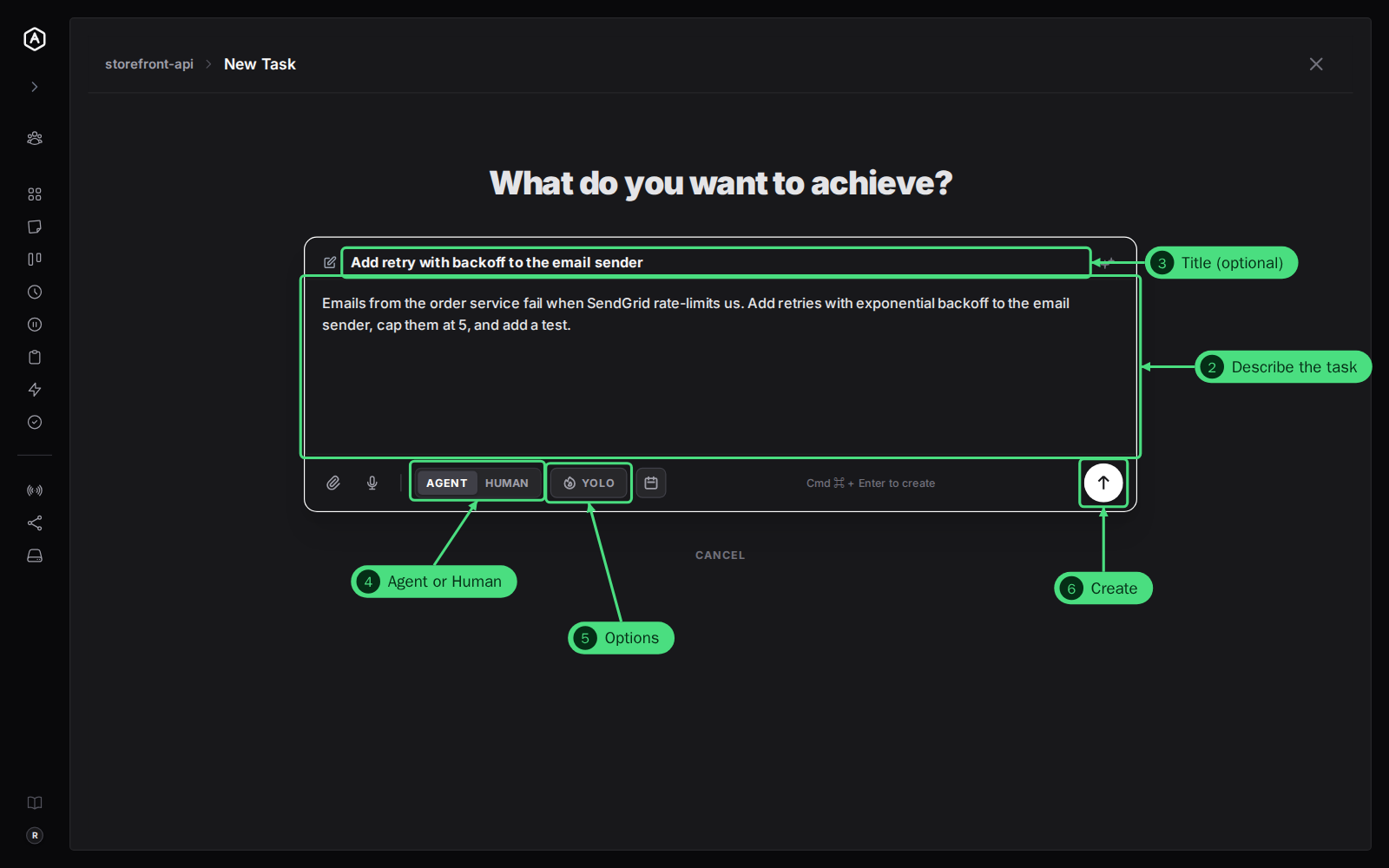
2. Describe the task. This is the only field you must fill in, and it is what the agent reads. Say what to do, why, and what done looks like. Type / at the start to pick one of the workspace's skills.
3. Give it a title, if you like. Leave it empty and AgentRQ names the task from its description. The sparkle button beside the field writes a title for you, in your browser.
4. Choose Agent or Human. Agent hands the task to the workspace's agent. Human keeps it on your list, for work you will do yourself.
5. Set any options. The row under the description holds them: the paperclip attaches files, the microphone dictates the description, YOLO lets the agent run every command without asking you first, and the calendar schedules the task. When the workspace has events or workflows, a lightning button picks one to fire when the task completes.
6. Click the round arrow button to create the task, or press Cmd + Enter (Ctrl + Enter on Windows and Linux).
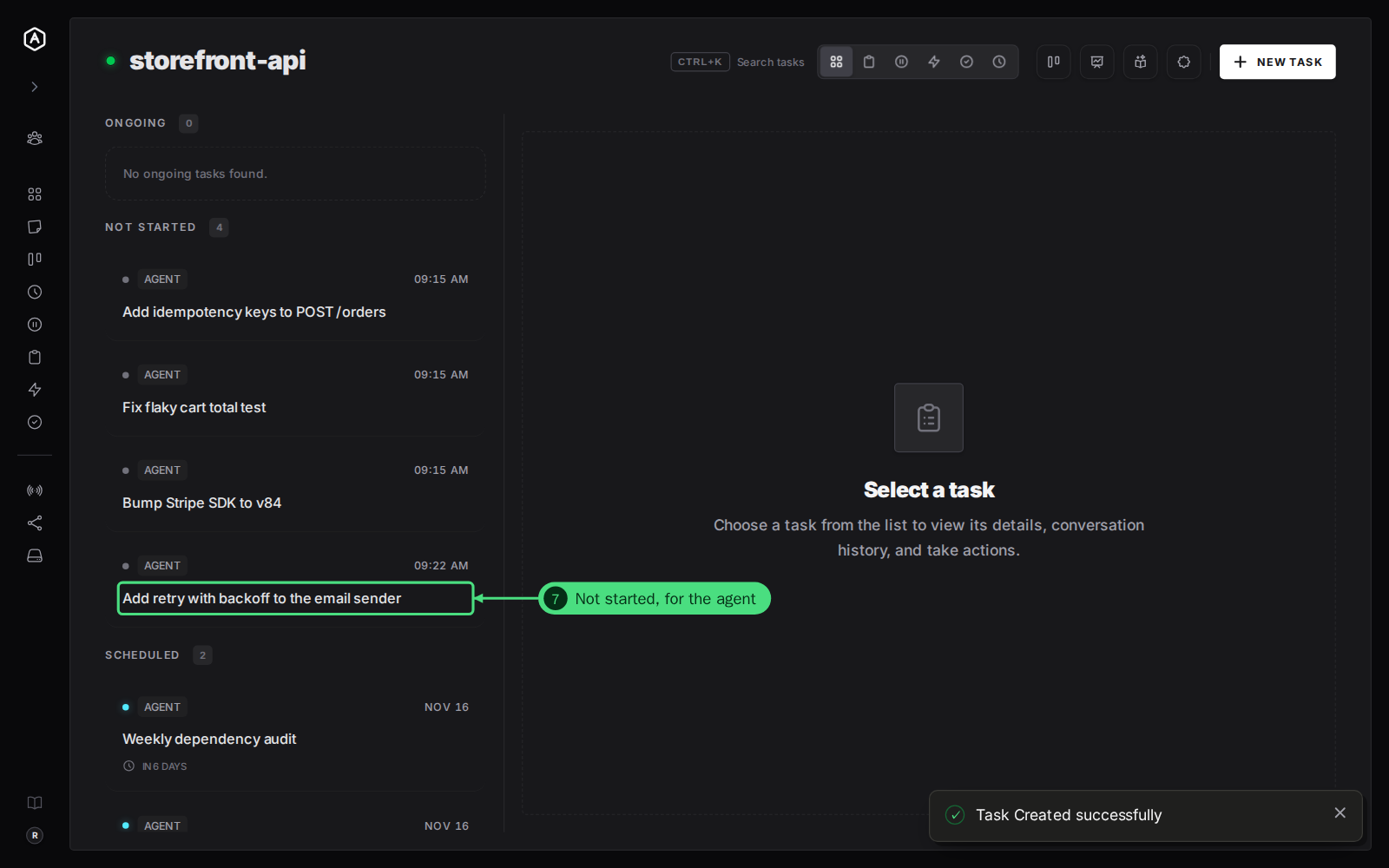
7. Find it under Not started. AgentRQ takes you back to the workspace and says "Task Created successfully". The task waits under Not started until the agent picks it up, then moves to Ongoing.
What Happens Next
The agent marks the task ongoing when it starts, replies in the task as it works, and asks you in the task when it needs a decision or an approval. Open the task to read its replies and answer. When the agent is done, the task moves to Completed. Every status has its own color: see what each workspace status color means.
FAQ
Can I change a task after I create it?
Yes, until the agent starts on it. Hover over the task in the list and click the pencil to edit it, or the bin to delete it. Once a task is ongoing, write to the agent in the task instead.
Can an agent create tasks too?
Yes. An agent can create tasks in its own workspace with its AgentRQ tools, and the supervisor can create them in any of your workspaces. They show up in the same lists, marked as created by the agent.
How big can an attachment be?
Up to 4 MB per request. Larger files are refused when you create the task. See attachments.
What does YOLO change for one task?
The agent skips approval prompts and runs every command in this task without asking you. Turn it on only for work you trust it to do alone. See YOLO mode.