Workspace Settings: Automations Tab Explained
The Automations tab decides how often the agent has to stop and ask you. It holds the list of tools the agent may run without asking, the switch that lets it run everything, and the switch that gives each task a clean context.
This page is one of our workspace guidelines. It was checked against AgentRQ on November 16, 2026, and every screenshot comes from the storefront-api workspace.
Before You Start
Open the workspace, click the gear button in the top right, then Automations in the settings menu. The General tab guide shows where the gear is.
Step by Step: The Auto-Allow List
1. Read the list. Each row is a tool the agent can run without asking you, and the badge in the corner counts them. A row shows the tool, such as Bash, and what it covers: one command, such as go test ./..., or all commands for a tool like Read that has no command.
2. Remove a tool with the bin on its row. From then on the agent asks again before using it.
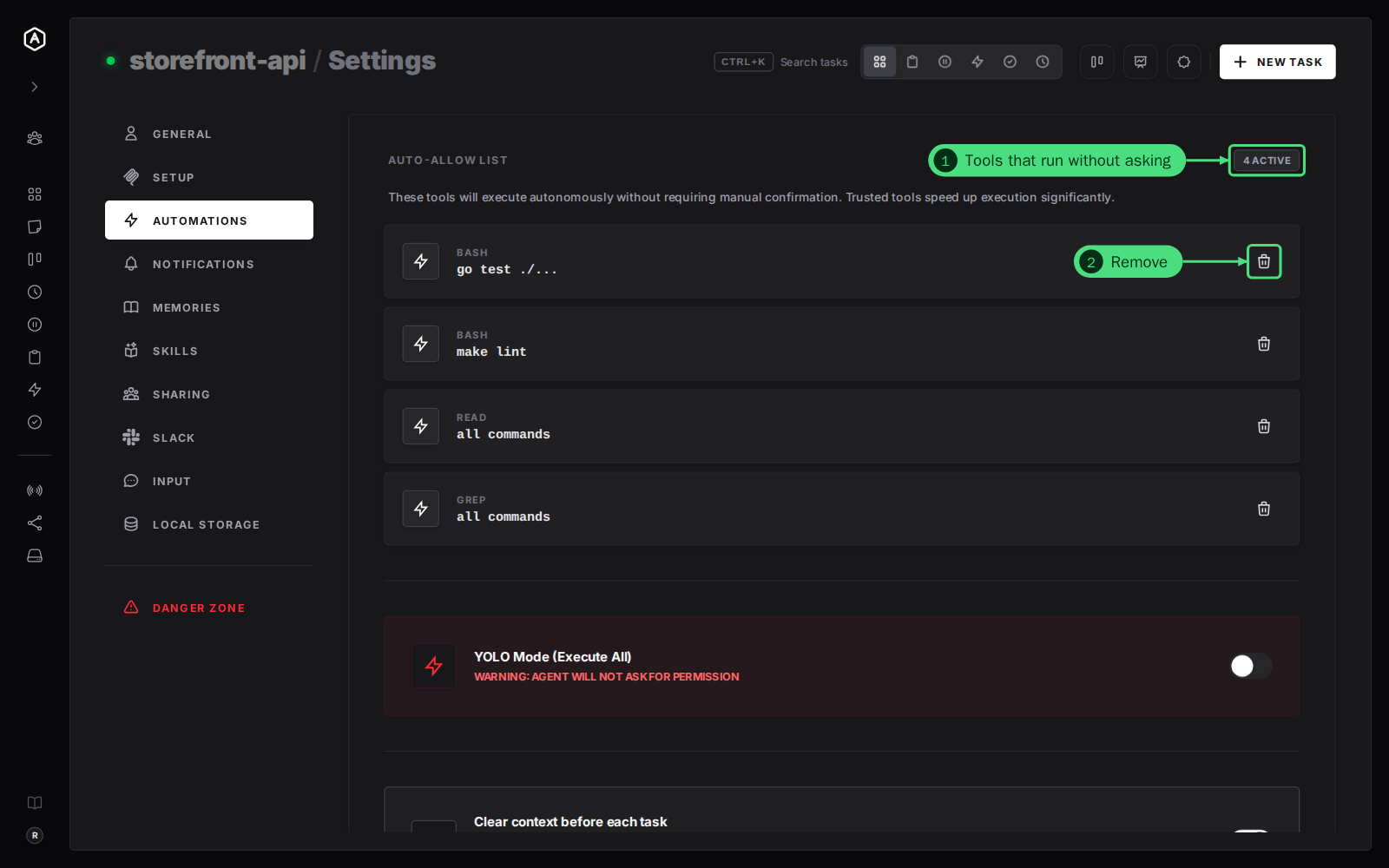
You do not add tools here. A tool lands on the list when you answer a permission request with Allow All during a task: the next time the agent wants the same tool, or the same command, it runs without asking.
Step by Step: YOLO Mode and Clear Context
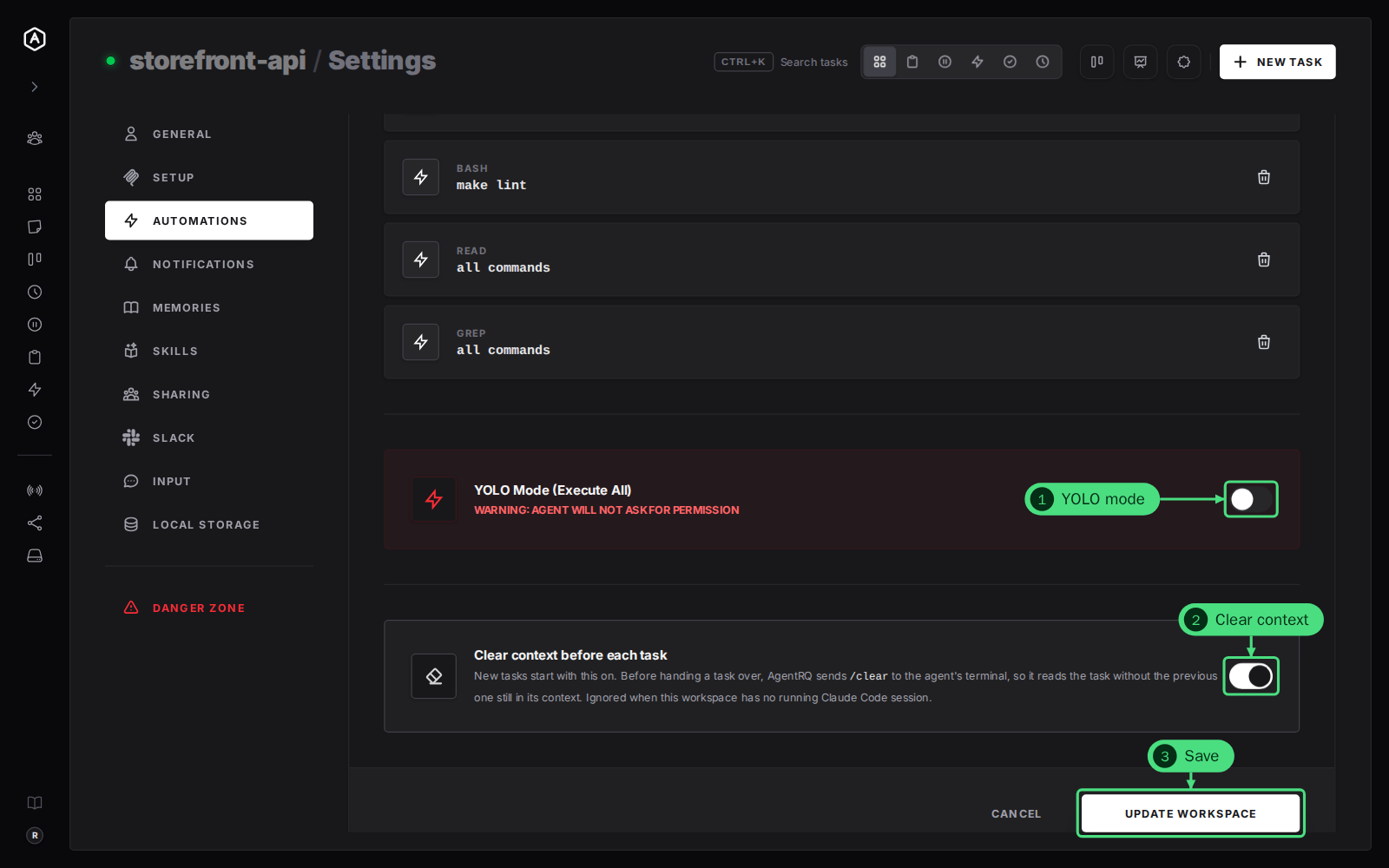
3. YOLO Mode (Execute All). Turn it on and the agent runs every tool without asking you, not just the ones on the list. Use it for a workspace you trust completely, such as a sandbox. See YOLO mode and the YOLO mode guidelines for each agent's own switch.
4. Clear context before each task. When it is on, AgentRQ types /clear into the agent's terminal before it hands over a task, so the agent reads the new task without the last one still in its context. It is the default for new tasks; you can still turn it off for a single task in the New Task form. It only acts where the workspace has a running Claude Code session. See clear context.
5. Click Update Workspace to save.
Good to Know
- → List changes reach the agent right away. When you save, AgentRQ updates the auto-allow list of the agent's open session, so you do not need to restart it.
- → A fork follows its parent. The tab is read-only in a fork; change it in the workspace it was forked from.
FAQ
What is the difference between the auto-allow list and YOLO mode?
The list is narrow: only the tools and commands you allowed, one by one. YOLO mode allows everything. With YOLO mode off, the list keeps the agent fast on the commands you run every day while it still asks about anything new.
How do I approve a request when I am away from the computer?
Every permission request also appears in the task in AgentRQ, so you can answer it from your phone. Turn on notifications or link Slack to hear about it.