
How to Enable YOLO Mode in Command Code
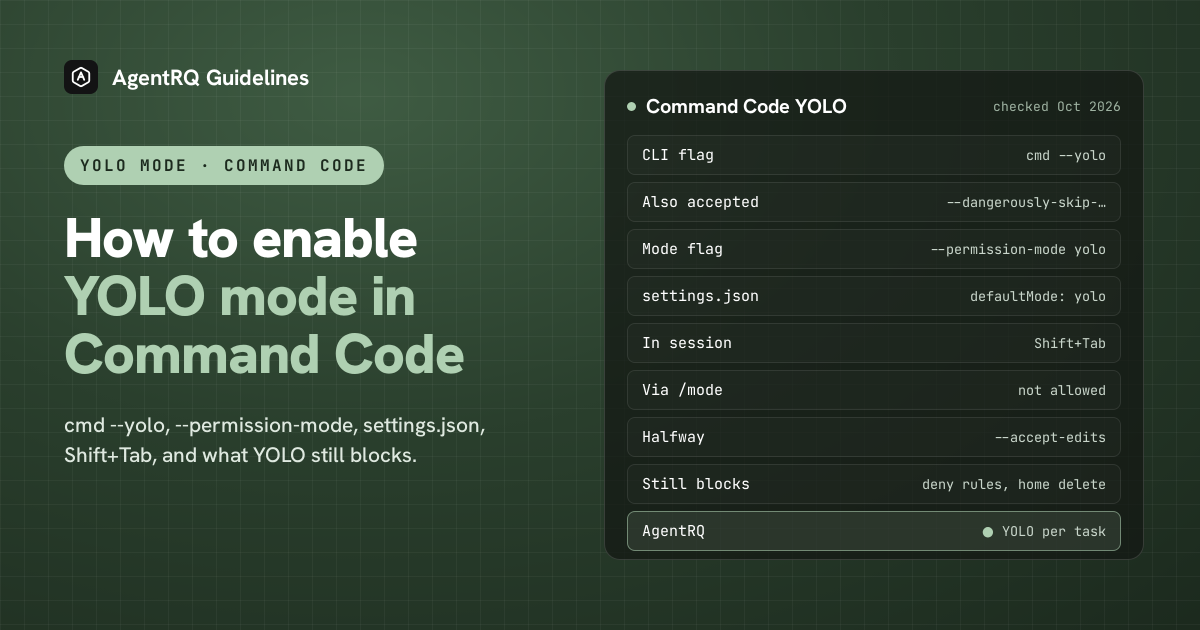
To run Command Code in YOLO mode, start it with cmd --yolo. --dangerously-skip-permissions is accepted too, and so is --permission-mode yolo. Command Code then stops asking before edits, shell commands and MCP tools, but a few of its guards keep working even in YOLO.
This page is one of our YOLO mode guides, and part of our guide to YOLO mode in every coding agent. Everything below was checked against Command Code's documentation at commandcode.ai on October 7, 2026.
What YOLO Mode Turns Off in Command Code
YOLO turns off permission prompts. Command Code has no sandbox, so nothing else changes.
Command Code checks every action against a list of rules in order, and YOLO is near the end of that list. So these still apply in YOLO mode:
- → your
denyrules and youraskrules - → the breaker that stops deletes of your root or home directory
- → asking before it reaches paths outside the workspace
How to Enable YOLO Mode in Command Code Natively
| Where | Full YOLO | Halfway |
|---|---|---|
| Command line | cmd --yolo |
cmd --accept-edits |
| Mode flag | --permission-mode yolo |
--permission-mode accept-edits |
| settings.json | "defaultMode": "yolo" |
"defaultMode": "accept-edits" |
| In a session | Shift+Tab | Shift+Tab |
| Rules | "allow": ["Shell(git status:*)"] |
The cmd --yolo Command
--dangerously-skip-permissions is accepted as another name for it. --permission-mode takes default, plan, accept-edits, yolo and dont-ask, plus bypass and auto-accept as aliases.
In headless runs with -p, Command Code blocks writes and shell commands unless you pass --yolo, so a one-shot run that should change files looks like cmd -p "fix the lint errors" --yolo.
Make YOLO the Default in settings.json
Command Code reads ~/.commandcode/settings.json for your user and .commandcode/settings.json or .commandcode/settings.local.json in a project:
To make YOLO impossible to enter, for yourself or a team, set "disableBypass": true under permissions.
Switch to YOLO Mode Inside a Session
Use Shift+Tab to cycle the modes. YOLO is deliberately not available through /mode, because the agent itself can run slash commands, and Command Code does not want it to be able to put itself in YOLO.
The Halfway Options in Command Code
- → accept-edits (also called
auto-accept) approves edits in the workspace and safe filesystem shell commands. Arbitrary shell commands, MCP tools and recursive deletes still ask. - → dont-ask is the opposite for CI: anything not on your allow list is refused instead of asked about.
- → Rules.
permissions.allow,permissions.askandpermissions.denytake patterns such asShell(git status:*).
How to Enable YOLO Mode in Command Code Through AgentRQ
Command Code's own YOLO switch covers a whole session. AgentRQ lets you make the decision per task, and answer from somewhere other than the terminal.
Approve From the AgentRQ Task Instead of the Terminal
Command Code runs as an ACP agent with cmd acp, so it connects to an AgentRQ workspace through the ACP Gateway:
Then start it without --yolo. The gateway also moves each new session out of any mode that would approve on its own and into one where Command Code asks a person. Each permission request now shows up in the AgentRQ task on the web, on your phone or in Slack, together with the command or edit it is asking about. Answer Allow Once, Always Allow or Deny from wherever you are, and Command Code carries on. If nobody answers within 30 minutes, the gateway cancels the turn instead of guessing. Change the limit with --permission-timeout.
Turn On YOLO for One Task
Flip the YOLO toggle on a task, or when you create it, to put just that task in YOLO mode. Every permission request in it is approved automatically and Command Code never waits, while every other task in the workspace still asks. Scheduled tasks, event triggers and workflow steps have the same switch, so an unattended job can run in YOLO while your interactive work stays supervised.
A Safe YOLO Setup for Command Code
- → Allow the boring tools, not everything. Always Allow adds the tool to the workspace's auto-approved list, so the routine calls stop asking and the risky ones still do. Prune that list in workspace settings now and then.
- → Leave the workspace-wide switch off. Workspace settings also has YOLO Mode (Execute All). Turn YOLO on per task instead, so it never outlives the job you trusted.
- → Bring your own sandbox. Command Code has none built in, so run YOLO tasks in a container or a throwaway clone, and keep
denyrules for the commands that should never run. - → Commit first. Start every YOLO task from a clean git tree, so any change is one
git resetaway. - → Read the record. The tool call history lists every call the task made, including the ones that were auto-approved.
FAQ
How do I enable YOLO mode in Command Code? Start it with cmd --yolo, or set "defaultMode": "yolo" under permissions in settings.json.
Does Command Code accept --dangerously-skip-permissions? Yes. It is another name for --yolo.
Can I switch Command Code to YOLO with a slash command? No. Use Shift+Tab. YOLO is kept out of /mode so the agent cannot switch it on itself.
What does Command Code YOLO mode still block? Deny and ask rules, deletes of your root or home directory, and paths outside the workspace.
How do I approve Command Code commands remotely? Run it as an ACP agent with cmd acp behind AgentRQ's ACP Gateway. Its permission requests show up in the task on the web, your phone or Slack.
For every other agent, see what YOLO mode is and how to turn it on in every coding agent.