
How to Enable YOLO Mode in GitHub Copilot
GitHub Copilot has YOLO mode in two places. In the Copilot CLI, start it with copilot --yolo, or type /yolo in a running session. In VS Code, pick Allow all in the chat's permission picker, or type /yolo in the chat. Both turn off approval prompts. Neither turns off a sandbox you have enabled.
This page is one of our YOLO mode guides, and part of our guide to YOLO mode in every coding agent. Everything below was checked on October 7, 2026 against GitHub's Copilot CLI reference at docs.github.com, the github/copilot-cli changelog (version 1.0.93), and VS Code's agent documentation in the microsoft/vscode-docs repository.
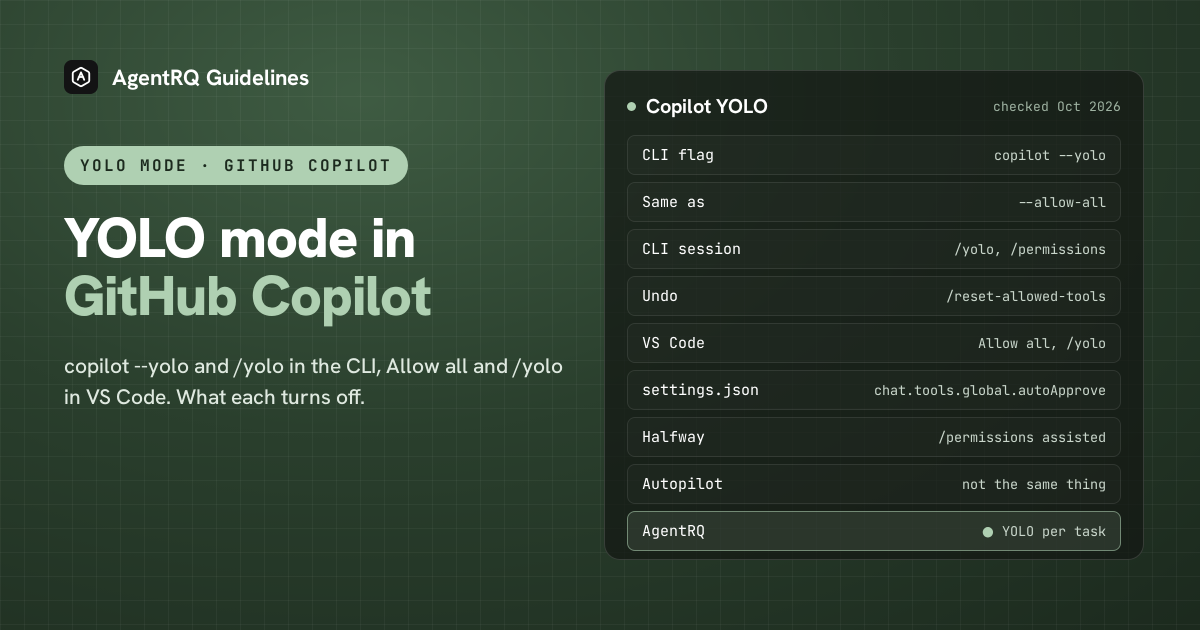
What YOLO Mode Turns Off in Copilot
In both the CLI and VS Code, Copilot's YOLO mode removes approval prompts: for running tools and commands, for touching files outside the allowed paths, and for fetching URLs.
- → Deny rules still win. In the CLI, a tool you blocked with
--deny-toolstays blocked even with--yolo. - → The sandbox is separate. VS Code's docs say so directly: Allow all and Autopilot skip approval prompts, "but an enabled sandbox still restricts terminal file system and network access". The Copilot CLI docs do not say either way, so we treat its sandbox as separate too. Both sandboxes are off unless you turn them on.
How to Enable YOLO Mode in the Copilot CLI
| Where | Full YOLO | Halfway |
|---|---|---|
| Command line | copilot --yolo or --allow-all |
--allow-tool 'shell(git:*)' |
| In a session | /yolo, /allow-all or /permissions allow-all |
/permissions assisted |
| Environment | COPILOT_ALLOW_ALL=true |
|
| Undo | /reset-allowed-tools or /permissions default |
The copilot --yolo Flag
--yolo and --allow-all are the same flag: "Enable all permissions (tools, paths, and URLs)". It is shorthand for three narrower ones, which you can also use on their own:
- →
--allow-all-toolsruns every tool without asking. GitHub's docs note it is required when you drive the CLI from a script. - →
--allow-all-pathsturns off the check on which file paths the agent may touch. - →
--allow-all-urlslets it fetch any URL.
Setting COPILOT_ALLOW_ALL=true in the environment does the same and also trusts the current directory.
Switch the Copilot CLI to YOLO Mode in a Session
/permissions is now the main command, with default, assisted, allow-all and show. /yolo and /allow-all are shortcuts for /permissions allow-all, and /yolo also takes off, auto and show. While it is on, the footer shows a YOLO indicator. /reset-allowed-tools takes it all back.
Shift+Tab does not toggle YOLO in the Copilot CLI. It cycles between the standard, plan and autopilot modes.
Copilot Autopilot Is Not YOLO
Autopilot (--autopilot, /autopilot, or Shift+Tab) lets Copilot keep working through a task without stopping to check in with you. It is about the agent continuing, not about permission to run tools. You can combine the two, and an unattended run usually needs both.
The Halfway Options in the Copilot CLI
- → Assisted permissions.
/permissions assistedlets a safety model approve routine requests and only asks you about the rest. - → Per-tool rules.
--allow-tooland--deny-tooltake patterns such asshell(git:*),shell(git push),write(src/*.ts),read(.env),url(github.com)orMyMCP(create_issue). A deny always wins. - → The sandbox.
/sandboxor--sandboxruns shell commands in a sandbox. GitHub's reference still marks it as experimental, while the changelog says it is available to everyone.
Administrators can turn all of this off with "disableBypassPermissionsMode": "disable" under permissions, or allow only the assisted mode with "allow-auto-only".
How to Enable YOLO Mode in VS Code
Copilot Chat in VS Code calls it Allow all.
| Where | Full YOLO | Halfway |
|---|---|---|
| Chat input | permission picker: Allow all | permission picker: Assisted |
| Chat command | /yolo or /autoApprove |
|
| settings.json | "chat.tools.global.autoApprove": true |
chat.tools.terminal.autoApprove rules |
| Undo | /disableYolo or /disableAutoApprove |
Allow All in the Chat Permission Picker
Open the permissions menu in the chat input and choose Allow all. The other levels are Manual, the default, and Assisted, where a model approves routine requests (Assisted needs chat.assistedPermissions.enabled). VS Code shows a warning the first time you pick Allow all.
VS Code YOLO Mode With a Chat Command
Type /yolo, or /autoApprove, in the chat to skip approvals for the current session. /disableYolo, or /disableAutoApprove, goes back to your default level.
Make It the Default in settings.json
This approves every tool in every workspace, so it is the setting to be most careful with. The experimental chat.permissions.default setting (default, autoApprove or autopilot) picks the level new chats start with. Organizations can block global auto-approve with the ChatToolsAutoApprove policy.
The Halfway Option in VS Code: Terminal Rules
Approve specific terminal commands instead of everything:
Keys are command prefixes or regular expressions. true approves the command automatically. false always asks, even if another rule would approve it. It does not block the command.
Keep the VS Code Sandbox On
Set chat.agent.sandbox.enabled to on, or use the Sandboxing for terminal toggle in the picker. It is in preview on macOS, Linux and WSL2 and experimental on Windows. With it on, Allow all still runs terminal commands inside limited file and network access. Older posts mention chat.tools.terminal.sandbox.enabled. That key is no longer in VS Code's docs.
How to Enable YOLO Mode in Copilot CLI Through AgentRQ
Copilot CLI's own YOLO switch covers a whole session. AgentRQ lets you make the decision per task, and answer from somewhere other than the terminal.
Approve From the AgentRQ Task Instead of the Terminal
Connect the Copilot CLI to an AgentRQ workspace through the ACP Gateway (Copilot setup guide):
This covers the Copilot CLI. Copilot Chat inside VS Code keeps its own approval picker.
Then start it without --yolo. The gateway also moves each new session out of any mode that would approve on its own and into one where Copilot asks a person. Each permission request now shows up in the AgentRQ task on the web, on your phone or in Slack, together with the command or edit it is asking about. Answer Allow Once, Always Allow or Deny from wherever you are, and Copilot CLI carries on. If nobody answers within 30 minutes, the gateway cancels the turn instead of guessing. Change the limit with --permission-timeout.
Turn On YOLO for One Task
Flip the YOLO toggle on a task, or when you create it, to put just that task in YOLO mode. Every permission request in it is approved automatically and Copilot CLI never waits, while every other task in the workspace still asks. Scheduled tasks, event triggers and workflow steps have the same switch, so an unattended job can run in YOLO while your interactive work stays supervised.
A Safe YOLO Setup for Copilot CLI
- → Allow the boring tools, not everything. Always Allow adds the tool to the workspace's auto-approved list, so the routine calls stop asking and the risky ones still do. Prune that list in workspace settings now and then.
- → Leave the workspace-wide switch off. Workspace settings also has YOLO Mode (Execute All). Turn YOLO on per task instead, so it never outlives the job you trusted.
- → Turn on command sandboxing. Run
/sandboxin the Copilot CLI, or setchat.agent.sandbox.enabledin VS Code, so an approved command still has limited file and network access. - → Commit first. Start every YOLO task from a clean git tree, so any change is one
git resetaway. - → Read the record. The tool call history lists every call the task made, including the ones that were auto-approved.
FAQ
What is copilot --yolo? It is the Copilot CLI flag that enables all permissions: every tool, every path and every URL, without asking. It is the same as --allow-all.
How do I turn on Copilot YOLO mode in a session? Type /yolo (or /allow-all) in the Copilot CLI. Undo it with /reset-allowed-tools.
What is VS Code YOLO mode? Allow all in the chat permission picker, or the /yolo chat command. Copilot then runs tools and terminal commands without asking.
How do I enable YOLO mode in VS Code permanently? Set "chat.tools.global.autoApprove": true in your user settings.
Does Copilot YOLO mode turn off the sandbox? In VS Code, no: an enabled sandbox still limits terminal commands. The CLI docs do not say, so keep /sandbox on if you rely on it and check what it reports.
Is Copilot Autopilot the same as YOLO? No. Autopilot keeps the agent working without checking in. YOLO approves its tool calls. They are separate switches.
How do I approve Copilot CLI commands remotely? Connect the Copilot CLI to AgentRQ through the ACP Gateway. Its permission requests show up in the task on the web, your phone or Slack.
For every other agent, see what YOLO mode is and how to turn it on in every coding agent.