
How to Enable YOLO Mode in Kimi CLI
To run Moonshot's Kimi CLI in YOLO mode, start it with kimi --yolo, or type /yolo in a running session. Kimi also has a stricter cousin, AFK mode, and the difference matters if you plan to walk away.
This page is one of our YOLO mode guides, and part of our guide to YOLO mode in every coding agent. Everything below was checked against the Kimi CLI source and docs (MoonshotAI/kimi-cli, version 1.52.0) on October 7, 2026.
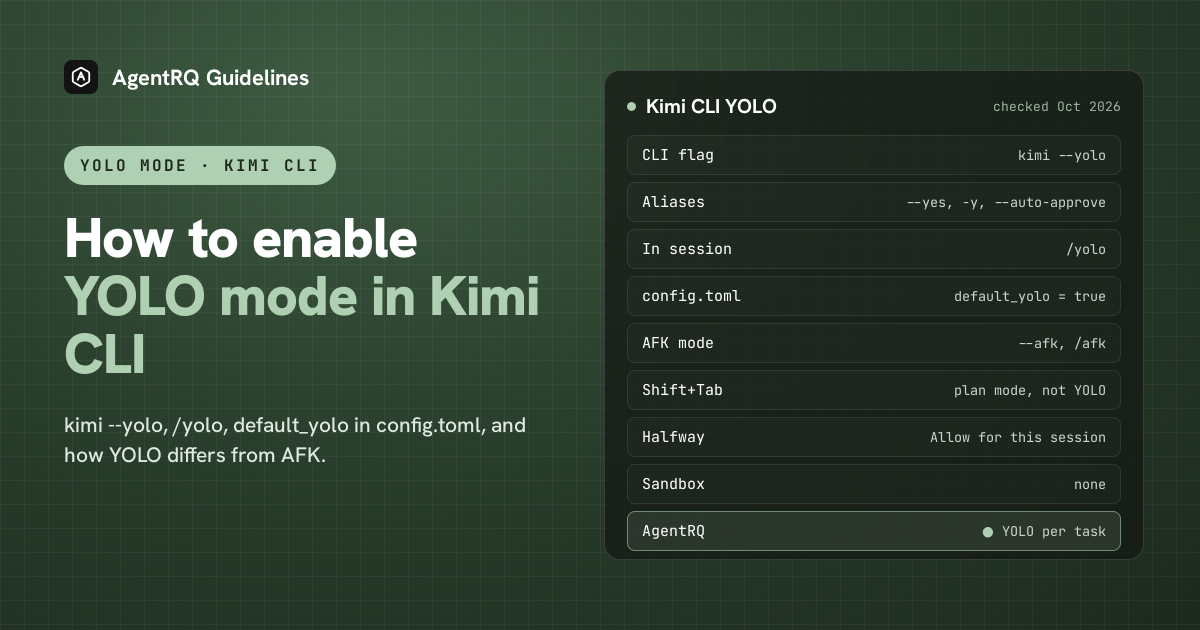
What YOLO Mode Turns Off in Kimi CLI
YOLO approves every tool call without asking. Kimi CLI has no sandbox, so nothing else changes. One prompt survives: leaving plan mode still asks you, even though entering it does not.
How to Enable YOLO Mode in Kimi CLI
| Where | YOLO | AFK |
|---|---|---|
| Command line | kimi --yolo (or --yes, -y, --auto-approve) |
kimi --afk |
| In a session | /yolo |
/afk |
| config.toml | default_yolo = true |
--yes, -y and --auto-approve are all the same flag. Inside a session, /yolo turns YOLO on and off, and a yellow YOLO badge shows while it is on. To make it the default, add this to ~/.kimi/config.toml:
Shift+Tab does not toggle YOLO in Kimi CLI. It switches plan mode.
YOLO vs AFK in Kimi CLI
YOLO approves tool calls but keeps you in the loop: if Kimi has a question, it still asks you and waits. AFK mode (--afk, or /afk) approves tool calls and also dismisses those questions automatically, so the run never stops. --print, Kimi's non-interactive mode, now implies AFK rather than YOLO.
The Halfway Option
Kimi CLI has no per-tool allow rules. The middle ground is the Allow for this session answer at a prompt, which approves similar operations for the rest of that session.
How to Enable YOLO Mode in Kimi CLI Through AgentRQ
Kimi CLI's own YOLO switch covers a whole session. AgentRQ lets you make the decision per task, and answer from somewhere other than the terminal.
Approve From the AgentRQ Task Instead of the Terminal
Connect Kimi CLI to an AgentRQ workspace through the ACP Gateway (Kimi CLI setup guide):
Then start it without --yolo. Leave default_yolo off in ~/.kimi/config.toml, or Kimi approves everything before AgentRQ sees it. Each permission request now shows up in the AgentRQ task on the web, on your phone or in Slack, together with the command or edit it is asking about. Answer Allow Once, Always Allow or Deny from wherever you are, and Kimi CLI carries on. If nobody answers within 30 minutes, the gateway cancels the turn instead of guessing. Change the limit with --permission-timeout.
Turn On YOLO for One Task
Flip the YOLO toggle on a task, or when you create it, to put just that task in YOLO mode. Every permission request in it is approved automatically and Kimi CLI never waits, while every other task in the workspace still asks. Scheduled tasks, event triggers and workflow steps have the same switch, so an unattended job can run in YOLO while your interactive work stays supervised.
A Safe YOLO Setup for Kimi CLI
- → Allow the boring tools, not everything. Always Allow adds the tool to the workspace's auto-approved list, so the routine calls stop asking and the risky ones still do. Prune that list in workspace settings now and then.
- → Leave the workspace-wide switch off. Workspace settings also has YOLO Mode (Execute All). Turn YOLO on per task instead, so it never outlives the job you trusted.
- → Bring your own sandbox. Kimi CLI has none, so run YOLO tasks in a container or a throwaway clone.
- → Commit first. Start every YOLO task from a clean git tree, so any change is one
git resetaway. - → Read the record. The tool call history lists every call the task made, including the ones that were auto-approved.
FAQ
How do I enable YOLO mode in Kimi CLI? Start it with kimi --yolo, or type /yolo in a running session.
How do I make YOLO the default in Kimi CLI? Add default_yolo = true to ~/.kimi/config.toml.
What is the difference between YOLO and AFK in Kimi CLI? YOLO approves tool calls but still asks you questions. AFK approves tool calls and dismisses questions too.
Does Kimi CLI have a sandbox? No. Run YOLO sessions in a container or a throwaway clone.
How do I approve Kimi CLI commands remotely? Connect Kimi CLI to AgentRQ through the ACP Gateway. Its permission requests show up in the task on the web, your phone or Slack.
For every other agent, see what YOLO mode is and how to turn it on in every coding agent.