
How to Enable YOLO Mode in OpenCode
To run OpenCode in YOLO mode, start it with opencode --auto, or set "permission": "allow" in opencode.json. opencode --yolo works too: it is a hidden alias of --auto. Either way OpenCode stops asking before it edits files or runs shell commands, except for anything you have explicitly denied.
This page is one of our YOLO mode guides, and part of our guide to YOLO mode in every coding agent. Every flag below was checked against the OpenCode source (sst/opencode, commit 3865c69, package version 1.18.35) and the docs at opencode.ai on October 7, 2026.
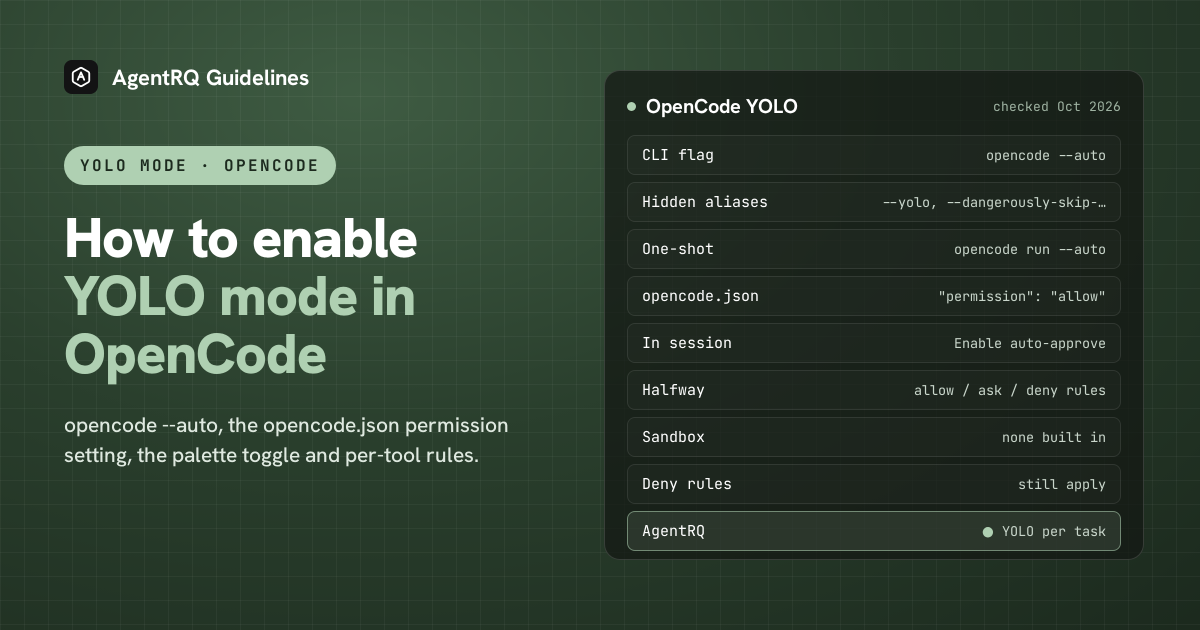
What YOLO Mode Turns Off in OpenCode
OpenCode has one safety layer: its permission rules. Each tool, such as bash, edit or webfetch, is set to allow, ask or deny, and YOLO mode turns every ask into allow.
There is no sandbox to turn off. OpenCode has no built-in operating-system sandbox, so with or without YOLO, a command it runs has the same access you do. Sandboxing only comes from outside: a container, a VM, or a third-party plugin.
It is also worth knowing that OpenCode is permissive out of the box. Most tools default to allow already. The defaults that ask are leaving the project directory (external_directory) and the loop guard (doom_loop), and reading .env files is denied. So for many people, OpenCode in its default setup is closer to YOLO than they expect.
How to Enable YOLO Mode in OpenCode Natively
| Where | Full YOLO | Halfway |
|---|---|---|
| Command line | opencode --auto |
|
| One-shot run | opencode run --auto "..." |
|
| opencode.json | "permission": "allow" |
per-tool allow, ask, deny |
| In a session | palette: Enable auto-approve permissions |
The opencode --yolo Flag
The help text describes --auto as "auto-approve permissions that are not explicitly denied (dangerous!)". --yolo and --dangerously-skip-permissions are accepted as hidden aliases, so opencode --yolo does the same thing even though it is not in --help. A rule you have set to deny still blocks.
The same flag works for one-shot runs:
This matters more than it looks. Without --auto, opencode run has nobody to ask, so it rejects every request that would have prompted, and prints "permission requested: ...; auto-rejecting".
Make YOLO the Default in opencode.json
OpenCode reads opencode.json in your project and ~/.config/opencode/opencode.json for your user. The shortest YOLO config is one line:
You can also set it per agent, for example only for the build agent:
The OPENCODE_PERMISSION environment variable takes inline JSON and merges it into the permission setting, which is handy for CI.
Switch OpenCode to YOLO Mode Inside a Session
There is no slash command and no default shortcut for it. Open the command palette and choose Enable auto-approve permissions. A small auto indicator appears next to the agent name. Disable auto-approve permissions turns it off again.
The Halfway Option: Per-Tool Rules
The useful middle ground in OpenCode is to allow the tools you trust and keep asking about the shell:
Each tool takes allow, ask or deny. For bash, patterns match the command, and the last matching rule wins, so put the catch-all "*" first. The keys are read, edit, glob, grep, bash, task, skill, lsp, question, webfetch, websearch, external_directory and doom_loop.
How to Enable YOLO Mode in OpenCode Through AgentRQ
OpenCode's own YOLO switch covers a whole session. AgentRQ lets you make the decision per task, and answer from somewhere other than the terminal.
Approve From the AgentRQ Task Instead of the Terminal
Connect OpenCode to an AgentRQ workspace through the ACP Gateway (OpenCode setup guide):
Then start it without --auto or "permission": "allow". Set the tools you want a say in to ask in opencode.json, at least bash. Many OpenCode tools default to allow and never send a request at all. Each permission request now shows up in the AgentRQ task on the web, on your phone or in Slack, together with the command or edit it is asking about. Answer Allow Once, Always Allow or Deny from wherever you are, and OpenCode carries on. If nobody answers within 30 minutes, the gateway cancels the turn instead of guessing. Change the limit with --permission-timeout.
Turn On YOLO for One Task
Flip the YOLO toggle on a task, or when you create it, to put just that task in YOLO mode. Every permission request in it is approved automatically and OpenCode never waits, while every other task in the workspace still asks. Scheduled tasks, event triggers and workflow steps have the same switch, so an unattended job can run in YOLO while your interactive work stays supervised.
A Safe YOLO Setup for OpenCode
- → Allow the boring tools, not everything. Always Allow adds the tool to the workspace's auto-approved list, so the routine calls stop asking and the risky ones still do. Prune that list in workspace settings now and then.
- → Leave the workspace-wide switch off. Workspace settings also has YOLO Mode (Execute All). Turn YOLO on per task instead, so it never outlives the job you trusted.
- → Bring your own sandbox. OpenCode has none built in, so run YOLO tasks in a container, a dev VM or a throwaway clone, and keep
denyrules for the commands that should never run. - → Commit first. Start every YOLO task from a clean git tree, so any change is one
git resetaway. - → Read the record. The tool call history lists every call the task made, including the ones that were auto-approved.
FAQ
What is opencode --yolo? A hidden alias of opencode --auto. It approves every permission request that is not explicitly denied.
How do I run OpenCode in YOLO mode? Start it with opencode --auto, or set "permission": "allow" in opencode.json to make it the default.
What is open code YOLO mode? It is OpenCode running with every permission set to allow, so it edits files and runs commands without asking. OpenCode has no sandbox, so nothing else is turned off.
How do I turn on YOLO mode in OpenCode without restarting? Open the command palette and choose Enable auto-approve permissions.
How do I use YOLO mode with opencode run? Add the flag: opencode run --auto "your task". Without it, opencode run rejects anything that would have needed approval.
Does OpenCode have a sandbox? No. OpenCode has no built-in sandbox, so run YOLO sessions in a container or VM.
How do I approve OpenCode commands remotely? Connect OpenCode to AgentRQ through the ACP Gateway and set bash to ask. Its requests then show up in the task on the web, your phone or Slack.
For every other agent, see what YOLO mode is and how to turn it on in every coding agent.